
Zoom Guide: Host, Join & Run Meetings (2026)
April 25, 2024
April 25, 2024
May 29, 2026
May 29, 2026

If you use Zoom for work, you already know the basics. But Zoom Workplace 7.0, released in spring 2026, brought a redesigned interface that moved menus, updated the toolbar, and added new AI tools. If something looks different on your screen, that's why.
This guide covers how to join, host, and run Zoom meetings in 2026, from setup and security to transcript capture and follow-up.
Here's what you'll find inside:
- How to join, schedule, and set up a Zoom meeting
- How to use in-meeting controls, screen sharing, and collaboration tools
- Security best practices, pro tips, and AI-powered note-taking
How to Join a Zoom Meeting
There are a few ways to join a Zoom meeting, depending on what device you're using and whether you have the Zoom app installed.
Join via the Zoom desktop app

Open the Zoom desktop app. From the Home screen, click Join. Enter the meeting ID and your name, then click Join Meeting. If the host has set a password, you'll be prompted to enter it before you get in.
Join via a meeting link
Click the join link from your email or calendar invite. Zoom will prompt you to open the desktop app. If you don't have it installed, you'll see the option to download it or join from your browser instead.
Join from your browser (no app needed)
You don't need to install anything to join a Zoom meeting. Visit join.zoom.us, enter the meeting ID, and click Join. When the page loads, look for the Join from your Browser link below the download prompt. Note that the host may need to enable this option in their account settings first.
Join via the Zoom mobile app
Open the Zoom mobile app and tap Join a Meeting. Enter the meeting ID and tap Join Meeting. If prompted, enter the meeting password provided by the host.
What to expect when you join
Once you click join, Zoom will ask how you want to connect your audio. Select Join with Computer Audio to use your device's microphone and speakers. You may also be placed in a waiting room before the meeting host admits you.
💡 Pro tip: If you join Zoom via Chrome, Tactiq captures a real-time transcript so you can stay focused on the conversation and build your notes after; no bot, no desktop app needed.
How to Set Up a Zoom Meeting
You have two ways to create a Zoom meeting: start one instantly or schedule it in advance. For most work purposes, scheduling in advance gives attendees time to prepare and adds the meeting to everyone's calendars.
How to start an instant meeting
From the Home screen in the Zoom Workplace desktop app, click New Meeting. Zoom opens a meeting room immediately, and you can invite participants from there. You can also click the + icon in the app header and select New Meeting from any screen.
Need a quick refresher on instant meetings? Here's everything you need to know about Zoom instant meetings.
How to schedule a meeting in the desktop app

- From the Home screen, click Schedule.
- Add a meeting name, date, time, and duration.
- Set your time zone, especially if attendees are in different locations.
- Enable a passcode or waiting room under Meeting Security.
- Choose your calendar (Google Calendar, Outlook, or other) to send the invite automatically.
- Click Save.
Zoom will generate a meeting ID and join link you can share with attendees. For a full walkthrough of the setup process, see our guide on how to set up a Zoom meeting.
How to schedule via the Zoom web portal
The Zoom web portal gives you the most complete set of scheduling options. Sign in at zoom.us, click Meetings in the left navigation, then select Schedule a Meeting. Fill in the meeting details, configure your security settings, and click Save.
How to add a Zoom meeting to Outlook
If your team uses Outlook, you can add Zoom directly to your calendar events. Follow these steps to add a Zoom meeting to Outlook so scheduling stays in one place.
How to invite participants
Once the meeting is saved, copy the join link or meeting ID from the confirmation screen. Share it via email, Slack, or add it to a calendar invite. Attendees don't need a Zoom account to join; they just need the link.
Zoom Settings and Controls
Once you're in a Zoom meeting, all the controls you need are in the bottom toolbar. The Zoom Workplace 7.0 redesign cleaned up this toolbar so only essential features show by default. If you need something that isn't visible, open the More menu and pin any tool to your toolbar by right-clicking it or dragging it into place.
Audio and video controls
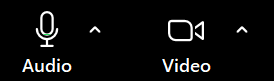
The Mute/Unmute and Stop/Start Video buttons sit on the left side of the toolbar. Click the caret (^) next to either button to access audio and video settings, switch your microphone or camera, or add a virtual background. All virtual background, filter, and audio options are now grouped in a single settings panel on the right side of the meeting window.
Managing participants
Click Participants in the toolbar to open the participant panel. As the meeting host, you can mute or unmute meeting participants, remove someone from the call, or put participants in the waiting room from here. The host tools panel on the right side of the meeting screen consolidates all host controls in one place.
In-meeting settings

Click Settings to open the right-hand settings panel. This is where you'll find meeting settings for video effects, audio, recording, and more, all in one place rather than scattered across menus.
Zoom Hub
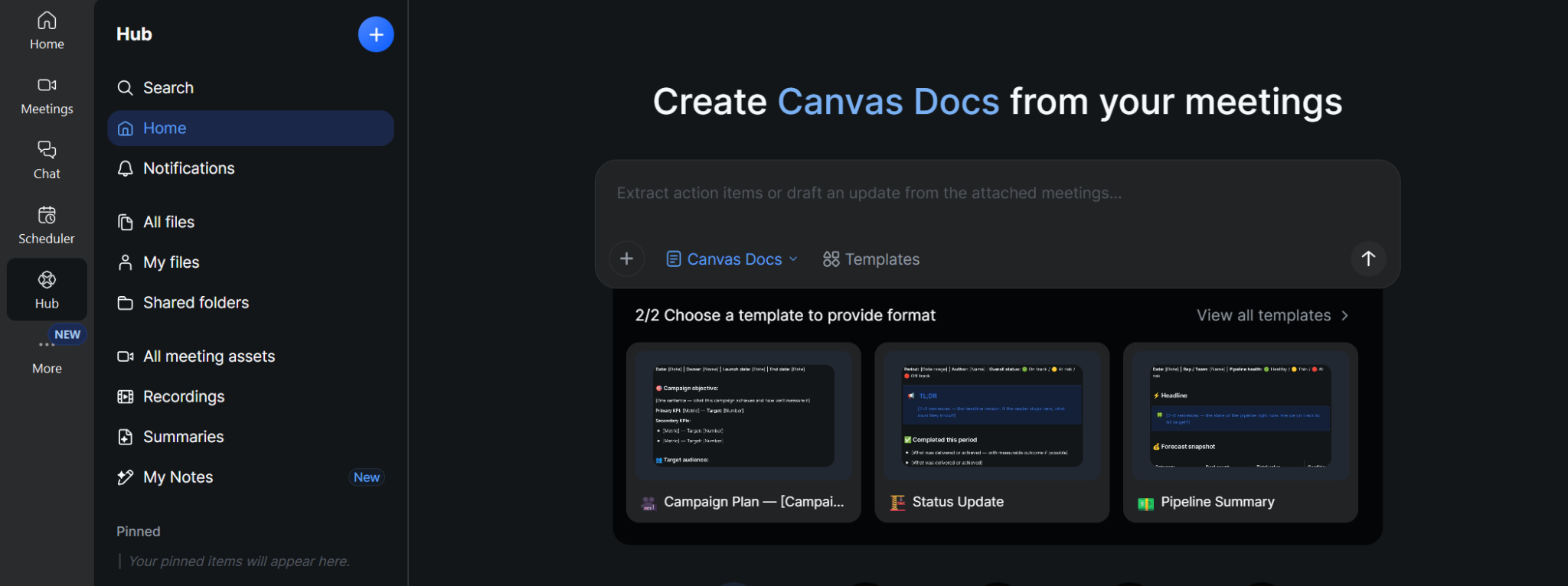
Zoom Hub is the central content management home in Zoom Workplace. It serves as the center for all your files, notes, and other content across your Zoom workspace.
Zoom Rooms and voice commands
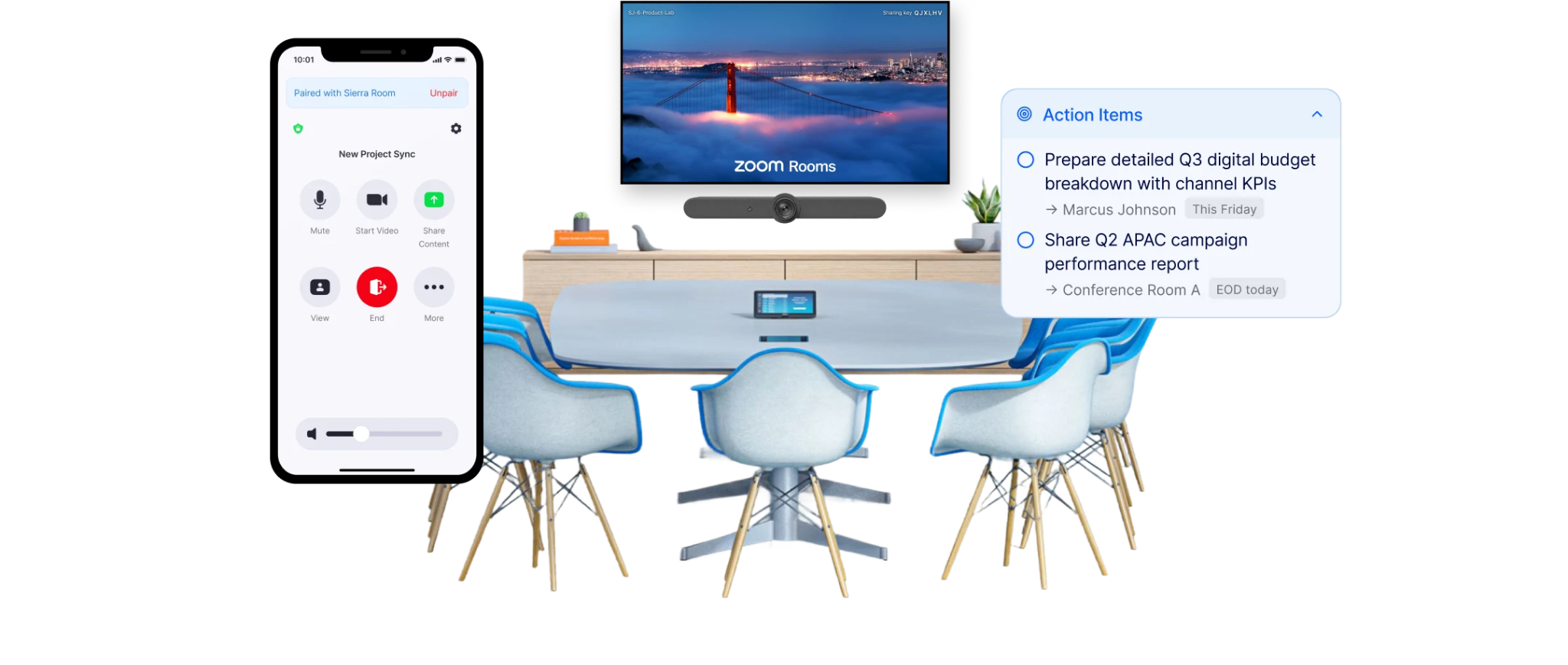
If your team uses Zoom Rooms, the in-room experience now supports expanded "Hey Zoomie" voice commands. Zoom Rooms users can control audio volume, manage the camera, and toggle captions hands-free. No need to touch the controller.
Recording the meeting
To record, click Record in the toolbar and choose to save locally to your device or to the Zoom cloud. As the host, you can stop recording at any time by clicking Stop Recording in the toolbar. Cloud recordings are saved to your Zoom account and accessible from the web portal.
Screen Sharing and Collaboration Tools
Zoom gives you several ways to share content and collaborate during a meeting, from basic screen sharing to real-time document editing.
How to share your screen
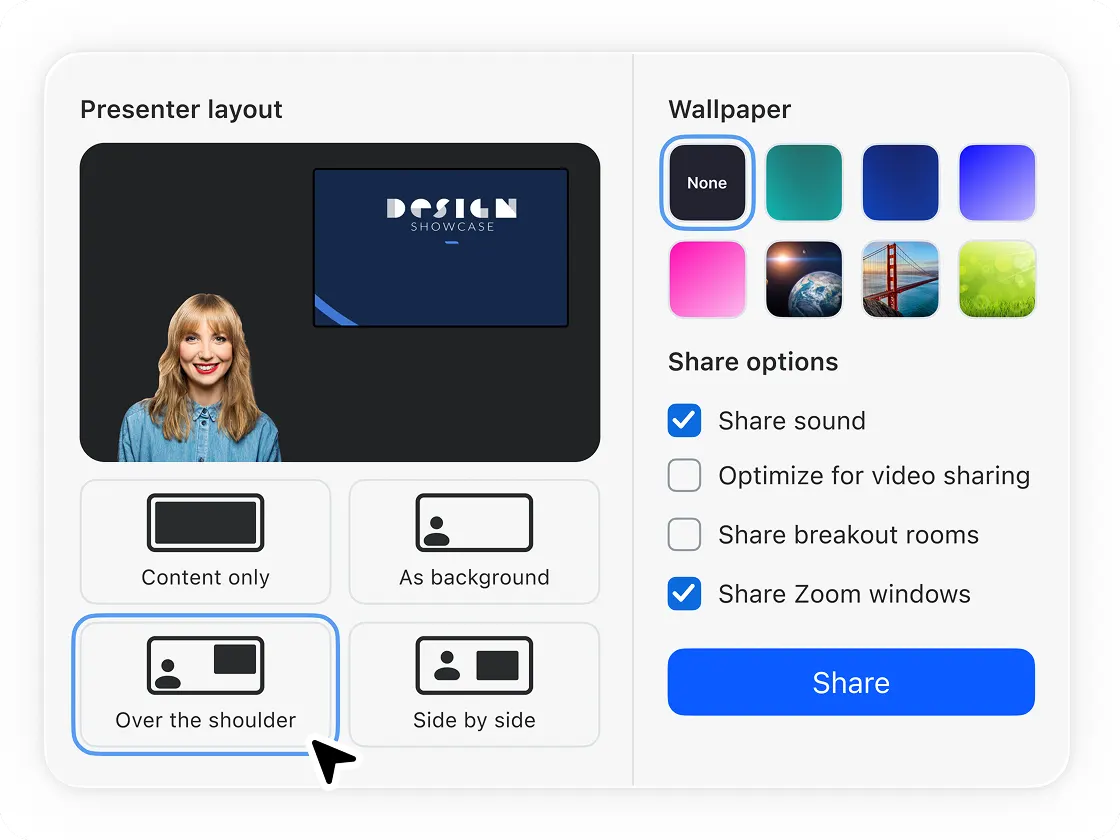
Click Share Screen in the bottom toolbar. You'll see a window with the following options: your full screen, a specific application window, a portion of your screen, or a browser tab. Select what you want to share and click Share. To stop sharing, click Stop Share in the toolbar at the top of the meeting screen.
If you don't see the Share Screen button by default, check the More menu. For a full walkthrough, see our guide on how to share your screen on Zoom.
What you can share
Beyond your screen, Zoom lets you share computer audio, a locally saved video, or content from a secondary camera. You can also connect Google Drive or Microsoft OneDrive to share and co-edit files directly inside the meeting window without switching apps. Need to share sound on Zoom? That option lives in the Share Screen menu too.
Whiteboard

Click Whiteboard in the share menu to open a collaborative canvas where meeting participants can draw, annotate, and brainstorm together in real time. The whiteboard saves automatically to your Zoom account. Learn more in our guide to using Zoom Whiteboard for collaboration.
Zoom Docs
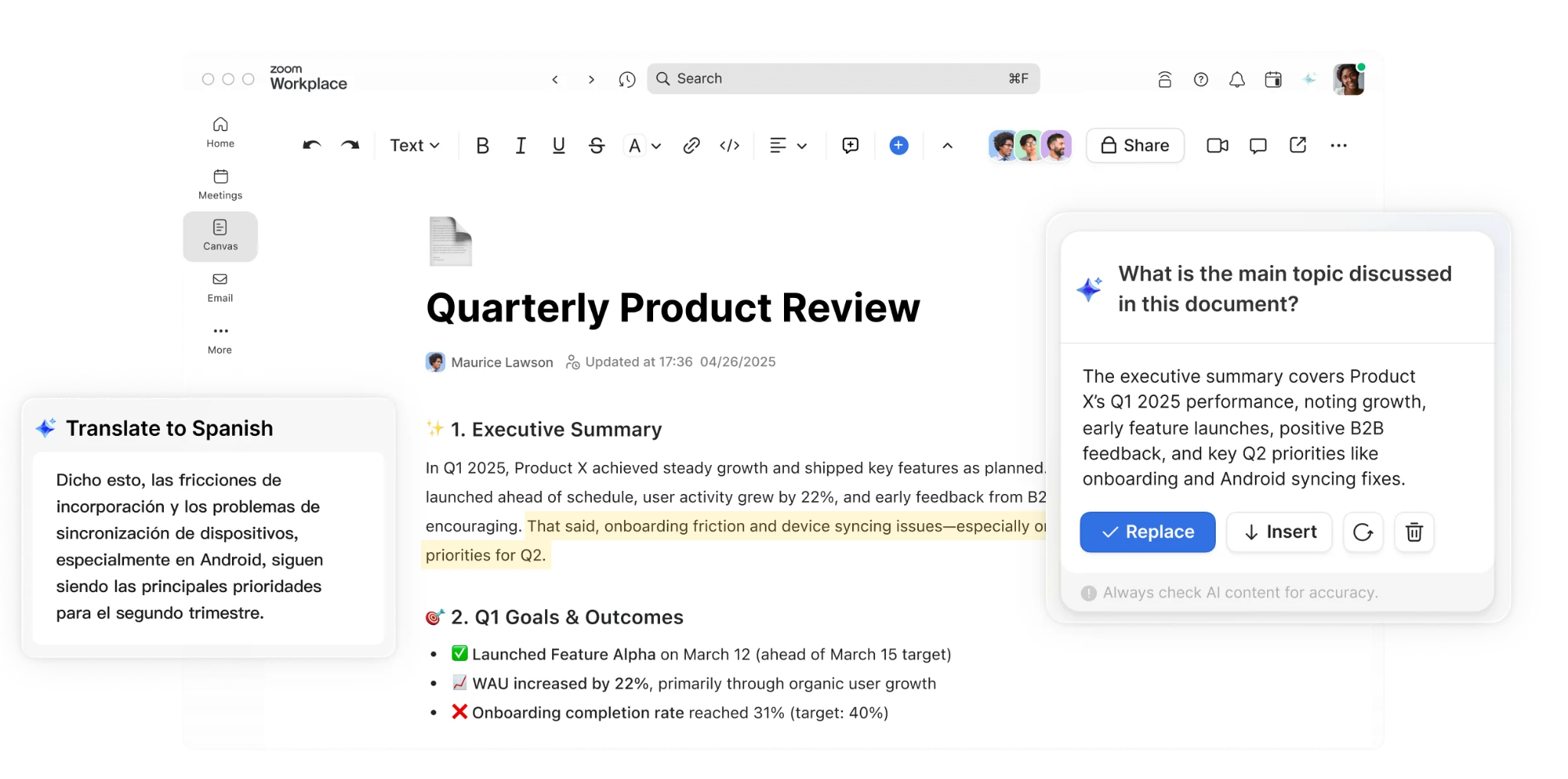
Zoom Docs is Zoom's AI-powered document collaboration tool, built directly into Zoom Workplace. You can create, share, and co-edit documents with other attendees during a live meeting. AI Companion can automatically pull content from your meeting transcript into a doc, turning the discussion into a working document without manual copy-pasting. Zoom Docs is included with paid Zoom Workplace plans.
Breakout rooms
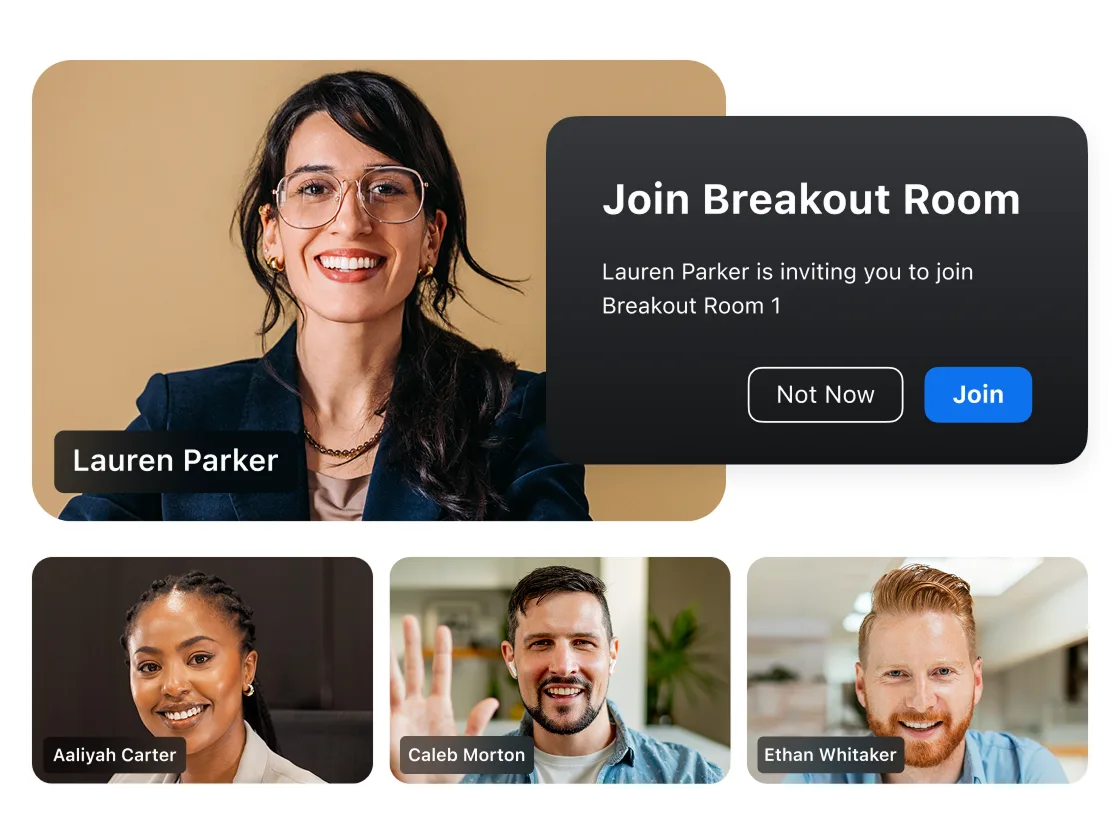
Hosts can split meeting participants into smaller groups using breakout rooms. Click Breakout Rooms in the toolbar or the More menu to create and assign rooms. You can set a timer, broadcast a message to all rooms, or end them and bring everyone back at any time. See our full guide on how to use breakout rooms in Zoom.
Want to make your Zoom meetings more engaging for participants? Check out our guide on how to make a Zoom meeting interactive.
Zoom Security Best Practices
Running a secure Zoom meeting takes a few deliberate steps, but none of them are complicated. Here's what to enable before and during your meetings.
Use a passcode and a waiting room

Set a meeting passcode when scheduling so only invited attendees can join. Enable the waiting room to hold participants until you're ready to admit them. Both options are available under Security in the scheduling settings. As the meeting host, you control who gets in and when.
Lock the meeting once everyone has joined
Once all your attendees are present, open Host Tools and select Lock Meeting. This prevents anyone else from joining, even with the meeting ID and passcode, and is one of the most effective ways to prevent Zoom bombing.
Restrict joining to authenticated users
For sensitive meetings, go to Settings > Security in the Zoom web portal and enable the option to require authentication before joining. This means only users signed in to a verified Zoom account can enter, which significantly reduces the risk of uninvited guests.
Use unique meeting IDs, not your PMI
Your Personal Meeting ID (PMI) is a permanent meeting link tied to your Zoom account. Anyone who has attended one of your meetings before could rejoin using that same link. For sensitive or confidential meetings, always generate a unique meeting ID rather than using your PMI.
Enable end-to-end encryption
End-to-end encryption is available on all Zoom plans. To turn it on, go to Account Management > Account Settings > Security in the Zoom web portal and enable End-to-end encryption. Note that enabling it limits some features, such as cloud recording and phone dial-in, so it's best reserved for your most sensitive calls.
Disable participant screen sharing by default

By default, any participant can share their screen. To prevent this, click the caret (^) next to Share Screen in the toolbar > Host tools for share > set sharing permissions to Host Only. You can re-enable screen sharing for specific participants at any time during the meeting.
Avoid Zoom bombing
Zoom bombing happens when uninvited participants disrupt a meeting. The best protection is a combination of the steps above: use a passcode, enable the waiting room, lock the meeting once it starts, and restrict access to authenticated users. Never post your meeting ID publicly on social media or open forums.
Tips for a Perfect Zoom Meeting
A few small habits make a big difference in how your Zoom meetings run.
- Test your setup beforehand. Use Zoom's test meeting feature at zoom.us/test to check your camera, microphone, and speakers before joining.
- Set a clear agenda. Share it with attendees in advance so the conversation stays focused and on time.
- Use a virtual background or update your profile picture. Go to Settings > Background & Effects to blur your background or choose an image. A professional Zoom profile picture also helps when your camera is off.
- Mute when you're not speaking. Encourage all participants to do the same to keep background noise out of the call.
What happens after the call matters just as much as the meeting itself. That's where Tactiq comes in.
Capture Every Zoom Meeting With Tactiq

Staying present in a meeting is hard when you're trying to write everything down at the same time. Tactiq captures your Zoom meetings in real time so you can focus on the conversation and build the notes afterward.
How Tactiq works with Zoom
Tactiq runs directly in your Chrome browser. No bot joins your call, and no one else in the meeting sees any indication it's running. Join your Zoom meeting via Chrome, and Tactiq starts transcribing automatically. Every word is captured live as the meeting happens.
What you can do with your transcript
Once the meeting ends, you have a full, searchable transcript to work from. Use Tactiq's AI tools to generate a meeting summary, extract action items, or draft follow-up emails in seconds. If you missed a live session, you can also upload a past Zoom recording and transcribe it after the fact.
Why teams choose Tactiq
Zoom AI Companion works well if your whole team is on a paid Zoom Workplace plan. Tactiq works across Zoom, Google Meet, and Microsoft Teams, so your notes stay in one place regardless of which platform you use. You don't need a paid Zoom plan to use it, and the free tier gets you started without any commitment.
Install the Tactiq Chrome extension for free and start capturing your Zoom meetings today.
{{rt_cta_ai-convenience}}
Get More Out of Every Zoom Meeting
Zoom Workplace 7.0 has made it easier to run, manage, and follow up on meetings, but knowing where everything lives in the new interface saves you time from the start. If you use Zoom via Chrome, Tactiq can automatically handle the transcript, so the only thing left to do after the call is act on it.
Try Tactiq today and capture your next Zoom meeting for free.
Zoom Workplace is Zoom's rebranded platform, launched in 2024 and updated with a redesigned interface in 2026. It brings meetings, chat feature, phone, and collaboration tools into one app.
Yes. Zoom AI Companion is included with paid Zoom Workplace plans. It generates meeting summaries, extracts action items, and can answer questions about what was discussed during a call.
Click Record in the meeting toolbar and choose to save locally or to the Zoom cloud. Only the meeting host can record by default, though hosts can grant recording permission to other participants.
Zoom meetings are interactive; all participants can share audio, video, and screen. Webinars are one-to-many broadcasts where attendees are view-only unless the host promotes them to panelists.
Install the Tactiq Chrome extension and join your Zoom meeting via Chrome. Tactiq automatically transcribes the meeting in real time and stores the full transcript in your account.
Related articles
_Main.jpg)







Want the convenience of AI summaries?
Try Tactiq for your upcoming meeting.
Want the convenience of AI summaries?
Try Tactiq for your upcoming meeting.
Want the convenience of AI summaries?
Try Tactiq for your upcoming meeting.