
Change Background in MS Teams Before and During a Meeting
- Published:
- September 17, 2024
- Updated:
- October 8, 2026

A client call starts in two minutes, and your camera shows clutter behind you. Changing your background in Microsoft Teams takes one thing off your mind before you join (opens in a new tab).
You can blur your surroundings, choose a Teams background, or upload a custom image that matches your company’s branding. If you’ve already joined, you can still change your background during the meeting.
This guide covers:
- How to change or blur your background before and during a meeting
- Where to find background settings on desktop, mobile, and web, including options before joining
- How to fix common background issues and capture meeting notes with Tactiq
How to Change Background Microsoft Teams Before a Meeting
Set your background before the meeting starts so you can check your camera view without interrupting the conversation.
Choose or upload a custom background on Microsoft Teams
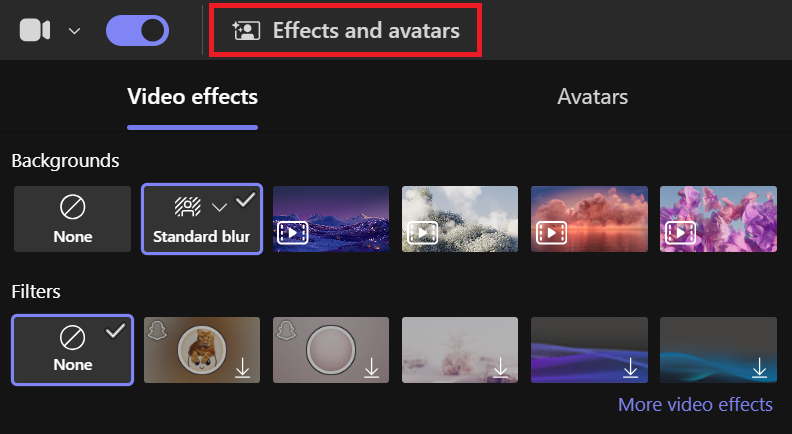
Use a simple office image for a client presentation or upload a branded background for a team event.
- Open Microsoft Teams on your desktop, go to Calendar, select your meeting, and select Join.
- On the pre-join screen, turn on your camera and select Effects and avatars.
- Choose one of the available backgrounds, or select More video effects → Add new to upload your own image.
- Select a .JPG, .PNG, or .BMP file from your computer.
- Check your camera preview, then select Join now when you’re ready.
Select None to remove background effects. Your selected Microsoft Teams background stays active in future meetings and calls until you change it.
For custom background images, use a 1920 × 1080-pixel image as a practical starting point for a widescreen layout. Keep logos and text away from the center, where your face and shoulders will appear.
For casual team calls, explore these funny MS Teams backgrounds (opens in a new tab) to find an image that matches your meeting’s theme.
Blur your Microsoft Teams background before joining
Blur is a quick option when your workspace isn’t camera-ready, and you don’t want a virtual background.
1. On the pre-join screen, turn on your camera and select Effects and avatars.
2. Select the dropdown arrow next to Blur, then choose Standard blur or Portrait blur.
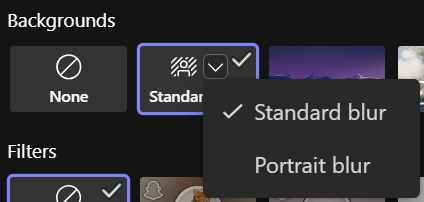
3. Check your preview, then select Join now.
For more tips, see our guide to blurring your background in Microsoft Teams (opens in a new tab).
How to Change MS Teams Background During a Meeting
You don’t need to leave a Teams meeting to adjust your background. Use the preview to check a different image or blur before applying it.
1. In the meeting window, open More actions (⋯) from your meeting controls.
2. Choose Video effects and settings.
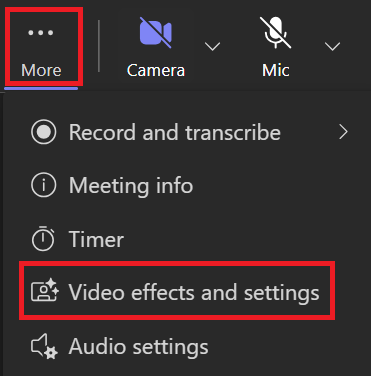
3. Under Video effects, choose a new background or select Add new to upload custom images from your computer.
4. To blur instead, select the dropdown arrow next to Blur and choose Standard blur or Portrait blur.
5. Select Preview to check your video feed, then select Apply to confirm your background effects.
💡 Pro tip: Use Tactiq’s real-time transcription (opens in a new tab) for Microsoft Teams to capture the discussion during browser-based video calls. Afterward, turn the transcript into a summary and action items so you can focus on the conversation without worrying about taking notes.
How to Change Your Teams Background Without Joining a Meeting
Want to test a branded image before your next call? Use Meet now to access the pre-join screen without entering a scheduled meeting.
1. Open the Teams app and go to Calendar.
2. Select Meet now, then Start meeting to open the pre-join screen.
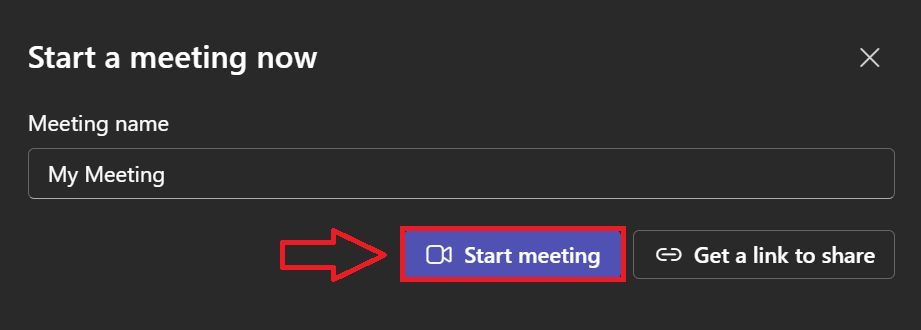
3. Turn on your camera and select Effects and avatars.
4. Choose a background or blur. To upload an image, select More video effects → Add new.
5. Check your preview, then close the pre-join screen without selecting Join now.
This gives you time to check your background settings, lighting, and camera position before anyone else sees your video.
Note: Calendar’s Meet now option requires an Exchange Online mailbox. If it’s missing, use a scheduled meeting’s pre-join screen instead.
How to Change Background on Microsoft Teams Mobile and Web
Joining a call from your phone while traveling or working away from your desk? You can still adjust your background, though the options depend on where you open Teams.
iPhone and Android
In the Teams mobile app, you can choose background images, blur your surroundings, or upload your own images.
- Open your Teams calendar, tap a meeting, then tap Join.
- On the pre-join screen, tap Background effects.
- Choose Blur, select a background image, or tap Add new to upload your own.
- Tap Done to apply the effect, then join your meeting.
During a call, tap More (⋯) → Background effects in the meeting controls. Choose your effect, then tap Done.
Android requirements: Your device must meet Microsoft’s listed requirements to support background effects:
- Android 10 or later.
- Teams version 1416/1.0.0.2021143402 or later.
- A supported GPU: Qualcomm Adreno 610+, Arm Mali-G71+, or Arm Mali-T720+.
If background settings don’t appear, check your device compatibility and update the app to the latest version.
Teams on the web
Joining from a browser can save time, but your background options may differ from the desktop app.
Microsoft’s detailed web feature table lists background blur, default backgrounds, and custom backgrounds as supported. However, its web overview (opens in a new tab) still lists blur as the only available background effect.
Check the background options available in your camera preview before joining. If you only see blur, use the desktop app to choose or upload background images.
Your organization’s policies can also restrict background effects or prevent you from uploading custom backgrounds.
Microsoft Teams Background Not Working: Common Fixes
Missing settings, blocked uploads, and blurry images need different fixes. Start with the issue that matches what you see.
Background settings are missing

Want a themed background for Halloween or an avatar for a camera-off day? Update the Teams app to the latest version, then check Effects and avatars on the pre-join screen again.
If the option is still missing, your device may not support background effects. Microsoft (opens in a new tab)also lists Linux and optimized virtual desktop infrastructure (VDI) as unsupported for this feature.
You can’t upload custom backgrounds
If you can blur your background but can’t upload an image, your organization may restrict custom backgrounds.
Ask your IT admin to check Participants can use video effects in your meeting policy. Selecting All video effects allows personal image uploads, although organization-specific customization policies may impose additional restrictions.
To enable custom backgrounds, your admin needs to review those policies rather than change settings on your computer.
Your background looks pixelated or cuts around you poorly
A low-resolution image can look stretched, while poor lighting can make the edges around your face and hair less clear.
Try these adjustments:
- Upload a clear 1920 × 1080-pixel image instead of enlarging a small photo.
- Choose a simple background without busy patterns or detailed text.
- Place a light in front of you, not behind your head.
- Keep your camera steady and check the preview before applying the effect.
If the image still looks distracting, use Standard blur for a simpler camera view.
Your selected background doesn’t appear
After previewing your background, select Apply to confirm it.
If nothing changes, close and reopen Teams when you can leave the meeting. Restarting your device is another troubleshooting step, but it won’t resolve unsupported hardware or organization restrictions.
Tactiq: Real-Time Transcription and AI Summaries for Microsoft Teams Meetings
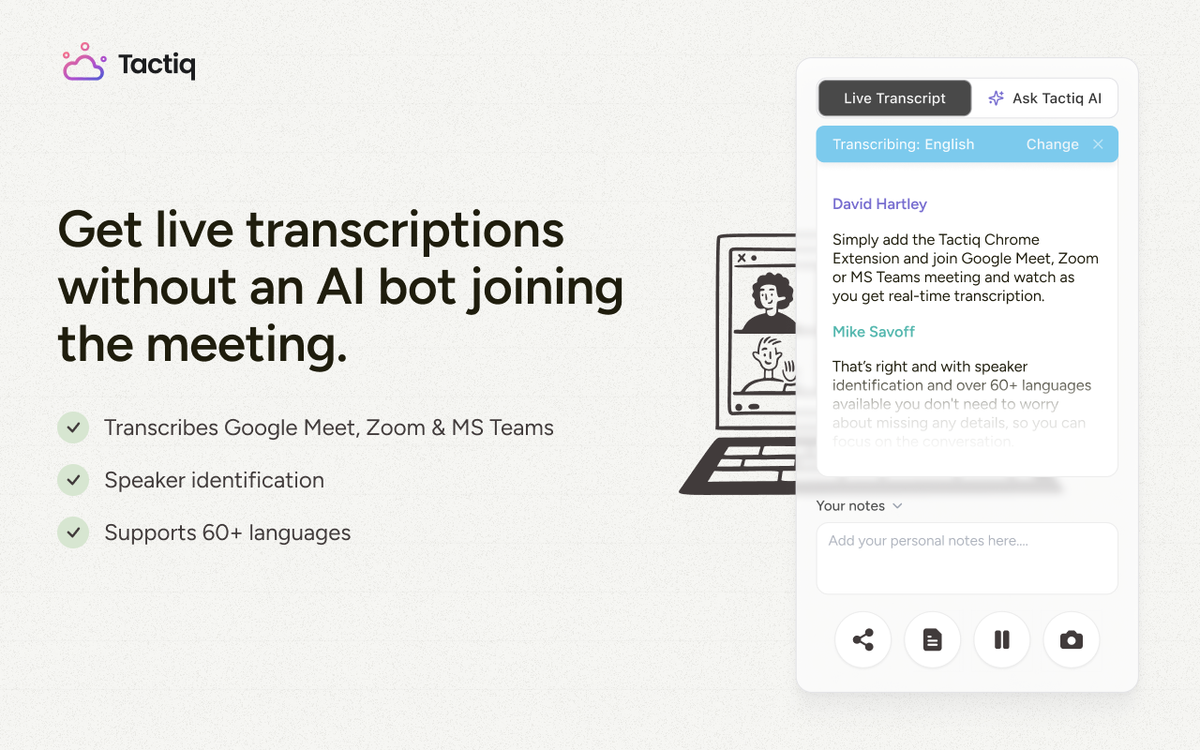
Your background is ready, but staying present takes more than looking professional on camera. During a project update, you still need to discuss priorities and remember who committed to each task.
Tactiq (opens in a new tab) transcribes Microsoft Teams meetings live through its Chrome extension when you join from your browser. After the call, use its AI tools to turn the transcript into:
- A meeting summary highlighting the main discussion points.
- Action items with owners and deadlines mentioned during the conversation.
- A follow-up email outlining decisions and next steps.
For example, after a client review, you can draft a recap and check the transcript before sharing agreed changes.
Microsoft’s Intelligent Recap requires Teams Premium or Microsoft 365 Copilot, alongside an eligible Teams license and enabled transcription. See our guide to AI note-taking with MS Teams (opens in a new tab) for more context.
Tactiq works without either add-on. Its free plan includes 10 transcripts and 5 AI credits per month. Each summary, action-item request, or AI question uses one credit.
Install the free Tactiq Chrome extension (opens in a new tab) to capture your next Teams conversation and turn it into useful follow-up notes.
Want the convenience of AI summaries?
Try Tactiq for your upcoming meeting.
Get Your Teams Background Ready for Your Next Call
A suitable Microsoft Teams background helps you look professional without rearranging your workspace before every call. Choose a custom image for a branded presentation or blur when you want fewer distractions.
Check your camera preview before joining, especially after changing your image or moving to a different room. You can also adjust your background during the meeting if your first choice doesn’t work.
If background settings are missing, check device compatibility and your organization’s policies. That helps you identify restrictions before spending time restarting the app or uploading the same image again.
FAQ
Your questions, answered.
If you have any further questions, Get in touch (opens in a new tab) with our friendly team
Can you change your background in Microsoft Teams on the web?
Why can’t I change my background in Microsoft Teams?
How do I upload a custom background in Microsoft Teams?
Can admins set a Teams background for everyone in the organization?
Can Tactiq transcribe my Microsoft Teams meetings while I change my background?
Related articles

How to Attach File in Microsoft Teams Meeting

Microsoft Teams Meeting Notes Disappeared

Can Someone Else Start my Teams Meeting?

How to Invite External Users to a Microsoft Teams Meeting

Microsoft Teams Meeting Limit: Complete Guide 2026

How to Use Collaborative Meeting Notes on Microsoft Teams (Full Guide)

4 Ways to Get Help with Microsoft Teams + Troubleshooting

Export Transcript from Microsoft Teams: Quick Guide
Want the convenience of AI summaries?
Try Tactiq for your upcoming meeting.
Bringing AI into your meetings has never been so easy.
Add to Chrome - It's free!(opens in a new tab)Try Tactiq in your upcoming meeting!
Sign up now