
How to Cancel ChatGPT Subscription in 2026: Step-by-Step Guide
- Published:
- March 12, 2026
- Updated:
- April 14, 2026

Decided to cancel your ChatGPT subscription? The process takes less than two minutes, but only if you cancel in the right place. Many users try to cancel directly inside the ChatGPT app, only to find their subscription keeps renewing. That's because where you cancel depends on how you originally subscribed.
This guide covers every cancellation method for 2026, plus what happens to your account, data, and custom GPTs (opens in a new tab) after you cancel.
Here's everything covered in this ChatGPT cancellation guide:
- What to save before you cancel your ChatGPT subscription
- Step-by-step instructions for desktop, iPhone, Android, and team plans
- What happens to your ChatGPT account and data after cancellation
- How to fix it if you can't find the cancel button
- How to keep your meeting workflow running after you switch AI tools
What to Do Before You Cancel Your ChatGPT Subscription
Before you cancel, take a few minutes to save your data. Once you downgrade to the free tier, some features become restricted. Here's what to back up first.
Export your ChatGPT data
ChatGPT lets you download your full conversation history as a zip file. This is worth doing before you cancel, especially if you've used ChatGPT for research, writing, or work projects.
Here's how to export your data:
1. Log in to your ChatGPT account at chatgpt.com (opens in a new tab).
2. Click your profile icon in the bottom-left corner.
3. Select Settings.
4. Click Data Controls > find Export Data > select Export.
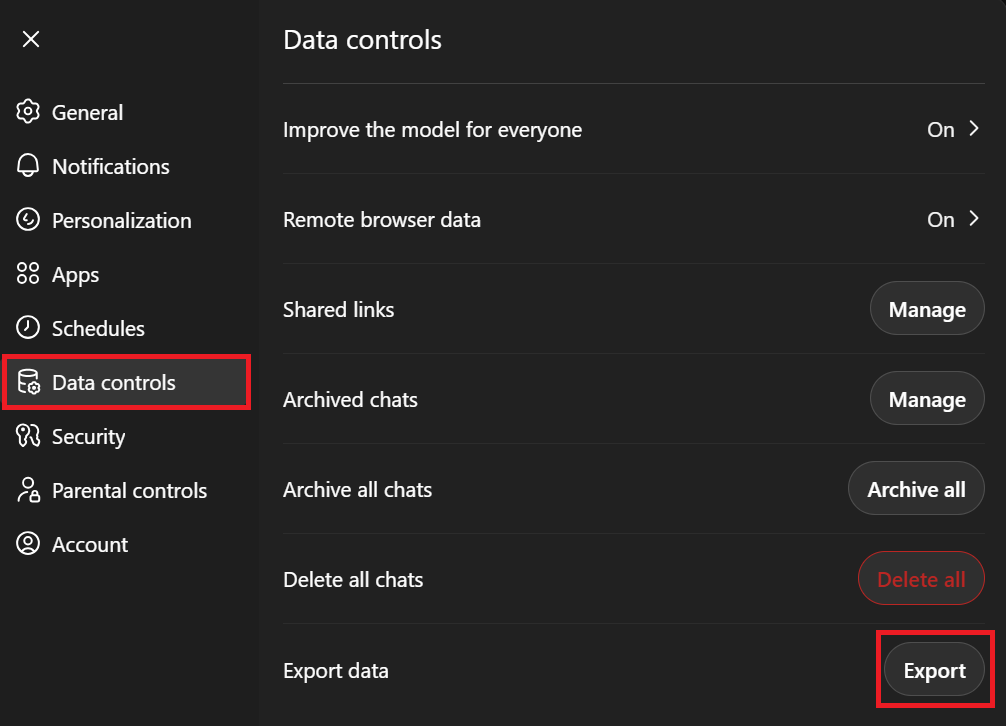
5. On the confirmation screen, click Confirm Export.
6. Check your inbox for an email from noreply@openai.com with your download link.
A few things to note: the download link expires after 24 hours, so download it immediately. Data exports can take up to seven days to arrive. If you have Custom GPTs or Projects set up, each one stores its own conversation history. Run the export separately within each.
If you want a faster way to save individual conversations, check out this guide on how to export ChatGPT conversations (opens in a new tab). You can also watch the video tutorial below:
💡 Pro tip: Before you export, go to Settings → Data Controls and turn off "Improve the model for everyone." This stops new conversations from being used as training data going forward.
Save your ChatGPT memory
ChatGPT's memory feature saves general preferences and context across conversations. Once you cancel, you could lose access to these saved memories depending on your plan. It's worth saving them manually before you go.
To view and save your memories:
1. Go to Settings in your ChatGPT account.
2. Click Personalization.
3. Find Memory > click Manage.
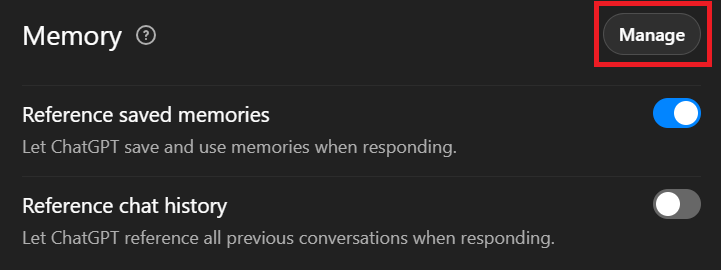
4. Review each saved memory and copy anything useful into a document.
You can then use this as a portable context file: paste it into Claude, Gemini, or any other AI platform you move to next. If you're planning to use your saved context with a new tool, this guide on how to feed data to ChatGPT (opens in a new tab) explains how context files work across different AI models.
💡 Pro tip: If you use AI tools during meetings, your session notes and action items don't have to disappear when you switch platforms. Tactiq (opens in a new tab) transcribes your Google Meet, Zoom, and MS Teams calls in real time and stores everything independently, so your meeting history stays intact no matter which AI tool you move to next.
Save your custom GPTs and prompts
If you've built custom GPTs, canceling your subscription affects your access to them. According to OpenAI (opens in a new tab), your custom GPTs are not deleted immediately when you cancel. They move to a read-only state, meaning you can view them but can't edit or publish them. If you don't resubscribe, they will be fully deleted from OpenAI's systems within 30 days.
Before you cancel, save your system prompts and configurations manually. Copy the instructions, settings, and any reference documents you uploaded into a separate file. This lets you recreate your custom GPT quickly on another AI platform, or rebuild it if you resubscribe later.
If you rely on browser-based tools alongside your custom GPTs, here's a roundup of the best Chrome extensions for ChatGPT (opens in a new tab) worth knowing about before you switch.
How to Cancel Your ChatGPT Subscription
The cancellation process differs depending on where you originally subscribed. If you signed up on the web, you cancel on the web. If you subscribed through the Apple App Store or Google Play Store, you cancel through those platforms. Here's each method, step by step.
How to cancel your ChatGPT subscription on desktop (web)
This method applies if you signed up directly on the ChatGPT website.
1. Go to chatgpt.com and log in to your ChatGPT account.
2. Click your profile icon in the top right corner, then select Settings.
3. Click Account, then select Manage.
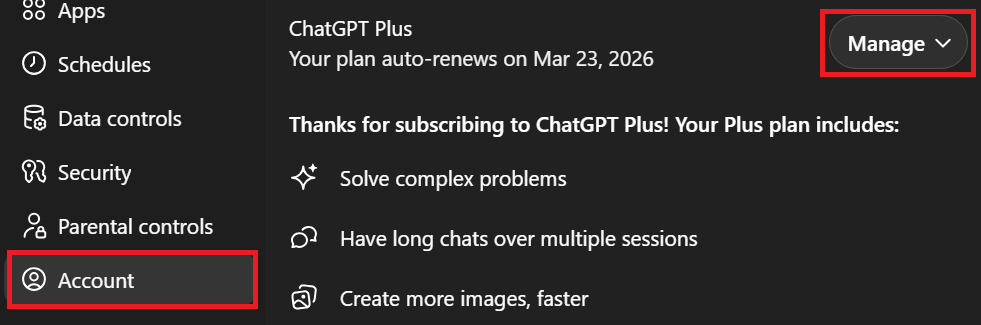
4. Click Cancel Subscription and confirm to complete the cancellation.
Your access continues until the end of your current billing period.
How to cancel your ChatGPT subscription on iPhone (iOS/Apple App Store)
If you subscribed through the ChatGPT iOS app, Apple manages your billing, not OpenAI. You must cancel through your iPhone settings.
1. Open the Settings app on your iPhone, not the ChatGPT app.
2. Tap your name at the top, then tap Subscriptions.
3. Find and tap ChatGPT in your active subscriptions.
4. Tap Cancel Subscription and confirm your choice.
Note: Deleting the ChatGPT app does not cancel your subscription. Your Apple App Store account is charged 24 hours before the end of the current subscription period.
How to cancel your ChatGPT subscription on Android (Google Play Store)
If you subscribed through the ChatGPT Android app, Google manages your billing. Cancel through the Google Play Store app.
1. Open the Google Play Store app and make sure you're signed in to the correct Google account.
2. Tap Menu, then tap Subscriptions.
3. Select the ChatGPT subscription, then tap Cancel Subscription.
4. Follow the additional instructions and confirm.
How to cancel a ChatGPT Team or Enterprise plan
Canceling a Team or Enterprise plan works differently from a personal subscription. Individual users cannot cancel from their own account settings; only the workspace owner can make changes to the entire workspace.
For Team plans, the workspace owner can go to Workspace Settings → Billing → Manage Plan and follow the prompts to cancel. For Enterprise plans, contact OpenAI support directly via the chat widget at help.openai.com (opens in a new tab) and select Billing.
What Happens After You Cancel ChatGPT
Canceling your ChatGPT subscription doesn't mean you lose access immediately. Here's exactly what to expect once you confirm your cancellation.
Your access continues until the end of your billing cycle
Your paid features stay active until the end of your current billing period. If you cancel mid-month, you keep full access to Plus or Pro features until your next billing date. After that, your account automatically reverts to the free plan.
Your chat history is retained
Canceling your subscription does not delete your account or your conversations. Your full chat history remains accessible on the free plan, with no viewing restrictions.
Your custom GPTs become restricted
Once you cancel, you lose access to the GPT Builder and any custom GPTs you've created. They move to a read-only state; you can view them but can't edit or publish them. If you don't resubscribe, OpenAI fully deletes them from their systems within 30 days. You can regain access to any GPTs you created by upgrading your plan again.
Refunds are not automatic
Accidental purchases are eligible for a refund if you contact OpenAI within 14 days of the charge. Log in to help.openai.com (opens in a new tab), open the chat widget, and request a refund through the chat.
For Apple App Store subscriptions, contact Apple directly. EU, UK, and Turkey residents qualify for a prorated refund if they cancel within 14 days of purchase.
Troubleshooting: Can't Find the Cancel Button?
Here are the most common reasons why you can’t find the cancel button and how to fix them.
You're canceling in the wrong place
The most common reason users can't find the cancel button is that they're looking in the wrong place. If you originally subscribed through the Apple App Store or Google Play Store, the cancel option won't appear in your ChatGPT account settings. You'll need to cancel through your iPhone settings or the Google Play Store app instead.
You're logged into the wrong account
If you have multiple Google or Apple accounts, make sure you're signed in to the same account you used when you originally subscribed. The subscription won't appear under a different account.
Try these workarounds
- Open ChatGPT in an incognito window or a different browser and log in again.
- Clear your browser cache and cookies, then reload the page.
- Check your billing confirmation email. It often contains a direct link to manage your subscription plan.
- On mobile, go to Settings → Restore Purchases inside the ChatGPT app to sync your subscription status
Still can't cancel? Contact OpenAI support
If none of the above works, go to help.openai.com (opens in a new tab) and use the chat widget in the bottom-right corner to connect with OpenAI's support team.
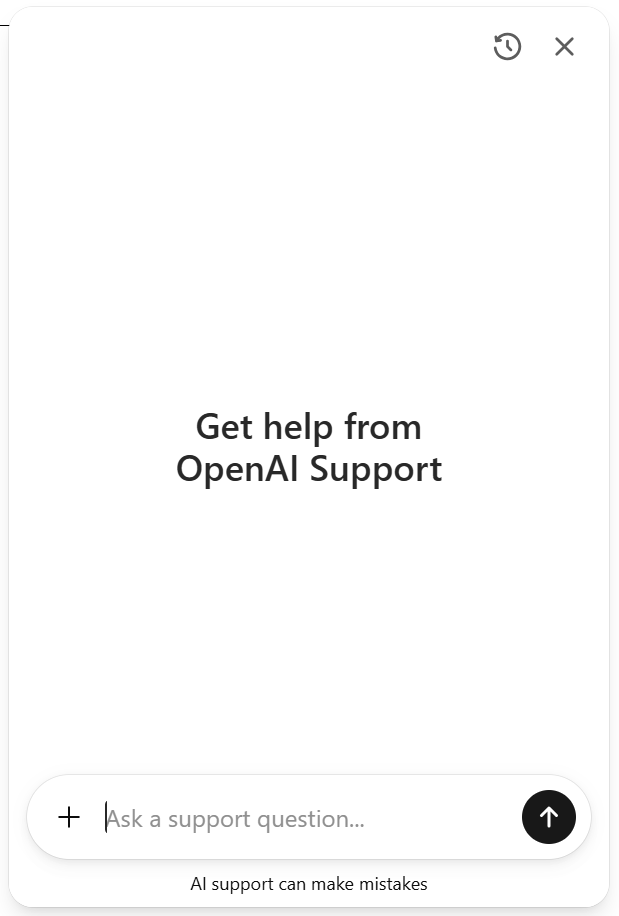
If your account is no longer accessible (for example, if you signed up with a work email you no longer have access to), OpenAI can cancel your subscription on your behalf.
Keep Your Meeting Workflow Running With Tactiq
Canceling ChatGPT doesn't mean stepping back on productivity. Most users move to the free tier or switch to another AI platform like Claude, Gemini, or Copilot. If you're weighing your options, these guides are worth a read:
- ChatGPT vs Claude (opens in a new tab) - a side-by-side breakdown of both tools
- Copilot vs ChatGPT vs Gemini (opens in a new tab) - how all three AI models compare
- Comparing prices across ChatGPT, Claude, DeepSeek, and Perplexity (opens in a new tab) - full cost breakdown across AI platforms
Whichever AI tool you decide to use next, your meeting workflow keeps running without missing a beat. Tactiq (opens in a new tab) works across all major AI models. It transcribes your meetings in real time and sends summaries, action items, and transcripts to whichever platform you prefer.
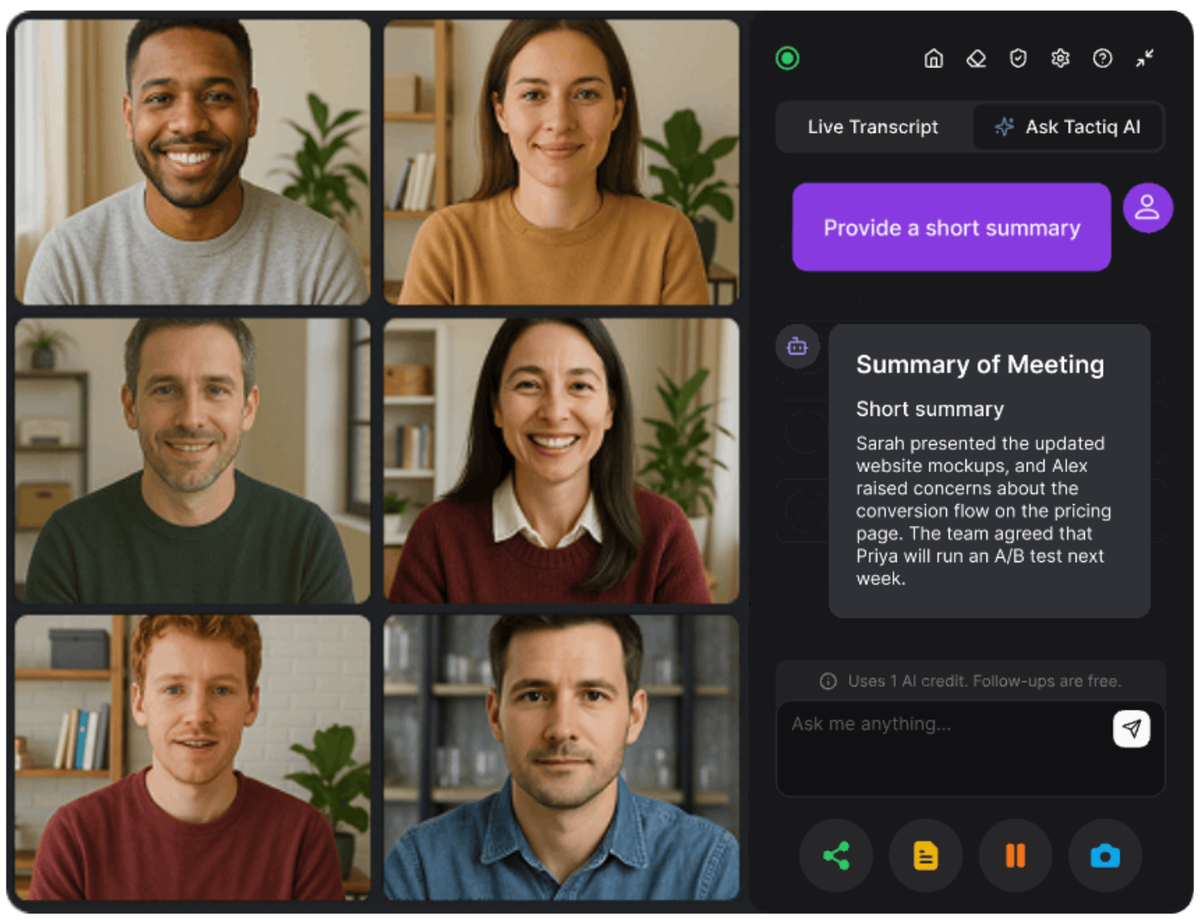
Here's what stays intact when you switch:
- Real-time meeting transcription across Google Meet, Zoom, and MS Teams (opens in a new tab)
- AI-generated summaries and action items sent to your preferred AI platform
- A searchable transcript database stored independently from ChatGPT
- No bot joining your calls, no token limit concerns, no single-platform dependency
Your meeting transcripts live in Tactiq, not in ChatGPT's memory system. Switching AI tools doesn't mean losing your meeting history.
It's free to get started. Install the Chrome extension (opens in a new tab), and your next meeting is covered.
Want the convenience of AI summaries?
Try Tactiq for your upcoming meeting.
Conclusion
Canceling your ChatGPT subscription is straightforward once you know where to look. The key is to cancel through the same platform you originally subscribed to ChatGPT, whether that's the ChatGPT website, the Apple App Store, or the Google Play Store.
Before you cancel, take a few minutes to export your data, save your memories, and copy your custom GPT configurations. It's easy to overlook these steps, and some of them can't be undone after the fact.
Switching AI tools doesn't have to disrupt your workflow. Tactiq transcribes your meetings and works across all major AI platforms, so your meeting history stays intact no matter which AI model you move to next.
FAQs on cancelling ChatGPT subscription
Does canceling ChatGPT delete your account?
No. Canceling your subscription does not delete your ChatGPT account or conversations. Your chat history stays accessible on the free plan. To delete your account, you need to submit a separate account deletion request.
Will I get a refund if I cancel my ChatGPT subscription?
Subscription fees are generally non-refundable. Accidental purchases are eligible for a refund if you contact OpenAI within 14 days of the charge. EU, UK, and Turkey residents qualify for a prorated refund if they cancel within 14 days of purchase.
What happens to my chat history when I cancel ChatGPT?
Your chat history is retained and remains fully accessible on the free plan. Canceling your subscription does not delete your conversations.
How do I cancel ChatGPT if I can't find the cancel button?
You're likely looking in the wrong place. If you subscribed via the Apple App Store or Google Play Store, you must cancel through those platforms, not in ChatGPT. Log in to the correct account and cancel from there.
What happens to my custom GPTs if I cancel my subscription?
Your custom GPTs become read-only and cannot be edited or published. If you don't resubscribe, OpenAI permanently deletes them within 30 days.
Related articles

Which AI Tool Uses ChatGPT for Meeting Data?

Best ChatGPT Alternatives in 2026 (Free & Paid)

How to Feed Data to ChatGPT

ChatGPT Meeting Minutes Generator

Is Gemini Better Than ChatGPT?

Copilot vs ChatGPT vs Gemini: Ultimate 2026 Comparison

How to Export ChatGPT Conversation (Full Guide)

Does Tactiq Work with the ChatGPT Atlas Browser?
Want the convenience of AI summaries?
Try Tactiq for your upcoming meeting.
Bringing AI into your meetings has never been so easy.
Add to Chrome - It's free!(opens in a new tab)Try Tactiq in your upcoming meeting!
Sign up now