
Does Tactiq Work with the ChatGPT Atlas Browser?
October 30, 2025
October 30, 2025
October 30, 2025
October 30, 2025

If you use Tactiq on Chrome, nothing changes. The Tactiq Atlas browser setup is painless because Atlas runs on Chromium, the same engine behind Chrome and Edge. Your Chrome extensions install exactly the same way, and they run without any hiccups.
Here's what you need to know about using AI transcription tools like Tactiq on Atlas.
How to Install Tactiq on ChatGPT Atlas
Once you’ve installed ChatGPT Atlas, you have the option to sync bookmarks, history, and passwords. However, extensions won’t automatically carry over.
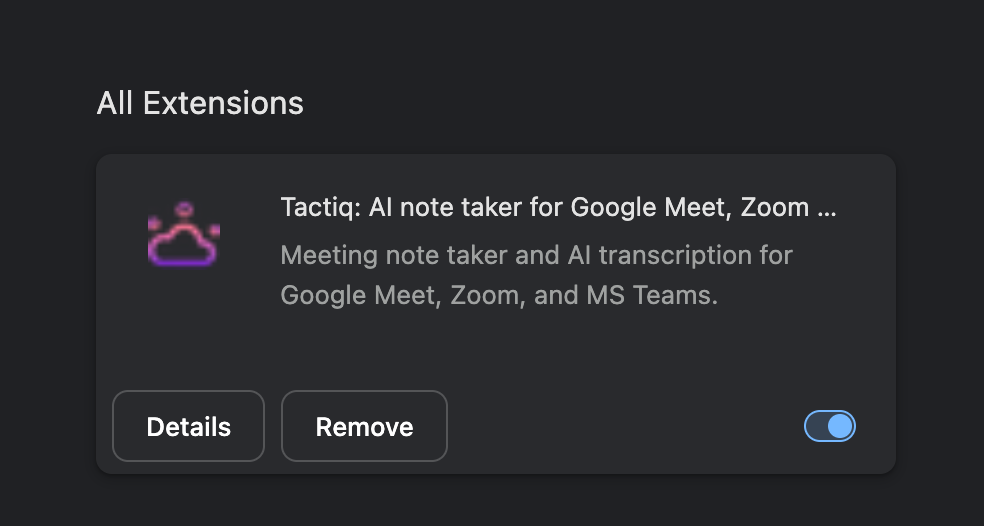
But the good news is that installing extensions on Atlas is so easy. Here’s how:
- Click your profile icon on the top right of the browser.
- Next, click Extensions, then Manage Extensions.
- On the left side, you’ll see “Discover more extensions and themes on the Chrome Web Store.”
- Open the Chrome Web Store and search for “Tactiq” and click “Add to Chrome.”
- A pop up will appear. Click on “Add extension.”
- Next, turn the toggle on for your preferred video conferencing calls.

Once you click, Continue, you’ll see “Enable Tactiq.” A pop up will appear. Make sure to click “Allow.”
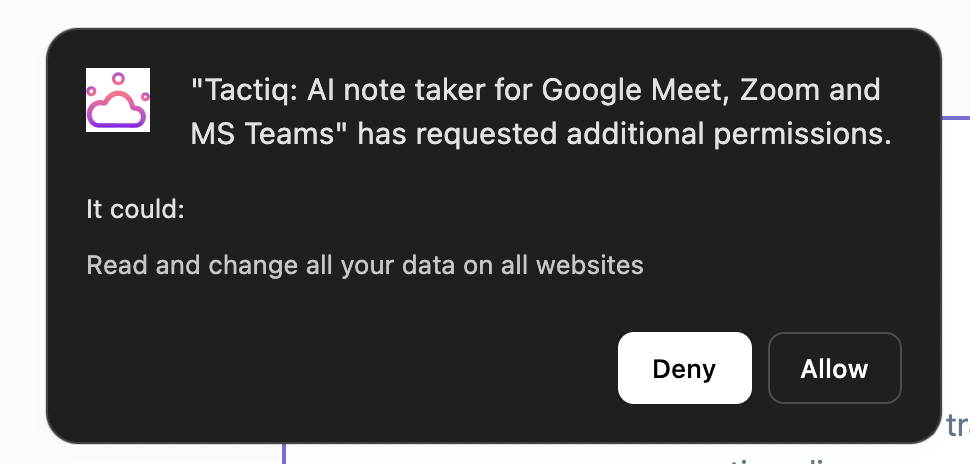
Once that’s done, you’re good to go! You’ll be taken to the Tactiq dashboard where you’ll see all of your past transcripts. Now, you can take calls on Atlas, and you’ll have Tactiq transcribing the meeting.
Pro tip: Read our ChatGPT Atlas review if you’d like to learn more how it works before trying it out for yourself.
{{rt_cta_ai-convenience}}
Troubleshooting Guide: When Things Don't Work
Sometimes Tactiq doesn't behave the way you expect in Atlas. Atlas is a very new browser, and unexpected issues may arise.
Here are possible issues and how to fix them:
Tactiq widget appears but transcription doesn't start
This usually means captions aren't enabled in your meeting platform. For Google Meet, click the captions icon at the bottom of your screen. For Zoom or Teams, enable live captions in the meeting settings. Tactiq needs these captions active to transcribe.
Transcription is in the wrong language
Click the Tactiq widget during your meeting. You'll see a language dropdown at the top. Select your preferred language and the transcription will switch immediately. Tactiq supports over 30 languages.
Transcripts aren't saving
Check that you're signed into your Tactiq account. Open the Tactiq extension from your toolbar and verify you see your account email. If you're signed out, transcripts won't save properly.
If you need someone to help, Tactiq has an amazing support team that you can access through the chat on the site.
Should You Switch to Atlas for Meetings?
Atlas doesn't change how you handle meetings. It's a browsing tool, not a meeting tool.
You still need Google Meet, Zoom, or Microsoft Teams to join calls. And you still need AI transcription to capture what's said without taking manual notes.
Atlas gives you ChatGPT everywhere you browse. That's useful for research, writing, and quick AI tasks. But it doesn't replace dedicated meeting tools.
If you're already using Tactiq in Chrome, switching to Atlas won't disrupt your workflow. If you haven't tried Tactiq yet, it works in both browsers.
The Bottom Line
Yes, Tactiq works with the ChatGPT Atlas browser. Installation is easy, functionality is the same, and you don't lose any features by switching browsers.
Atlas is an interesting experiment in AI-powered browsing. But for meeting productivity, you still need specialized tools. Tactiq gives you accurate transcripts, AI summaries, and action items that actually help you follow up after calls.
Download ChatGPT Atlas at chatgpt.com/atlas if you want to try it. And if you need meeting transcription that works in any Chromium browser, install Tactiq free and see how it transforms your calls.
FAQs
Does Tactiq work with the ChatGPT Atlas browser?
Yes, Tactiq works perfectly in ChatGPT Atlas. Since Atlas is built on Chromium (the same engine as Chrome), all Chrome extensions work without modifications. Install Tactiq from the Chrome Web Store, and it will transcribe your Google Meet, Zoom, and Microsoft Teams meetings just like it does in Chrome.
How do I install Tactiq on ChatGPT Atlas?
Open the Chrome Web Store in Atlas, search for "Tactiq," and click "Add to Chrome." The extension installs immediately. Join your next meeting, and Tactiq will automatically start transcribing. No additional setup needed.
Will Tactiq transcribe meetings the same way in Atlas as it does in Chrome?
Yes, Tactiq functions identically in Atlas and Chrome. You get the same real-time transcription, AI-generated summaries, action items, and integrations. The Chromium foundation means there's no difference in how the extension performs.
Do I need a bot to use Tactiq in Atlas?
No, Tactiq never uses bots. It transcribes meetings directly in your browser without any bot joining your calls. This keeps meetings cleaner and more professional while still capturing every word that's said.
Related articles





Want the convenience of AI summaries?
Try Tactiq for your upcoming meeting.
Want the convenience of AI summaries?
Try Tactiq for your upcoming meeting.
Want the convenience of AI summaries?
Try Tactiq for your upcoming meeting.