

Looking for the best ChatGPT connectors? Start with the work you want to finish, from finding project files to updating customer records.
The options cover documents, email, scheduling, team communication, design, and more. Choosing the right ones means checking what each integration actually does, which accounts it supports, and what access it needs.
This list starts with Tactiq for searchable meeting transcripts, then covers nine more options for everyday workflows. You’ll now find these integrations listed as apps within plugins in the Plugin Directory.
This guide covers:
- Ten ChatGPT connectors, their best uses, and plan requirements
- How to connect apps and custom MCP servers
- How to combine apps for meeting workflows
- What to check before granting access
TL;DR: What Are ChatGPT Connectors?
ChatGPT connectors are integrations, now called apps, that connect ChatGPT to external tools and data. You install them through the Plugin Directory.
Depending on the app, ChatGPT can search files, summarize information, or take supported actions, such as creating tasks. Access depends on your plan and permissions.
10 Best ChatGPT Connectors (ChatGPT Connectors Compared)
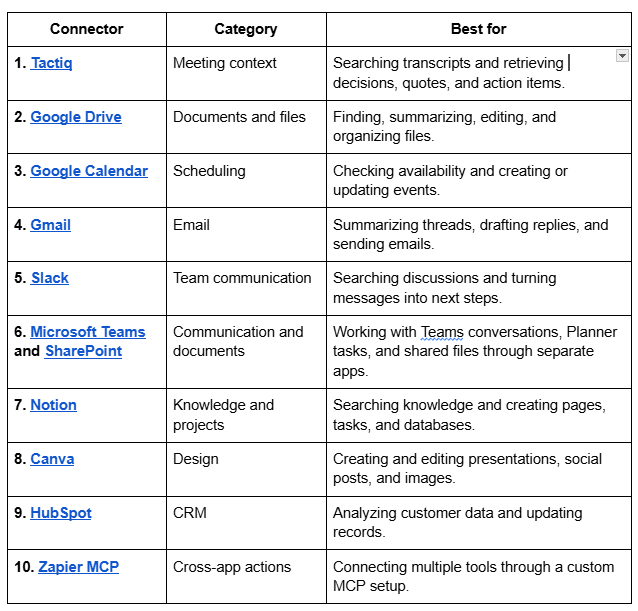
Available actions depend on account permissions and workspace settings. Zapier uses a custom MCP connection or a workspace-added plugin.
The best ChatGPT connectors bring your everyday work into the conversation. Start with the data source you need most, from meeting transcripts and documents to customer records and team discussions.
1. Tactiq: Searchable meeting transcripts inside ChatGPT
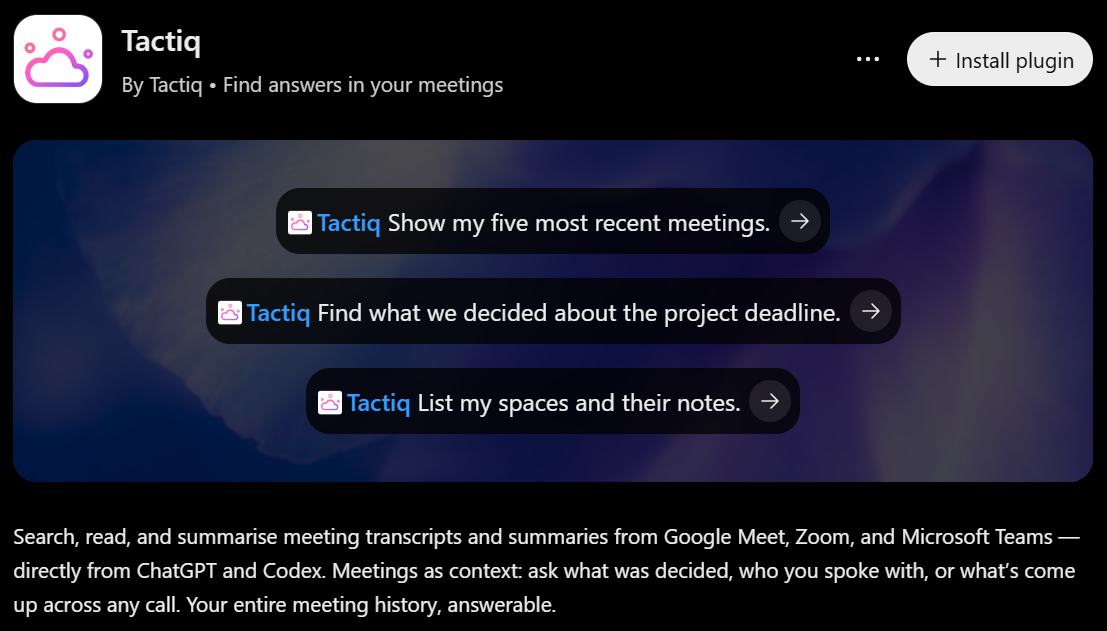
Tactiq transcribes Google Meet, Zoom, and Microsoft Teams calls live without a bot joining. Its verified ChatGPT plugin connects ChatGPT to those saved conversations, including meetings shared with you.
Ask ChatGPT to find decisions, summarize calls, extract action items, or compare discussions across multiple meetings. You can then draft follow-up emails and team updates using that context. Quotes include speakers, timestamps, and transcript links so you can check the source.
OpenAI reviewed the plugin for quality and security. Its MCP server also works with Claude, Cursor, and Codex, while respecting your existing permissions.
- Best for: Finding answers across meeting history and turning discussions into follow-ups.
- Plan note: Tactiq Free and Pro support searching and listing meetings. Reading summaries, meeting details, and full transcripts requires Team or higher.
💡 Pro tip: Install the Tactiq Chrome extension before your next call so you have a transcript to reference in ChatGPT afterward.
Want the convenience of AI summaries?
Try Tactiq for your upcoming meeting.
2. Google Drive: Search and work with your files inside ChatGPT
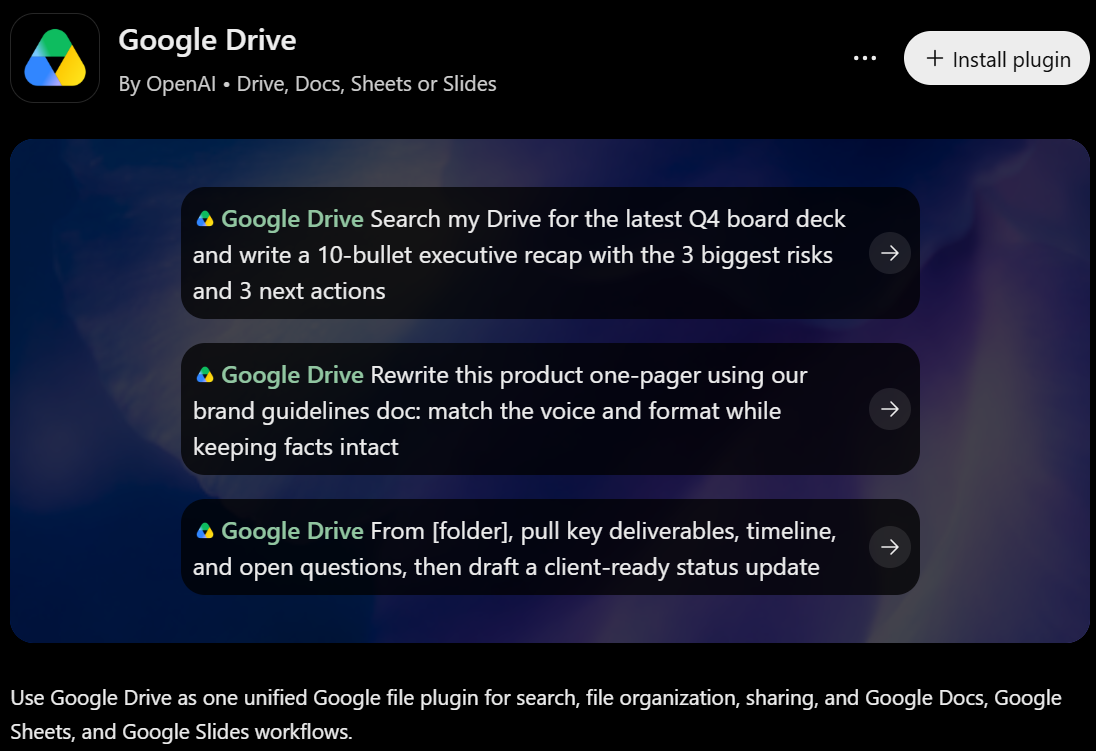
The Google Drive plugin connects ChatGPT to your stored files, including Google Docs, Sheets, and Slides. You can find project documents, summarize their contents, compare budget spreadsheets, and draft updates using your business data.
The integration also supports creating, updating, moving, sharing, and deleting files when enabled and authorized. For example, ask ChatGPT to find a project plan, identify unfinished tasks, and update the document with revised priorities.
- Best for: Working with documents, spreadsheets, and presentations without manually transferring content between tools.
- Plan note: Check the listing for your account’s availability. Managed workspaces may require ChatGPT and Google Workspace administrator approval.
For setup instructions, see how to connect Google Drive to ChatGPT.
3. Google Calendar: Plan your day and prepare for upcoming meetings
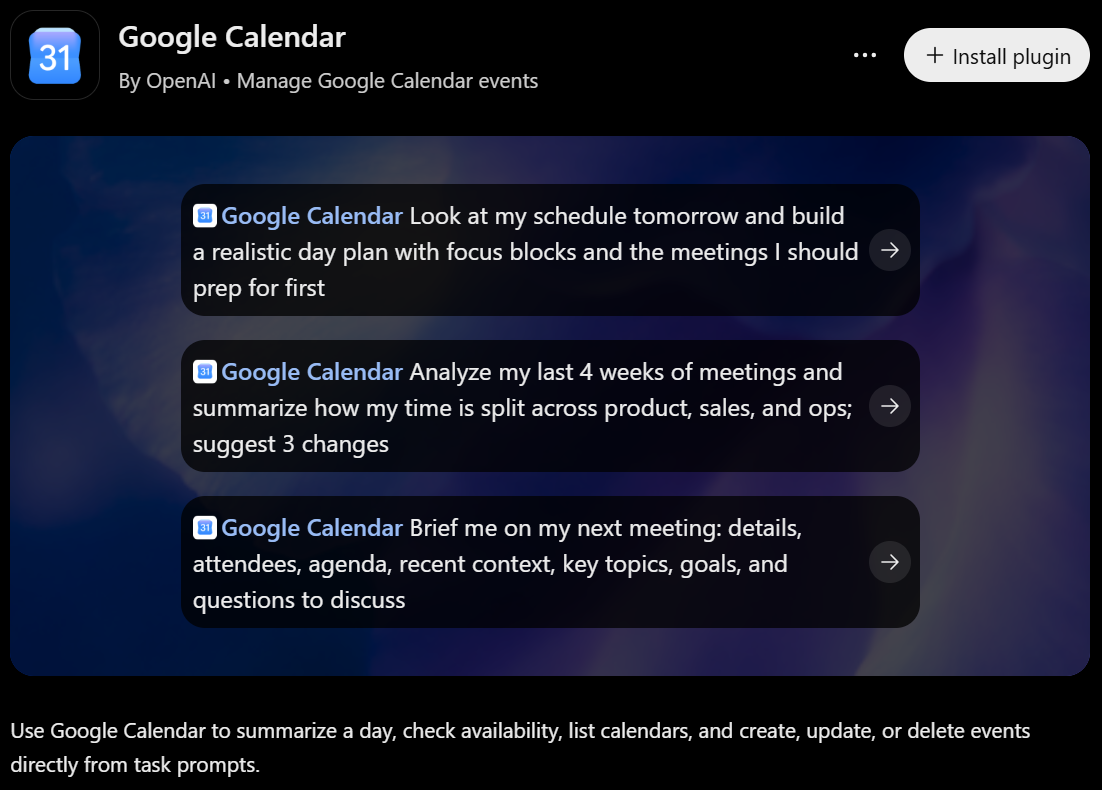
The Google Calendar plugin lets you review your schedule, check availability, list calendars, and create, update, or delete events. You can also analyze time spent in meetings and prepare briefings with event details, attendees, and agendas.
For example, ask ChatGPT to review tomorrow’s schedule and suggest focus blocks between calls. Connect a personal account alongside your work account to check both calendars in one conversation.
- Best for: Planning your day, coordinating availability, and managing calendar events through plain English requests.
- Plan note: OpenAI confirms multiple-account support on Plus, Pro, ChatGPT Business, and Enterprise plans. Available actions depend on permissions and workspace settings.
For setup and examples, see how to connect Google Calendar to ChatGPT.
4. Gmail: Summarize conversations and manage email inside ChatGPT
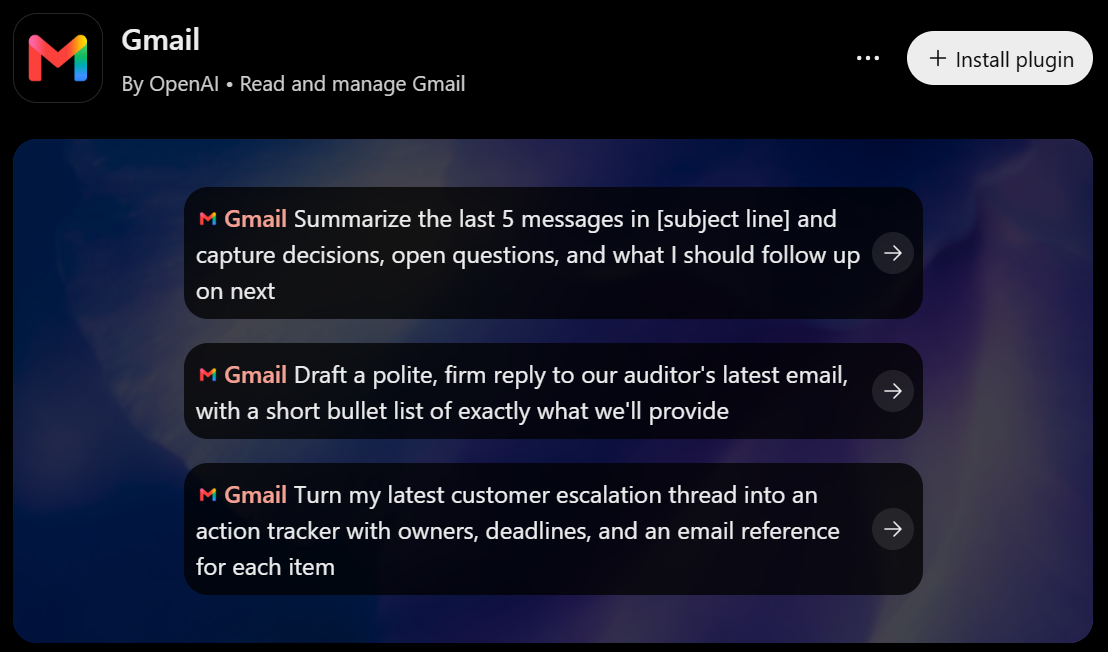
The Gmail plugin lets you summarize inbox activity, draft replies, and organize email threads. Ask ChatGPT to pull decisions, unanswered questions, and follow-up tasks from a long conversation.
For example, turn a customer escalation thread into an action tracker with owners, deadlines, and references to each message. You can also draft an email and choose to send it directly from ChatGPT.
- Best for: Catching up on conversations and turning email requests into clear next steps.
- Plan note: Sending email is available on the web for Plus, Pro, ChatGPT Business, and Enterprise users with Gmail connected.
5. Slack: Search discussions and turn messages into next steps
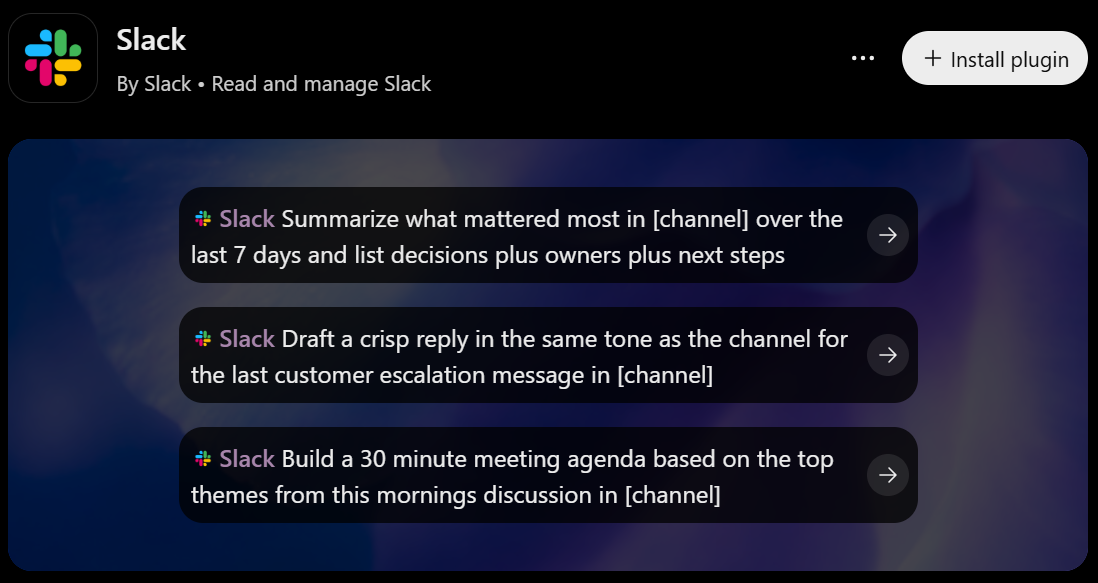
The Slack plugin lets ChatGPT search channels, direct messages, and threads you already have permission to access. You can summarize discussions, find decisions, draft replies, and build briefs from information scattered across conversations.
The Slack connector also supports actions such as joining channels, creating reminders, uploading files, and updating your profile when administrators enable them. For example, ask for a weekly channel recap with owners, outstanding tasks, and next steps.
- Best for: Catching up on team discussions and finding relevant information without scrolling through channels.
- Plan note: Eligible Plus, Pro, Business, Enterprise, and Edu users can connect Slack. Keyword search works across Slack plans. Searching by meaning requires supported Slack Business+ or Enterprise+ workspaces with Slack AI Search enabled.
6. Microsoft Teams and SharePoint: Work with conversations and shared documents
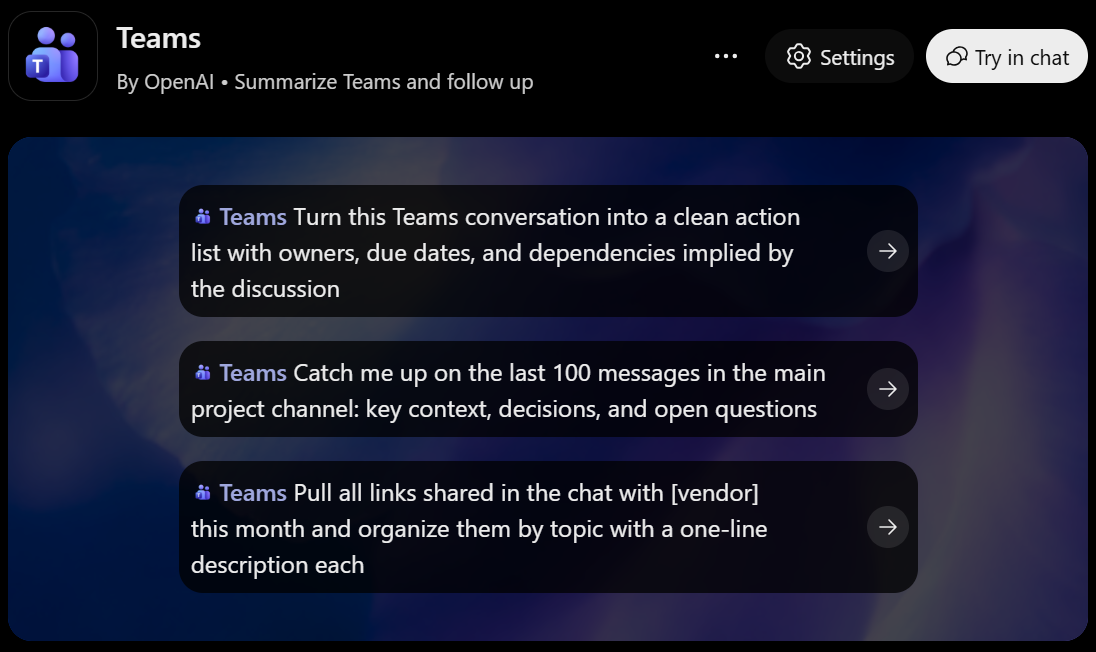
The Microsoft Teams plugin lets ChatGPT search messages, summarize discussions, extract action items, and draft follow-ups. Approved actions also let you send replies, create chats or channels, and manage Microsoft Planner tasks.
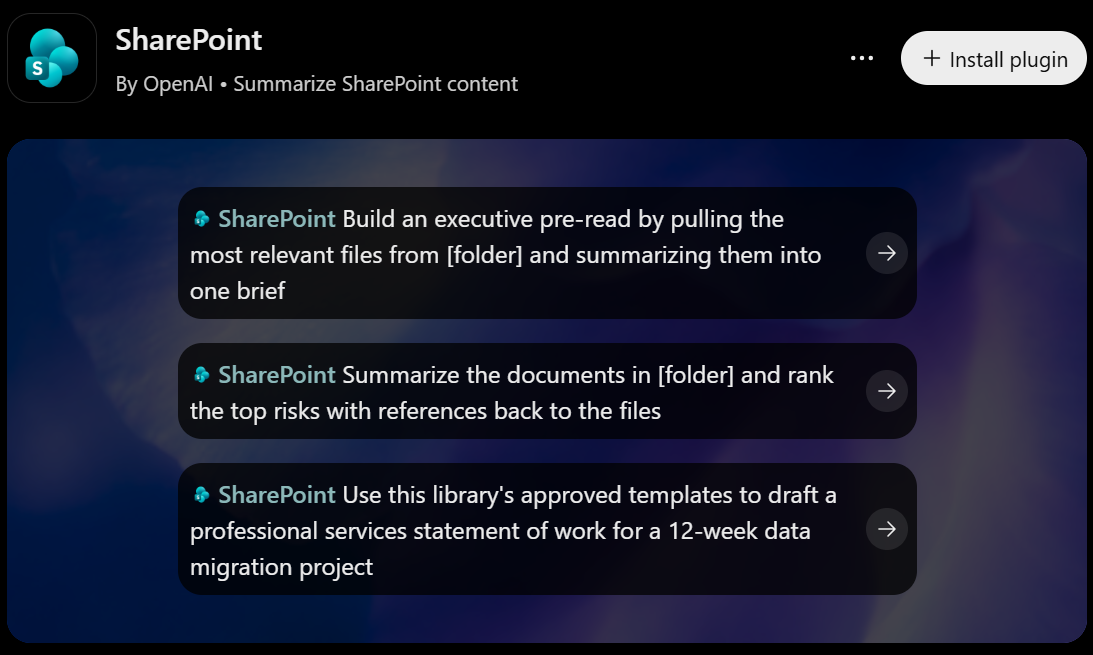
The SharePoint app connects ChatGPT to SharePoint and OneDrive work or school files, including Word, Excel, PowerPoint, and PDFs. You can compare proposals, create onboarding guides, or combine documents into one brief. With the required permissions, this ChatGPT integration also supports creating folders, uploading or updating files, and managing sharing links.
These are separate ChatGPT apps, so connect each data source you need.
- Best for: Bringing Microsoft conversations, project tasks, and shared documents into one workflow.
- Plan note: Availability depends on your ChatGPT plan and organization’s settings. App capabilities follow approved Microsoft permissions. Personal OneDrive accounts aren’t supported.
7. Notion: Search knowledge and create pages, tasks, and databases
The Notion plugin lets ChatGPT search workspace pages, find past decisions, and create documents, tasks, and databases. For example, turn a list of initiatives into a roadmap database with owners, statuses, quarters, and risks.
This ChatGPT integration also lets you open Notion pages beside your conversation and edit them directly. Ask ChatGPT to update a plan, turn action items into a database, or leave a comment requesting more detail.
- Best for: Finding team knowledge and saving research, plans, and tasks back to Notion.
- Plan note: The page panel works on any Notion plan with a ChatGPT account that can install the plugin. Enterprise administrators can restrict access. Suggested edits require Notion Business or Enterprise.
8. Canva: Create and edit designs inside ChatGPT
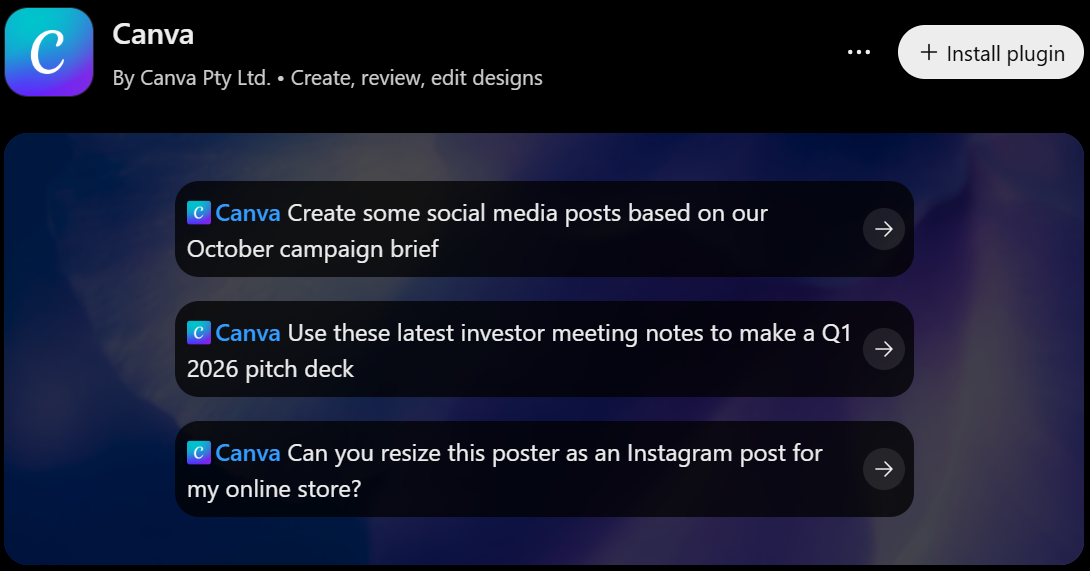
The Canva app connects ChatGPT to your design workflow, turning briefs and outlines into presentations, social posts, and other visuals. Preview designs in the conversation, then request changes to the text or layout.
You can also search, resize, or copy existing designs, generate images, and edit uploaded images. Among ChatGPT apps, Canva suits workflows where you need to turn written ideas into editable visual content.
- Best for: Creating presentations and marketing visuals from briefs, documents, or draft copy.
- Plan note: Works with Canva Free, Education, and paid accounts. Generation uses your Canva AI allowance, separate from your ChatGPT plan. Background removal requires Canva Pro or higher.
For setup instructions, see how to connect ChatGPT to Canva.
9. HubSpot: Analyze customer data and update CRM records
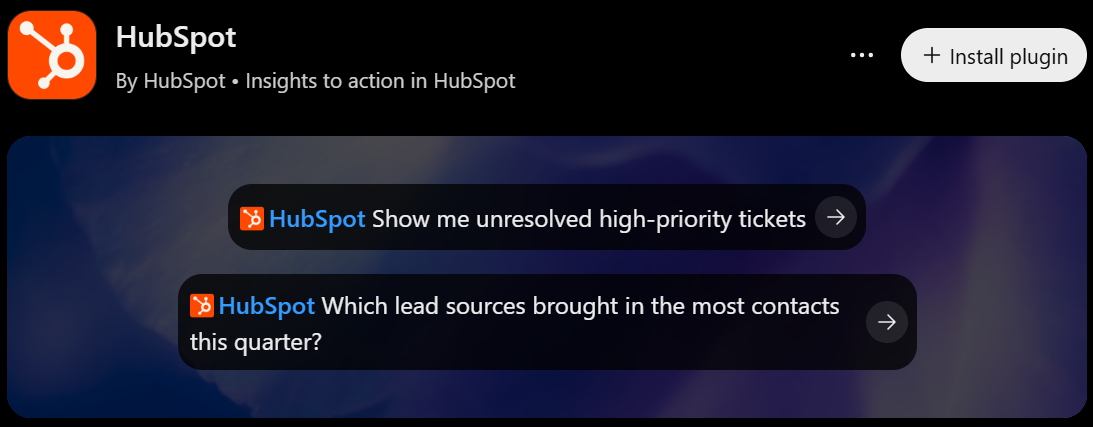
Among ChatGPT apps for sales and support, the HubSpot plugin connects conversations to your CRM’s business data. You can review contacts, companies, deals, tickets, and engagement history, then prepare reports or investigate trends with deep research.
This ChatGPT integration also lets you update deal stages, log calls and emails, and create tasks in the connected platform. For example, find unresolved priority tickets and create follow-ups using the relevant customer details.
- Best for: Analyzing customer activity and keeping CRM records current without leaving ChatGPT.
- Plan note: Available across all HubSpot tiers with an OpenAI account. Installation requires App Marketplace Access, Super Admin permissions, or prior administrator approval.
10. Zapier MCP: Take action across thousands of apps
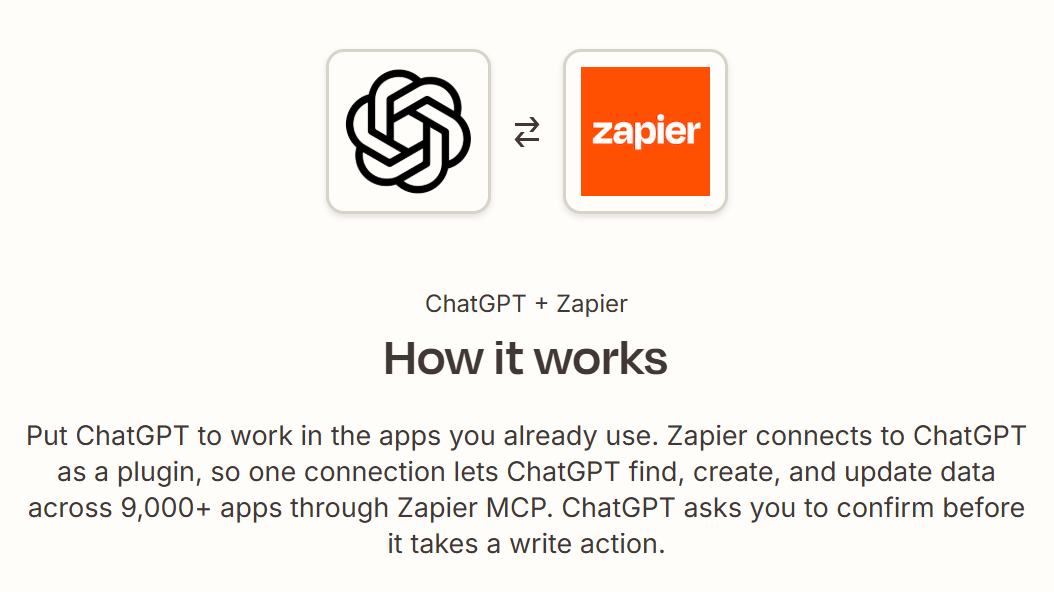
Zapier takes a different setup route from the directory apps above. You connect Zapier MCP as a custom MCP plugin, or use one your workspace administrator has added.
Once connected, ChatGPT can retrieve external data and run supported actions across Zapier’s library of 9,000+ apps. For example, summarize a customer email, create a Jira issue, and post its link in Slack through the connected service.
Zapier handles app connections and credentials, so you don’t need to host your own MCP server.
- Best for: Completing tasks across different platforms through one connection.
- Plan note: Available on all Zapier plans, including Free. As of November 2026, each successful tool call uses two Zapier tasks.
How to Add ChatGPT Connectors and Custom MCP Servers
You can connect ChatGPT to directory apps or add a custom MCP server. The right route depends on the integration and your workspace permissions.
Install an app from the Plugin Directory
Follow these steps to connect ChatGPT apps:
- Open Settings, then Plugins, and find the app or plugin you want.
- Select Install plugin if shown, then Connect if prompted.
- Sign in to the connected service using the account with access to your data.
- Review the requested permissions and authorize access.
- Start a conversation and mention the app with @, or select it from the + menu.
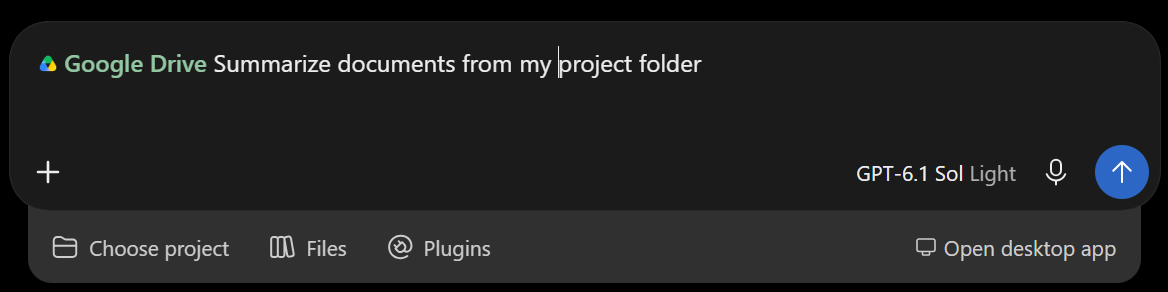
For example, select Google Drive and ask ChatGPT to summarize documents from your project folder. If ChatGPT asks for approval before reading information or taking action, review the request before continuing.
Installing a plugin doesn’t replace account authorization or administrator approval. Some apps use an administrator-managed connection instead of requiring individual sign-in.
Connect a custom MCP server (ChatGPT MCP support)
ChatGPT supports Model Context Protocol (MCP) on the web. Business, Enterprise, and Edu support full MCP capabilities; Pro supports read/fetch connections. Workspace permissions determine who can add servers.
Developer Mode is no longer required in the current Plugins experience:
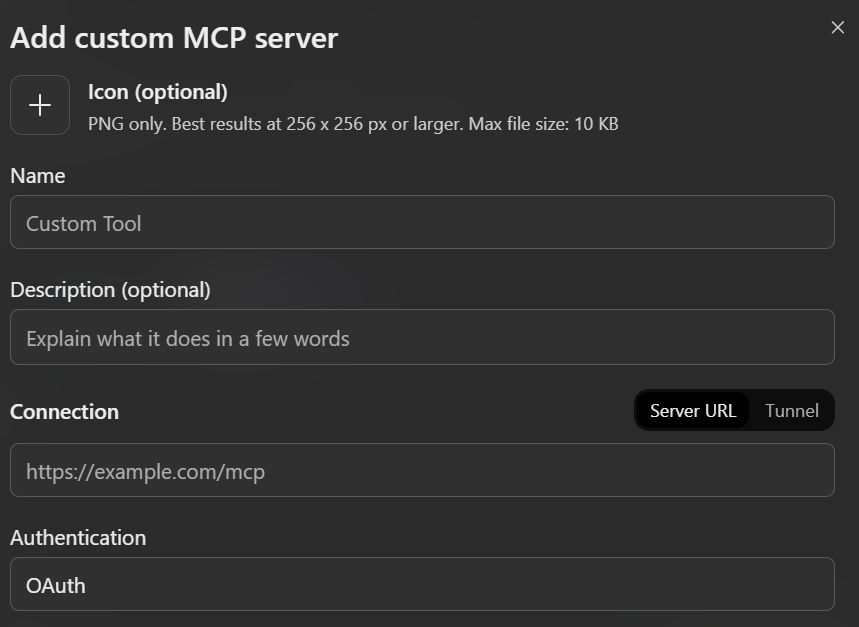
- Open Plugins > Add > Add custom MCP server.
- Enter a name, the provider’s HTTPS MCP endpoint, and authentication details.
- Acknowledge the risk warning, then select Create as a plugin.
- Review the tools, install the plugin, and test it in a new chat using @.
Only connect trusted servers, since malicious tools can expose data or introduce harmful instructions.
Connectors vs plugins
The names have changed, but each term has a different role:
- Connector: The earlier name for integrations that brought external data into ChatGPT.
- App: An integration connecting ChatGPT to an external service and its supported actions.
- Plugin: A package containing one or more apps, skills, or app templates.
- MCP: The standard that lets AI tools communicate with external tools and data sources.
OpenAI moved the app directory to the Plugin Directory on July 9, 2026.
Choose Connectors That Match Your Work
The best ChatGPT connectors bring the information you need into the work you’re already doing. Google Drive and SharePoint suit document workflows, while Gmail, Slack, and Teams provide context from everyday conversations. Calendar, Notion, Canva, and HubSpot help you turn that context into plans, designs, and updated records. Zapier MCP extends your options through a custom connection.
Start with one recurring task, then connect the apps needed to complete it. Check supported actions, plan requirements, and permissions before expanding your setup.
For workflows that begin with a conversation, connect Tactiq to ChatGPT to make your meeting history part of the process.
FAQ
Your questions, answered.
If you have any further questions, Get in touch (opens in a new tab) with our friendly team
Does ChatGPT support MCP (Model Context Protocol)?
How do I connect Google Drive to ChatGPT?
How do I connect Canva to ChatGPT?
Are ChatGPT connectors safe?
Can I connect my meeting transcripts to ChatGPT?
Related articles

Which AI Tool Uses ChatGPT for Meeting Data?

Best ChatGPT Alternatives in 2026 (Free & Paid)

How to Cancel ChatGPT Subscription in 2026: Step-by-Step Guide

How to Feed Data to ChatGPT

ChatGPT Meeting Minutes Generator

Is Gemini Better Than ChatGPT?

Copilot vs ChatGPT vs Gemini: Ultimate 2026 Comparison

How to Export ChatGPT Conversation (Full Guide)
Want the convenience of AI summaries?
Try Tactiq for your upcoming meeting.
Bringing AI into your meetings has never been so easy.
Add to Chrome - It's free!(opens in a new tab)Try Tactiq in your upcoming meeting!
Sign up now