
Connect Google Calendar to ChatGPT (Connectors)
August 26, 2025
August 26, 2025
October 7, 2025
October 7, 2025

Juggling meetings, tasks, and follow-ups? Your calendar shouldn’t feel like another job.
By connecting Google Calendar to ChatGPT, you can turn your schedule into a smart assistant. One that helps you stay ahead, not just keep up.
In this guide, you’ll learn how to use ChatGPT’s connector feature, explore real use cases, and see how AI tools make it even easier to summarize meetings with ChatGPT or automate what happens after.
Why Connect Google Calendar To ChatGPT?
Google Calendar keeps your schedule in check, but it doesn’t do much beyond storing events. ChatGPT changes that. By connecting the two, you can turn a static calendar into a tool that actually works with you.
Here are a few ways it helps:
- Summarize meetings with ChatGPT based on your calendar
- Get reminders with context pulled from your Google Calendar
- Review one-on-one meetings with ChatGPT prompts
- Analyze frequency or patterns in your Google Calendar activity
- Draft follow-ups or emails linked to specific calendar invites
💡 Pro tip: If you use Google Meet, connect it with Tactiq. It captures live transcripts, then creates summaries, action items, or automation workflows so you don’t have to manage notes manually.
Connect Google Calendar Using ChatGPT Connector Feature
Connecting your calendar to ChatGPT only takes a few minutes. Once set up, you can start asking questions about your schedule right in the chat.
What is a ChatGPT connector?
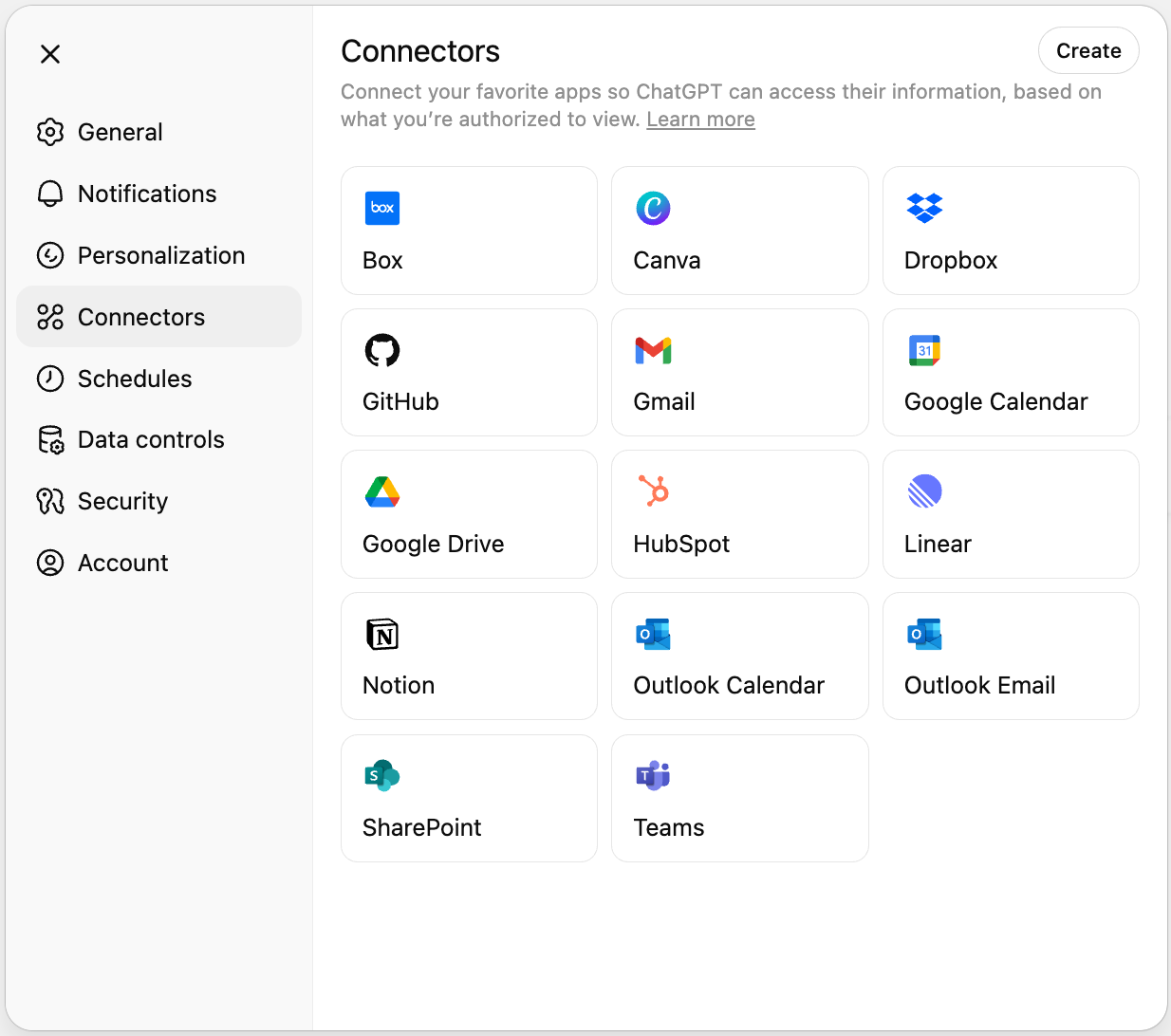
Image from OpenAI
The ChatGPT connector is a feature that links your AI assistant to external apps like Google Calendar. Once connected, ChatGPT can:
- Pull event details
- Check your availability
- Show meeting insights without you leaving the chat
Connectors for Gmail, Google Calendar, and Google Contacts can also run automatically after setup. That means ChatGPT can reference your calendar on its own when it’s relevant, instead of you having to turn it on every time.
Step-by-step guide on how to connect it
Here’s how you can connect Google Calendar to ChatGPT:
- Open ChatGPT and click your account name in the bottom-right corner.
- Go to Settings > Connectors > Google Calendar > Connect.
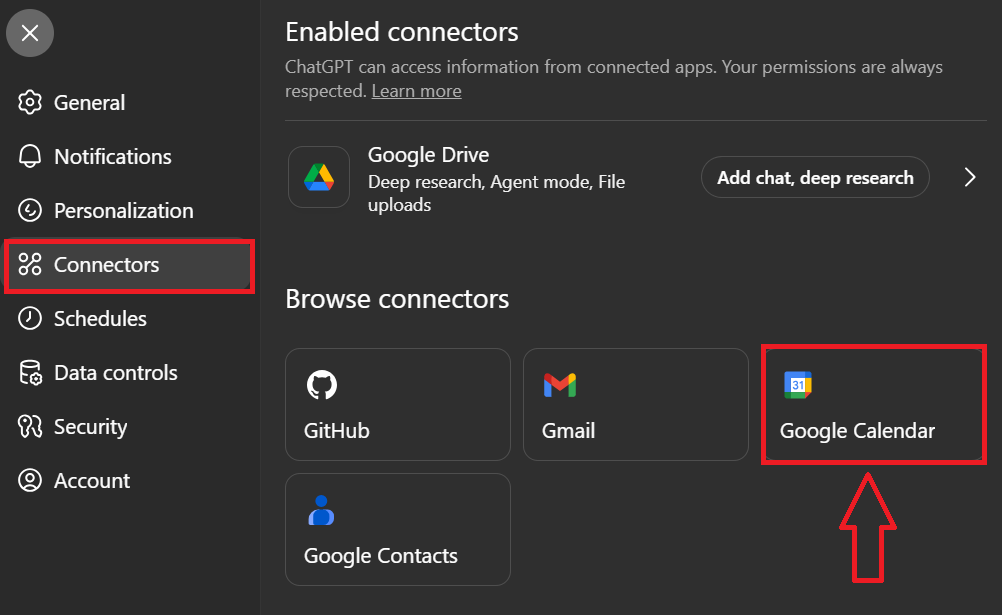
- You’ll be redirected to Google’s login page. Sign in and grant permission.
- Review what ChatGPT can access, then confirm.
- Open a new chat in ChatGPT, click Tools, then select Use connectors (or check that it’s set to auto).
- Start asking ChatGPT about your calendar. For example: “What’s on my schedule this Friday?”
If you ever need to cancel Google Calendar events, remember that connectors can only show or reference them. You need to do the actual cancellation directly in Google Calendar.
Use Cases ChatGPT + Google Calendar
After connecting Google Calendar with ChatGPT, you can ask it to read, analyze, and summarize your calendar in natural language. This makes planning less about checking boxes and more about uncovering insights.
Here are some powerful ways people use it:
Daily and weekly planning
You can treat ChatGPT like a personal assistant that keeps you on track. For example, ask:
- “What does my schedule look like today?”
- “Summarize my meetings this week and highlight any conflicts.”
- “Give me a prep briefing for my calls tomorrow.”
These queries turn a list of events into a structured plan to help you see priorities instead of just times.
Meeting analysis
Over time, your calendar becomes a record of how you spend your day. With ChatGPT, you can analyze that record. Try prompts like:
- “How many hours of meetings did I attend this quarter?”
- “List all recurring meetings I’ve had in the last six months.”
- “Which days in the past month were the busiest based on my calendar?”
This helps identify patterns like days overloaded with back-to-back meetings or recurring events that take up more time than expected.
Event summaries and context
Missed a meeting or need a quick recap? Once your calendar is connected, you can prompt ChatGPT to summarize past events. For example:
- “Summarize my one-on-one meetings with ChatGPT notes from last week.”
- “Give me a quick recap of my last project review meeting.”
By combining event details with your own notes, ChatGPT can provide short, digestible summaries.
Preparing for tomorrow
Instead of going into a meeting cold, ChatGPT can help you prepare. Prompts like:
- “Create a checklist for tomorrow’s meetings.”
- “What preparation do I need for my 3pm client call tomorrow?”
- “Draft talking points for my team meeting based on my calendar.”
This makes your calendar a tool for better preparation and focus.
Long-term insights
Beyond daily planning, ChatGPT can help you see trends. You can ask it to:
- “Analyze my calendar from January to June and tell me how often I met with the sales team.”
- “Compare the number of meetings I had this year versus last year.”
- “What percentage of my calendar time is spent in recurring meetings?”
These insights can highlight where your time is really going and where you might need to adjust.
💡 By asking the right questions, ChatGPT becomes an active assistant that helps you manage time smarter, reflect on how you spend it, and prepare better for what’s ahead.
Learn more about how to use ChatGPT for your meeting prep.
How Tactiq Helps Streamline Your ChatGPT Workflows
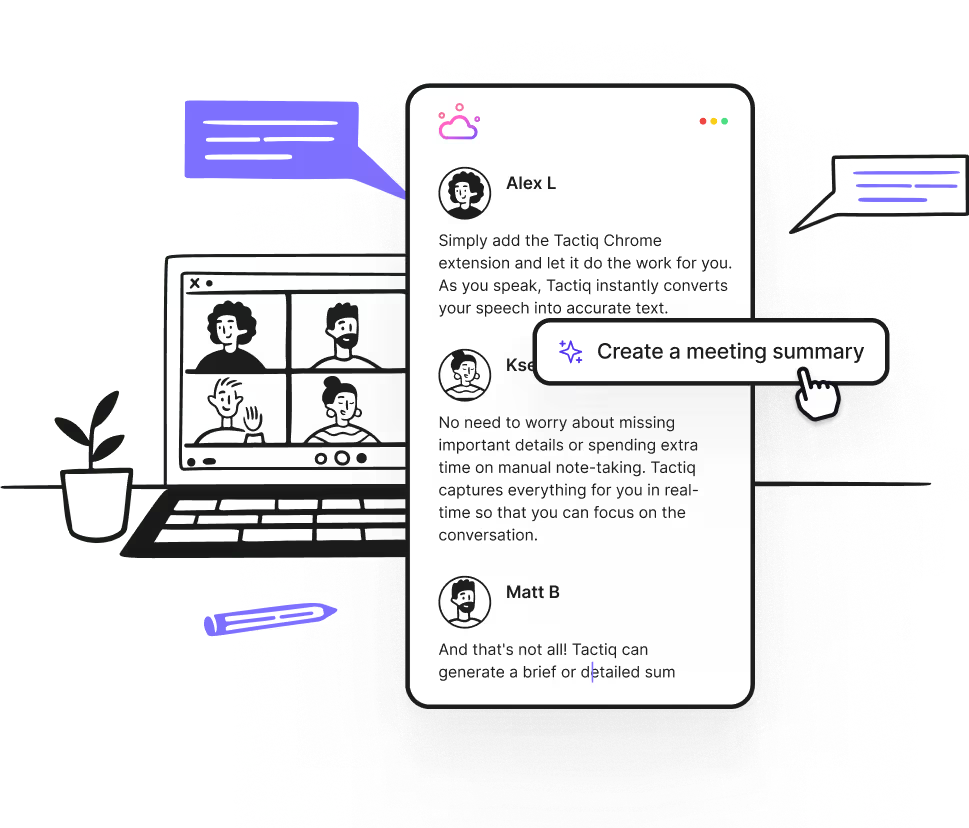
Connecting Google Calendar with ChatGPT is useful for planning and insights, but it doesn’t capture what happens during meetings.
Tactiq closes this gap by providing live transcription and AI-powered summaries directly in Google Meet.
Here’s how Tactiq supports your workflows:
- Real-time transcription: Capture every detail of your meetings without typing notes.
- AI summaries: Get clear action items, decisions, and highlights as soon as the meeting ends.
- AI workflows: Send meeting insights to project tools, email, or shared docs automatically.
- Built-in AI support: Use Tactiq’s own AI prompts and meeting kits to generate insights, documentation, or follow-ups without switching platforms. You can also type your own prompts (“Summarize key risks discussed in this meeting”) and Tactiq will instantly generate the answer.)
Tactiq ensures nothing gets lost in your meetings, while ChatGPT helps you expand on those insights when needed.
👉 Install the free Tactiq Chrome Extension today and see how it transforms your Google Meet notes into actionable outcomes.
{{rt_cta_ai-convenience}}
Wrapping Up
Connecting Google Calendar with ChatGPT turns your schedule into more than a list of events. It becomes a tool that answers questions, reveals patterns, and helps you prepare with context.
Paired with Tactiq, you also gain real-time transcription and AI summaries for your Google Meet calls. This means planning, running, and following up on meetings all fit into one smooth workflow.
👉 Start by connecting your Google Calendar to ChatGPT, then add Tactiq to capture and automate your meetings. Together, they’ll help you save time, reduce busywork, and make every meeting count.
FAQs about Connecting Google Calendar to ChatGPT
How do I integrate my Google Calendar with ChatGPT?
You can connect it through the ChatGPT Connector in Settings > Connectors. Once enabled, ChatGPT can reference your calendar directly in chat.
Is there an API for Google Calendar?
Yes. Developers can use the Google Calendar API to build custom integrations, including workflows that connect with ChatGPT.
How do I connect Google Calendar to ChatGPT on Android?
You can use the ChatGPT mobile app. Tap the menu on the upper left > your account name > Connectors > Google Calendar > Connect.
Can ChatGPT update my calendar?
With the connector, it can only read and reference your events. For creating or updating events, use the ChatGPT Agent feature.
Can ChatGPT send calendar invites?
Not with connectors. However, this is possible with the ChatGPT Agent feature.
Related articles


Want the convenience of AI summaries?
Try Tactiq for your upcoming meeting.
Want the convenience of AI summaries?
Try Tactiq for your upcoming meeting.
Want the convenience of AI summaries?
Try Tactiq for your upcoming meeting.