
How to Add Flights to Google Calendar
August 19, 2025
August 19, 2025
November 15, 2025
November 15, 2025

Travel gets complicated when you’re on the move for work. Flight tickets sit in your inbox, time zones shift your schedule, and last-minute changes can throw everything off. By adding your flight details to Google Calendar, you keep your itinerary, meetings, and deadlines in one view.
With a few settings and quick steps, you can let Gmail automatically add flights to Google Calendar or create events yourself.
In this guide, we’ll cover both options and show how AI tools can help you stay on top of travel plans.
Understanding How Flight Details Get Added to Google Calendar
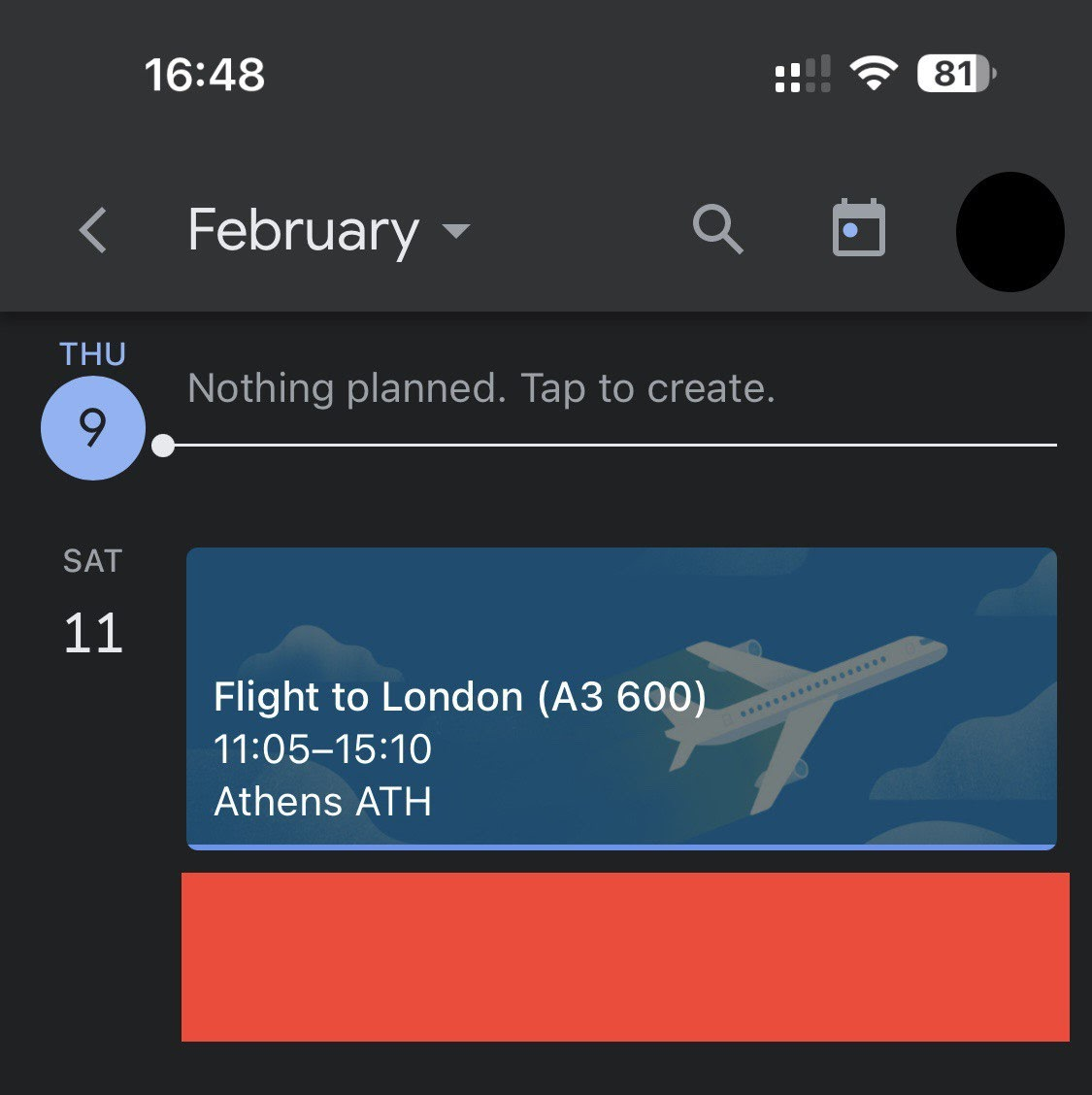
Google Calendar gives you two ways to keep your flights organized: automatic and manual.
If you use a Gmail account, your confirmation emails can trigger Google Calendar automatically to add the event for you. That means your flight itinerary, departure time, and even gate details can show up in your calendar without extra work.
If you don’t use Gmail or prefer more control, you can add flights manually. This works by creating a new event, importing .ics files to Google Calendar from airlines, or using links from booking sites.
Having flight details in your calendar keeps your trip aligned with your schedule, avoids missed connections, and makes planning around meetings or personal events easier.
Pro Tip: Use Tactiq with Zoom, Google Meet, or Microsoft Teams to capture booking details during calls. It transcribes conversations and highlights flight dates and destinations so you can add them directly to Google Calendar.
Automatic Addition: Let Gmail Add Flights To Google Calendar
Sometimes, you don’t need to do a thing. Google Calendar can pull flight details from your Gmail account. You just need the right switches on.
Enable “Events from Gmail”
On computer (calendar.google.com):
1. Click the Settings gear in the top right corner → Settings.
2. Under General, open Google Workspace smart features.
3. Turn on Smart features in Google Workspace and Save.
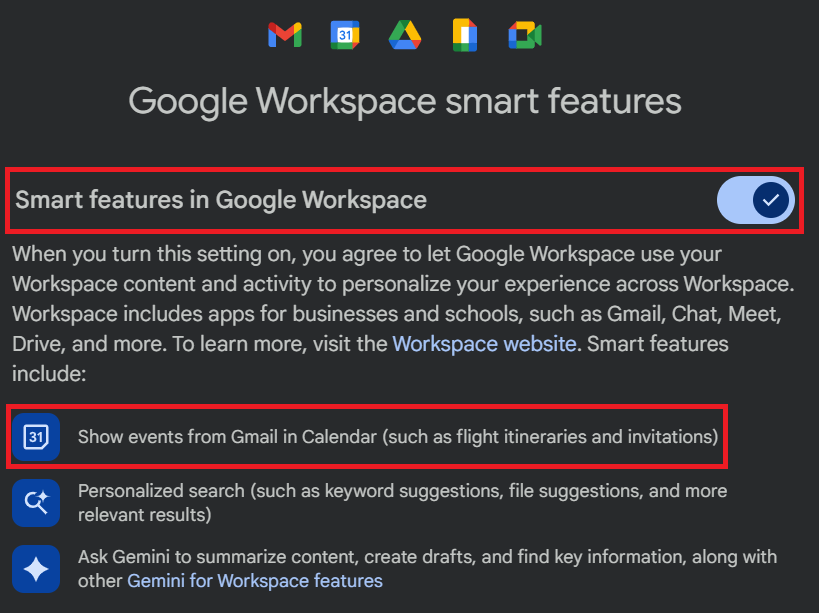
4. In the same section, check Show events from Gmail.

On Android (Gmail + Calendar apps):
1. In the Gmail app: Menu → Settings → your Gmail account → Google Workspace smart features → turn on.
2. In the Google Calendar app: Menu → Settings → Events from Gmail → turn on Show events from Gmail.
On iPhone/iPad (Gmail + Calendar apps):
1. In the Gmail app: Tap the hamburger menu (top left corner) → Settings → Under General, tap Data privacy → tap Google Workspace smart features → turn on Smart features in Google Workspace → tap Done.
2. In the Google Calendar app: Tap the hamburger menu → Settings → Events from Gmail → Enable show events from Gmail..
Note for Europe: Events from Gmail are off by default in the EEA, UK, Switzerland, and Japan. You must enable them.
How automatic extraction works
When a confirmation email hits your Gmail, Calendar creates an event with flight details: times, location, and a link back to the email. Your default notification rules apply. Updates in your inbox can refresh the event.
Troubleshooting auto-add issues
If flights still don’t show:
- Make sure Smart features and Show events from Gmail are on.
- Check that the ticket was sent to the same Gmail you use in Calendar.
- Auto-add won’t work if the email was sent to a mailing list, sent cc, or forwarded from another email account. It must be a supported confirmation (flights, hotels, etc.)
- Some Google Workspace or government accounts can’t use events from Gmail, or admins may restrict smart features.
- On Android, verify both the Gmail app smart features and Calendar’s Events from Gmail toggles.
Manual Methods: How to Add Flights to Google Calendar Yourself
If Gmail doesn’t pick up your flight details automatically, you can still add them to your calendar. These manual methods give you full control.

Add a new event with flight details
1. Open the Calendar app or go to calendar.google.com.
2. Click the Create button in the top left corner, then select Event.
3. Enter the airline name and flight number in the event title (e.g., “Delta Flight DL 1234”).
4. Add the departure time, arrival time, and location info.
5. Use the notes section to paste your itinerary or confirmation email.
6. Tap Save.
Pro Tip: Add your flight in the departure city’s time zone. If needed, you can later change your time zone on Google Calendar so it adjusts to your trip.
Importing .ics or calendar files from airlines
Most airlines and booking sites let you download an .ics file with your flight itinerary. Once imported, your flight becomes part of your Google Calendar-based schedule, making it easy to see alongside meetings, reminders, and personal events.
1. Download the .ics file to your device.
2. On your computer, open Google Calendar.
3. In the left panel, click + next to “Other calendars.”

4. Select Import.
5. Choose the .ics file and the calendar you want to add it to.
6. Click Import.
Your flight event now appears in your calendar, complete with times and details.
Adding flights from third-party booking sites (e.g., Expedia, Ryanair)
Travel sites often offer an Add to Calendar button or a shareable link.
- On Expedia, open your booking confirmation and click Add to Calendar to download an .ics file. Import it into Google Calendar.
- On Ryanair, check your booking confirmation email. Many airlines include a direct Add to Calendar link. Clicking it will add the flight event to your calendar app.
- For other sites, look for “Add to Google Calendar” or “Download calendar file” options on your confirmation page or email.
How Tactiq Helps You Prepare for Travel Plans
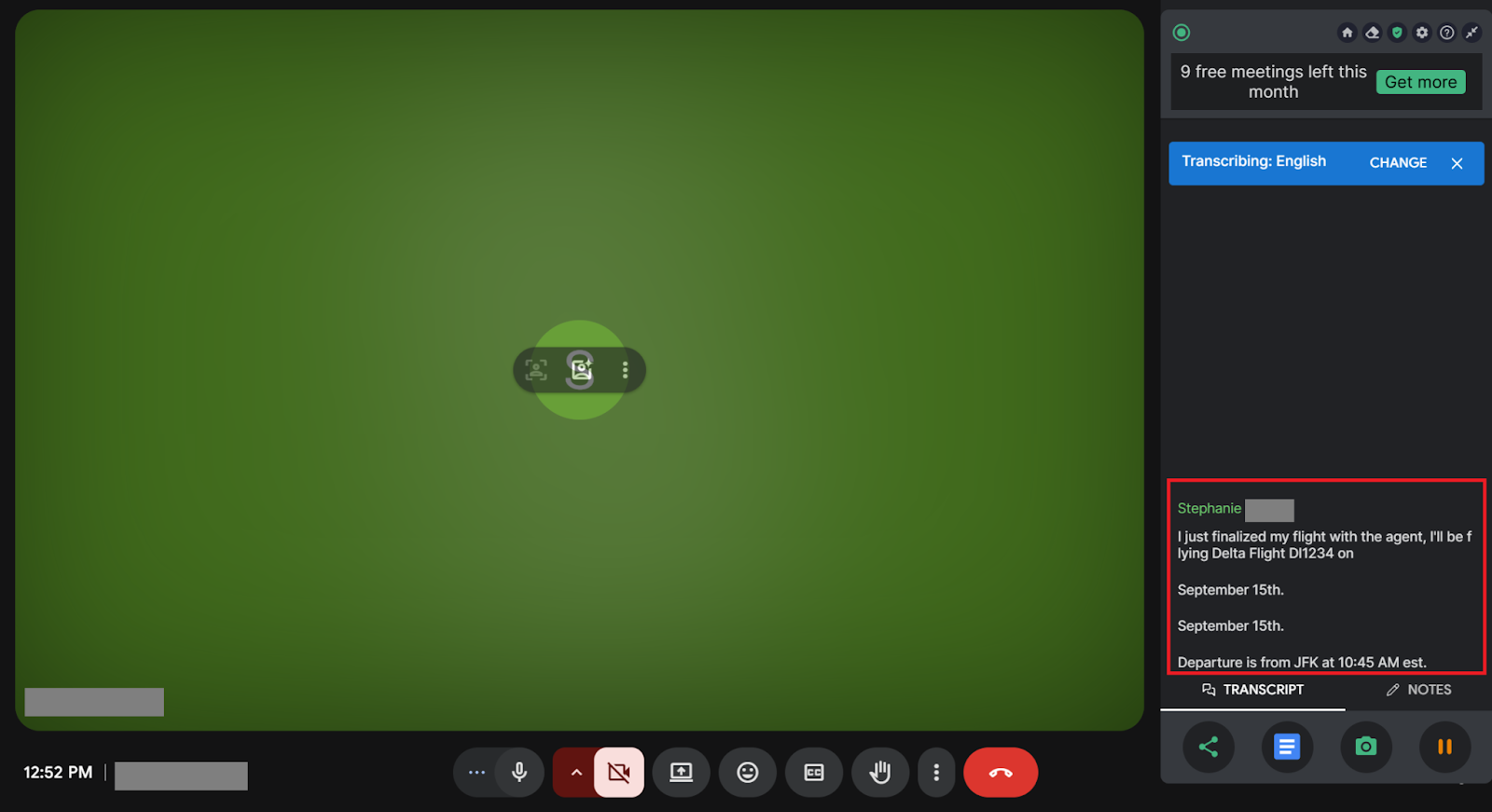
By now, you know how to add flights to Google Calendar either automatically or manually. But travel planning often involves more than just entering flight times. You might be finalizing bookings with a travel agent, confirming dates with your manager, or discussing handoffs with your team.
In these cases, Tactiq helps you capture every important detail.
Tactiq isn’t only for meetings. It’s also a powerful AI tool for organizing conversations around your travel. While you’re on Zoom, Google Meet, or Microsoft Teams, it transcribes discussions in real time and gives you actionable insights you can use right away.
Here’s how it helps with travel planning:
- Extracts key dates and locations - Automatically highlights flight dates, departure times, and destinations during your calls.
- Summarizes your travel itinerary - Generates AI-powered summaries you can save as a trip outline or share with your team.
- Creates a task list for your team - Captures action items like who’s covering responsibilities while you’re away, so handoffs stay smooth.
- Multi-language support - Transcribes conversations in 50+ languages, perfect for global bookings and international trips.
- AI prompts and workflows - Turn transcripts into follow-up emails, documentation, or reminders connected to your travel plans.
Tactiq keeps your flights, meetings, and responsibilities aligned in one place. You’ll spend less time tracking details and more time focusing on the trip ahead.
Download the Tactiq Chrome Extension for free and take the stress out of planning your next journey.
{{rt_cta_ai-convenience}}
Wrapping Up
Adding flights to Google Calendar helps you stay on top of every trip detail. Whether Gmail pulls flight tickets in automatically or you create events yourself, having everything in one place saves time and reduces stress.
Pairing Google Calendar with Tactiq takes your planning further. You’ll not only track your itinerary but also capture conversations, action items, and updates that matter before and after your trip.
Try Tactiq for free today and turn your meetings and your travel plans into organized, actionable insights.
Turn on Events from Gmail in your Calendar settings and enable smart features in the Gmail app. When you get a flight confirmation email in your Gmail account, Google Calendar automatically creates an event with the flight details.
You can add it manually by creating a new event with flight details, or import an .ics file from your airline or booking site into Google Calendar. You can also share your Google Calendar to keep travel plans visible to family or colleagues.
Check that Events from Gmail is enabled, your confirmation email was sent to the correct Gmail account, and smart features are turned on in both Gmail and Calendar. If flights overlap with work, you may also want to set working hours in Google Calendar so events don’t cause conflicts.
Yes. If your flight confirmation isn’t sent to Gmail, you can still add it manually. Options include creating a new calendar event with your flight details, importing an .ics file from the airline, or using the “Add to Calendar” links provided by booking sites. This ensures your flights stay organized even without Gmail’s automatic extraction.
Google Calendar automatically adjusts events to match your calendar’s current time zone. If you add your flight in the departure city’s time zone, it will update to reflect the correct times when you change your calendar’s time zone during travel. This helps prevent confusion about departure and arrival times as you move across regions.
Related articles


Want the convenience of AI summaries?
Try Tactiq for your upcoming meeting.
Want the convenience of AI summaries?
Try Tactiq for your upcoming meeting.
Want the convenience of AI summaries?
Try Tactiq for your upcoming meeting.