
How to Join a Meeting in Google Calendar (Full Guide)
October 11, 2025
October 11, 2025
October 11, 2025
October 11, 2025

If your workday revolves around meetings, Google Calendar can save you time and clicks. It connects directly with Google Meet, letting you join video meetings without digging through emails or chat threads.
Everything you need — the meeting link, date, time, and participants — is already in your Calendar event.
In this guide, you’ll learn how to:
- Join a video meeting directly from a Google Calendar event
- Access your meeting link on desktop or mobile
- Use a meeting code or phone number to enter a call
Step-by-Step Guide to Joining a Meeting from Google Calendar
How to join a meeting in Google Calendar from a desktop
Joining a Google Meet video meeting from your computer takes only a few clicks. Here’s how:
- Sign in to your personal Google account.
- Open Google Calendar on your web browser.
- Find the event you want to join. If the time looks off, check your calendar settings and change time zone on Google Calendar to make sure events show at the right local time.
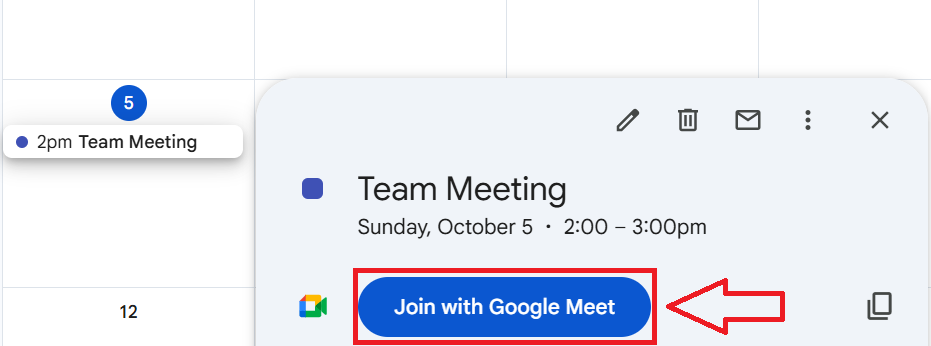
- Click the event to open its details.
- Select Join with Google Meet. If you don’t see the join option, check that your event has Google Meet links in Google Calendar.
- A new tab will open with the Google Meet video conferencing window.
- Check your camera and microphone settings before entering the call.
- Click Join now to enter the meeting and connect with other participants.
💡 Note: If you’re a Google Workspace user, you may see extra options like recording, polls, or breakout rooms depending on your admin’s settings.
You can also use the same steps to join from a shared Google Calendar event invitation sent by another host.
How to join a meeting from Google Calendar on mobile (Android & iOS)
You can join a Google Meet video meeting directly from the Google Calendar app on your phone. Follow these steps:
- Open the Google Calendar app on your Android or iPhone.
- Tap the event you want to join.
- Under the event details, tap Join with Google Meet.
.png)
- If prompted, allow microphone and camera access.
- The Google Meet app will open automatically.
- Check your audio and video before entering.
- Tap Join now to start the meeting.
If you have multiple Google accounts signed in, make sure you’re using the one connected to your meeting invite.
💡 Pro tip: Use Tactiq to capture your Google Meet transcripts automatically. It saves live captions, highlights, and AI-generated summaries right after the call — all stored in your Google Drive for easy access.
Alternative Ways to Join Google Meet Meetings
You can also join Google Meet calls using a direct link, meeting code, or phone number if the event isn’t in your calendar.
How to join a Google Meet meeting via direct link or code
If you didn’t add the event to your Google Calendar, you can still join a meeting using a meeting link or meeting code.
To join by link:
- Open the email invitation or message that includes the Google Meet link.
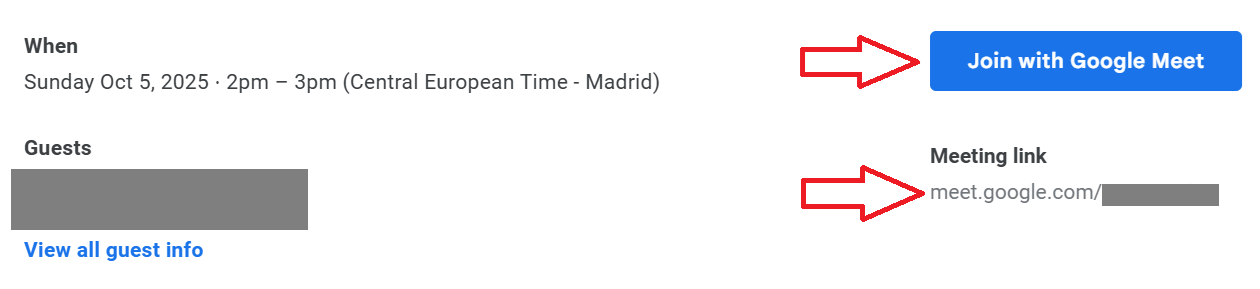
- Click the link or Join with Google Meet, and it will open in your browser or the Google Meet app.
- Check your camera and microphone settings.
- Click Join now to enter the meeting.
To join by meeting code:
- Open Google Meet on your computer or phone.
- Type the meeting code provided by the host.
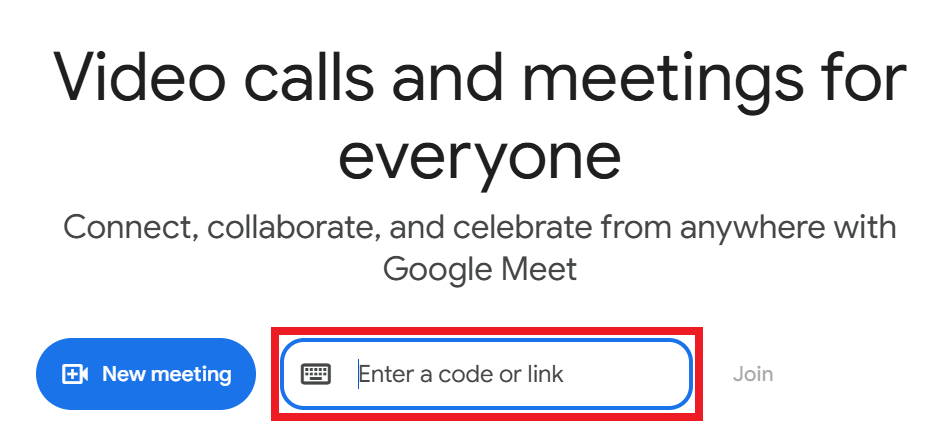
- Select Join to access the video meeting.
These options are helpful if you’re invited to meetings outside your organization or if you don’t have the event on your calendar.
How to join a Google Meet meeting by phone
All Google Workspace editions let users connect to numbers in the U.S. and Canada at no extra cost.
Join a Google Meet video meeting by phone if the event includes a dial-in number. This lets you join the meeting’s audio when you can’t access the internet.
- Open the Google Calendar event or email invitation for the meeting.
- Under the event details, find the Join by phone section.
- Dial the listed phone number.
- When prompted, enter the PIN followed by the # key to connect.
- You’ll be added to the meeting’s audio-only.
Key details:
- Organizations with a Meet Global Dialing subscription can call numbers outside the U.S. and Canada, though carrier or per-minute charges may apply.
- To view a list of local numbers, open the event and click More phone numbers or More joining options.
- If Global Dialing is newly enabled, the organizer should remove and re-add the Meet link in existing events so the updated numbers appear.
How to Use Tactiq in Google Calendar
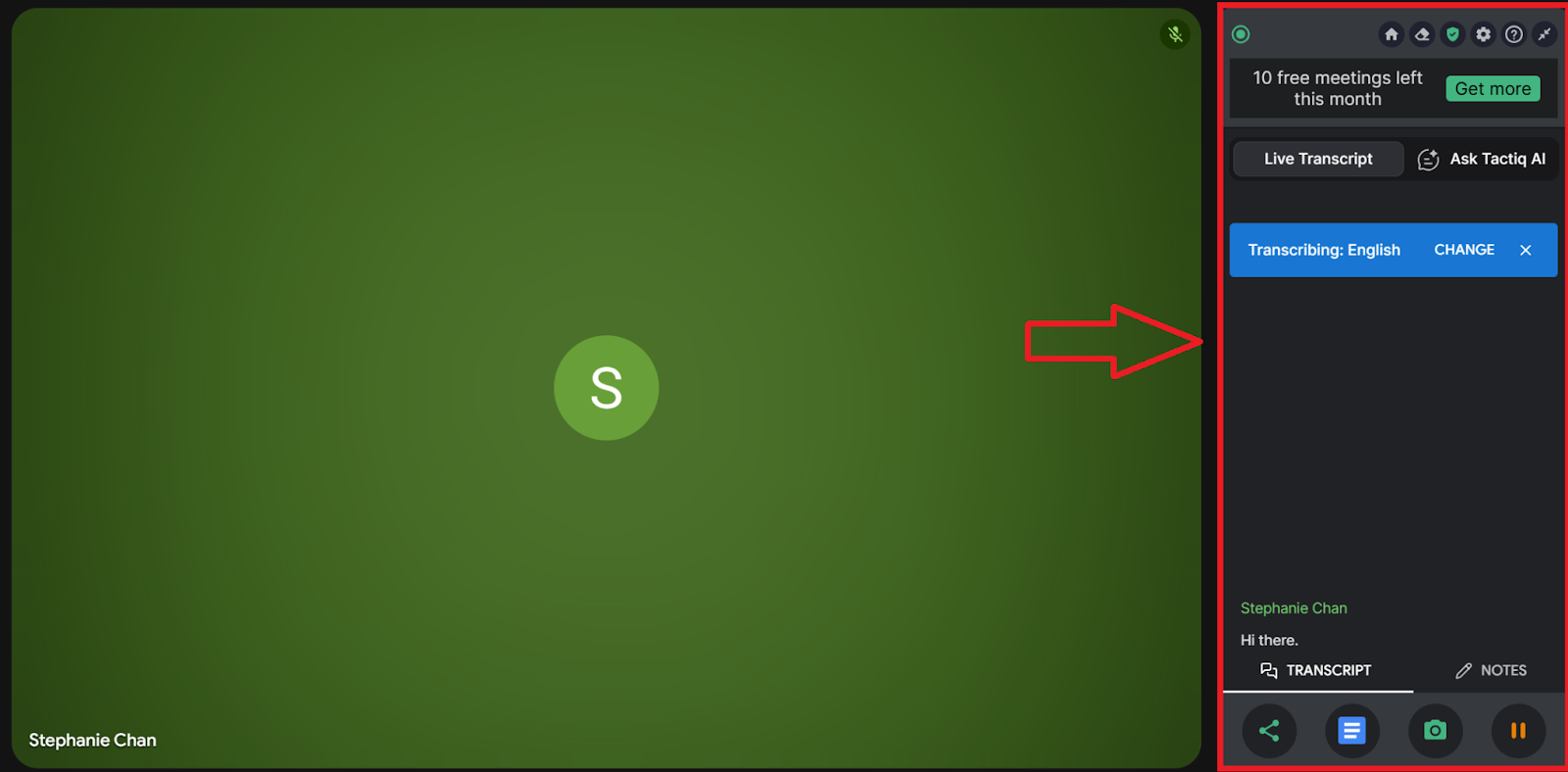
Tactiq is an AI meeting assistant that transcribes your Google Meet calls in real time and turns them into clear, shareable notes. It helps you stay focused during conversations while AI handles summaries, action items, and follow-up messages for you.
Key features of Tactiq
- Live transcriptions: Capture every detail of your Google Meet discussions as they happen.
- AI-generated summaries: Automatically create concise summaries and key takeaways after each meeting.
- Custom AI prompts: Turn meeting notes into project updates, documentation, or follow-up emails.
- Speaker identification: See who said what during the conversation.
- Multi-language support: Transcribe meetings in 60+ languages.
- Fast follow-ups: Use AI to generate post-meeting messages instantly.
Before using Tactiq in Google Calendar, you’ll need to install the Tactiq Chrome Extension.
How to install the Tactiq add-on in Google Calendar
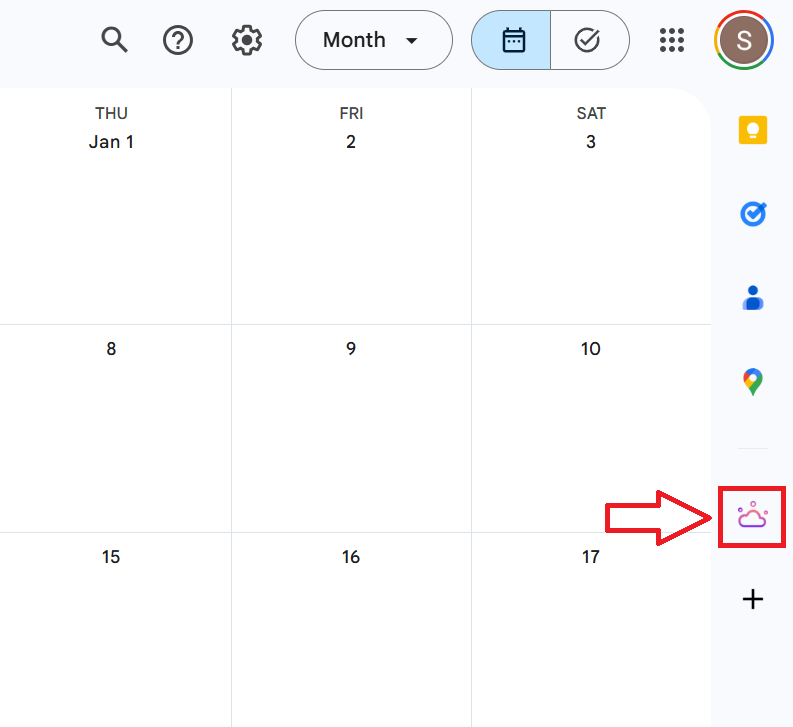
- Open Google Calendar on your computer.
- Click the “+” icon on the right-hand sidebar to open the Google Workspace Marketplace.
- Search for Tactiq.
- Click Install and complete the setup.
- The Tactiq logo will now appear in your sidebar.
How to view meeting transcripts in Google Calendar

- Click the Tactiq icon in the sidebar.
- Choose a past meeting to see its transcript, summary, and highlights.
- Click on the transcript to open it in detail or share it with your team.
- If the meeting is recurring, Tactiq groups all related transcripts together so you can easily track discussions over time.
Learn more about other helpful Google Calendar add-ons that can make meeting management even easier.
{{rt_cta_ai-convenience}}
Wrapping Up
Knowing how to join and manage meetings from Google Calendar keeps your day organized and your schedule easy to follow. Whether you’re joining from a link, code, or phone number, everything starts with one click in your calendar.
Adding Tactiq makes your meetings even more productive. With live transcriptions, AI summaries, and smart prompts, you can focus on the discussion while Tactiq captures every key point automatically.
Integrating Tactiq with Google Calendar means you can revisit transcripts, track progress, and stay aligned without leaving your workspace. It’s a small upgrade that creates a big impact on how you organize your day.
To learn more about setup and features, read our full guide on how to use Tactiq in Google Calendar.
FAQs About How to Join a Meeting in Google Calendar
How do I join a Google Meet meeting?
Open your Google Calendar event and click Join with Google Meet. You can also join using a meeting link or meeting code shared by the host.
How do I find the meeting link on Google Calendar?
Click on the event in your Google Calendar to find the Join with Google Meet button.
How do I join a Google Calendar with a link?
Click the Google Meet link from your event or email invite. It will open automatically in your browser or the Google Meet app.
How do I join a call through Google Calendar?
Open Google Calendar, select your event, and click Join with Google Meet to enter the video meeting.
Related articles


Want the convenience of AI summaries?
Try Tactiq for your upcoming meeting.
Want the convenience of AI summaries?
Try Tactiq for your upcoming meeting.
Want the convenience of AI summaries?
Try Tactiq for your upcoming meeting.