
How to Connect Google Drive to ChatGPT (2026 Guide)
July 17, 2025
July 17, 2025
September 1, 2026
September 1, 2026

Google Drive and ChatGPT can now work together, and it changes how you handle files day-to-day.
Instead of switching tabs or pasting long documents into the chat, you can pull files like Google Docs, Sheets, and PDFs straight into a ChatGPT conversation. OpenAI recently moved this feature into a new Plugins Directory, so the setup looks different than it did last year.
In this guide, you'll find:
- What changed with ChatGPT's move to the Plugins Directory
- Step-by-step instructions to connect Google Drive to ChatGPT
- What plans and regions support the integration
- Practical prompts and use cases once you're connected
- How Tactiq fits into a Google Drive and ChatGPT workflow
Can You Connect Google Drive to ChatGPT?
Yes, but access still depends on your plan.
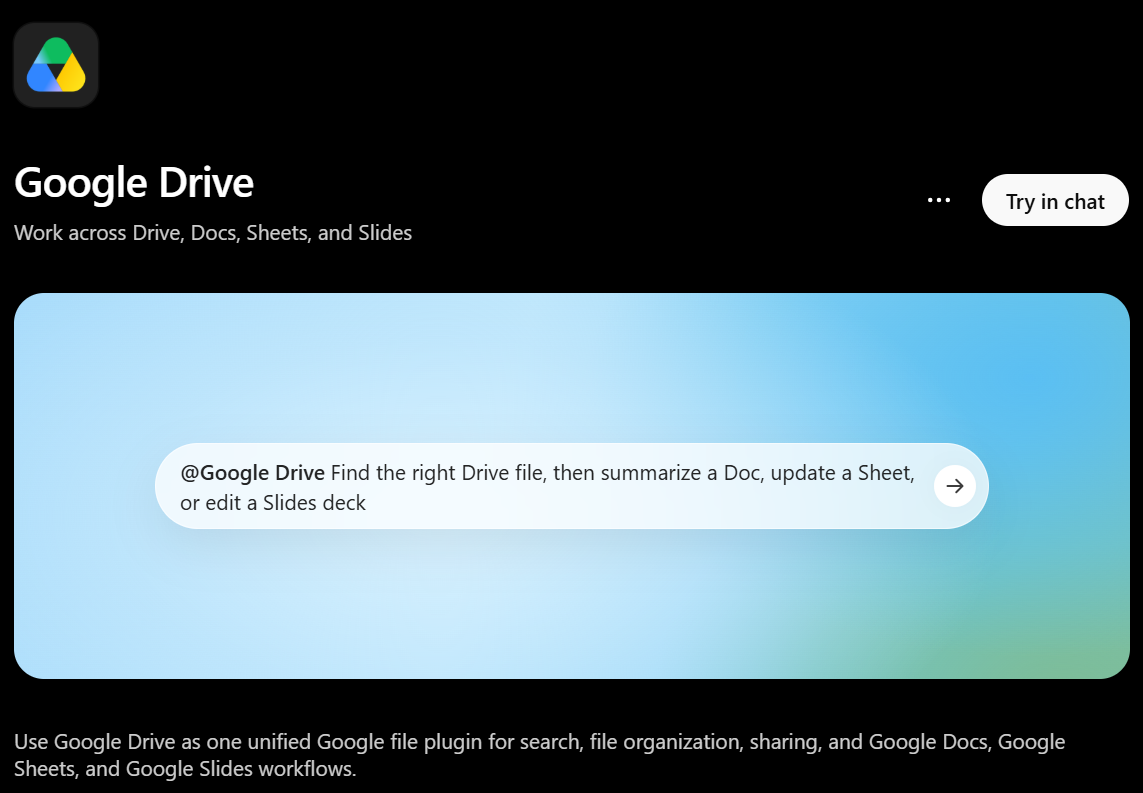
Google Drive is available through ChatGPT's Plugins Directory, which replaced the old app directory in July 2026. Here's how access breaks down:
- Free plans: No app connections at all, Google Drive included.
- Pro users: Can connect and set up Google Drive with sync on their own.
- Business workspaces: Google Drive actions are on by default, though an admin can still manage them.
- Enterprise and Edu workspaces: An admin has to enable Google Drive actions before anyone can use them.
Once connected, you choose which files ChatGPT can see rather than handing over your whole Drive.
A June 2026 update also changed what the integration can do. Google Docs, Sheets, and Slides actions now live inside the Google Drive app instead of running as separate connections. This means ChatGPT can create and edit files in these formats, not just read them.
By default, ChatGPT still asks before taking any action that could affect a file outside the chat. This includes things like editing a shared document or moving a file. You can adjust how often it asks in your app permission settings.
💡 Pro Tip: Skip the Google Drive step altogether. Tactiq MCP connects your meeting transcripts straight to ChatGPT, so you can ask "What did we decide on the Q3 roadmap?" without saving or attaching a single file.
How to Connect Google Drive to ChatGPT
ChatGPT connects to Google Drive as a plugin, though Google Drive itself still requires a paid plan.
1. Open the plugin directory.
Go to chatgpt.com/plugins, or find the plugin directory in your ChatGPT sidebar.
2. Find Google Drive and add it.
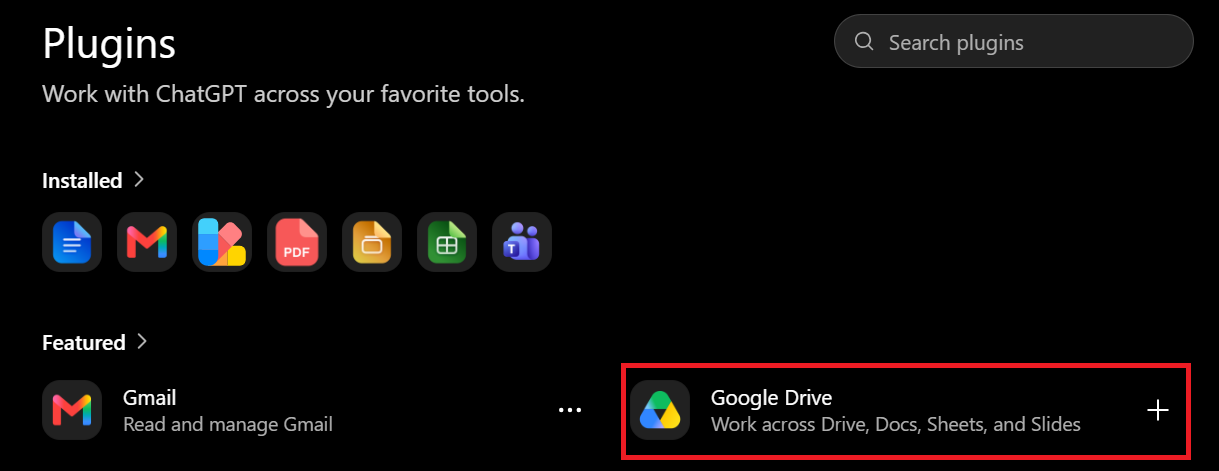
Search for Google Drive, open its details, and click Install plugin.
3. Sign in and grant access.
You'll be redirected to Google to log in. All permissions are required, so if you skip any, ChatGPT will ask you to reconnect Google Drive and select all requested permissions to continue.
4. Turn on sync if you have Pro.
Pro users can also turn on Sync, which indexes your files in advance for faster, more current responses.
5. Use it in chat.
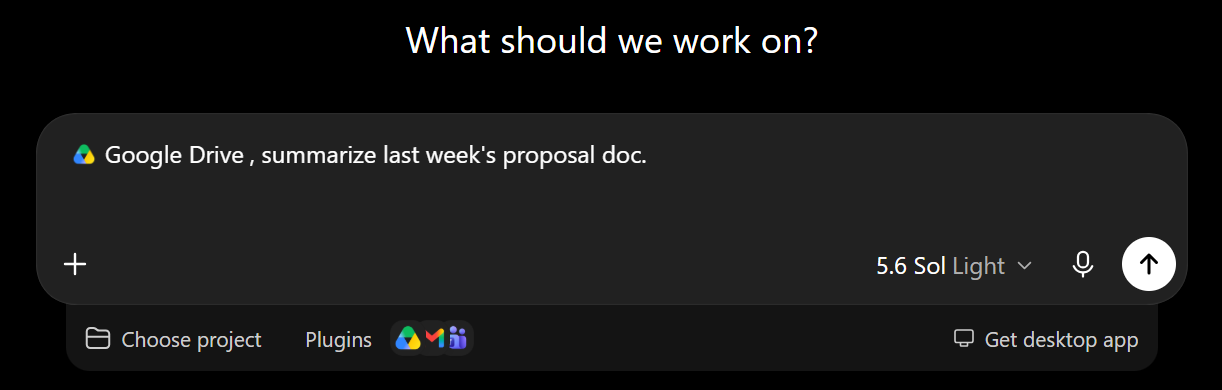
Select Google Drive from the Plugins menu, or type "@Google Drive" followed by your question. For example: "@Google Drive, summarize last week's proposal doc."
If you connected Google Drive before June 15, 2026, you may need to reconnect and approve the updated permissions before it works again.
How to Send Meeting Notes to Google Drive
If your meeting notes already live in Google Drive, getting them into ChatGPT takes one extra step.
Save your meeting transcript or summary as a Google Doc in Drive. Once ChatGPT's Google Drive plugin is connected, reference that file directly in chat and ask ChatGPT to summarize it, draft a follow-up, or pull out action items. This is one of several ways to feed data to ChatGPT, and it works well for anyone who already keeps meeting records in Drive.
Using Tactiq MCP to send meeting notes directly to ChatGPT
You can skip the Google Drive step entirely with Tactiq MCP. Instead of saving a file and connecting it through Drive, Tactiq MCP gives ChatGPT direct access to your meeting transcripts.
Connect Tactiq to ChatGPT once, then ask questions like "What did we decide about the Q3 roadmap?" directly in chat. ChatGPT pulls the answer straight from your meeting history. No file, folder, or manual step in between.
Install the free Tactiq Chrome Extension to start capturing meetings you can send to Google Drive or query directly through MCP.
Setting up Tactiq MCP with ChatGPT
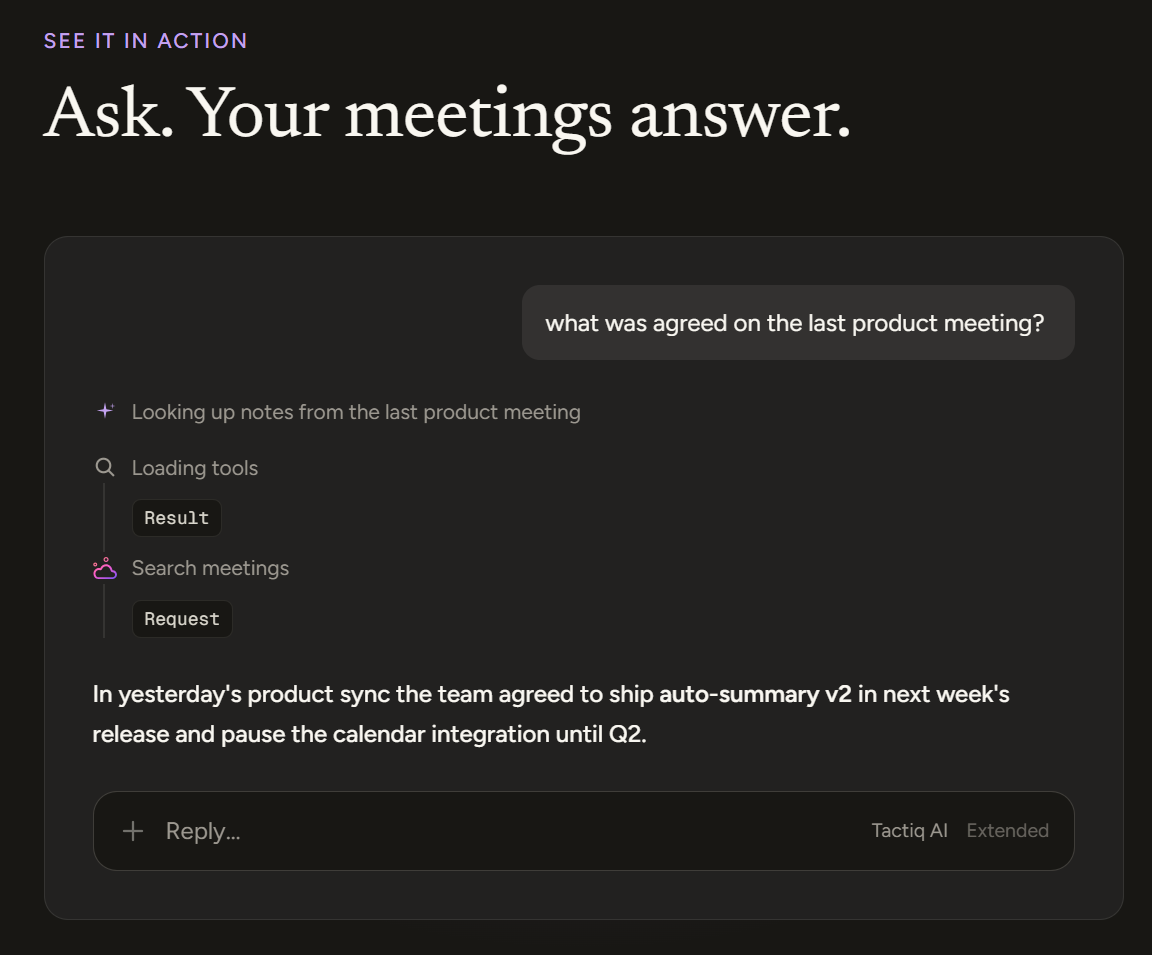
Tactiq's MCP server works with Claude and other MCP-compatible tools out of the box. In ChatGPT, you'll add it as a plugin through Developer Mode.
- Open ChatGPT and go to Settings, then Security and login.
- Turn on Developer Mode.
- Go to ChatGPT Plugins and select the plus button.
- Enter the Tactiq MCP server URL (https://mcp.tactiq.io) and complete the connection details.
- Open a new chat on ChatGPT. Type "@" followed by the plugin name to invoke it, then ask about your meetings directly.
This isn't available on the free ChatGPT plan, since Developer Mode and custom plugins require Plus or higher.
Troubleshooting: Common Issues and Fixes
A few issues come up often when connecting Google Drive to ChatGPT. Here's how to fix them.
Can't find a file in your Google Drive folder
Check that you're signed into the right Google account. ChatGPT's search only matches the first few words of a filename, so try renaming your Google Drive files with clearer titles if they're hard to find. A new file can also take a minute to show up after uploading.
Google Drive links won't open
Confirm the drive file is shared properly. Private files block access unless they're set to "Anyone with the link," or shared directly. For an organization's Google Drive, a Google Workspace admin may need to adjust sharing settings before the link works. If the file was deleted, moved, or renamed after connecting, the link breaks too.
Connection fails or asks you to reconnect
This usually means a permission wasn't granted while connecting ChatGPT to Google Drive. Disconnect, then reconnect and grant every permission Google asks for, since partial approval blocks the connection. Some setups only request read only access rather than full access, so check which one your workspace uses. If you connected before June 15, 2026, you'll likely need to redo this step to pick up the newer permissions.
File type isn't supported
ChatGPT works best with Google Docs, Sheets, Slides, PDFs, and other text-based formats. Scanned or image-based PDFs may not process correctly. For these files, AI OCR can convert scanned text and handwriting into searchable, machine-readable content before you use it with AI tools. Files synced from other tools like Microsoft OneDrive follow different rules, so don't assume the same file types apply across connected apps.
Security & Privacy: Managing Permissions Safely
Connecting Google Drive gives ChatGPT access to the files you choose, not your entire Drive.
What ChatGPT can and can't access
ChatGPT only reads files you've explicitly connected or referenced. It doesn't browse your folders on its own, and it won't touch anything outside the permissions you granted.
If you have Memory turned on, ChatGPT may remember helpful context from your Google Drive files to improve future chats. You can turn this off or manage individual memories in your settings.
Also worth knowing:
- Business, Enterprise, and Edu accounts aren't used to train models by default.
- Plus and Pro users can turn off model training in their data controls.
- In a regular chat, ChatGPT only checks Google Drive when you prompt it. It won't act on a file without a prompt unless you've set up a scheduled task to monitor for changes.
Recommended steps for organizations
If you're on a managed Google Workspace account, ask your IT team to review which Google Drive actions are enabled. Limit access to only the apps and files people actually need, and check sharing settings regularly, especially for sensitive folders like legal, HR, or finance records.
Admins can manage all of this from Workspace settings > Apps, including which actions are allowed and who can use them.
How to disconnect Google Drive from ChatGPT
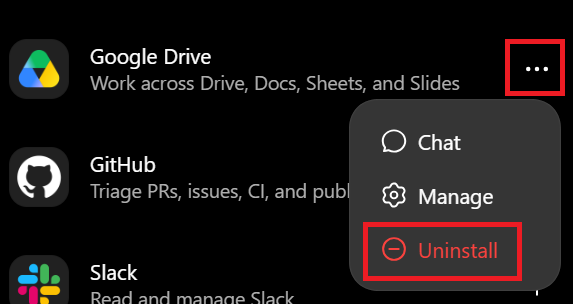
Open the plugin directory, find Google Drive, click the three-dotted icon, and select Uninstall. You may also need to revoke access from your Google Account settings at myaccount.google.com/permissions.
Wrapping Up
Bringing Google Drive into ChatGPT saves time once you know where the setup lives today.
The move to the Plugins Directory changed the steps, but the outcome is the same: your files stay in Drive, and ChatGPT reads them the moment you need an answer. Whether you're summarizing a report, comparing proposals, or pulling details from a spreadsheet, the connection removes the extra step of uploading files by hand.
For meeting notes, Tactiq MCP skips the file step entirely by giving ChatGPT direct access to your transcripts.
If you're weighing ChatGPT against other AI tools, our ChatGPT alternatives guide breaks down how the options compare.
No. Free accounts can't connect any apps. Plus and Pro users can connect Google Drive, and Plus access is no longer limited to deep research only.
OpenAI renamed Connectors to Apps, then moved everything into the Plugins Directory on July 2026.
Yes. A June 2026 update added write actions, so ChatGPT can create and edit Docs, Sheets, and Slides, not just read them.
Accounts connected before June 15, 2026 may need to reconnect and approve new permissions. This unlocks the newer write actions tied to Google's updated scopes.
By default, yes, for Free, Plus, and Pro users, unless they turn off "Improve the model for everyone." Team, Enterprise, and Edu accounts are excluded from training by default.
Related articles





Want the convenience of AI summaries?
Try Tactiq for your upcoming meeting.
Want the convenience of AI summaries?
Try Tactiq for your upcoming meeting.
Want the convenience of AI summaries?
Try Tactiq for your upcoming meeting.