
ChatGPT Atlas Review: Is It Worth the Switch?
October 28, 2025
October 28, 2025
July 17, 2026
July 17, 2026

OpenAI launched ChatGPT Atlas on October 21, 2025, positioning it as more than just another browser. Built with ChatGPT at its core, Atlas promises to change how you search, browse, and get work done online. But does it live up to the hype?
I've spent the last week testing the ChatGPT Atlas web browser to see if it's actually useful for remote professionals or just another tech experiment. Here's what I found.
In this post, we’ll discuss:
- What is ChatGPT Atlas?
- What Atlas does well
- Where Atlas falls short
- Should you switch?
But first…let’s talk about what exactly ChatGPT Atlas is.
What Is ChatGPT Atlas?
ChatGPT Atlas is OpenAI's web browser with AI built directly into every page. Unlike Chrome, where you install ChatGPT as an extension or use the site in a tab, Atlas makes the AI assistant a core part of the browsing experience.
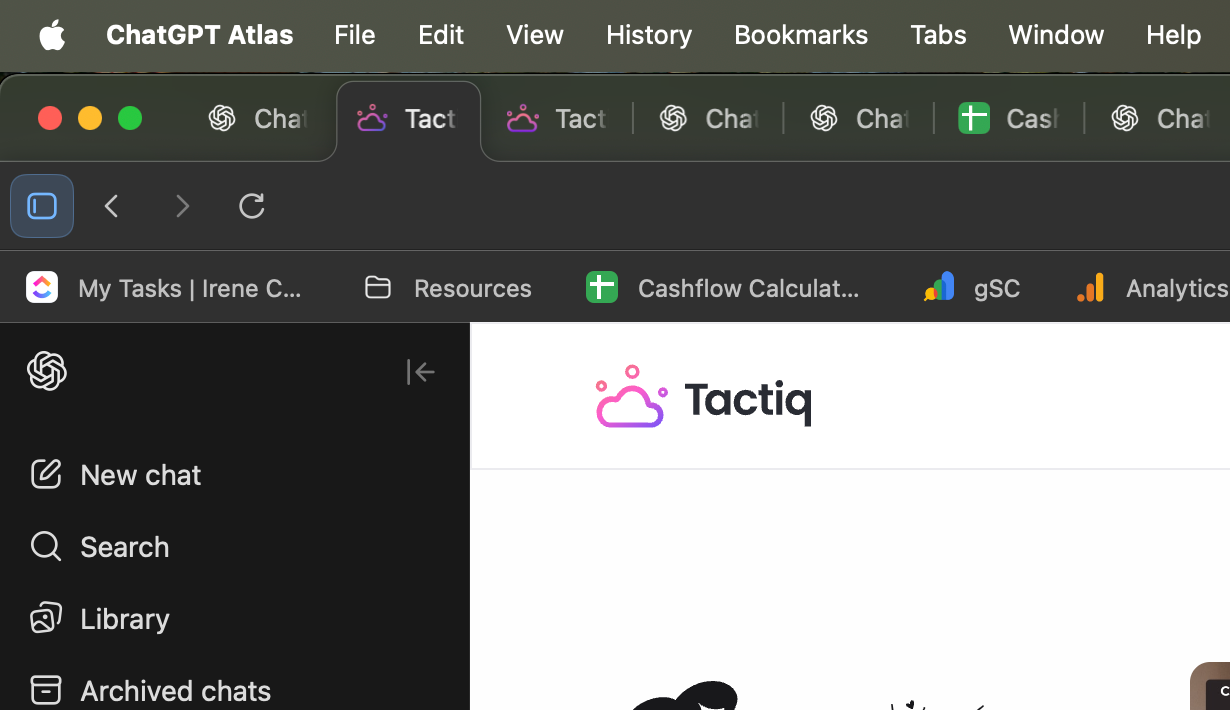
The browser runs on Chromium, the same engine that powers Chrome, Edge, and Brave. This means it supports the same web standards and extensions you already use.
Key features at launch
- Ask ChatGPT sidebar: Opens on any webpage to summarize content, answer questions, or help you write without switching tabs.
- Browser memories: Remembers details from sites you visit to offer better suggestions later. This is optional, and you control what gets saved.
- Agent mode: Lets ChatGPT complete multi-step tasks like researching products, booking appointments, or filling out forms. Available for Plus, Pro, and Business users.
- Inline writing help: Highlight text in any form field and get ChatGPT's help rewriting, editing, or generating content on the spot.
- New tab search: The default search uses ChatGPT instead of Google, giving you AI-generated answers with sources rather than a list of links.
Who can use Atlas?
Atlas is available now for macOS users worldwide. It's free to download for Free, Plus, Pro, and Go users. Business accounts get access in beta, and Enterprise and Education accounts need admin approval.
Windows, iOS, and Android versions are coming soon, but no specific dates have been announced.
Pro tip: While Atlas handles web browsing and AI tasks well, meetings need a different approach. Tactiq works in Google Meet, Zoom, and Microsoft Teams to capture real-time transcripts and turn them into summaries and action items.
The Good: What Atlas Does Well
I’ve been using ChatGPT Atlas since it was released. My main browser is Chrome, and it was easy for me to switch to Atlas because the extensions work.
So, what’s good about Atlas?
Chromium means extensions work
I’m always wary of switching browsers because I use many Chrome extensions. This is one of the first things I tested. So, do Chrome extensions work on Atlas? And the answer is yes!
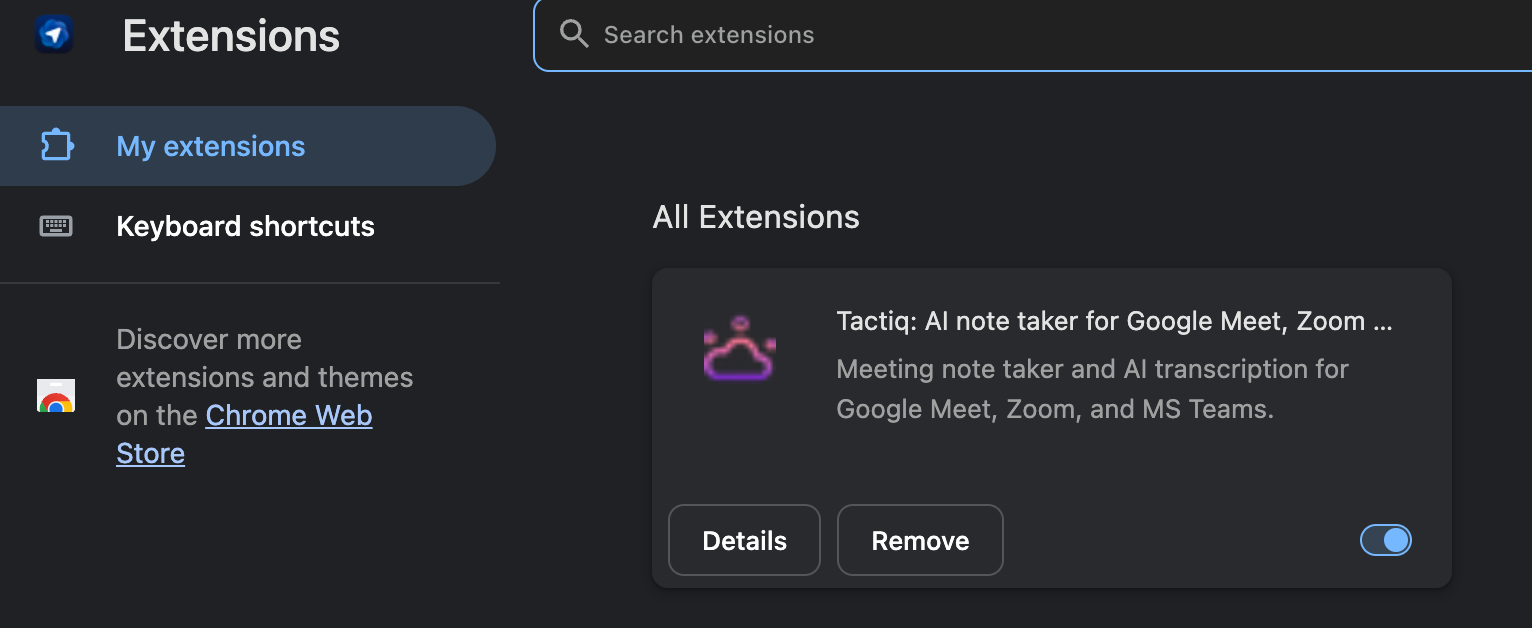
The first thing I installed was Tactiq, of course. I feel like I’m flying blind without it on my calls. I also installed Loom. They both work great without any issues.
You can learn more about how Chrome extensions work on Atlas in our latest article. You’ll have to test your own extensions and see if they’re working as they should.
AI assistance is always available
The sidebar approach works better than browser extensions. You don't need to copy and paste content or switch tabs to get ChatGPT's help. Click the button, and ChatGPT already knows what page you're on.
I usually edit content or review web pages before they get published. And this workflow is super handy! I usually either copy and paste the content on ChatGPT or ask ChatGPT to read the link for me. (I find that just sharing the link can sometimes produce inaccurate results!)
I even asked ChatGPT to analyze my Notion database, and it found some neat tips to improve it.
Search vs chat
Using Atlas seems super natural. It’s almost like your Chrome experience.
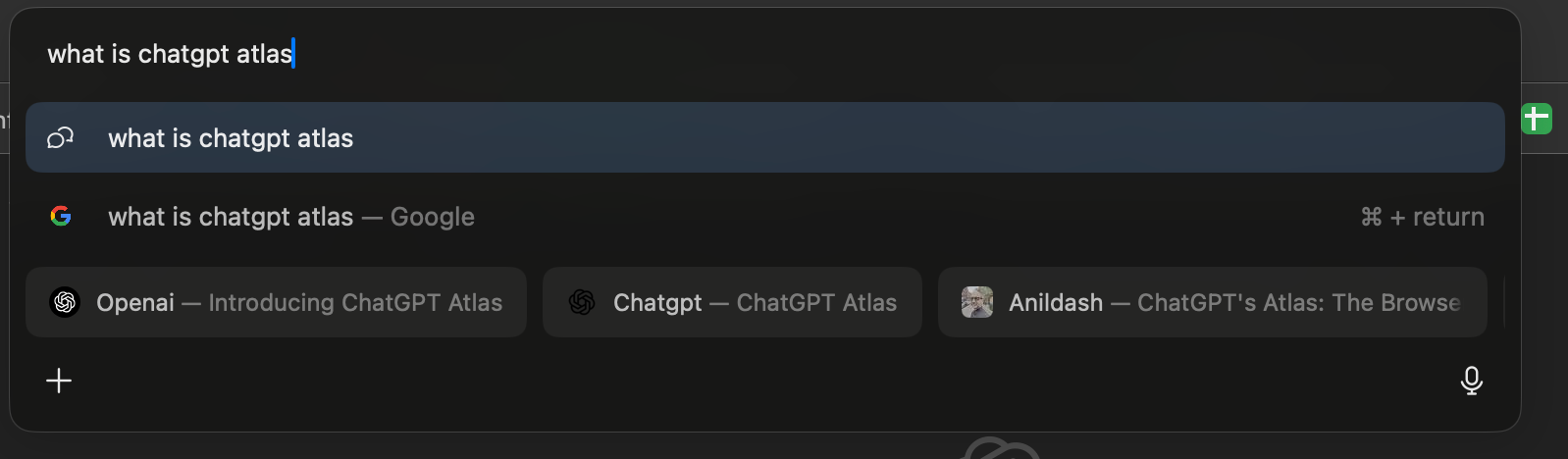
There are two interfaces with the Atlas:
- Search tab: Similar to Chrome, you’ll have the search tab at the top, where you can type in the sites you visit or your queries.
- Chat: The chat box is just below that and is always available in the Atlas interface.
So, it’s a merge between Chrome and ChatGPT all on one page. I would still type short queries on the search tab and long conversations on the chat.
Similar to Google Search, you’ll also be able to switch between Home, Search, Images, Videos, and News. But the main difference is that you’ll see the links listed horizontally at the top, and the chat response underneath.
Where Atlas Might Fall Short
It isn’t necessarily bad. It really depends on how you use Chrome and your workflows. After almost a week, I haven’t fully made the switch to Atlas. I think it’s just mostly because of habit.
I do find using ChatGPT on Atlas rather than using it on Chrome.
Here are a few things that you might consider:
macOS only at launch
The biggest limitation is availability. Atlas only runs on macOS right now. If you use Windows, Linux, or primarily work on mobile devices, you can't use it yet.
OpenAI says Windows, iOS, and Android versions are coming, but didn't give any timeline. For now, this is a Mac-only browser.
I’m guessing OpenAI is making a strategic move by releasing it for macOS. But for those who are not using it, it can create FOMO.
Search behavior is different than Google
While the interface feels like the Google Search bar, the results are different. For example, when I try to type “ChatGPT mention tracker,” it will first define what a ChatGPT mention tracker is.
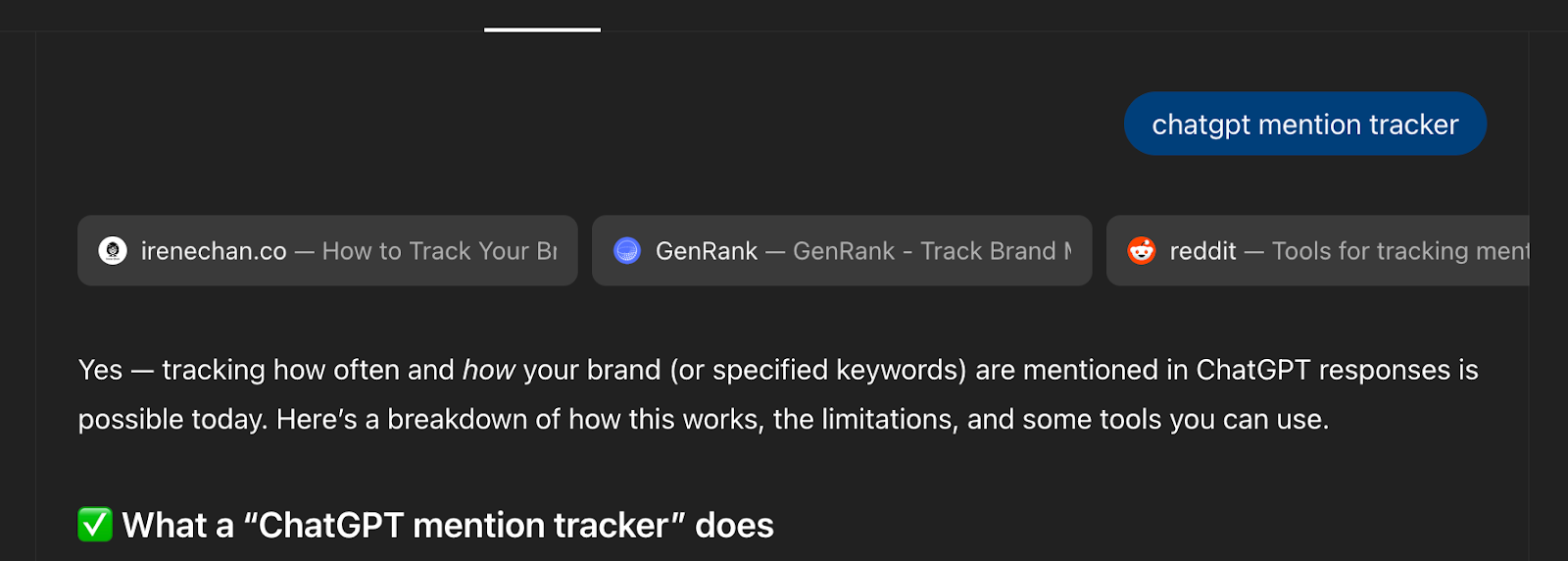
But I intended to find tools right away. While I do like the structure of ChatGPT, I still like to see the SERP (search engine results page).
It’s probably because I’m in the SEO business and I’m used to its layout. I like to see the People Also Ask and then the list of sites. It just gives me a better overview of the content landscape.
Your experience might be totally different, depending on your profession and industry. So, I highly encourage you to try it and see for yourself.
Privacy concerns remain
Atlas asks for a lot of trust. It can see what pages you visit, what you type, and what you click. OpenAI says it doesn't use your browsing data to train AI models by default, but you can opt in if you want.
The per-site visibility toggle helps. You can tell Atlas which sites ChatGPT can and can't see. When visibility is off, no memories are created.
But the fact remains: you're giving OpenAI access to your browsing behavior. That's a significant privacy consideration, especially for anyone working with sensitive client information.
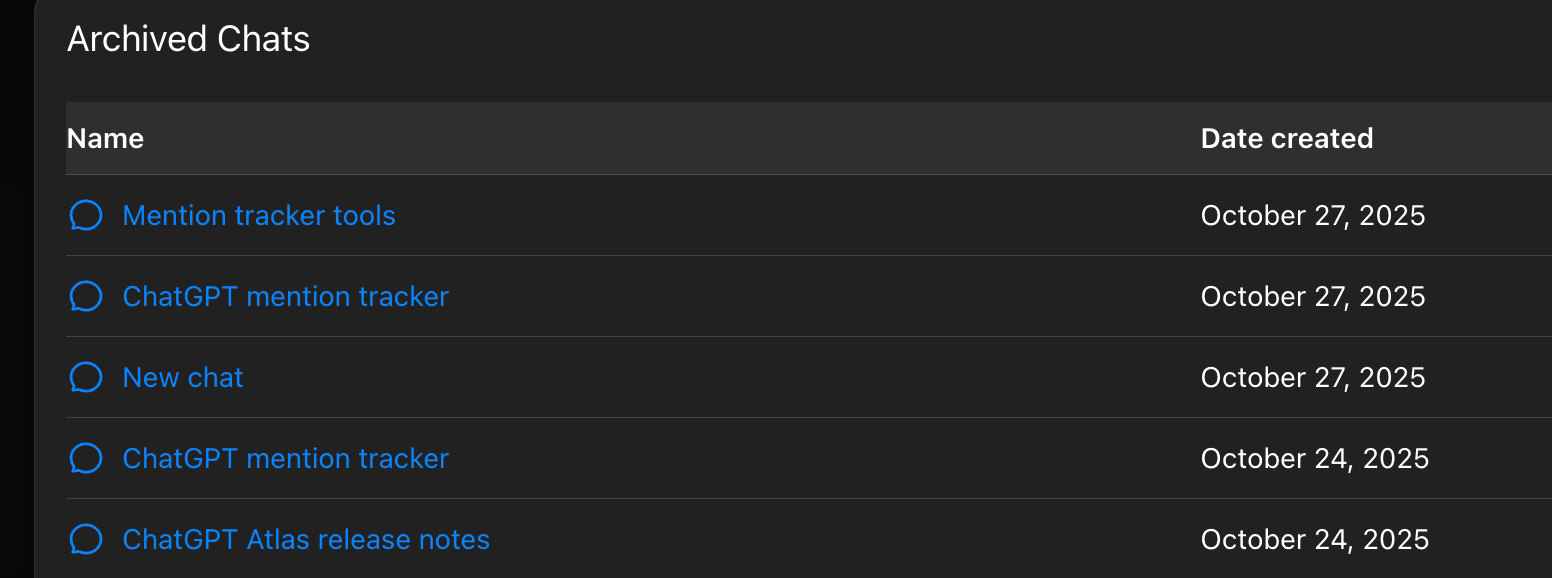
Visually, when you search using the search bar, queries are automatically archived. It doesn’t appear in Chats. But if you talked to ChatGPT in the chat box, then it will show up under Chats.
ChatGPT Atlas vs Chrome Browser
So, how does the ChatGPT Atlas vs Chrome browser comparison actually shake out?
Speed and performance
I’ve always had issues with Chrome because it eats up a lot of memory, and it can slow down the computer. My experience seems faster and snappier in ChatGPT Atlas. I’m using a MacBook Air 2022 with an Apple M2 Chip.
I should note that I haven’t used any site-heavy tasks in ChatGPT Atlas yet. Sometimes I use Descript or Canva, and that is usually when the Mac struggles.
It’s best to test all your workflows on Atlas, so you can see the actual performance.
Features and flexibility
Chrome wins on features and flexibility. It has years of development, extensive extension support, better developer tools, and features like tab groups and profiles that Atlas doesn't have yet.
Atlas has ChatGPT built in, which is its main advantage. I use ChatGPT a lot, which includes:
- Content creation
- Image generation
- Summary and analysis
Atlas makes my workflow a lot easier because ChatGPT is literally everywhere. I use Ask ChatGPT a lot, to be honest.
If you rely heavily on ChatGPT for your work, that integration might be worth the trade-off.
Screen size
In ChatGPT, you always have the left navigation panel. It’s the same in Atlas. When you’re on Notion, for example, the screen real estate becomes smaller. There is a quick fix: hide the panel. But it’s an extra step.

For example, when you're browsing a shopping site, it feels a little bit tight. This is probably a problem that is unique to people who use laptops with smaller screens.
How to Use Tactiq on ChatGPT Atlas
Since Atlas supports all Chrome extensions, you can use Tactiq for meeting transcription just like you would in Chrome.
Installing Tactiq on Atlas takes less than a minute:
- Open the Chrome Web Store in Atlas
- Search for "Tactiq"
- Click "Add to Chrome"
- Join your next Google Meet, Zoom, or Microsoft Teams meeting
- Tactiq will automatically transcribe the conversation in real-time
Once installed, Tactiq works the same way in Atlas as it does in Chrome. You'll get live transcripts during meetings, AI-generated summaries after calls, and one-click action items without any bots joining your meetings.
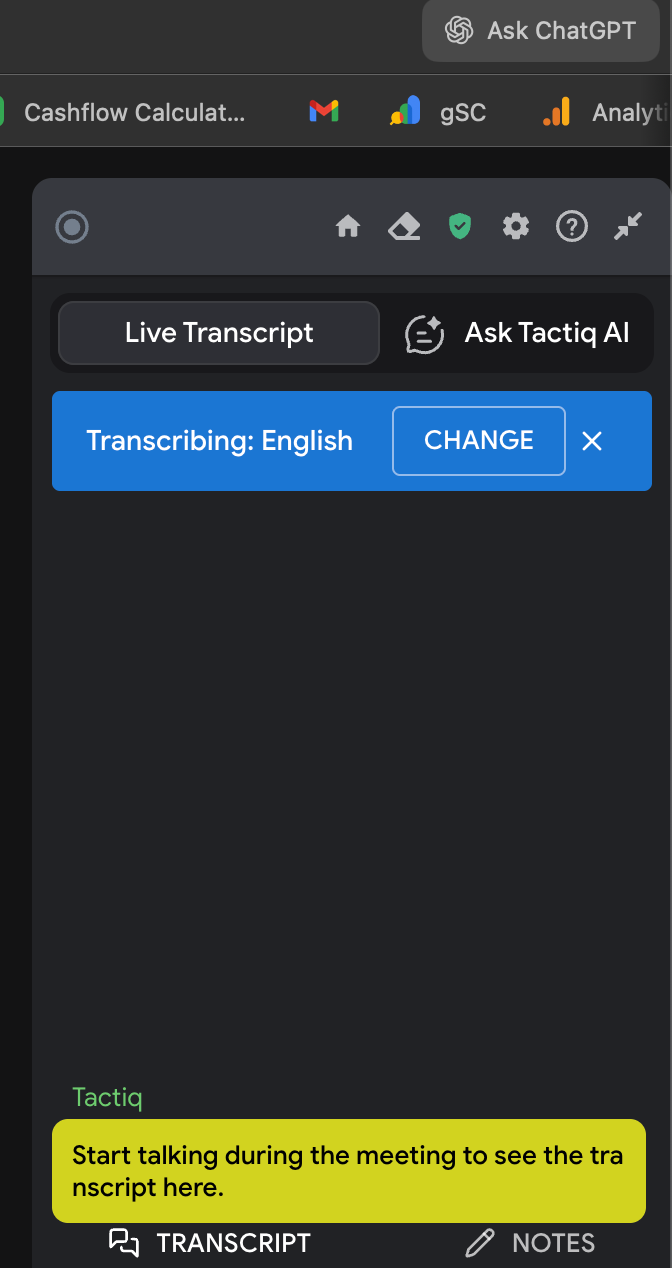
The combination of Atlas's AI sidebar and Tactiq's meeting intelligence provides comprehensive AI support across browsing and meetings.
{{rt_cta_ai-convenience}}
Is the ChatGPT Browser Review Positive Overall?
This ChatGPT browser review is mixed. Atlas shows real innovation in how AI can work with browsing, but it's not ready to replace Chrome for most people.
Who should use Atlas?
Atlas makes sense if you:
- Use ChatGPT constantly for work and want faster access
- Work primarily on macOS and don't need cross-platform support yet
- Don't mind being an early adopter dealing with bugs and missing features
Who should stick with Chrome?
Keep using Chrome if you:
- Need cross-platform support across Windows, Mac, mobile, and tablets
- Rely on advanced browser features like tab groups or extensive developer tools
- Want a stable, reliable browser without experimental AI features
- Have privacy concerns about giving one company access to both your AI queries and browsing behavior
-
Should You Switch to ChatGPT Atlas?
It depends on your use case. Atlas shows where AI-powered browsing could go, but it's not ready to be your primary browser. The macOS-only limitation alone makes it impractical for most people.
If you're curious about AI integration in browsers and use a Mac, it's worth trying. Just don't expect it to replace Chrome yet.
For now, the best approach is to use Chrome (or your preferred browser) with ChatGPT as needed, plus specialized tools like Tactiq for meetings where AI can have the biggest impact on productivity.
Download ChatGPT Atlas at chatgpt.com/atlas if you want to test it yourself. It's free for all users, so you can try it without any commitment.
Watch for updates as OpenAI adds features and expands platform support. Atlas might become compelling in six months or a year, but today, it's an interesting experiment rather than a must-have browser.
FAQs
What is the ChatGPT Atlas browser?
ChatGPT Atlas is OpenAI's web browser built on Chromium with ChatGPT integrated into every page. It includes an AI sidebar for summaries and help, optional browser memories that remember your browsing context, and an agent mode that can complete web tasks on your behalf.
Is Atlas ChatGPT good?
Atlas is good if you use ChatGPT heavily for work and want it built into your browser. The sidebar integration works well, and browser memories add useful context. But it's still in early stages with bugs, limited platform support (macOS only), and features that need refinement before it can compete with established browsers.
Is ChatGPT Atlas better than Chrome?
It depends on your use case. Chrome is more stable (as of now), has better features, and works across all platforms. Atlas's advantage is native ChatGPT integration, which eliminates the need to switch tabs when you rely on AI constantly.
Do the Chrome extensions work in ChatGPT Atlas?
Since Atlas is built on Chromium (the same engine as Chrome), all Chrome extensions work in Atlas without modifications. You install them from the Chrome Web Store the same way you would install Chrome extensions.
Related articles





Want the convenience of AI summaries?
Try Tactiq for your upcoming meeting.
Want the convenience of AI summaries?
Try Tactiq for your upcoming meeting.
Want the convenience of AI summaries?
Try Tactiq for your upcoming meeting.