
Do Chrome Extensions Work in ChatGPT Atlas? Full Guide
October 23, 2025
October 23, 2025
November 15, 2025
November 15, 2025

OpenAI just dropped ChatGPT Atlas on October 21, 2025, and remote professionals are already asking: can I use my favorite Chrome extensions? The short answer is yes. Atlas is built on Chromium, which means your Chrome extensions work right out of the box.
If you rely on extensions to stay productive, this guide will walk you through everything you need to know about getting your extensions running on ChatGPT Atlas.
Do Chrome Extensions Work in ChatGPT Atlas?
Yes, Chrome extensions work in ChatGPT Atlas. Atlas is built on Chromium, the same open-source browser engine that powers Google Chrome, Microsoft Edge, and many other browsers.
This means the browser extensions you use in Chrome will work the same way in Atlas. The Chrome Web Store recognizes Atlas as a Chromium browser, so installing extensions follows the same process you're already familiar with.
What extensions are compatible?
Almost all Chrome extensions are compatible with Atlas. This includes:
- AI meeting tools: Tactiq, Google Gemini
- Productivity tools: Grammarly, Notion Web Clipper, Loom
- Password managers: LastPass, 1Password, Bitwarden
- Privacy tools: Privacy Badger, HTTPS Everywhere
Popular extensions like these work without any modifications or workarounds. However, note that ChatGPT Atlas is new, so you might encounter some hiccups along the way.
💡 Pro tip: While ChatGPT Atlas handles web browsing and AI tasks smoothly, you still need a dedicated tool for meetings. Tactiq's Chrome extension captures real-time transcripts in Google Meet, Zoom, and Microsoft Teams, turning conversations into summaries and action items instantly.
How to Install ChatGPT Atlas
Getting started with Atlas takes just a few minutes. Here's how to download and set up the browser on your Mac.
- Download Atlas
Visit chatgpt.com/atlas to download the browser. Atlas is currently available for macOS only.
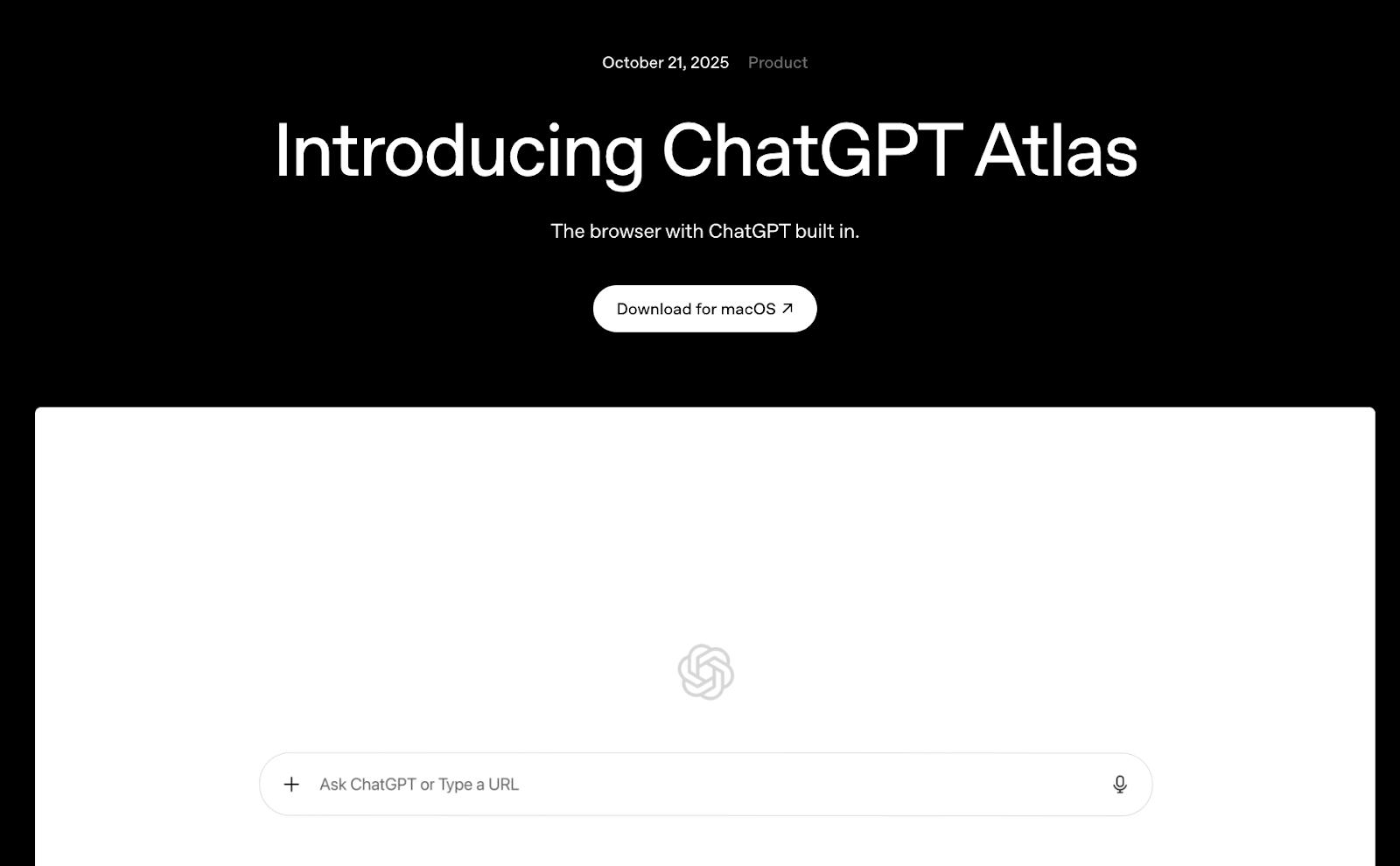
The download is available to Free, Plus, Pro, and Go users globally. If you're on a Business, Enterprise, or Education account, check with your administrator to see if Atlas is enabled for your workspace.
- Set up your account
When you open Atlas for the first time, sign in with your ChatGPT account. This connects your ChatGPT history and preferences to the browser, so conversations can draw on past context.
If you have multiple ChatGPT accounts (like a personal account and a team workspace), you'll need to choose which one to use.
- Import your data from Chrome
During setup, you'll see an option to import from Chrome or Safari. Check this box to bring over your bookmarks, passwords, and browsing history. This won't affect your experience in Chrome.
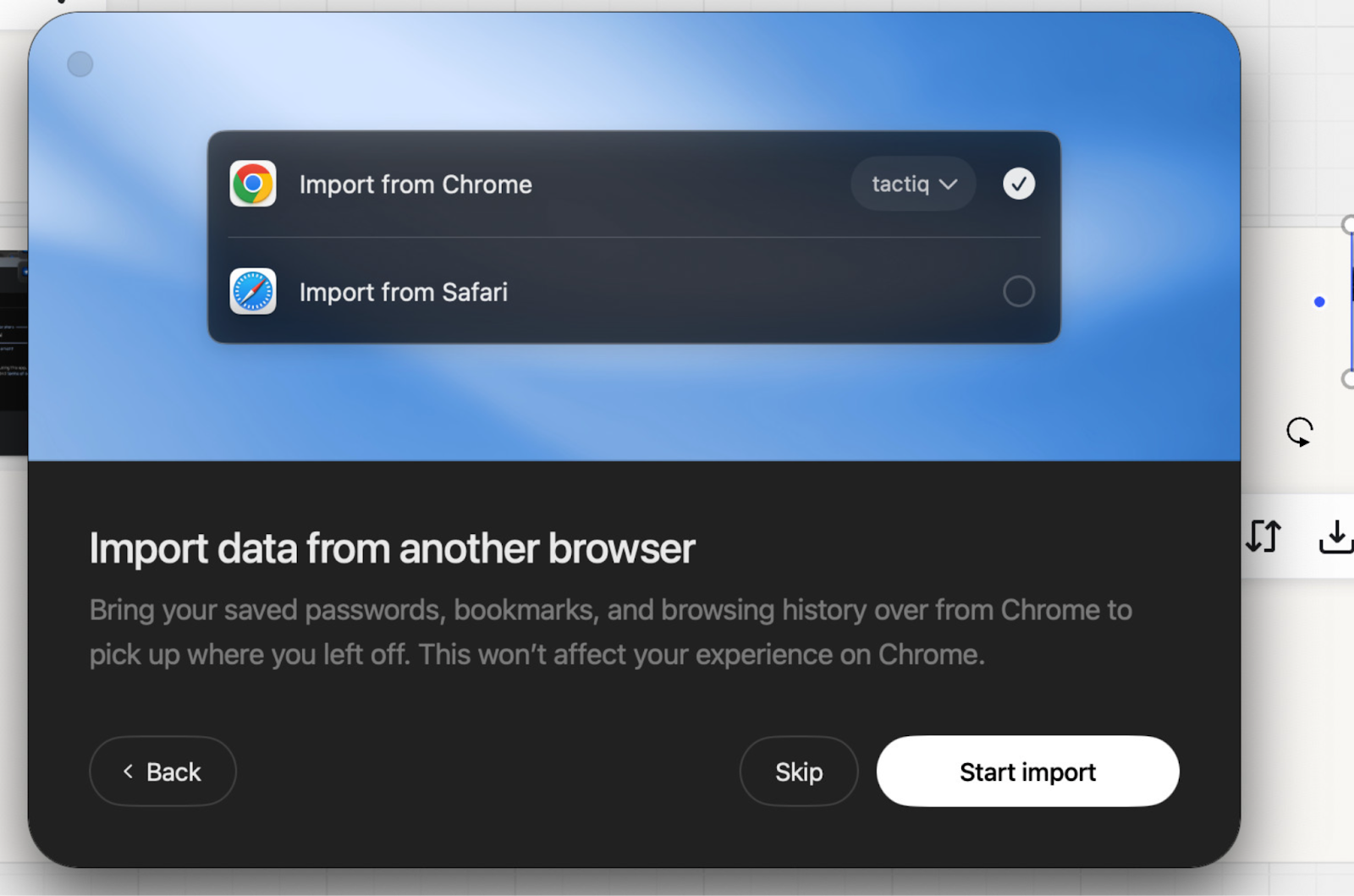
To import data later:
- Click ChatGPT Atlas at the top of your desktop window (next to the Apple logo)
- Select Import data from another browser
- In the pop-up window, click Start import
- Allow Keychain Access to import saved passwords from Chrome
- Once authentication is complete, select Done
Extensions don't transfer automatically during the import. You'll need to add them manually, which we'll cover in the next section.
How to Access Chrome Extensions on ChatGPT Atlas
Once Atlas is installed, getting your extensions up and running takes just a few clicks.
View your extensions
Click the blue profile icon in the upper right corner of Atlas, then select "Manage all extensions." You'll see a list of all extensions available from your Chrome browser.
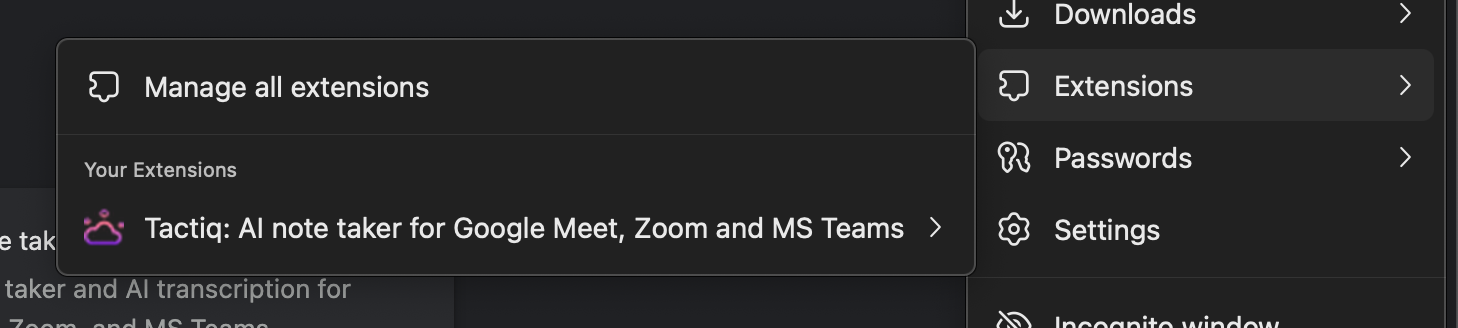
If you see your extensions listed here, they're ready to use. If you don't see them, follow the steps below to add them.
Add extensions from the Chrome Web Store
If an extension doesn't appear in your list:
1. Go to My Extensions.
2. On the left panel, you’ll see: “Discover more extensions and themes on the Chrome Web Store.”
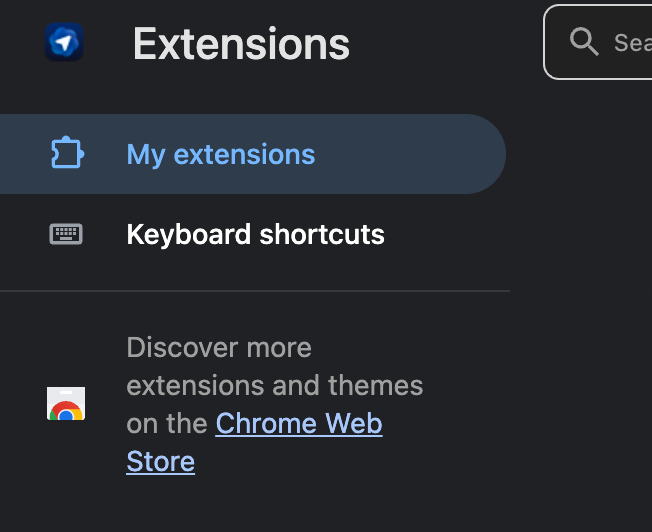
3. Find the extension you want and click "Add to Chrome."
4. Confirm the installation when prompted.
The extension will install immediately and appear in your Atlas extensions list. The Chrome Web Store treats Atlas like any other Chromium browser, so the process is identical to installing extensions in Chrome.
For example, my favorite Chrome extension is Tactiq. I installed it on ChatGPT Atlas and then started using it for my calls.

Tactiq transcribes calls on Google Meet, MS Teams, and Zoom in real time. After the call, I can use AI to summarize, extract action items, and even connect it with Zapier to set up advanced automation.
👉If you’d like to discover more Chrome Extensions to help you become more productive, check out our Chrome Extensions category on the blog.
{{rt_cta_ai-convenience}}
Manage extension settings
All your install extensions Atlas settings work the same way they do in Chrome. Right-click any extension icon to access its options, adjust permissions, or remove it.
You can also:
- Turn extensions on or off: Toggle them in the Manage Extensions menu
- Update extensions: Atlas updates them automatically, just like Chrome
- Remove extensions: Right-click the icon and select "Remove from Chrome"
Troubleshooting Guide
Extension not working properly
If an extension installs but doesn't work correctly:
- Check permissions: Right-click the extension icon and select "This can read and change site data." Make sure it has the access it needs.
- Reload the extension: Go to Manage Extensions, toggle the extension off, then back on.
- Reinstall the extension: Remove it completely, then reinstall from the Chrome Web Store.
Most extension issues come from permissions or outdated versions.
Can't find an extension in the Chrome Web Store
All Chrome extensions work in Atlas, but if you can't find a specific one:
- Make sure you're searching the Chrome Web Store, not another extension marketplace
- Try searching by the exact extension name
- Check if the extension was removed or discontinued by the developer
Browser updates sometimes reset extension states. Reinstalling usually fixes the issue.
What's Next for ChatGPT Atlas
This is just the beginning for Atlas. OpenAI has already announced plans for multi-profile support, improved developer tools, and better discoverability for apps built with the ChatGPT Apps SDK.
The browser launched just days ago, so expect frequent updates and new features. Since this is a very new product, watch for further news and improvements as OpenAI refines the experience based on user feedback.
I’ve been hesitant to switch browsers because all of my extensions are in Chrome, including Tactiq. But this transition has been seamless so far. I use ChatGPT heavily so combining browser and ChatPT all in one seems like a great idea.
Only time will tell, however, and there is still so much to learn. But if you use ChatGPT and Chrome extensions, this transition is a no brainer.
{{rt_cta_ai-convenience}}
FAQs
What browser engine does ChatGPT Atlas use?
ChatGPT Atlas uses Chromium, the open-source browser engine that powers Google Chrome, Microsoft Edge, and many other browsers. This means it supports the same web standards and extensions as Chrome.
Is ChatGPT Atlas Chromium?
Yes, Atlas is built on Chromium. This gives it broad compatibility with websites and extensions while adding ChatGPT's AI capabilities on top of the familiar browser foundation.
Is the ChatGPT Atlas available?
ChatGPT Atlas is available now for macOS users worldwide. It's free to download for Free, Plus, Pro, and Go users, with a beta version available for Business accounts. Windows, iOS, and Android versions are coming soon. Check the official release notes for updates.
How do I add extensions to ChatGPT?
Click the blue profile icon in the upper right corner of Atlas, then select "Manage my extensions." If you don't see your Chrome extensions, visit the Chrome Web Store, find the extension you want, and click "Add to Chrome." It will install and appear in your Atlas extensions list immediately.
Related articles





Want the convenience of AI summaries?
Try Tactiq for your upcoming meeting.
Want the convenience of AI summaries?
Try Tactiq for your upcoming meeting.
Want the convenience of AI summaries?
Try Tactiq for your upcoming meeting.