
How to Export ChatGPT Conversation (Full Guide)
November 14, 2025
November 14, 2025
April 25, 2026
April 25, 2026

Sometimes you need to save an important ChatGPT conversation. Maybe it's research notes, a code snippet, or a brainstorming session worth revisiting. The challenge is that there's no single export button that works for every situation.
This guide covers the best methods to export ChatGPT conversations, from OpenAI's built-in tools to browser extensions, open-source scripts, and format-specific workflows.
By the end, you'll know how to:
- Export your full ChatGPT chat history safely
- Save the entire conversation in any file format, including PDF, Markdown, Word, and JSON
- Share individual chats without putting your data at risk
- Migrate your ChatGPT history to another AI tool
- Use Tactiq to capture and export the conversations that happen in your meetings
Native Methods to Export ChatGPT Conversation
ChatGPT has two built-in options for exporting your data: a full account export and a share link. Both work, but both come with limitations worth knowing before you rely on them.
Export via ChatGPT settings (full data export)
This method exports your entire chat history directly from your OpenAI account. Here's how to do it:
1. Open ChatGPT and click your profile icon at the bottom left.
2. Click Settings.
3. Click Data Controls.
4. Under Export Data, click Export.
.png)
5. Click Confirm export on the confirmation screen.
6. Check your inbox for an email from [email protected]. Also, check your spam and promotions folders.
7. Click Download data export to save the ZIP file.
The ZIP contains two files: conversations.json, which holds your full chat history with metadata, and chat.html, which you can open in any browser. Note that the JSON format requires additional processing to be fully readable; it's best suited for developers or anyone building a data pipeline.
A few important details to keep in mind:
- Wait time: OpenAI states the export can take up to 7 days. In practice, smaller accounts often receive it within hours.
- Download window: The link in your email expires after 24 hours. Watch your inbox closely.
- One request at a time: Only your most recent export request will be fulfilled. Any earlier requests are automatically cancelled.
- Plan availability: This feature is available on Free, Plus, and Pro plans. It is not available on Team or Business workspaces. Enterprise users have a separate export pathway.
- No frequency limit: You can re-request an export as often as you need.
Privacy note: Your exported JSON may include sensitive details you've shared in past chats, such as phone numbers or API keys. Review the file carefully before uploading it to any third-party tool.
💡 Pro tip: Stop waiting days for a JSON file. Tactiq exports your meeting conversations instantly, in formats you can actually use. Free install →
Share link
If you only need to share a single conversation, the share link is the faster option. Here's how it works:
1. Open the chat you want to share.
2. Click the Share icon at the top right of the page.
3. Click Copy Link.
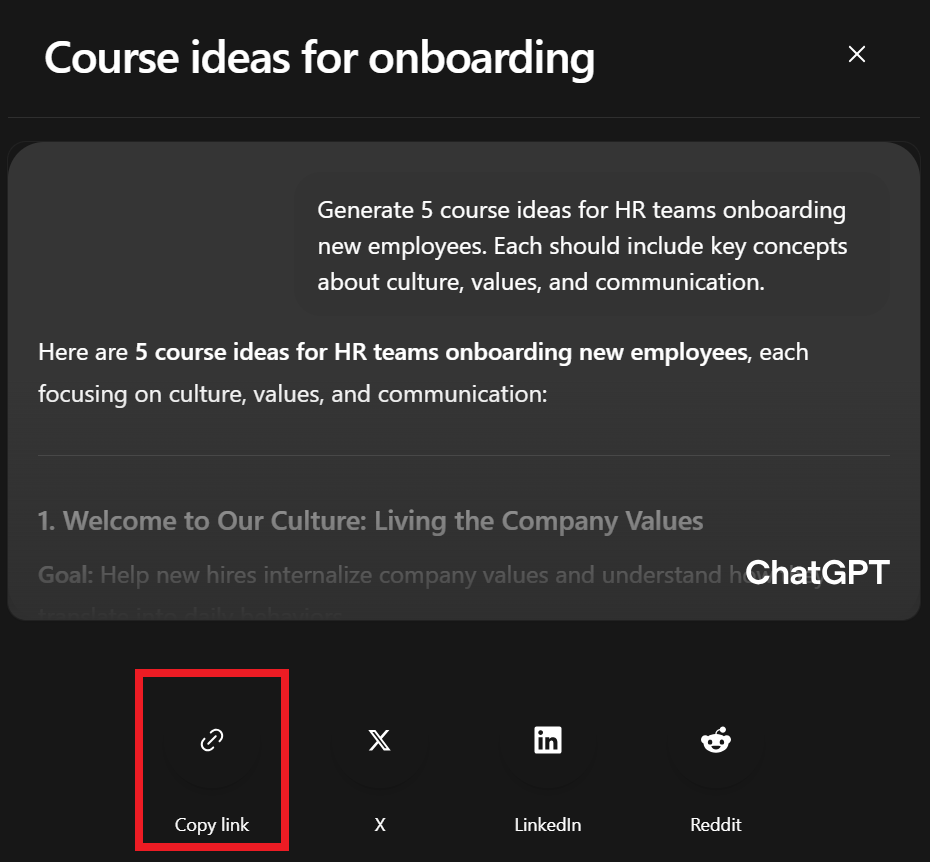
4. Send the link directly to whoever needs it.
Before you use this method, there are a few things to understand.
Anyone with the URL can view the full conversation. There are no granular permissions, so be careful about what you share. The "Make this chat discoverable" option, which previously allowed search engines to index shared links, was removed in August 2025 following a major privacy incident. That option no longer exists.
The option to continue a conversation from a shared link has also been deprecated. If a recipient replies, it creates a copy in their own chat history. It does not create a shared thread between you.
Privacy note: You can review and delete all your existing shared links at any time. Go to Settings → Data Controls → Shared Links → Manage. Shared links are also included in your full data export.
Using Browser Extensions and Tools
Extensions are the fastest and most flexible way to export individual ChatGPT conversations. This section covers the best options across Chrome, Firefox, and other browsers.
ChatGPT Exporter (Chrome, Edge, Brave)
.png)
ChatGPT Exporter is the most widely used extension for exporting individual conversations. It works on Chrome, Edge, Brave, and other Chromium-based browsers.
The extension uses a freemium model. Markdown, Text, JSON, and CSV exports are fully free. PDF export is limited to 3 per day on the free plan; additional PDFs require a paid upgrade. All non-PDF formats are processed entirely in your browser, so no conversation data is sent to external servers.
Key features include:
- Multiple formats: PDF, Markdown, Text, JSON, CSV, and Image
- Selective export: Choose individual messages instead of downloading the entire chat
- Customizable PDFs: Adjust font size, margins, dark or light mode, page numbers, and table of contents
- Advanced output support: Preserves Canvas, Deep Research, Thinking process, code blocks, tables, and mathematical formulas
- Anonymous mode: Export conversations without being logged in
ChatGPT Exporter keeps code formatting intact across all export formats. If you're a developer saving technical conversations for documentation or testing, this is one of the most reliable tools for the job.
Firefox and other browsers
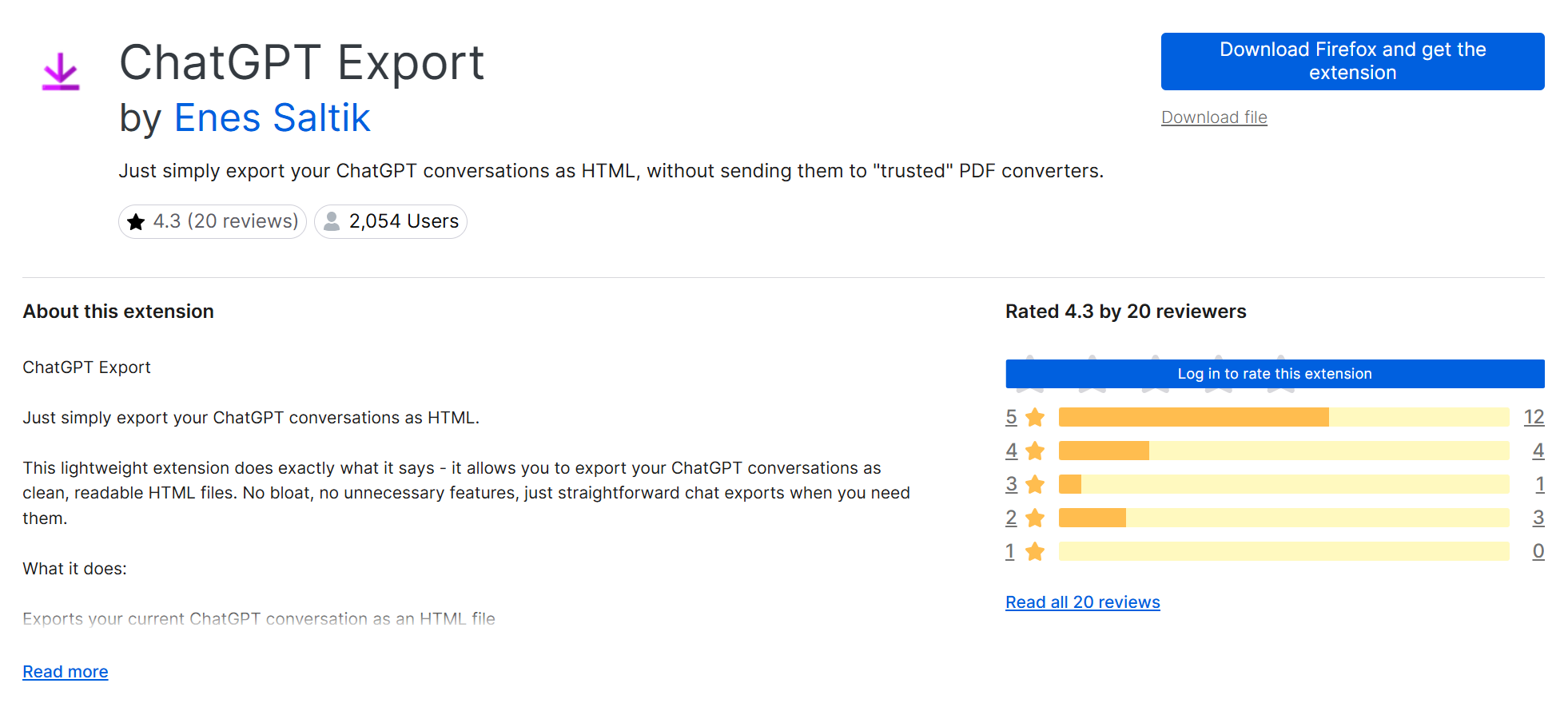
If you use Firefox, the ChatGPT Export add-on lets you download conversations as clean HTML files. The exported files open in any browser and preserve text, code blocks, and formatting. To use it, open your conversation, click Export to HTML, and your file downloads immediately.
Before installing, check the last update date on the Mozilla Add-ons store. If the extension hasn't been updated in over 12 months, it may no longer be actively maintained.
ExportGPT (Chrome)
.png)
ExportGPT is another option for Chrome users. It supports Markdown and Text exports for free. PDF, Word, HTML, JSON, Excel, and CSV exports require a Pro upgrade.
It also supports exporting shared links and image content, making it a useful choice for users who need spreadsheet-compatible output or work with image-heavy conversations. Once installed, a sidebar panel appears on the right side of ChatGPT, giving you one-click access to each export format.
Open-source and community solutions
For developers who want full control over their exported data, several open-source tools are worth knowing:
- pionxzh/chatgpt-exporter — A userscript that exports chat history in Markdown, HTML, or JSON
- ryanschiang/chatgpt-export — A browser script for downloading conversations as Markdown, JSON, or PNG
- abacaj/chatgpt-backup — A client-side tool for backing up your entire chat history as a single JSON file
These tools are especially useful for bulk exports, documentation workflows, and building research archives.
Meanwhile, Reddit users have shared helpful scripts and discussions in threads such as:
These open-source and community resources provide users with flexible methods for extracting and organizing data from ChatGPT, especially when standard export tools fall short.
How to Use Tactiq Transcripts With ChatGPT

If the conversations you most need to save happen in meetings, not in ChatGPT, Tactiq gives you a full transcript the moment your call ends. No bot, no waiting, no manual export.
You can upload it to ChatGPT to generate meeting notes, build a project brief, or extract key decisions. Or skip ChatGPT entirely and use Tactiq's built-in AI to summarize, generate action items, and answer questions about your meeting in real time.
Key features:
- Real-time transcription across Google Meet, Zoom, and Microsoft Teams in 60+ languages
- AI-powered summaries, action items, and highlights; no app switching needed
- Custom AI prompts and workflows to automate follow-ups directly from your transcript
- In-Meeting AI for live answers during the call
- Instant export as PDF or Text the moment your meeting ends
Turn every meeting into a transcript, summary, and action list without needing to copy and paste anything into ChatGPT. Install the free Tactiq Chrome Extension today,
{{rt_cta_ai-convenience}}
Exporting to Popular Formats
Once you've exported a ChatGPT conversation, the next step is choosing the right file format. Each one serves a different purpose depending on how you plan to use or share the content.
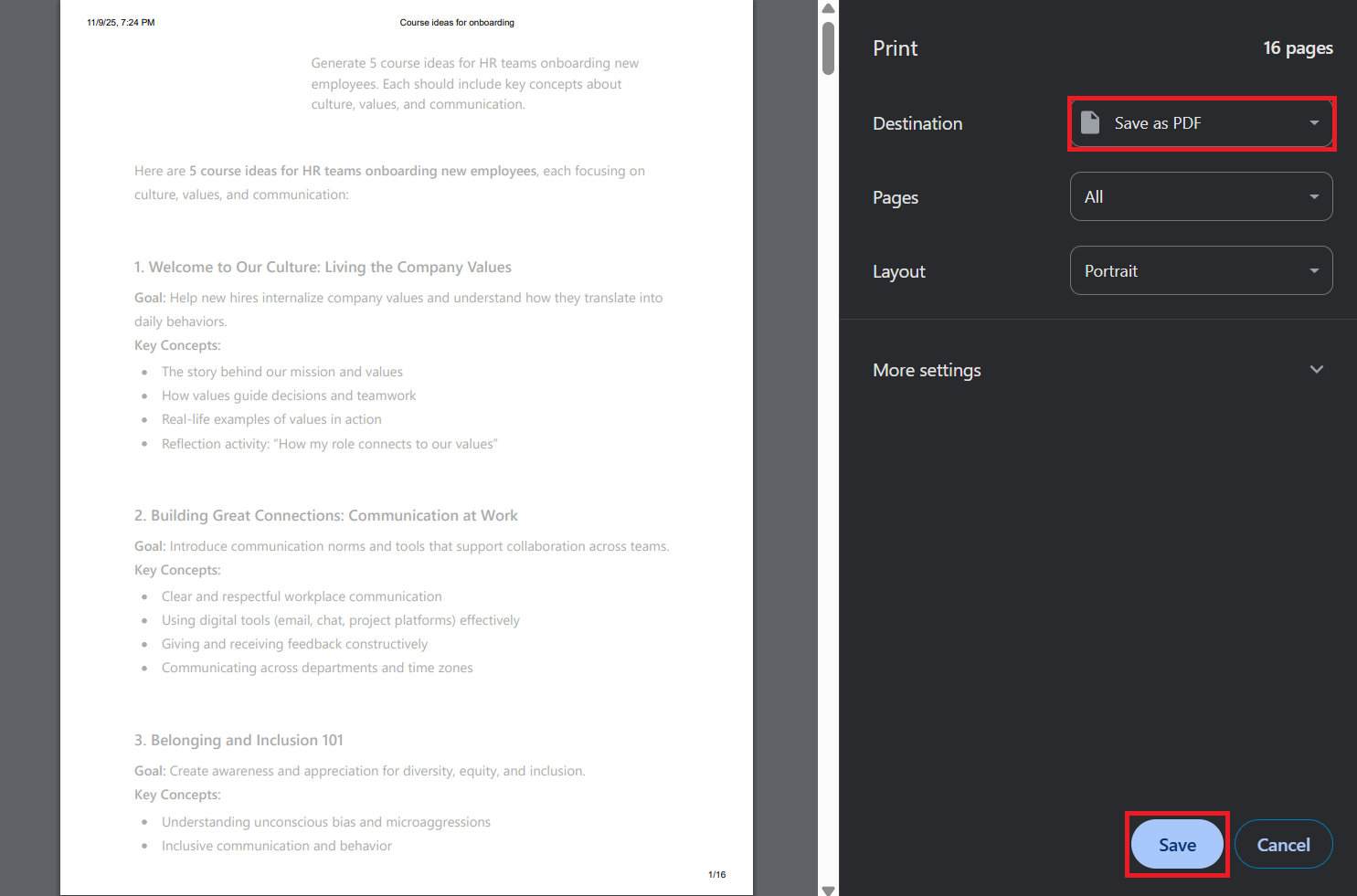
PDF is the most common format for saving ChatGPT conversations because it preserves layout and readability. You can create one manually using your browser's print function:
1. Open your ChatGPT chat.
2. Press Ctrl + P (Windows) or Command + P (Mac).
3. In the print dialog, select Save as PDF as your destination.
4. Click Save.
You can also use ChatGPT Exporter for a cleaner result; it supports customizable margins, dark or light mode, page numbers, and a table of contents. Note that the free plan is limited to 3 PDF exports per day.
If your PDF has broken layouts or unwanted page breaks, adjust margins and orientation in your print settings before saving.
Word & Text
If you want to edit or repurpose your ChatGPT conversations, Word or plain text formats are your best option. To export manually:
1. Open your chat and select the text you want to save.
2. Copy and paste it into a Word document or a plain text editor.
3. Save the file in your preferred format (.docx or .txt).
ChatGPT Exporter also exports directly to TXT, free and unlimited.
Markdown

Markdown is a lightweight format favored by developers and researchers who need structured, readable content. It preserves headings, lists, code blocks, and tables, making it ideal for documentation and project repositories.
You can export to Markdown using ChatGPT Exporter or the pionxzh/chatgpt-exporter userscript. ExportGPT also supports direct Markdown sync to Notion, which is useful if you want to export ChatGPT conversations into a connected workspace.
To convert manually, copy your chat text, paste it into a Markdown editor like Obsidian, Typora, or VS Code, and save it as a .md file.
JSON
The native data export delivers your full chat history as a conversations.json file. This file contains every message, timestamp, model information, and metadata from your entire account history.
JSON isn't designed for casual reading; it requires a text editor or processing tool to navigate. But it's the most complete format available, and it's the right choice for developers building RAG pipelines, anyone migrating to another AI tool, or power users who want a structured archive they can query or convert later.
Migrating From ChatGPT? How to Take Your History With You
In early 2026, a growing number of users are exporting their ChatGPT history to move to other AI tools or import context into Claude. Here's how to do it cleanly.
What the export ZIP contains
The ZIP file includes conversations.json, which holds your full message history with timestamps, model details, and metadata, and chat.html, which is a browser-readable version of the same data. Your account details and any shared links are also included.
How to read your conversations.json file
The raw JSON file isn't easy to read as-is. Several community tools can convert it into a searchable, readable format. The pionxzh/chatgpt-exporter userscript and abacaj/chatgpt-backup are both reliable options for parsing and organizing exported data.
How to import ChatGPT context into Claude
Claude has a built-in memory import feature designed for exactly this workflow. To use it, go to Settings → Capabilities → Memory → Start Import.

Claude provides a prompt to paste into ChatGPT. ChatGPT then summarizes everything it knows about you, and you paste that output back into Claude. The import is experimental as of early 2026, so review what carried over and add anything missing manually via Settings → Capabilities → Memory from your chats.

For a deeper look at how the two tools compare, see ChatGPT vs. Claude.
Staying within the ChatGPT ecosystem
If you're not switching tools, ChatGPT Projects and cloud storage integrations with Google Drive and OneDrive let you organize and access conversations without exporting them. This is a practical alternative for users who want better organization rather than a full data migration. For a deeper look at connecting your files, see how to connect Google Drive to ChatGPT.
Wrapping Up
Exporting ChatGPT conversations looks different depending on what you actually need. For a single chat, a browser extension like ChatGPT Exporter is the fastest option. For a full backup, use the native data export and allow up to 7 days. For migration, export your JSON and convert it with community tools.
For conversations that happen in meetings, Tactiq is the missing piece. It captures, transcribes, and exports in real time. No waiting and no manual copy-paste. Add to Chrome. It's free.
Yes. Use OpenAI's built-in data export in Settings → Data Controls → Export, or use a browser extension like ChatGPT Exporter to download individual chats in PDF, Markdown, Text, JSON, or CSV.
Press Ctrl + P (Windows) or Command + P (Mac), then select Save as PDF. For a cleaner result, use ChatGPT Exporter; free up to 3 PDFs per day.
Yes. Click the Share icon at the top of your chat and select Copy Link. Anyone with the link can view the full conversation, so avoid sharing sensitive content.
Yes. ChatGPT Exporter supports Markdown, Text, JSON, and CSV for free. ExportGPT adds Notion sync on its Pro plan.
OpenAI's data export can take up to 7 days. Check your spam and promotions folders for an email from [email protected]. The download link expires 24 hours after it arrives, so download promptly.
Related articles





Want the convenience of AI summaries?
Try Tactiq for your upcoming meeting.
Want the convenience of AI summaries?
Try Tactiq for your upcoming meeting.
Want the convenience of AI summaries?
Try Tactiq for your upcoming meeting.