
How to Connect ChatGPT to Canva (Guide)
August 14, 2025
August 14, 2025
August 5, 2026
August 5, 2026

You’ve probably already used ChatGPT to write copy or brainstorm ideas. And Canva? It’s the go-to for creating visuals, from presentations to social media posts. But what if you could combine both into one smooth, creative workflow?
Now you can. ChatGPT now connects with Canva, letting you generate text and design AI-generated content in the same place. You can ask ChatGPT to draft a flyer, and it’ll launch the Canva editor with a ready-made layout. Need slides for a pitch? ChatGPT can handle the heavy lifting.
In this guide, we’ll walk you through the following:
- How to connect the two tools
- What you’ll need to get started
- How to use this integration to save time and spark creativity
What You Need Before You Start
Before you jump in, you’ll need two things: a ChatGPT subscription and a Canva account. Here’s a quick check to make sure you’re set up.
ChatGPT subscription
To connect Canva, you need to be on a paid ChatGPT plan (Team, Enterprise, and Edu, Pro or Plus). If you're still on the free ChatGPT plan, upgrade by following these steps:
- Open ChatGPT and sign in to your account.
- In the bottom left corner, click “Upgrade to Plus.”
- Follow the payment instructions to complete your subscription.
Once you’re on the paid plan, you’ll be able to connect ChatGPT to Canva.
Canva account
You don’t need a paid Canva Pro account to connect it with ChatGPT. The integration works with both Free and Pro plans as long as your Canva account is active and logged in.
You’re now ready to set up the integration.
Step-By-Step: How to Connect ChatGPT to Canva
You can use ChatGPT Connectors to connect ChatGPT to Canva. Here’s how:
- Open ChatGPT.
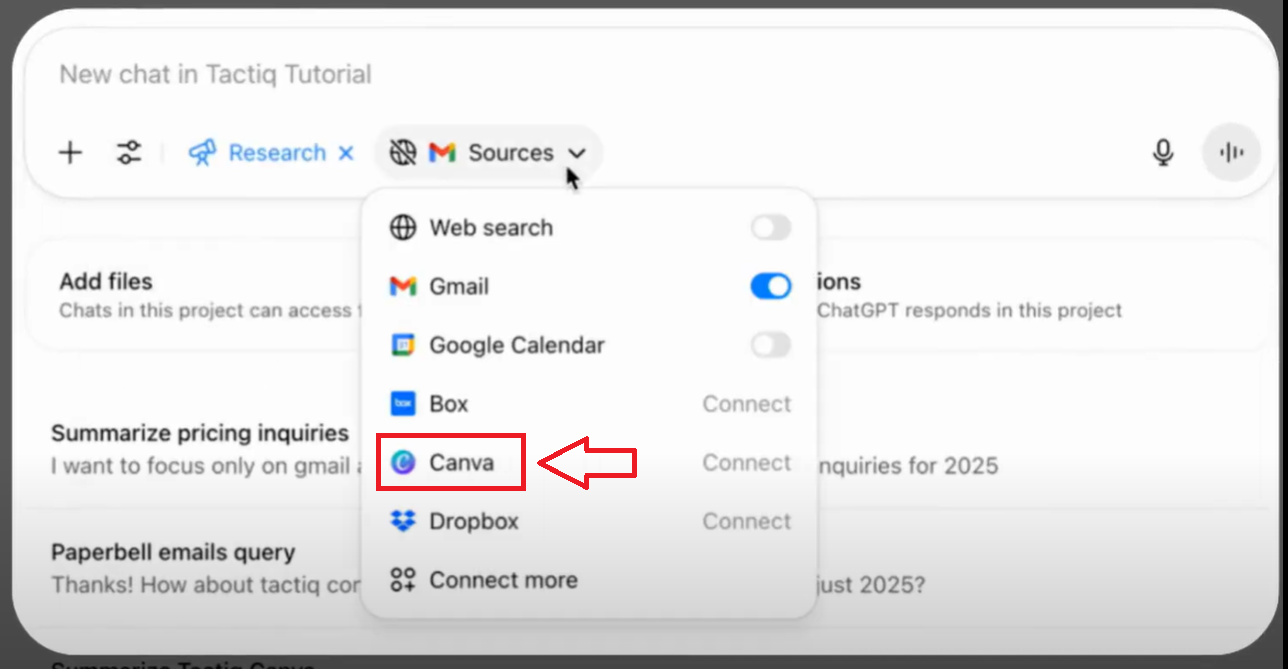
- Click Tools > Select a mode > Sources > Connect More > Canva.
- Sign in to your Canva account, then grant permissions.
From here, you can prompt ChatGPT to “create a flyer in Canva” or “design a social media post,” and it will launch the Canva editor with a draft ready to edit.
Pro Tip: If you use Tactiq to capture meeting transcripts, you can feed those notes directly into ChatGPT and have it generate Canva-ready presentations, flyers, or campaign visuals.
Common Use Cases for ChatGPT + Canva
Think of this integration as your shortcut for turning ideas into polished designs without switching tabs. For example, you could ask ChatGPT to draft a marketing email, then instantly turn that copy into a branded Canva layout.
Some real-life ChatGPT use cases for business include:
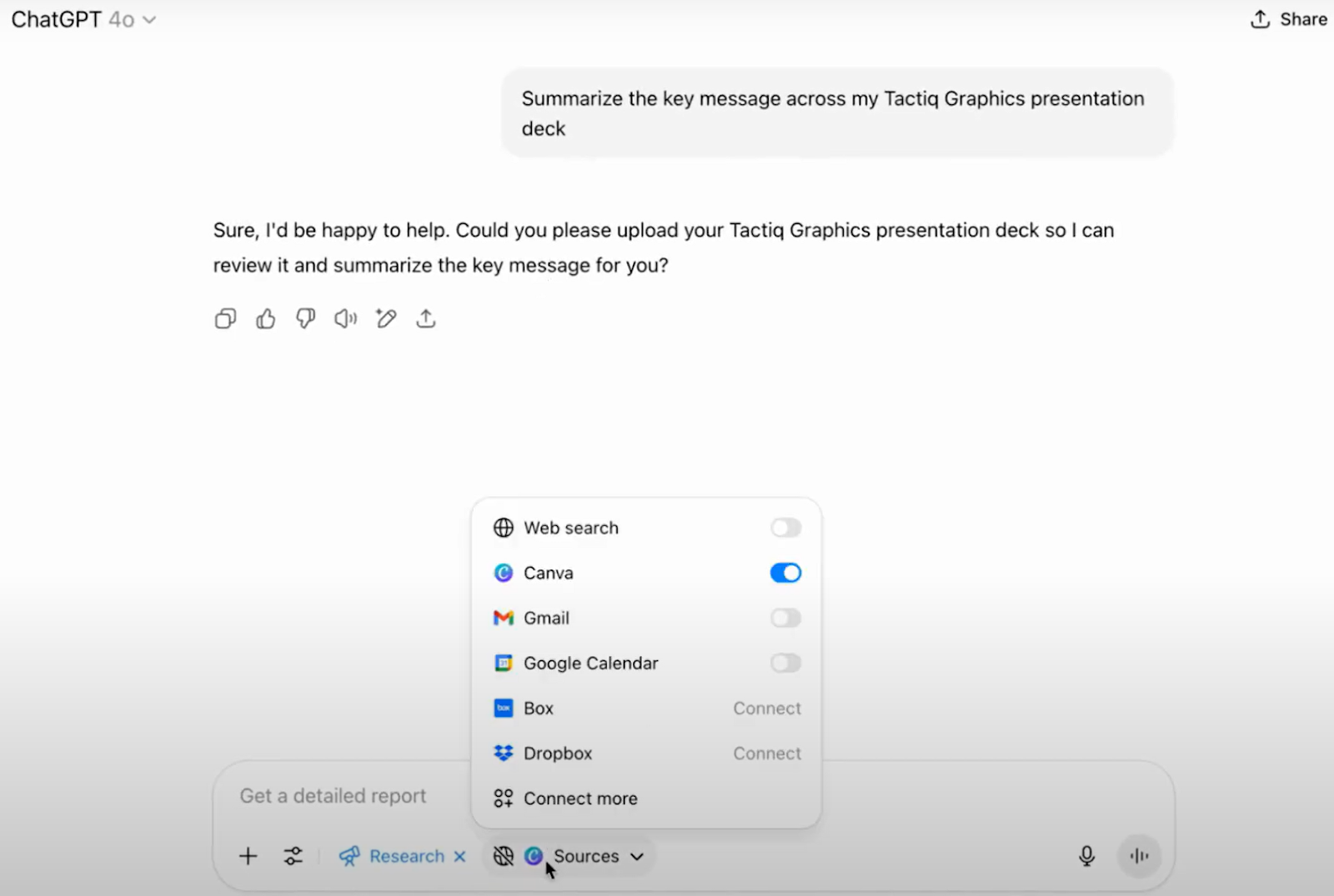
- Drafting social media posts in ChatGPT and sending them straight to Canva for eye-catching designs.
- Using Canva’s Deep Research connector to pull brand assets or messaging from past campaigns, then reusing them in new designs.
- Asking ChatGPT to generate copy for presentations, then opening Canva with slides already formatted and ready to tweak.
- Producing product descriptions in ChatGPT and designing matching promotional graphics in Canva in one step.
- Creating digital products like eBooks or planners with ChatGPT’s writing and Canva’s templates, then selling them online for passive income.
This combo works well for teams who need to create content quickly, because ChatGPT handles the words and Canva takes care of the design. It’s a straightforward process that makes content creation easier and faster.
Troubleshooting & Limitations
If your Canva connection isn’t working or the integration feels off, here are a few things to check:
Troubleshooting tips
- Check your accounts: Make sure you’re logged into the correct ChatGPT and Canva accounts.
- Make sure you’re on a paid plan: The integration only works for users with a subscription.
- Re-authorize the connection: If permissions have expired, reconnect Canva in your ChatGPT settings.
- Refresh the connection: Disconnect and reconnect Canva in ChatGPT to reset the link.
Limitations to keep in mind
- The integration is best for generating starting points. You’ll still need to manually adjust branding, layout, and colors.
- Some Canva features, such as advanced team collaboration tools, aren’t accessible directly through ChatGPT.
- The connection may not support all Canva templates, especially for niche or highly custom design types.
Want to expand your workflow beyond Canva? Learn how to connect Google Drive to ChatGPT so you can pull files and resources directly into your conversations.
How Tactiq Makes the ChatGPT + Canva Workflow Better

If you’ve ever left a meeting with great ideas but no clear starting point for your designs, Tactiq can help. It transcribes your calls in real time, so every idea, detail, and action item is captured. From there, you can send those transcripts into ChatGPT and instantly generate Canva-ready content.
For example, you could:
- Transcribe a Google Meet brainstorming session with Tactiq.
- Ask ChatGPT to summarize the key discussion points into a design brief or slide deck outline.
- Open Canva with the content already structured for a presentation, flyer, or campaign graphic.
You can watch the video tutorial here: Connecting Canva to ChatGPT
Tactiq is a powerful AI tool that transcribes virtual meetings across popular platforms like Google Meet, MS Teams, and Zoom. It offers:
- Live transcriptions: Capture every word in real time.
- Customizable AI prompts & meeting kits: Generate summaries, content outlines, or pitch text that can be turned into Canva presentations or social media designs.
- Quick search: Jump to key moments you want to feature in your Canva designs.
- Speaker identification: See who contributed each idea for accurate credit in presentations.
- Multi-language support: Transcribe meetings in 30+ languages.
- Fast follow-ups: Turn summaries into emails, blogs, or design briefs.
By combining Tactiq, ChatGPT, and Canva, you can go from spoken ideas to polished visuals in one workflow. No more losing momentum between the meeting and the creative stage.
Download the free Tactiq Chrome Extension today and start turning your meetings into ready-to-design Canva content in minutes.
{{rt_cta_ai-convenience}}
Looking for more ways to power up your calls? Check out our guide to the best GPTs for meetings to see which AI tools can take your productivity even further.
Wrapping Up
Connecting ChatGPT to Canva gives you a faster, more creative way to go from an idea to a finished design. You can write, brainstorm, and plan in ChatGPT, then turn that content into ready-to-edit Canva layouts like a pitch deck, flyer, or social media post.
When you add Tactiq into the mix, you take it a step further. Instead of starting from scratch after a meeting, you can work directly from accurate, AI-powered summaries and notes, transforming them into design-ready content in minutes.
AI tools are evolving quickly, so it’s worth experimenting with how you combine them. The more you refine your process, the easier it becomes to produce quality content without slowing down your workflow.
Ready to turn your meeting ideas into polished designs? Try Tactiq for free and start creating with ChatGPT and Canva today.
It can turn your prompts into ready-to-edit Canva designs like presentations, flyers, and social media posts—directly from your ChatGPT conversation.
The Canvas feature lets you create and edit documents or designs inside ChatGPT. Type your request, and it will generate a visual draft you can refine.
No. You need a ChatGPT paid subscription to use features like Canva connectors and the Canvas editing mode.
Not at all. The integration is designed to give you a strong starting point, even if you’re not a designer. ChatGPT generates the text and launches Canva with a ready-made layout, so all you need to do is fine-tune the visuals to match your brand.
Yes. Once ChatGPT opens a draft in Canva, you can share it with your team like any other Canva project. Keep in mind that advanced collaboration features (like brand kits and workflow approvals) require a Canva Pro or Enterprise plan, but the initial draft-sharing works on free accounts as well.
Related articles





Want the convenience of AI summaries?
Try Tactiq for your upcoming meeting.
Want the convenience of AI summaries?
Try Tactiq for your upcoming meeting.
Want the convenience of AI summaries?
Try Tactiq for your upcoming meeting.