
How to Transcribe Audio to Text on Mac
- Published:
- November 29, 2026
- Updated:
- November 29, 2026

You can transcribe audio on a Mac with built-in apps or a dedicated transcription tool. If you recorded a voice memo or made an audio recording in Notes, start with the app you used. For an audio or video file saved elsewhere, choose a tool that supports your file format.
This guide covers:
- How to transcribe audio for free with Voice Memos or the Notes app
- How to turn existing audio files and video files into text
- How to transcribe meetings live on Mac without saving a recording
TL;DR: How Do You Transcribe Audio to Text on a Mac Computer?
Use Voice Memos or the Notes app to transcribe recordings you make in those apps on a supported Mac.
For an existing meeting recording, upload a supported audio or video file to Tactiq.
For an upcoming Zoom, Microsoft Teams, or Slack meeting, use the Tactiq Mac app to transcribe the desktop call live.
How to Transcribe Audio to Text on Mac for Free with Built-In Apps
On macOS 27 Golden Gate, Voice Memos and Notes can transcribe speech you record in either app. You can view the transcript as you record or copy it afterward.
For a short excerpt from an existing recording, you can also try Mac Dictation.
Transcribe a recording in Voice Memos
To see the transcript as you speak, click Transcription after you start recording. Apple says transcription availability varies by country or region.
To copy text from a saved recording:
- Open Voice Memos and select the recording.
- Click Transcription to open the transcript.
- Highlight the text you need, Control-click the selection, and choose Copy.
- Paste the text into a document or note.
Convert recorded audio to text in the Notes app
On macOS 27 Golden Gate, the Notes app can transcribe audio you record in an iCloud note. You’ll need a Mac with an M1 chip or later and a supported device language.
- Open an iCloud note, click Attachment in the toolbar, and choose Record Audio.
- Click Record to start. Click Transcription to view the text as you speak.
- When you finish recording, click Pause, then Done.
- Double-click the recording in the note, then click Transcription to review the text.
- In the More menu, choose Copy Transcript to paste it elsewhere or Add Transcript to Note to keep it in the note.
Use Dictation as a workaround
Mac Dictation turns speech from your selected microphone into text. For a short excerpt, you can try using it to capture speech from an existing recording.
- Turn on Dictation in System Settings → Keyboard.
- Open a new document and place your cursor where you want the text.
- Press your Dictation shortcut or choose Edit → Start Dictation.
- Try playing the clip from another device near your Mac’s microphone. Check the text for missed words.
- Press Esc when you’re done.
For more speech-to-text options, see our guide to free dictation apps.
Limits of built-in transcription on Mac
Voice Memos and Notes work well when the recording is already in the app you used to make it. Apple documents how to copy those transcripts, but its guides don’t confirm transcription for standalone MP3 or WAV files. Availability also depends on the app, your Mac, and your language or region.
With Dictation, you have to play the clip in real time. For longer recordings, uploading the file directly saves you that playback step.
💡 Pro tip: If you already have a meeting recording, upload the supported audio or video file to Tactiq for a transcript.
How to Convert an Audio File to Text on Mac with AI Transcription
If your recording is already saved as a file, upload it directly to a transcription tool. Tactiq is a meeting transcription tool that adds speaker labels and timestamps to uploaded recordings. It accepts MP3, M4A, MP4, and MOV files up to 2 GB.
If you’re new to Tactiq, create an account before you upload a file.
1. Sign in to Tactiq. From your dashboard, open My Meetings, then click Upload Transcript or Recording.
2. Drag and drop your file or click Choose file. You can also enter a meeting title and start time.
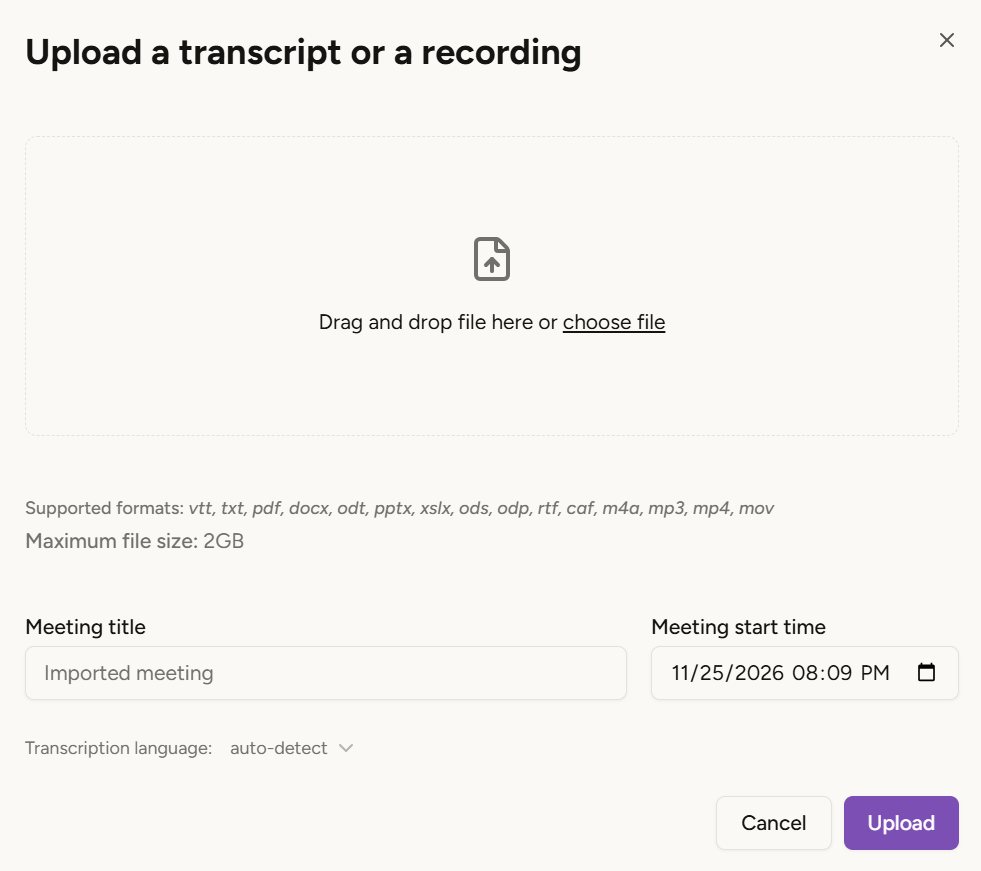
3. Select the transcription language or leave Auto-detect on, then click Upload.
4. Once processing finishes, open the transcript in My Meetings. For transcripts longer than two minutes, use Quick Prompts to generate an AI summary.
Tactiq labels speakers as Speaker 1, Speaker 2, and so on. You can replace those labels with participants’ names. Timestamps help you find the matching moment in the recording, and you can download the transcript as a PDF or TXT file.
If you still need to capture the video, see our guide on how to screen record on Mac.
How to Transcribe Mac Meetings Live Without Recording an Audio File
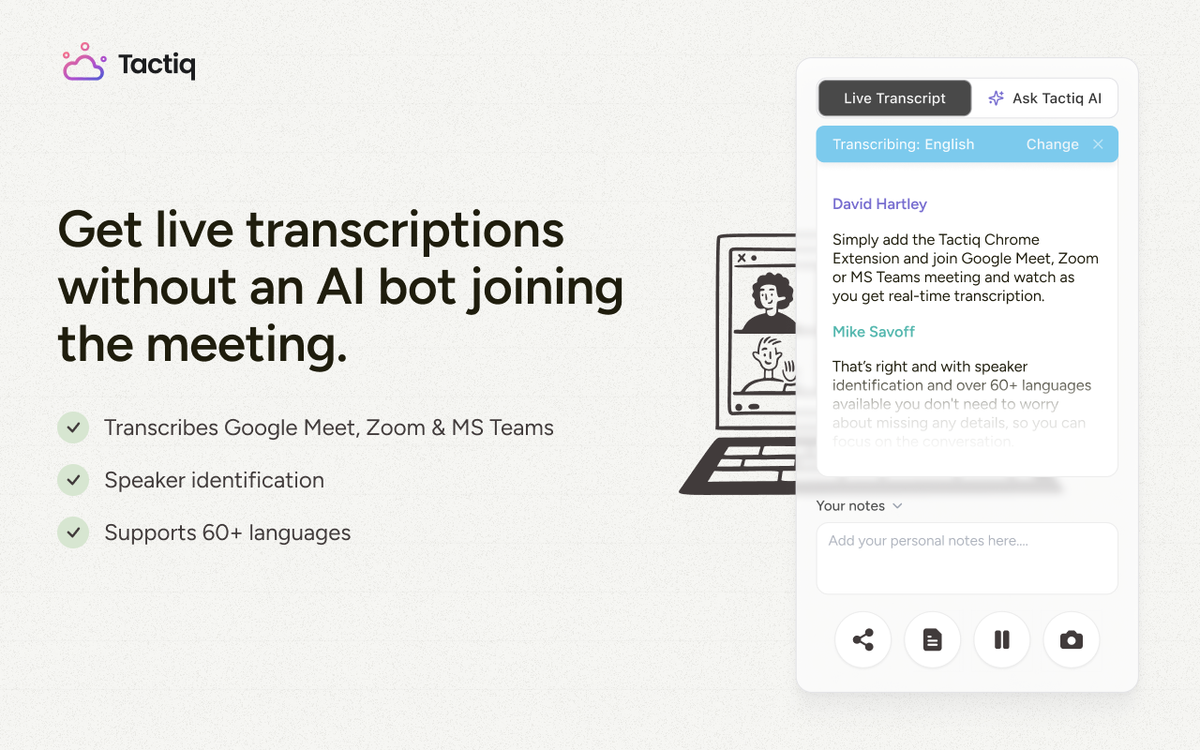
If you need a transcript of an upcoming meeting, the Tactiq Mac app can transcribe it as you talk. It works with the Zoom, Microsoft Teams, and Slack desktop apps, and no bot joins the call.
1. Create a Tactiq account or sign in if you already have one.
2. In your Tactiq dashboard, open Integrations. Under Tactiq apps, click Download for the Mac app.
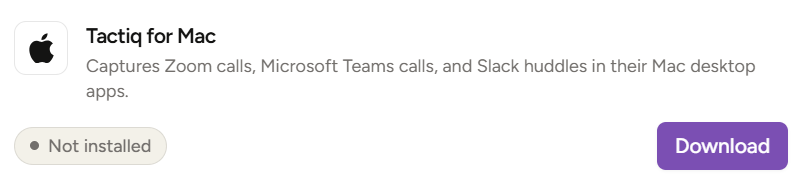
3. Install the app and sign in to your Tactiq account.
4. Join your Zoom meeting, Teams call, or Slack huddle through its desktop app.
5. After the call, open My Meetings in Tactiq to view your transcript.
From the transcript, use Quick Prompts to generate a summary or pull out action items. You can share the recap with your team without saving or uploading an audio file.
Choose the Right Way to Transcribe Audio on Mac
If you recorded audio in Voice Memos or Notes, use the built-in transcript to copy a quote or save the full text. For short excerpts, Dictation can help if your Mac’s microphone picks up the speech clearly.
For meetings, use Tactiq to keep the exact wording on hand and turn decisions and action items into a recap. You can start with a recording you already have or transcribe your next call live.
FAQ
Your questions, answered.
If you have any further questions, Get in touch (opens in a new tab) with our friendly team
Can you get a transcript from Voice Memos?
How do I transcribe a video on Mac?
How do I transcribe audio on Mac?
Can a Mac transcribe audio files without extra software?
How do I transcribe a recorded meeting on Mac?
Related articles

4 Best Transcription Software Options for Windows

Copilot MCP: Can Copilot Access Your Meeting Transcripts?

Gemini 3.5 Transcribe: Google Transcript Model Explained
Context Engineering vs Prompt Engineering: What Your AI Agents Are Missing

Google Gemini MCP Support: Where It Works and Setup Tips

5 Best AI Scheduling Assistants

Microsoft Teams MCP: How to Access Meeting Content With AI

How Do I Turn Off Google Gemini?
Want the convenience of AI summaries?
Try Tactiq for your upcoming meeting.
Bringing AI into your meetings has never been so easy.
Add to Chrome - It's free!(opens in a new tab)Try Tactiq in your upcoming meeting!
Sign up now