
4 Best Transcription Software Options for Windows
- Published:
- November 27, 2026
- Updated:
- November 27, 2026

The best transcription software for Windows depends on when you need the text.
Live meeting transcription captures the conversation as it happens. File transcription turns existing audio and video recordings into text. Microsoft 365 includes Word Transcribe for supported audio files.
For live meetings across Zoom, Google Meet, and Microsoft Teams, Tactiq is our top pick. Its Chrome and Edge extension captures a transcript as people speak.
This guide covers
- How four Windows transcription apps compare
- Which apps work best for live meetings, file transcription, and offline transcription
- How to transcribe a Zoom, Google Meet, or Microsoft Teams call on Windows
TL;DR: What Is the Best Transcription Software for Windows?
- Best for live meetings: Tactiq. Get live transcripts and AI summaries for Zoom, Google Meet, and Microsoft Teams meetings in Chrome or Edge.
- Best for video editing: Descript. Delete a sentence from the transcript to cut that part from the video.
- Best free option for offline transcription: Buzz. Transcribe audio and video files on your PC with a downloaded Whisper model.
- Best if you already have Microsoft 365: Word Transcribe. Upload audio files or record in Word, then insert the transcript into your document.
Best Transcription Apps for Windows: Quick Comparison
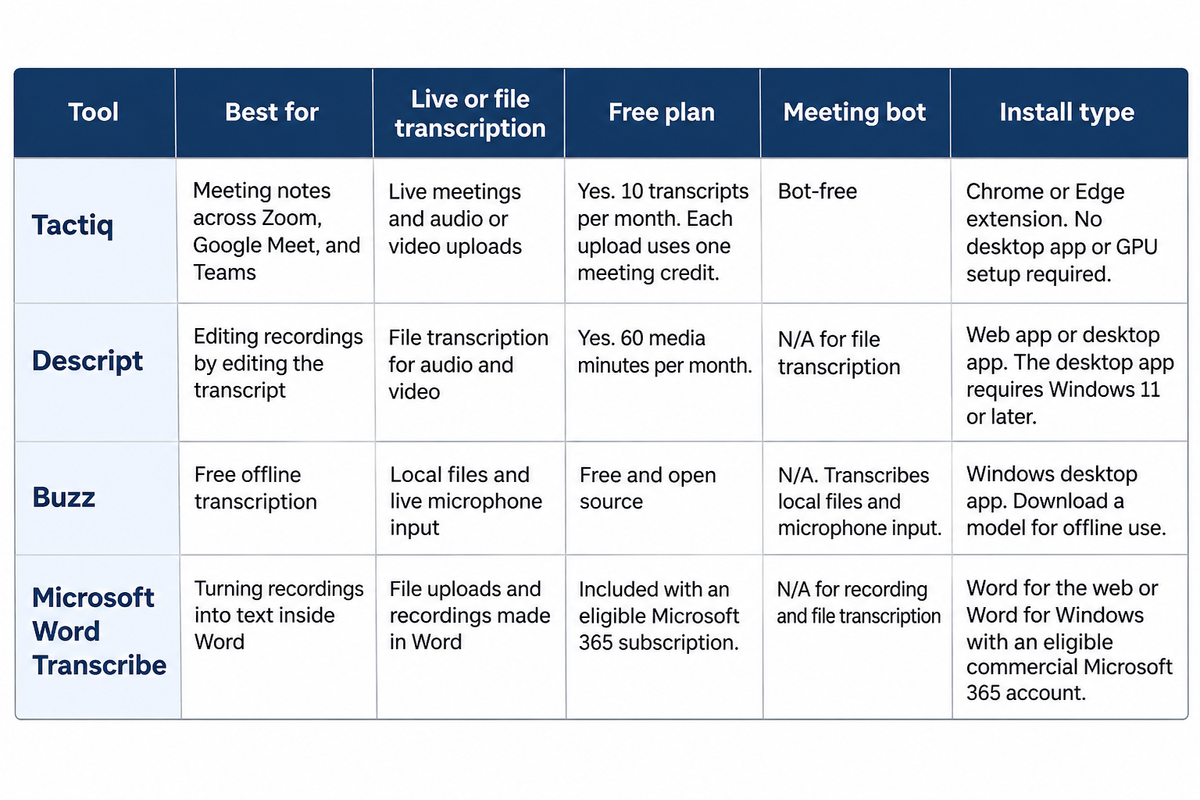
For more options, see our free transcription software comparison.
The Best Transcription Software for PC, Reviewed
Choose a tool based on what you need to do with the transcript. You might want to turn a live call into meeting notes, check a quote against the original audio, or edit a video. The reviews below cover what each tool does best, what it costs, and what to know before you set it up on Windows.
1. Tactiq: Bot-free meeting transcription for Windows
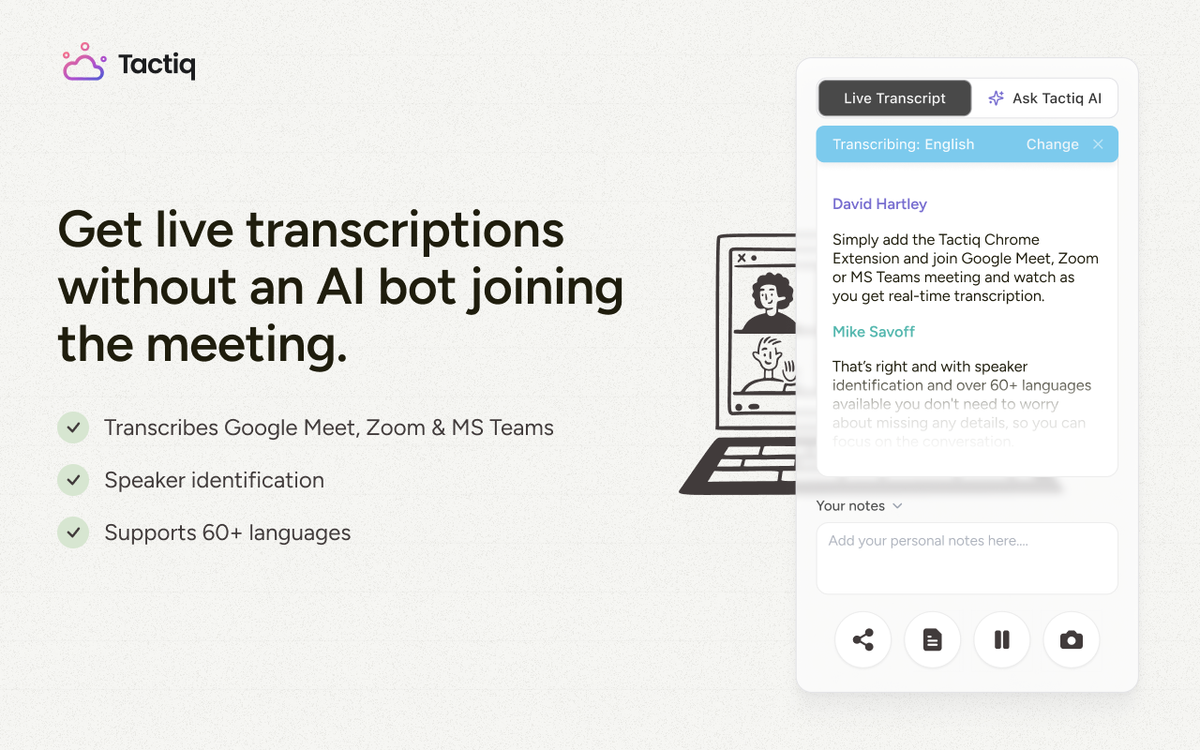
Tactiq transcribes Zoom, Google Meet, and Microsoft Teams meetings in Chrome or Edge without adding a meeting bot. The Chrome extension has a 4.9/5 rating from about 4,700 ratings in the Chrome Web Store.
Nasreen M., a business development representative, wrote in an April 2026 G2 review, “The AI summaries and action items make it easy to capture the key takeaways quickly after each meeting.”
Best for: Teams that use multiple meeting platforms and want their transcripts in one place.
Key features:
- Follow the live transcript with speaker labels and generate an AI summary after the call.
- Upload past recordings in MP3, M4A, MP4, or MOV format for transcription.
Pricing: The free plan includes 10 transcripts and five AI credits per month. Pro starts at $8 per user per month, billed annually, and includes unlimited transcripts.
Pros: Set up the browser extension and edit saved transcripts after calls.
Cons: On Windows, join Zoom and Teams in Chrome or Edge for live transcription. The Teams progressive web app also works.
💡 Pro tip: Upload a recording from a meeting you missed and generate a recap of the decisions and next steps.
Want the convenience of AI summaries?
Try Tactiq for your upcoming meeting.
2. Descript: Video editing through the transcript
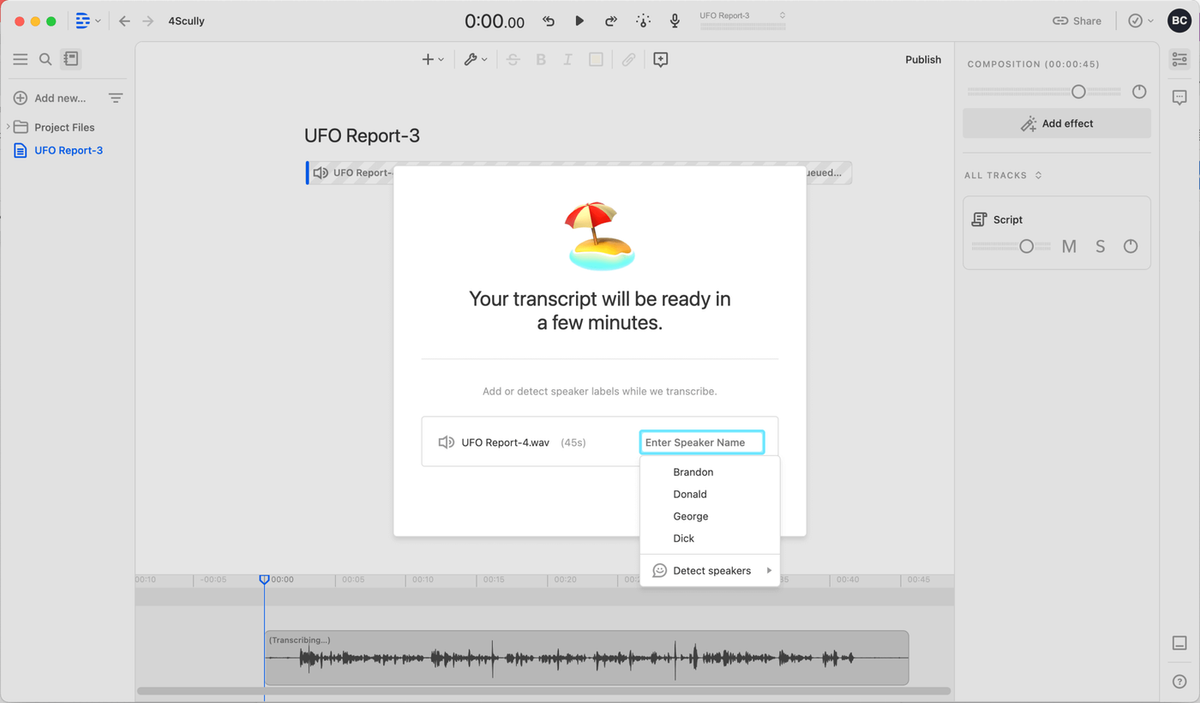
Descript transcribes your video and lets you edit the footage from the text. Delete a sentence from the transcript to cut that part from the video.
Descript has a 4.6/5 rating on G2. Mary K., a principal product marketing manager, wrote, “This feature significantly streamlines my editing process for sales enablement and public marketing videos.”
Best for: Editing recorded interviews and other spoken-word videos.
Key features:
- AI transcription: Import audio and video files into a new composition to start transcription automatically. Descript supports 26 languages, one per file.
- Speaker detection and export: Assign speaker labels and export transcripts as Word documents or plain text.
Pricing: The free plan includes 60 media minutes per month. Hobbyist costs $16 per person per month with annual billing.
Pros: Use Correct mode to fix a mistranscribed word while preserving the original audio.
Cons: The Windows desktop app requires Windows 11 or later.
3. Buzz: Offline transcription with Whisper
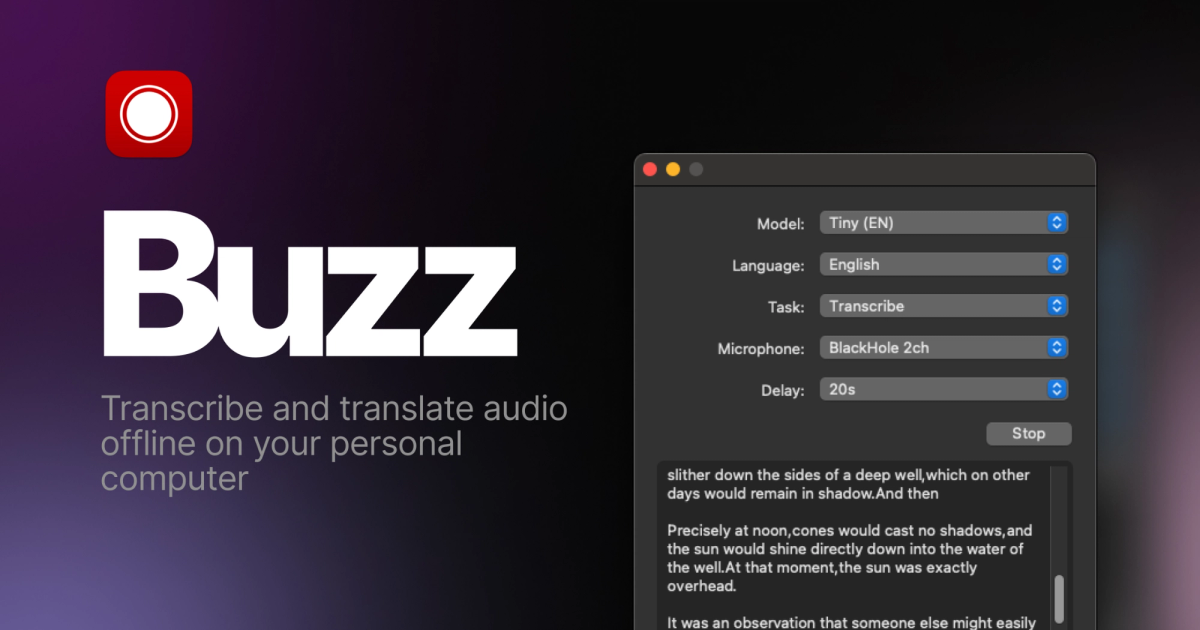
Buzz transcribes audio and video files on your Windows PC. Once you download a local Whisper model, you can transcribe files offline and save the results as text or subtitles.
Buzz has a 4.7/5 rating from three reviews on SourceForge. In an August 2026 review, user farang1 called it “Excellent freeware for transcription, translation, and subtitle generation.”
Best for: Transcribing saved interviews, voice notes, and videos offline.
Key features:
- Local transcription: Import an audio or video file and select a downloaded Whisper model. Buzz also transcribes microphone input, though processing may take longer than real time.
- Transcript review: Add speaker labels, adjust playback speed, and export transcripts as TXT, SRT, or VTT files.
Pricing: Free and open source.
Pros: Set up a watch folder to transcribe new files automatically as you add them.
Cons: Buzz requires a desktop installation and a CPU with AVX2 support.
4. Microsoft Word Transcribe: Transcribing recordings directly in Word
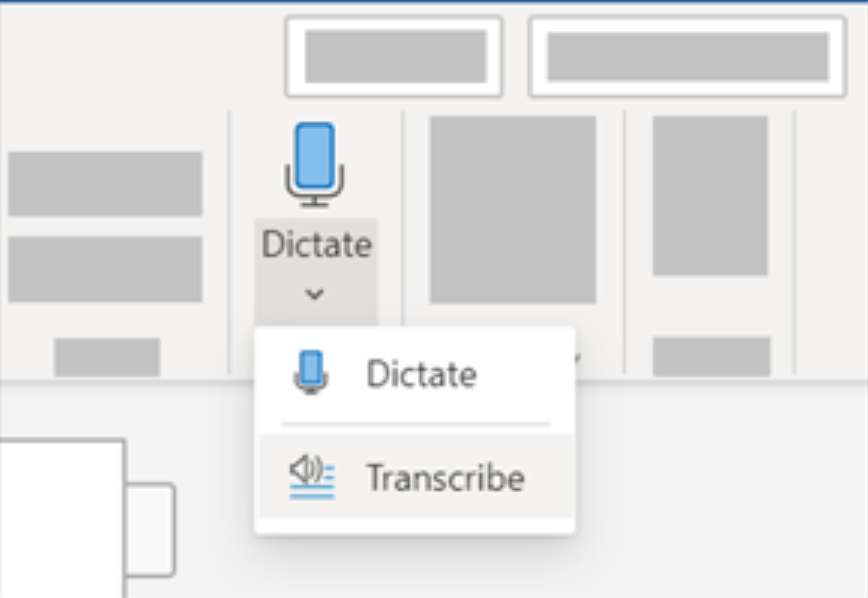
Word Transcribe turns recordings into editable text inside the document you’re working on. You can replay timestamped audio to check a quote before inserting it.
Microsoft Word overall has a 4.7/5 rating on Capterra. In a 2020 hands-on test of Transcribe, Engadget’s Devindra Hardawar wrote, “It was able to capture most of the text from an NPR radio segment while properly identifying multiple speakers.”
Best for: Microsoft 365 subscribers who want to pull quotes from recorded interviews into a Word document.
Key features:
- File transcription: Upload WAV, MP3, M4A, or MP4 files, or record audio directly in Word and transcribe it afterward.
- Transcript review: Check speaker labels, replay timestamped audio, and edit the text before adding it to your document.
Pricing: Included with an eligible Microsoft 365 subscription. Microsoft lists a monthly upload limit of 300 minutes, or 30,000 minutes with a Microsoft Copilot license.
Pros: Insert a single quote or the full transcript into Word.
Cons: Word stores recordings in OneDrive. The Windows desktop feature requires a commercial Microsoft 365 account. For a live transcript during a Zoom, Google Meet, or Microsoft Teams call, use a dedicated meeting transcription tool.
How to Transcribe a Zoom, Teams, or Google Meet Meeting on Windows
If your team switches between meeting apps, use one transcription tool across all three. Tactiq works in Chrome or Edge. On Windows, join Zoom and Teams through your browser. Tactiq also supports the Teams progressive web app.
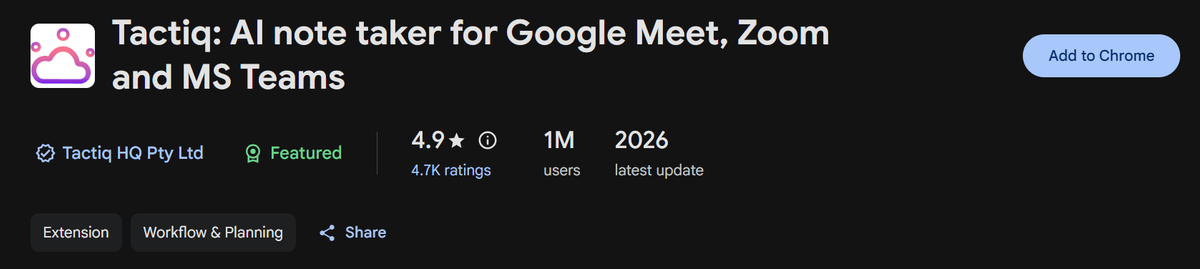
1. Install the Tactiq extension in Chrome or Microsoft Edge.
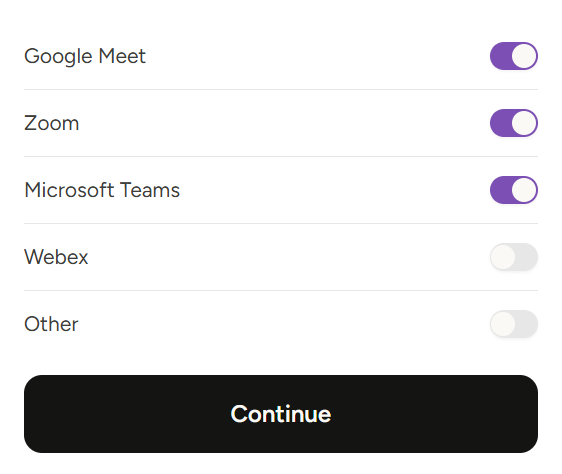
2. Enable your meeting apps. Select the platforms you use, then select Continue. If prompted for access, select Enable Tactiq.
3. Join your call.
- In Zoom, select Join from your browser. The host must enable Automated captions. If Tactiq doesn’t start transcribing, select Show captions in Zoom if that option is available.
- In Microsoft Teams, select Continue on this browser if prompted.
- For Google Meet, open the meeting link in Chrome or Edge.
4. Check that automatic transcription has started. Select the spoken language in the Tactiq widget and check that text appears. If Teams shows generic speaker labels, ask participants to enable speaker identification in their caption settings.
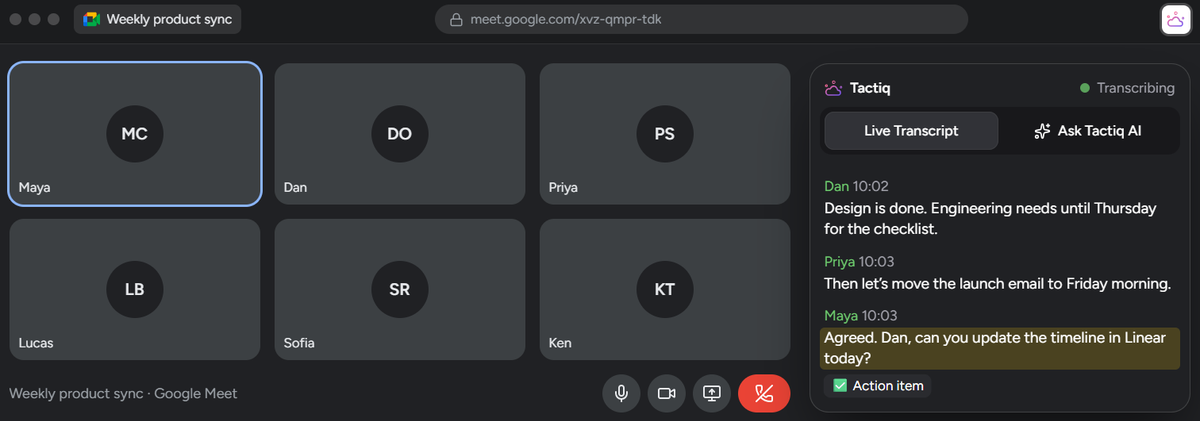
5. Turn the transcript into meeting notes. Open the transcript in My Meetings and generate an AI summary. With Tactiq Team or higher, connect Claude or ChatGPT through Tactiq MCP to use transcript details to draft a follow-up email.
Before sharing meeting notes, check names, numbers, and deadlines against the transcript. If you have a recording, replay any unclear passages to confirm the wording.
For each action item from your meetings, include the owner and deadline, so teammates know what to do before the next meeting.
Did the call already end? You can transcribe a saved Zoom recording or find a saved Teams transcript.
Which Transcription Software Should You Use on Windows?
Start with the job you do most often. If you spend more time on calls than typing up recordings, choose a transcription tool that fits your meeting apps.
- Tactiq for live meetings: Get searchable transcripts from Zoom, Google Meet, and Microsoft Teams. Start with the free plan in Chrome or Edge.
- Descript for video editing: Scan the transcript to find the parts you want to cut from the video.
- Buzz for offline transcription: Use local processing to transcribe a local file without sending it to an online transcription service.
- Word Transcribe for Microsoft 365 users: Turn recordings into text and pull quotes into the same word processor you use to write.
If manual transcription is slowing down your meeting follow-ups, try Tactiq for free. Add the browser extension before your next call and use the transcript to check decisions before sharing your meeting notes.
FAQ
Your questions, answered.
If you have any further questions, Get in touch (opens in a new tab) with our friendly team
Does Windows have a built-in transcriber?
Does Microsoft have a transcription service?
How do I transcribe audio to text on Windows?
What is the best free transcription software for Windows?
How do I transcribe a Zoom or Teams meeting on Windows?
Related articles

Copilot MCP: Can Copilot Access Your Meeting Transcripts?

Gemini 3.5 Transcribe: Google Transcript Model Explained
Context Engineering vs Prompt Engineering: What Your AI Agents Are Missing

Google Gemini MCP Support: Where It Works and Setup Tips

5 Best AI Scheduling Assistants

Microsoft Teams MCP: How to Access Meeting Content With AI

How Do I Turn Off Google Gemini?

Best Free Dictation App Options
Want the convenience of AI summaries?
Try Tactiq for your upcoming meeting.
Bringing AI into your meetings has never been so easy.
Add to Chrome - It's free!(opens in a new tab)Try Tactiq in your upcoming meeting!
Sign up now