
How to Create a Zoom Room that is Always Open
January 13, 2026
January 13, 2026
January 13, 2026
January 13, 2026

Sometimes you need a Zoom room that remains open without having to schedule a new meeting every time. An always-open Zoom room gives your team a single space they can join throughout the day, whenever a conversation needs to happen.
Instead of creating repeated Zoom meetings, you use a single consistent meeting room with the same Zoom link. People can join, leave, and rejoin as needed, making it ideal for ongoing collaboration, quick check-ins, or open office hours.
This setup also works well for hybrid meetings where some participants are remote, and others join from a shared location.
In this guide, you’ll learn:
- What an always-open Zoom room actually is
- Two simple ways to create one
- The settings that keep it secure and easy to manage
- How to document conversations automatically
What Is An Always-Open Zoom Room And How Does It Work?
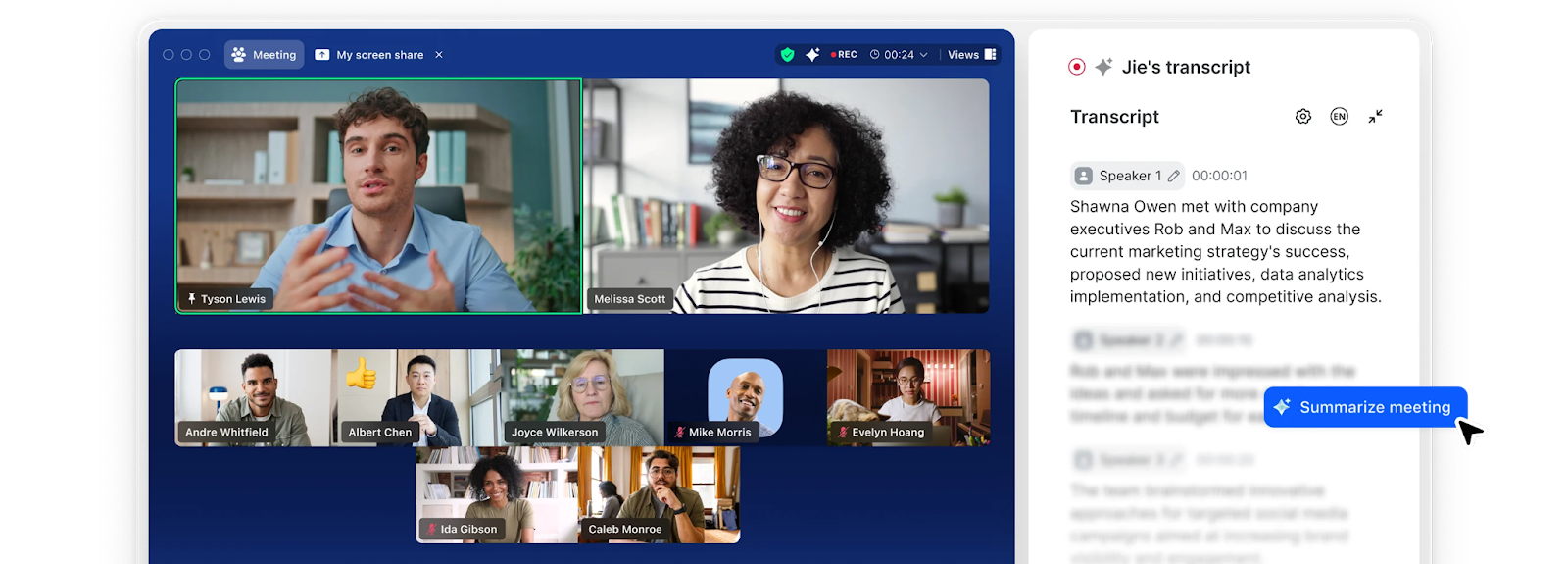
An always-open Zoom room is a meeting space that stays available without a fixed schedule. Participants can join at any time using the same Zoom link.
Here’s how it compares to other Zoom options:
- Always-open Zoom meeting: A recurring meeting set with No Fixed Time. The room stays accessible and works well for ongoing collaboration. This is different from an instant Zoom meeting, which starts immediately but does not stay available long-term.
- Personal meeting room (PMI): A permanent room tied to your personal meeting ID. It always uses the same meeting ID, which can raise security concerns.
- Zoom Rooms: Hardware-based conference systems built for physical meeting rooms, not virtual collaboration.
Most teams choose a recurring Zoom meeting with no fixed time. It offers flexibility while keeping control over access and settings. For example, a content manager who works with multiple writers might want to have a Zoom link for spontaneous brainstorming and feedback calls.
💡 Pro Tip: Use Tactiq to automatically capture conversations, summarize discussions, and turn them into action items while your always-open Zoom room is active.
How To Create A Zoom Room That Is Always Open (Step-By-Step)
You can create an always-open Zoom room in two ways. The first method is the most flexible and easiest to manage.
Method 1: Using a recurring meeting with no fixed time (Recommended)
This method creates a permanent Zoom meeting with a reusable Zoom link.
1. Sign in to your Zoom account using the web portal.
2. Click Meetings in the navigation menu.
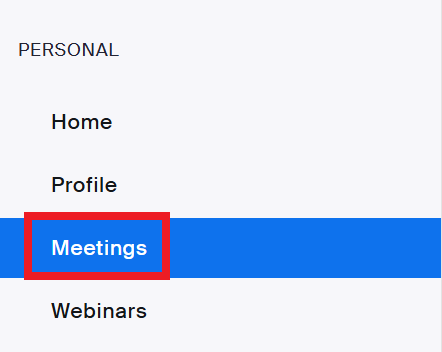
3. Select Schedule a Meeting.

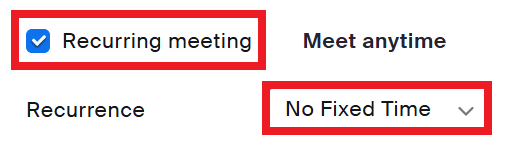
4. Set the meeting type to a Recurring meeting. Choose No Fixed Time for Recurrence.
5. Keep the Generate Automatically selected for the meeting ID.
6. Under Options, turn on Allow participants to join anytime.

7. Click Save and copy the Zoom invite link. You can now use this link as your always-open meeting room.

Method 2: Using your Personal Meeting ID (PMI)
This method uses your personal meeting room instead of a recurring meeting.
1. Sign in to your Zoom account.
2. On the right, copy your Personal Meeting ID link.
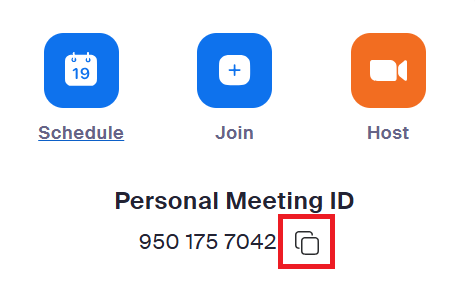
3. Share the link with participants.
This option is faster to set up but offers fewer security controls.
Essential Settings For Your Always-Open Zoom Room
An always-open Zoom room works best when the right settings are in place. These options help control access, reduce interruptions, and keep the meeting space usable over long periods.
Security settings
- When scheduling the meeting, turn on the waiting room to control who enters.

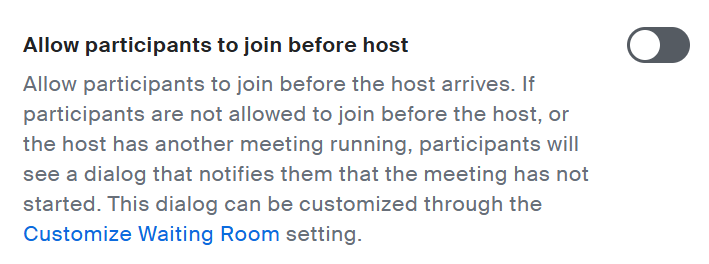
- Under Settings, disable Allow participants to join before host if you want more control over access.
- Lock the meeting once all expected participants have joined.
- Use a meeting passcode if the link is shared widely.
These settings reduce the risk of unwanted guests entering your meeting room.
Participant settings
These options appear in Settings → Meeting and during the live meeting toolbar.
1. Set screen sharing permissions under Screen Sharing.
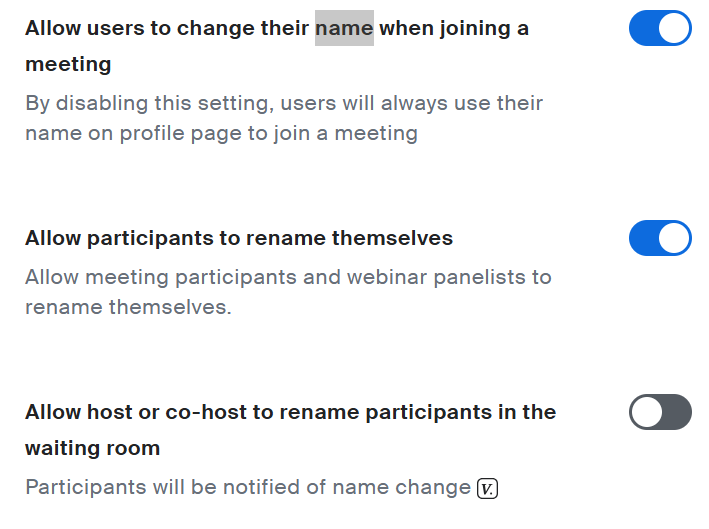
2. Control renaming under In Meeting (Basic).
3. Enable or disable chat from the Chat settings.
4. Turn on the notification sound for participants joining or leaving.
This keeps the room usable without constant interruptions.
Meeting control settings
You can manage these when scheduling the meeting or from Settings → Meeting.
1. Assign an alternative host if the main host leaves.
2. Keep Allow participants to join anytime turned on.
3. Decide if the meeting should end when the host exits.
With these settings in place, your always-open Zoom room stays accessible and controlled.
How To Document Meetings In Your Zoom Room With Tactiq

Once your always-open Zoom room is active, conversations can happen at any moment. People drop in, ask questions, make decisions, and leave. Without documentation, those details disappear fast.
Tactiq automatically transcribes Zoom meetings when you join through the Chrome browser. It also works with Microsoft Teams and Google Meet, allowing you to capture conversations across different video conferencing platforms without changing your workflow.
Why Tactiq is perfect for always-open Zoom rooms
Always-open rooms often involve quick, informal conversations. Tactiq supports this type of collaboration without adding friction.
- Transcribes Zoom meetings in real time
- Supports transcription in 60+ languages
- Captures conversations as participants join and leave
- Allows participants to ask AI questions about the meeting while it’s happening
- Generates summaries and action items after each session
- Keeps transcripts searchable without saving recordings
This makes it easier to track decisions across multiple sessions in the same meeting room.
Download the Tactiq Chrome Extension to start capturing and organizing conversations from your always-open Zoom room.
Best Practices For Managing An Always-Open Zoom Room
An always-open Zoom room works best when expectations and access are clear. A few simple practices help keep the space useful without becoming chaotic.
Account requirements
Use a Zoom account that supports recurring meetings with no fixed time. Free accounts can create an always-open meeting, but session limits still apply once the meeting is active for extended hours. Learn more about how to extend Zoom meeting time.
If some participants need to join without signing in, Zoom still allows access with the right settings.
Sharing and access management
Share the Zoom link only with the people who need access. Store the link in a central place so participants do not create duplicate meetings or lose track of the room.
Limit who can start the meeting and decide which participants can join without the host. This keeps the meeting room available without losing control.
Managing the space
Treat the room like a shared workspace. Encourage participants to join with a purpose and leave when conversations are done.
Use chat sparingly and reset expectations around screen sharing. This helps the room stay usable throughout the day.
Preventing misuse
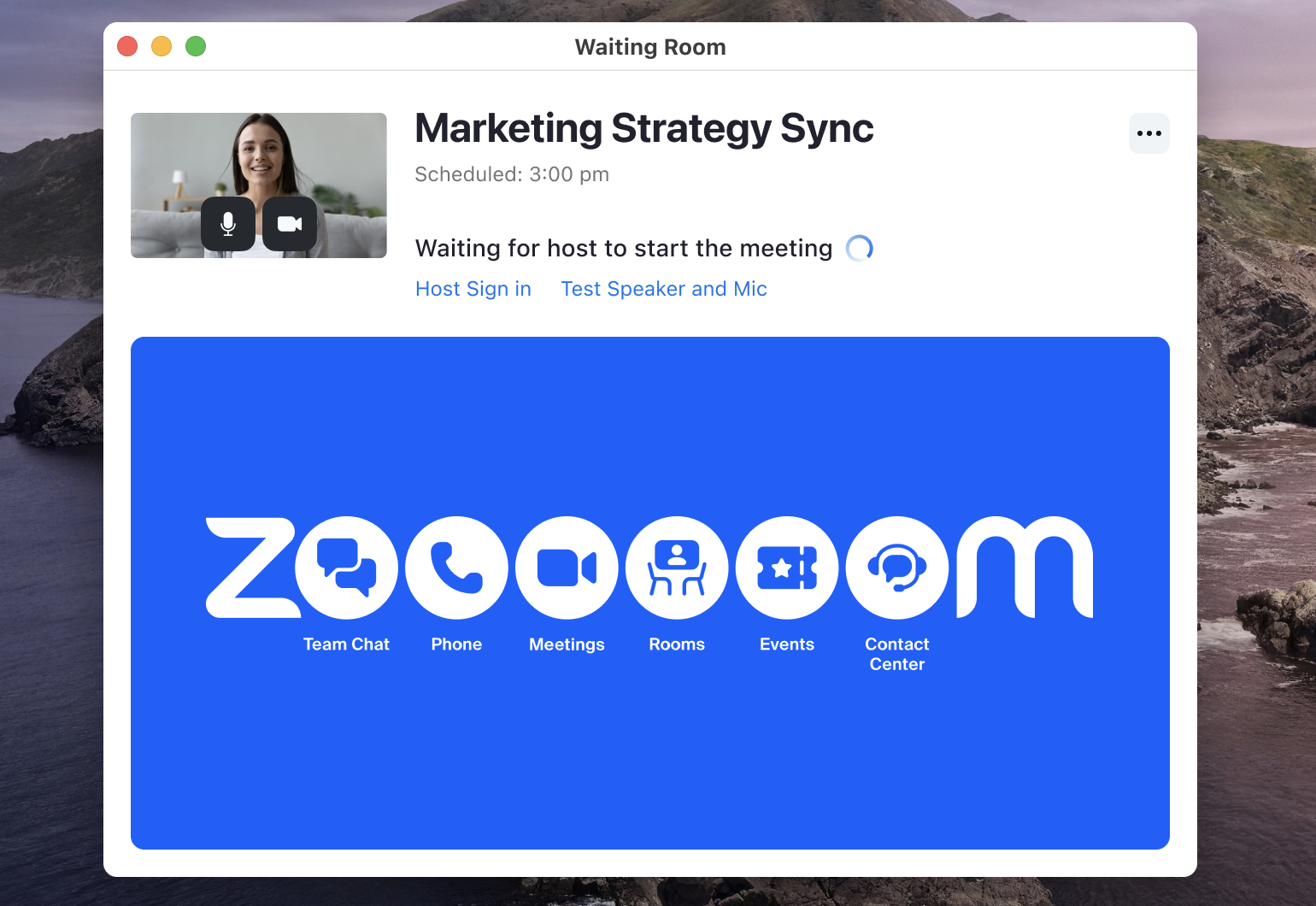
Enable the waiting room when sharing the link widely. Lock the meeting once the right participants have joined.
Remove unknown participants quickly and rotate the meeting link if misuse becomes an issue. Keep in mind that removed participants may be able to rejoin depending on your settings.
Troubleshooting Common Issues with Always-Open Zoom Room
Even with the right setup, a few issues can come up when using an always-open Zoom room. Most problems relate to account settings or how the meeting was created.
Can’t find the “No Fixed Time” option
The No Fixed Time option only appears when scheduling meetings from the Zoom web portal. It does not show inside the Zoom desktop app.
Log in through your browser, go to Meetings, then select Schedule a Meeting to access this option.
Meeting link expiration
An always-open Zoom link does not expire automatically. It becomes inactive only if the meeting is deleted or the host account is disabled.
If participants cannot join, confirm that the meeting still exists under Upcoming Meetings and that the Zoom account is active.
Managing multiple concurrent meetings
A Zoom account can host only one active meeting at a time using the same host. If the always-open room is already running, starting another meeting may cause conflicts.
Assign an alternative host or end unused sessions to avoid access errors.
Wrapping Up
An always-open Zoom room creates a shared space that stays available throughout the day. It removes the need to schedule repeated meetings and makes it easier for people to connect when conversations need to happen.
Setting up the room is straightforward. The real value comes from how conversations are captured and managed over time. Without documentation, decisions and context can disappear as participants join and leave.
Using a tool like Tactiq helps turn ongoing conversations into structured records. Transcripts, summaries, and searchable insights give your always-open Zoom room long-term value instead of becoming a temporary chat space.
FAQs About Always-Open Zoom Rooms
How do I create a Zoom room that is always open?
Schedule a recurring Zoom meeting with No Fixed Time using the Zoom web portal. This creates a permanent meeting room with one Zoom link that participants can join anytime.
What is the difference between a permanent Zoom link and a recurring meeting?
A permanent Zoom link usually refers to a recurring meeting with no fixed time. It stays active, while standard recurring meetings still follow a schedule.
Can I create a permanent Zoom meeting for free?
Yes. Free Zoom accounts can create an always-open meeting. Time limits may apply once the meeting is active for long hours.
Why can’t I find the “No Fixed Time” option in Zoom?
This option only appears in the Zoom web portal. It is not available when scheduling meetings from the desktop app.
How can I automatically save transcripts from my always-open Zoom room?
You can use Tactiq to automatically transcribe meetings, generate summaries, and keep conversations searchable across sessions.
Related articles



_Main.jpg)

Want the convenience of AI summaries?
Try Tactiq for your upcoming meeting.
Want the convenience of AI summaries?
Try Tactiq for your upcoming meeting.
Want the convenience of AI summaries?
Try Tactiq for your upcoming meeting.