
How to Convert Google Doc to Google Sheet (Full Guide)
October 11, 2025
October 11, 2025
October 11, 2025
October 11, 2025

Google Docs works well for writing and sharing, but it isn’t built for handling structured data. If you have tables or lists you want to organize, Google Sheets is the better fit. By moving your content into Sheets, you can sort, filter, and analyze it more effectively.
In this guide, you’ll discover:
- How to convert Google Docs into Google Sheets using simple manual methods
- When to download and import TXT files
- Automation tools to save time and keep your files up to date
Manual Methods for Converting Google Docs to Google Sheets: Step-by-Step Guide
Sometimes the simplest way to move content is to do it directly. Google Docs and Sheets connect well enough that you can copy and paste tables without extra steps.
Method 1: Copy and paste tables
- Open the Google Doc with the table you want to move.
- Highlight the table → press Ctrl+C (or Command+C on Mac) to copy.

- Open Google Sheets in a new tab.
- Click on the cell where you want the table to start.
- Press Ctrl+V (or Command+V on Mac) to paste.

Your data will appear in rows and columns. This works best for small tables with simple formatting.
💡 Pro tip: If your data comes from a meeting, use Tactiq to transcribe the call and export the transcript as a Google Doc. You can later organize that data in Sheets without retyping notes.
Method 2: Download as TXT, then Import
If your Google Doc contains structured data like a table or list, you can convert it into a Google Sheet using a plain text file. This helps you handle larger sets of data while keeping a consistent format.
- In your Google Doc, make sure each piece of data is separated clearly.
- Click File → Download → Plain Text (.txt) to save the document on your computer.
- Open Google Sheets and select File → Import → Upload.
- Upload the .txt file you downloaded.
- In the import settings, choose Separator type → Detect automatically (or pick Comma/Tab if you used those). Click Import data to finish.
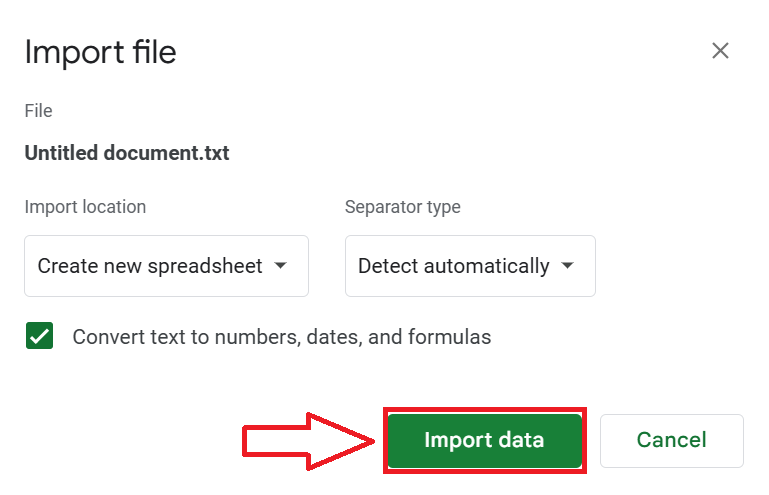
Your content will appear neatly in columns and rows, ready for review or editing.
Limitations of Manual Methods
Copying and pasting tables or importing text files can work, but they aren’t always reliable. A few common issues include:
- Loss of formatting: Fonts, colors, and merged cells in Google Docs often don’t transfer cleanly into Sheets.
- Non-table content: Paragraphs, notes, or mixed content won’t convert into structured rows and columns.
- No automation: Every change requires repeating the same steps, which costs time if your document updates often.
Manual conversion is fine for quick, one-off tasks. But for ongoing work, automated solutions provide more consistency and save time.
Automating the Process: Tools and Extensions
Manual conversion can become repetitive if you handle data often. Automation tools help keep your content organized with less effort.
Using Google Apps Script
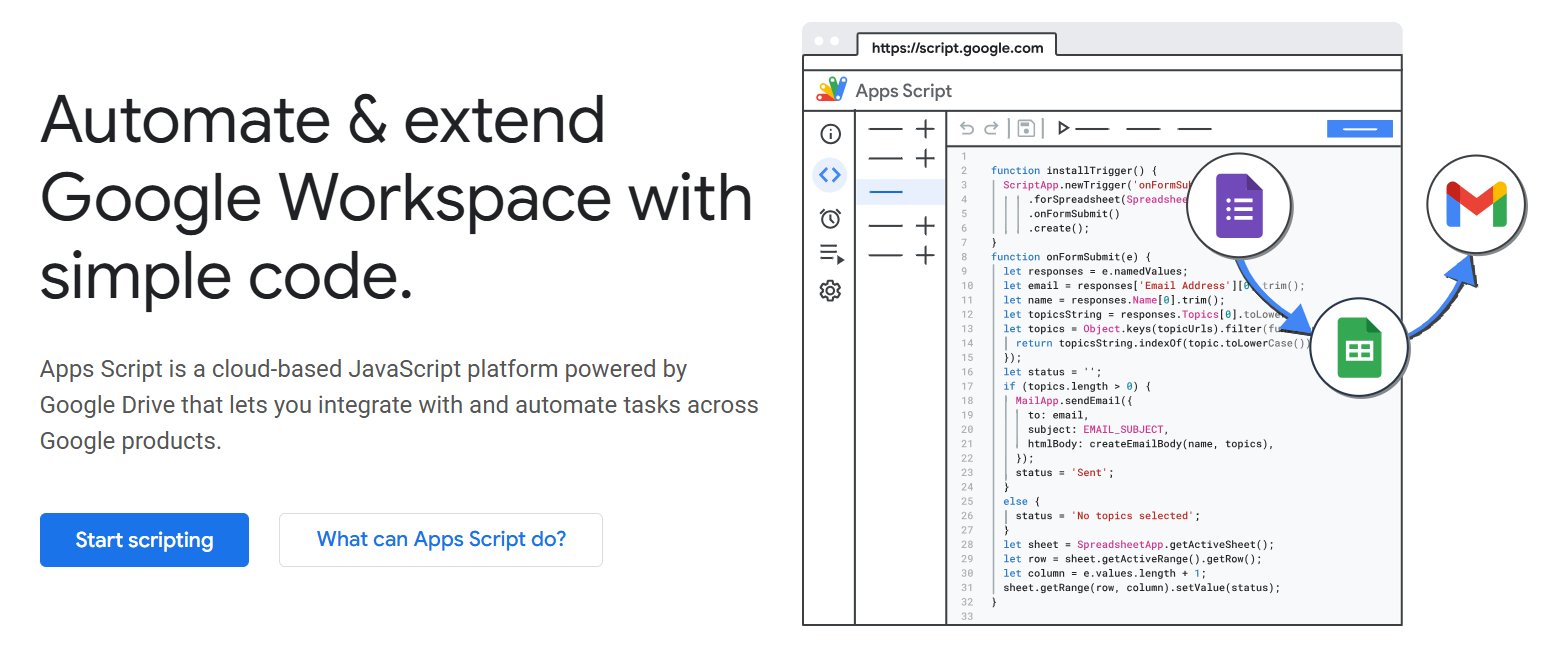
For advanced users, Google Apps Script lets you write custom code to move data between Docs and Sheets automatically. You can create a script that copies tables from a document and pastes them into a sheet on a schedule. This is powerful, but it takes coding knowledge and setup time.
Chrome extensions

Extensions can speed up the way you transfer content from Google Docs to Sheets. Magical is one example, used by nearly a million people worldwide. It works as a text expander and autofill tool to help you cut down on repetitive tasks.
Here’s what you can do with it:
- Send data to Sheets in a click: Move details like names, contacts, or notes straight into rows and columns.
- Reduce manual entry: Automate routine form-filling, data capture, or spreadsheet updates.
- Use it across your apps: Magical runs on many platforms you already work in, including Gmail, LinkedIn, Salesforce, and Google tools.
The app is quick to set up. No complex integrations or coding needed. If you often copy the same kind of information from Docs to Sheets, Magical can help you save time and keep your data accurate.
💡 Pro tip: Set up shortcuts in Magical for the fields you copy most often. This keeps your conversion process consistent and avoids formatting errors.
Integrating with Google Drive and Make.com

Automation platforms like Make.com connect Google Calendar, Drive, Docs, and Sheets.
For example, you can set up a workflow where every time a new document is added to a Drive folder, the data gets pushed into a Google Sheet. This type of connection is ideal when you’re managing ongoing updates or team-wide data entry.
Automate Meeting Workflows with Tactiq and Google Docs

When you’re working with meeting notes, the hardest part is usually capturing accurate content in the first place. That’s what Tactiq solves.
Tactiq is an AI-powered tool that transcribes meetings on Google Meet, Zoom, and Microsoft Teams. Instead of typing notes manually, you can set it to automatically save transcripts into Google Docs. This creates a single document that your team can review and update.
Example workflow:
- Install the Tactiq Chrome Extension.
- Connect your preferred video conferencing platform and Google Drive under Tactiq Integrations.
- Run a meeting with your team on Google Meet, Zoom, or Microsoft Teams. Tactiq captures a live transcript.
- The transcript is instantly saved to Google Drive as a Google Doc, perfect for storing one-on-one meeting notes or team discussions.
- From that Doc, highlight tasks, action items, or decisions, and move only the structured parts you need into Google Sheets.
Tactiq also includes built-in AI, so you can ask questions about your meeting. For example: “What were the deadlines mentioned?” or “Who is responsible for follow-ups?” These insights appear right inside your Doc, helping you extract details without searching line by line.

For distributed teams, this workflow delivers:
- Transparency: Every participant has access to the same transcript.
- Accountability: Action items and owners are clear from the start.
- Productivity: AI-powered insights save time on reviewing and organizing notes.
👉 Download the free Tactiq Chrome Extension today to start capturing live transcripts in Google Docs and boost your team’s productivity.
{{rt_cta_ai-convenience}}
Best Practices for Managing Data Between Google Docs and Sheets
Converting between Google Docs and Sheets is easier when your content is well-prepared. A few small adjustments before and after conversion can save time and reduce errors.
- Prepare your Docs for easy conversion: Keep tables simple: avoid merged cells, excessive formatting, or mixed content. Clean layouts transfer more smoothly into Sheets.
- Maintain formatting and data integrity: After conversion, double-check rows and columns to verify no data was lost. Adjust cell sizes and alignment to keep the sheet readable.
- Collaborate and share effectively: Use shared Drive folders so teammates always access the most up-to-date version of your file, whether it’s in Docs or Sheets.
- Decide on manual vs. automated syncs: If you update content often, set up an automated workflow. For occasional tasks, manual conversion works fine.
Wrapping Up
Moving content from Google Docs into Google Sheets gives you more control over your data. You can filter, sort, and track information instead of working with static text. Manual methods like copy-paste or TXT imports are quick fixes, but they often come with formatting issues and no automation.
If you want to save time and keep your files up to date, automated tools are the best way forward. Apps like Magical reduce repetitive data entry, while platforms like Make.com connect Docs, Sheets, and Drive for larger workflows.
For meetings, Tactiq makes it easy to capture transcripts into Google Docs, ask AI questions about the conversation, and move action items into Sheets for tracking.
By combining the right manual steps with automation, you’ll keep your documents organized, improve accuracy, and give your team a faster way to work with data.
FAQs About How to Convert Google Docs to Google Sheets
How do I turn a Google Doc table into a Google Sheet?
Select the table in your Google Doc, copy it, and paste it into Google Sheets. The content will appear in rows and columns, though you may need to adjust formatting or spacing after pasting.
Can I open a Google Doc in Sheets?
You can’t open a Doc directly in Sheets. Instead, download it as a TXT file and then import it into Sheets. This converts the text into rows and columns, though extra cleanup may be needed.
How do I convert a file to Google Sheets?
Open Google Sheets and use File > Import to upload TXT files. Then save it as a native Sheets file.
How do I import a Word doc into Google Sheets?
Open your Word document, copy the table or data you want to use, and paste it directly into Google Sheets. Each cell in your table will appear in the same row and column layout, though you may need to adjust formatting afterward.
Can I automate conversion from Google Docs to Sheets?
Yes. You can use Google Apps Script for custom workflows, Make.com for large-scale automation, or extensions like Magical to cut down repetitive copying and keep your Sheets up to date.
Related articles








Want the convenience of AI summaries?
Try Tactiq for your upcoming meeting.
Want the convenience of AI summaries?
Try Tactiq for your upcoming meeting.
Want the convenience of AI summaries?
Try Tactiq for your upcoming meeting.