
What is Gemini in Google Messages?
December 20, 2025
December 20, 2025
February 17, 2026
February 17, 2026

Gemini in Google Messages brings Google’s AI straight into your texting app. You can chat with the assistant inside the Google Messages app on your Android phone. No need to open a separate Gemini app.
It works like a normal conversation, but you’re asking the AI to help you draft messages, answer questions, or spark ideas right in the message field.
It’s simple, fast to access, and free to use with a personal Google account. If your device meets the requirements and you’re running the latest version of Messages, you can start a Gemini chat in seconds.
In this guide, you’ll learn:
- What Gemini in Google Messages is
- Who can use it
- How to access it
- Key features and limits
- How it compares to the Gemini app
- When to use a tool like Tactiq for meeting tasks
What Is Gemini In Google Messages?
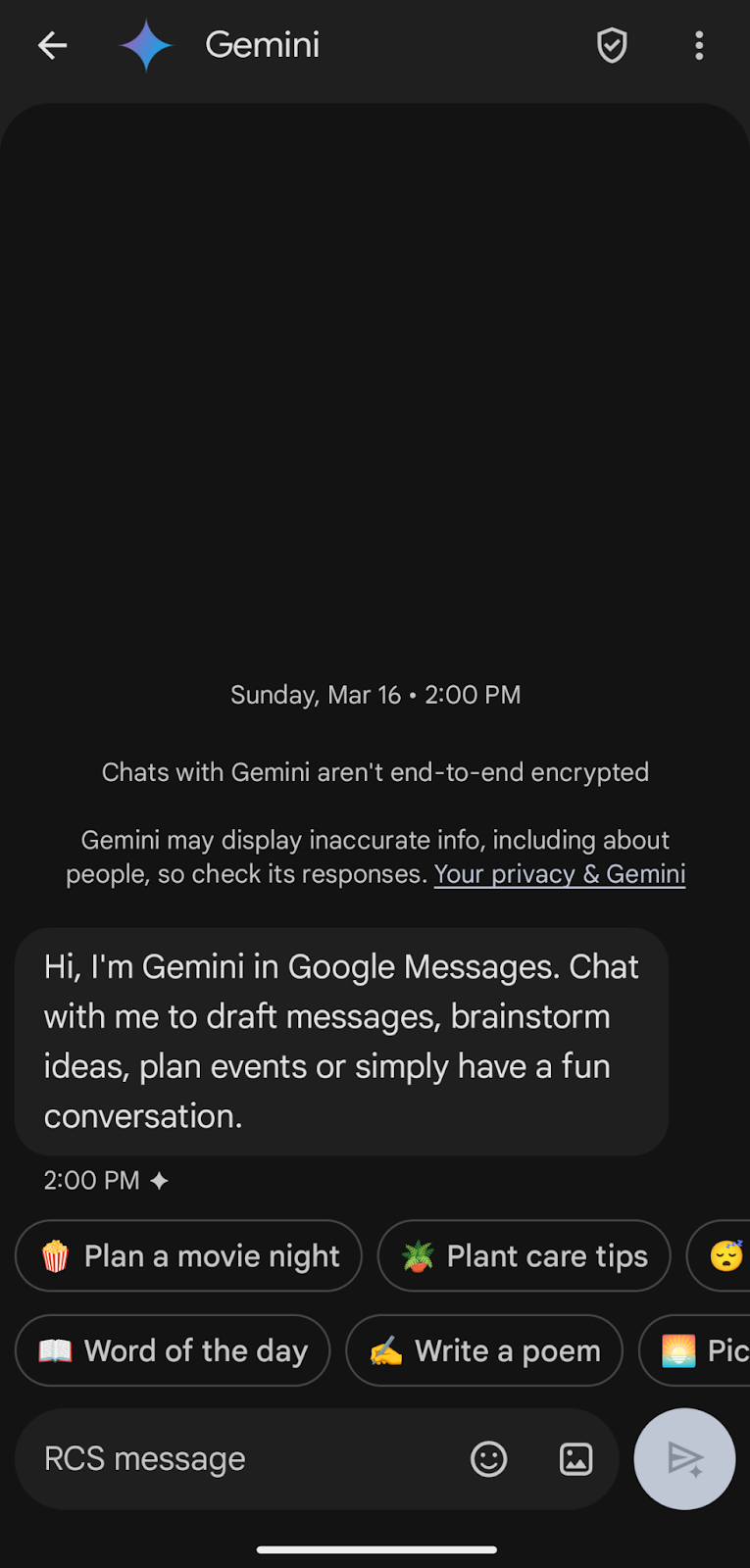
Gemini in Google Messages is Google’s built-in AI assistant that lives directly inside the Google Messages app. Instead of switching to the standalone Gemini app or the Gemini web app, you can talk to Gemini in a regular chat window.
It lets you:
- Ask questions
- Draft messages
- Plan events
- Explore ideas through a simple back-and-forth conversation
Google first introduced Gemini in Messages as part of a broader move to bring AI into everyday messaging apps. The rollout began gradually and continues to expand across more countries, devices, and supported languages.
The main benefits include:
- Convenience: Access Google Gemini without leaving your inbox.
- Fast help: Ask for suggestions, draft messages, or get answers inside the message field.
- Free to use: Available at no cost with a personal Google account.
- Easy access: Works on supported Android devices using the latest version of the app.
Gemini in Google Messages is ideal when you want quick help inside a familiar chat space.
Requirements to Use Gemini in Google Messages
To use Gemini within the Google Messages app, your device and account need to meet a few key conditions. These checks make sure the AI features work smoothly on your Android phone.
Here’s what you need:
- An Android device with 6GB RAM or higher. Gemini runs best on newer devices.
- A personal Google Account. It won’t work with Family Link, school accounts, or a Google Workspace account.
- You must be 18 or older.
- RCS chats enabled. This unlocks the richer messaging features that Gemini depends on.
- Your phone language is set to a supported language.
- The latest version of the Google Messages app. Keeping it updated ensures access to new features.
- Availability in your region. Gemini is live in 165+ countries and continues to expand.
- A supported device setup. This includes updated apps, permissions, and an Android backup configuration if your phone uses one.
When all requirements line up, you can open Messages and start a Gemini chat like any other conversation.
Pro Tip: Gemini can't access meeting conversations or create structured notes. Tactiq transcribes your Google Meet, Zoom, and Teams calls in real time and generates instant AI summaries you can export anywhere.
How To Access Gemini In Google Messages
Once your device meets the requirements, you can open a Gemini chat in a few quick ways. Each method brings the AI assistant right into your Google Messages app, so that you can ask questions, brainstorm ideas, or draft messages without switching apps.
Method 1: Using the Gemini button
1. Open the Google Messages app.
2. Tap the Gemini icon above the Start chat button.
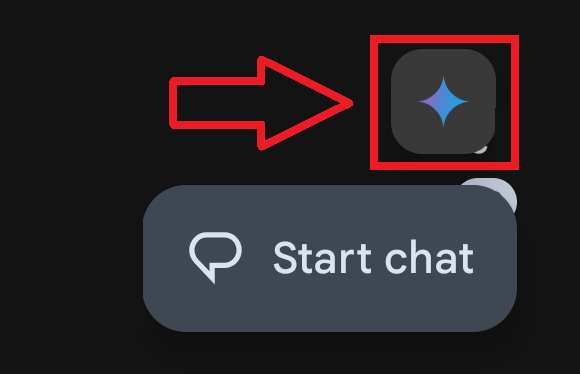
3. Follow the on-screen instructions during the first setup.
4. Type your prompt in the message field and tap Send. You can add photos to your prompt or explore suggestions that appear above the message box.
Method 2: Start Chat menu
1. Open Google Messages.
2. Tap Start chat, then select Gemini from the list.
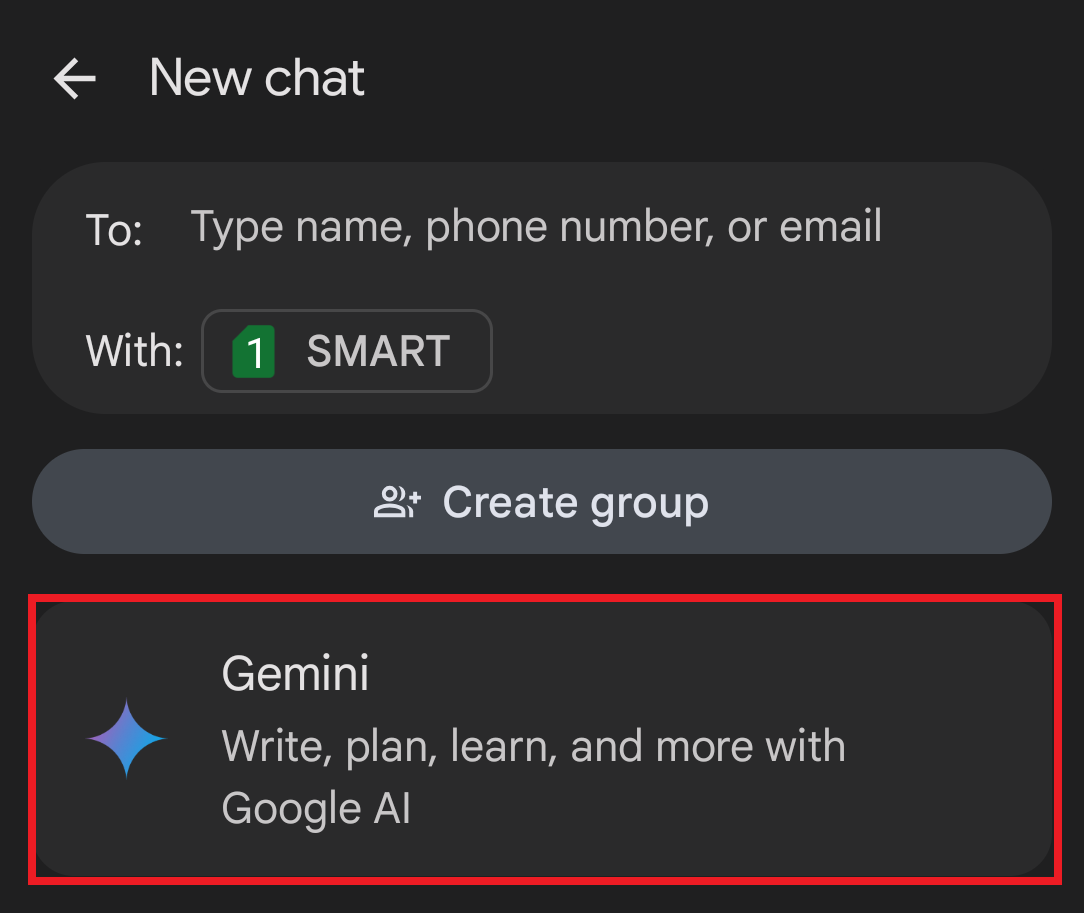
3. Complete the first-time setup if prompted. This option works well if you’re already inside your chat list and want fast access.
Method 3: Pinning your Gemini chat
If you plan to use Gemini often, you can pin the conversation to the top of your inbox.
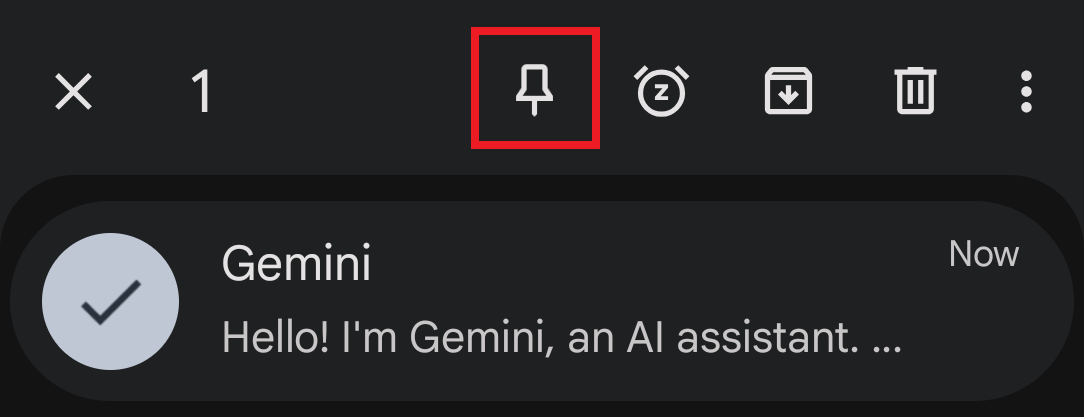
1. Touch and hold the Gemini chat.
2. Tap Pin. Now your AI assistant stays at the top for quick access anytime you need help drafting messages or exploring ideas.
Gemini in Google Messages: Key Features and What It Can Do
Before comparing Gemini across apps, it helps to understand what this version inside Google Messages can actually do. This section outlines the core features that you can use in a chat-based format.
Multimodal input
Gemini accepts different types of prompts, including:

- Text questions or instructions
- Uploaded images for simple analysis
This gives you flexibility when exploring ideas or asking follow-up questions.
Integration with Google apps
The assistant can connect with Google services such as Google Maps, Google Drive, and Google Search. While the Messages version uses lighter Extensions than the full Gemini app, it still handles basic tasks tied to Google tools.
Conversation history
Your chat stays visible as a single thread, and activity also appears in Gemini Apps Activity. You can review or delete past prompts and manage how your AI history is stored across your Google account.
Limitations of Gemini in Google Messages
Gemini in Google Messages is helpful for quick tasks, but it’s still a lighter version of the full Gemini experience. Knowing its limits helps you decide when to use it and when another tool might fit better.
Here’s what to keep in mind:
- No end-to-end encryption. Chats with Gemini aren’t protected the same way as regular RCS conversations.
- No access to your existing messages. Gemini can’t read past conversations or interact with your personal threads.
- Can’t send messages on your behalf. It can help you draft messages, but you must send them manually.
- No image generation. The Messages version only supports basic image analysis.
- Fewer capabilities than the standalone Gemini app. Some Extensions and advanced features aren’t available.
- Doesn’t integrate with individual chat threads. It exists in its own dedicated conversation.
- Short-term data storage. Google may hold your chat activity for up to 72 hours for processing.
These limits make the Messages version better for quick help, while the full Gemini app remains the stronger choice for deeper tasks and more advanced AI features.
Gemini in Google Messages vs. Standalone Gemini App
This section helps you understand how the Messages version compares to the full Gemini app. Both give you access to Google’s AI, but they serve different purposes.
How Google Messages differs from the standalone Gemini app
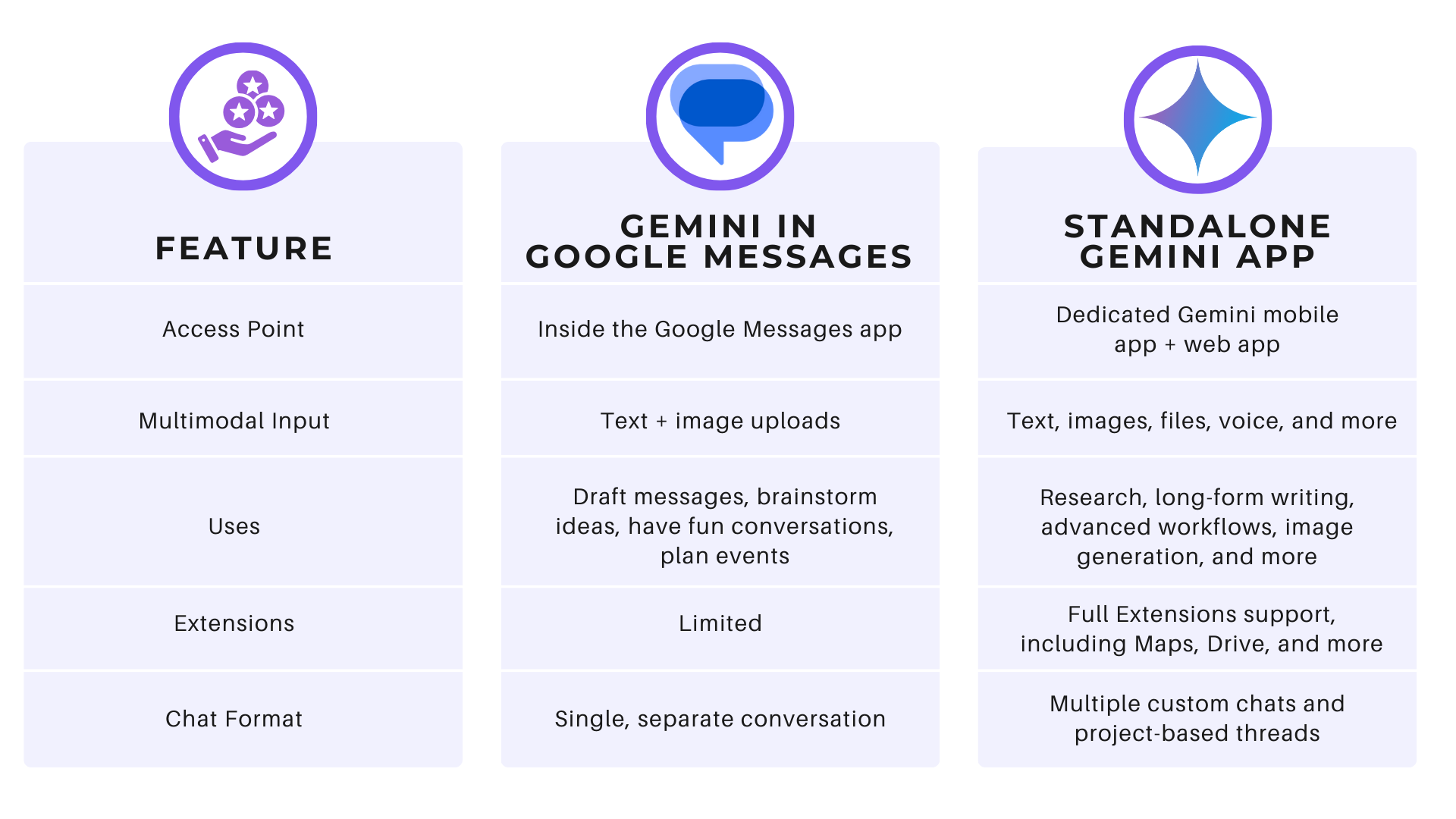
Gemini in Google Messages is designed for quick help inside a chat window, while the standalone Gemini app offers deeper capabilities, richer integrations, and more advanced tools for natural language tasks and more complex tasks.
Here’s a simple comparison:
When to use each version
- Use Gemini in Google Messages when you want quick prompts, light writing help, or simple ideas without leaving your texting app. It’s great for drafting replies, checking details, or exploring thoughts in a casual chat format. This version works best when speed and convenience are important.
- Use the standalone Gemini app when you need more power. The app handles bigger tasks like research, long-form writing, complex planning, and advanced Extensions. It offers more tools, deeper responses, and flexible workflows, making it a better fit for projects that need focus and structure.
How To Capture Meeting Notes with Tactiq

Gemini in Google Messages works well for quick questions and simple ideas, but meetings need more structure. Tactiq gives you that structure by turning conversations from your video calls into clear, ready-to-use notes.
Tactiq works across Google Meet, Zoom, and Microsoft Teams. It captures your meeting in real time and creates summaries, action items, and follow-up points without any extra steps.
Here’s what you can do with Tactiq:
- Transcribe your meetings live so you can stay focused on the discussion.
- Get instant AI summaries and meeting notes that highlight decisions, tasks, and next steps.
- Export your notes to tools you already use like Google Drive, Slack, Notion, and more.
- Upload recordings or transcripts when you want AI summaries after the call.
- Use AI prompts to ask deeper questions about your meeting or turn notes into emails, updates, or project tasks.
Tactiq handles the heavy work automatically, so you don’t have to copy and paste long conversations into another app.
Try the Tactiq Chrome Extension for your next meeting and see how much time you save.
{{rt_cta_ai-convenience}}
Wrapping Up
Gemini in Google Messages offers a simple way to bring Google’s AI into everyday conversations. It’s easy to access, works inside the app you already use for texting, and helps you draft messages, explore ideas, and answer quick questions. It’s built for casual tasks, not full projects, and it has clear limits around encryption, message access, and advanced features.
If you want fast, lightweight AI help during your day, Gemini in Google Messages is worth trying. And when you need reliable meeting notes and structured summaries, Tactiq gives you the tools to capture every key point without extra work.
FAQs About Gemini in Google Messages
Is Gemini in Google Messages free?
Yes. Gemini is free when you use a personal Google Account on a supported Android phone. You don’t need a paid plan or the standalone Gemini app, and you can start chatting directly inside Google Messages.
What are the requirements to use Gemini in Google Messages?
You need a supported Android phone with RCS enabled, the latest Google Messages app, and a personal Google Account. You must be 18 or older, and your phone language must be set to a supported option.
Are Gemini chats in Google Messages encrypted?
No. Chats with Gemini aren’t end-to-end encrypted. They don’t follow the same privacy standards as RCS conversations, so sensitive or personal information should be avoided in Gemini chats.
How do I enable Gemini in Google Messages?
Open Google Messages, tap Start chat, select Gemini, and follow the setup steps. Once it’s enabled, it appears as a regular chat, and you can return to it anytime for quick questions or writing help.
Can Gemini send messages for me in Google Messages?
No. Gemini can draft messages, suggest wording, and help refine what you want to say, but you must send the message yourself. It cannot access or interact with your private conversations.
Related articles




Want the convenience of AI summaries?
Try Tactiq for your upcoming meeting.
Want the convenience of AI summaries?
Try Tactiq for your upcoming meeting.
Want the convenience of AI summaries?
Try Tactiq for your upcoming meeting.