
iCloud vs. Google Drive vs. OneDrive (Comparison Guide)
December 8, 2025
December 8, 2025
May 14, 2026
May 14, 2026

Picking the right cloud storage can feel confusing.
iCloud, Google Drive, and OneDrive all help you store files and share content. But each cloud storage service works better for certain devices, tools, and workflows.
This guide breaks down what sets them apart so you can choose the best cloud storage for your needs.
In this article, you’ll learn:
- What each cloud storage provider offers
- How much cloud storage you get for free
- How paid storage and plans compare
- Key differences in file sync and sharing
- Which option fits your devices and tools best
Cloud Storage Service Overview
A quick overview helps you understand what each cloud storage service does well.
What is iCloud?
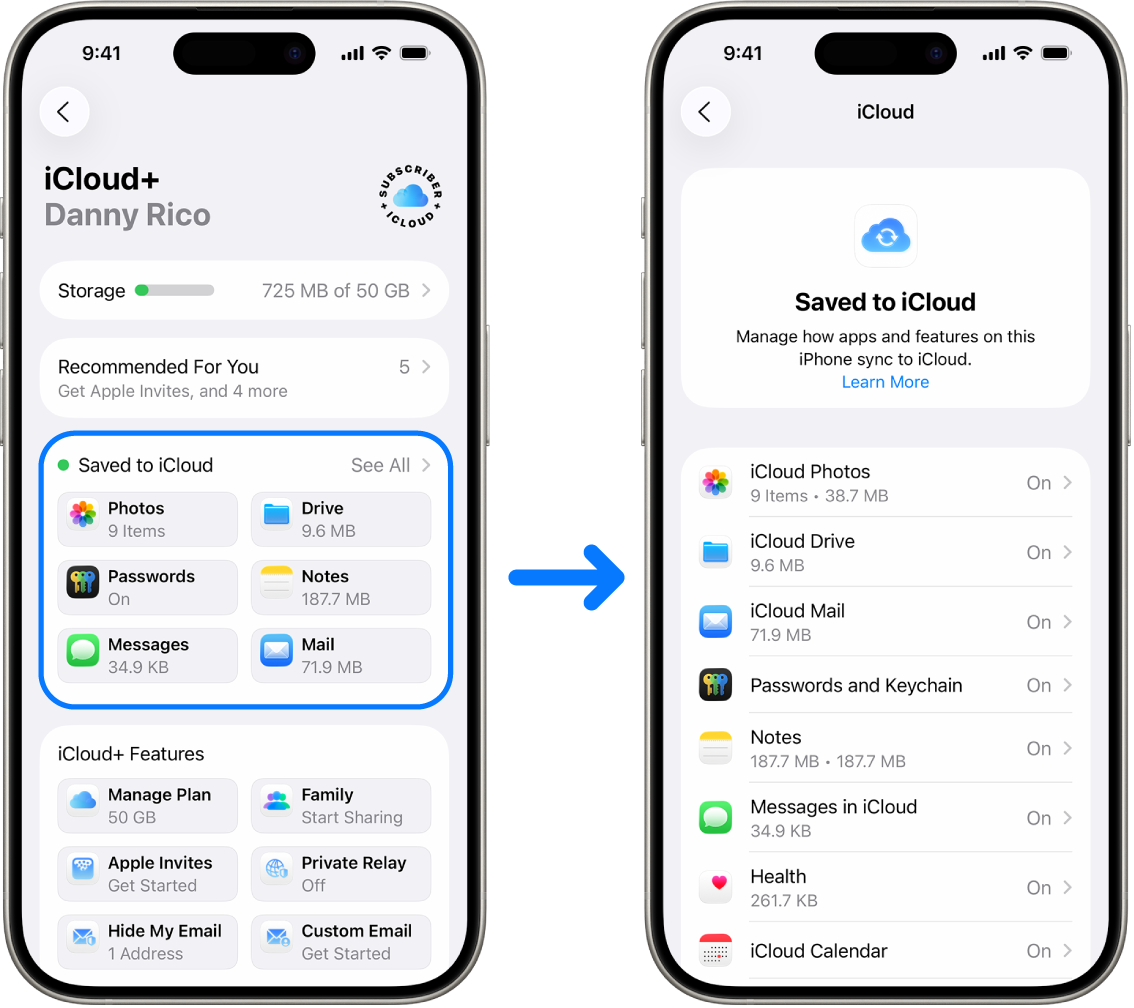
iCloud is Apple’s cloud storage solution. It stores your photos, files, messages, app data, and device backups. It works best for people who use the Apple ecosystem, since it’s built into every iPhone, iPad, and Mac.
You can access your files through iCloud Drive, sync content across devices, and use privacy tools like Hide My Email and Private Relay.
What is Google Drive?
Google Drive is Google’s cloud storage platform. It’s designed for cross-platform use and integrates with Google Workspace tools, including Google Docs, Google Photos, and Google Calendar. It offers simple file storage, strong search tools, and real-time collaboration.
Drive also includes helpful AI features for organization and security.
💡 Pro Tip: Use Tactiq to capture meeting transcripts and export them as Google Docs. It’s an easy way to keep your notes organized inside Google Drive without copying anything manually.
What is OneDrive?
OneDrive is Microsoft’s cloud storage service. It’s ideal for Windows users and anyone who relies on Microsoft Office. OneDrive backs up your files, syncs content across devices, and includes features like Personal Vault, file version history, and built-in ransomware recovery. It works smoothly with Word, Excel, PowerPoint, and other Microsoft Office apps.
iCloud vs. Google Drive vs. OneDrive Comparison
Storage Capacity and Scalability
Each cloud storage provider offers a mix of free storage, paid storage, and flexible personal and business plans. Here’s how they differ:
- iCloud
- 5GB of free storage
- Paid storage options from 50GB to 2 terabytes
- Designed for Apple users who want simple device backups and photo storage
- Strong family plan support for shared storage space (up to five other people in your Family Sharing group). It pairs well with a NordPass Family plan to keep shared logins just as secure as your files.
- Google Drive
- 15GB of free storage space shared across Google services
- Google Workspace paid plans scale from 30GB to 5TB+
- Works well for Android phones, Mac users, Windows users, and cross-platform teams
- Ideal for storing Google Docs, Google Photos, and other Google Workspace files
- OneDrive
- 5GB of free personal storage
- Paid plans start at 100GB, with bigger tiers through Microsoft 365
- Best for Windows computers and business users already using Microsoft Office
- Family plan options go up to 6TB total (1TB per person)
File sync and sharing features
File sync speed and reliability
Sync performance affects how quickly your files stored in the cloud stay updated across devices.
- iCloud
- Fast and stable for Apple products
- Works across iPhone, iPad, Mac, and the web
- Handles backups, photos, and app data smoothly
- Limited sync control for non-Apple devices
- Google Drive
- Reliable sync across desktops, mobile devices, and browsers
- Google Drive for desktop keeps everything updated automatically
- Strong support for mixed operating systems
- An easy way to store files from multiple devices in one place
- OneDrive
- Best sync performance on Windows
- Deep integration with Windows Backup and Microsoft Office apps
- Selective sync is available for managing unnecessary files
- Smooth experience for Mac users and mobile devices as well
File sharing capabilities
Sharing files is a core part of any cloud storage service. Here’s how each one handles it:
- iCloud
- Simple sharing options for Apple users
- Shared albums and shared folders for photos, videos, and documents
- Editing features through iWork apps
- Best when your contacts also use Apple products
- Google Drive
- Real-time collaboration with Google Docs, Sheets, and Slides
- Easy link-sharing with adjustable permissions
- Great for business users who work inside Google Workspace
- Strong file-sharing tools for people using different devices
- OneDrive
- Detailed sharing settings, including expiring links and password protection
- Personal Vault adds an extra layer of protection for sensitive files
- Smooth collaboration inside Word, Excel, and PowerPoint
- Works well for both personal storage and the company’s servers through Microsoft 365
How Tactiq Helps with Cloud Storage Workflows
Managing cloud storage often means juggling files, meeting notes, and documents across different platforms. Tactiq makes this easier by capturing key information during your calls, allowing you to store it anywhere you prefer.
Tactiq transcribes your meetings in real time without recording anything. You get clean transcripts, AI summaries, and organized action items that you can export in formats like PDF, TXT, or DOCX. This keeps your work tidy, accurate, and ready for storage.
Tactiq also works with the cloud storage services you already use. You can save your files directly to your preferred platform and keep everything in one place.
Here’s how Tactiq supports your cloud storage workflow:
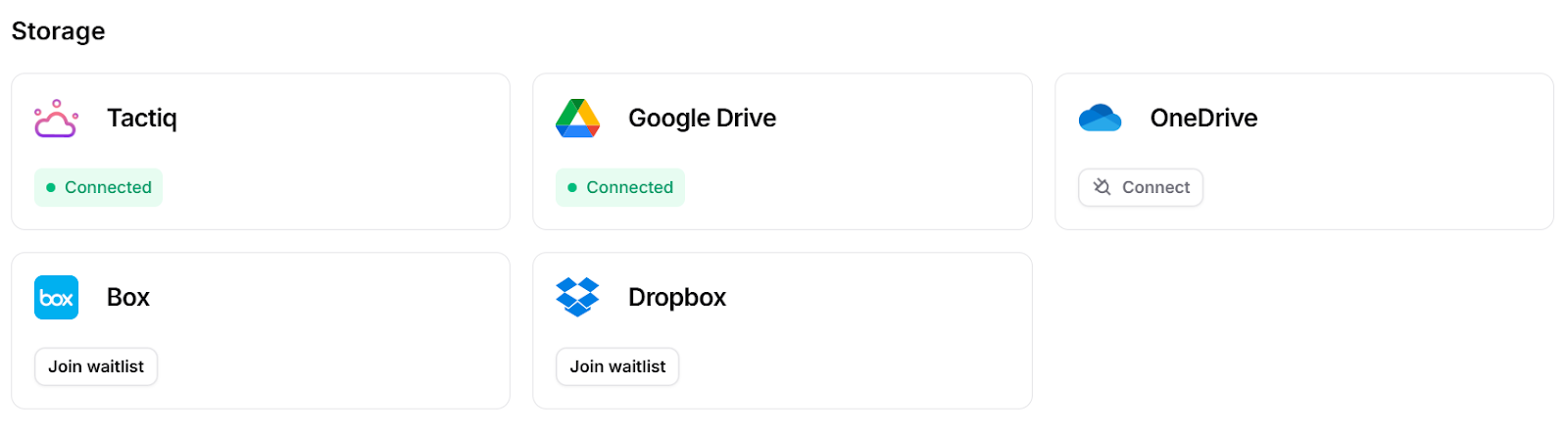
- Google Drive: Save transcripts and AI summaries to Google Drive for easy sharing in Google Docs or across your Google Workspace tools.
- OneDrive: Upload meeting notes to OneDrive so your content stays connected to Microsoft Teams and your Microsoft Office apps.
- Any cloud storage platform: Download your transcript and upload it to iCloud, or any other cloud storage provider you prefer.
These options help you stay organized, back up your meeting content, and access your files from any device.
Install the free Tactiq Chrome Extension today and keep every meeting stored, searchable, and ready when you need it.
Pricing Comparison: iCloud vs Google Drive vs OneDrive
Pricing matters when you’re deciding how much storage you need and how you want to manage your digital files. Each cloud storage provider offers free storage, paid plans, and options for personal and business use.
Free storage plans
- iCloud: 5GB
- Google Drive: 15GB
- OneDrive: 5GB
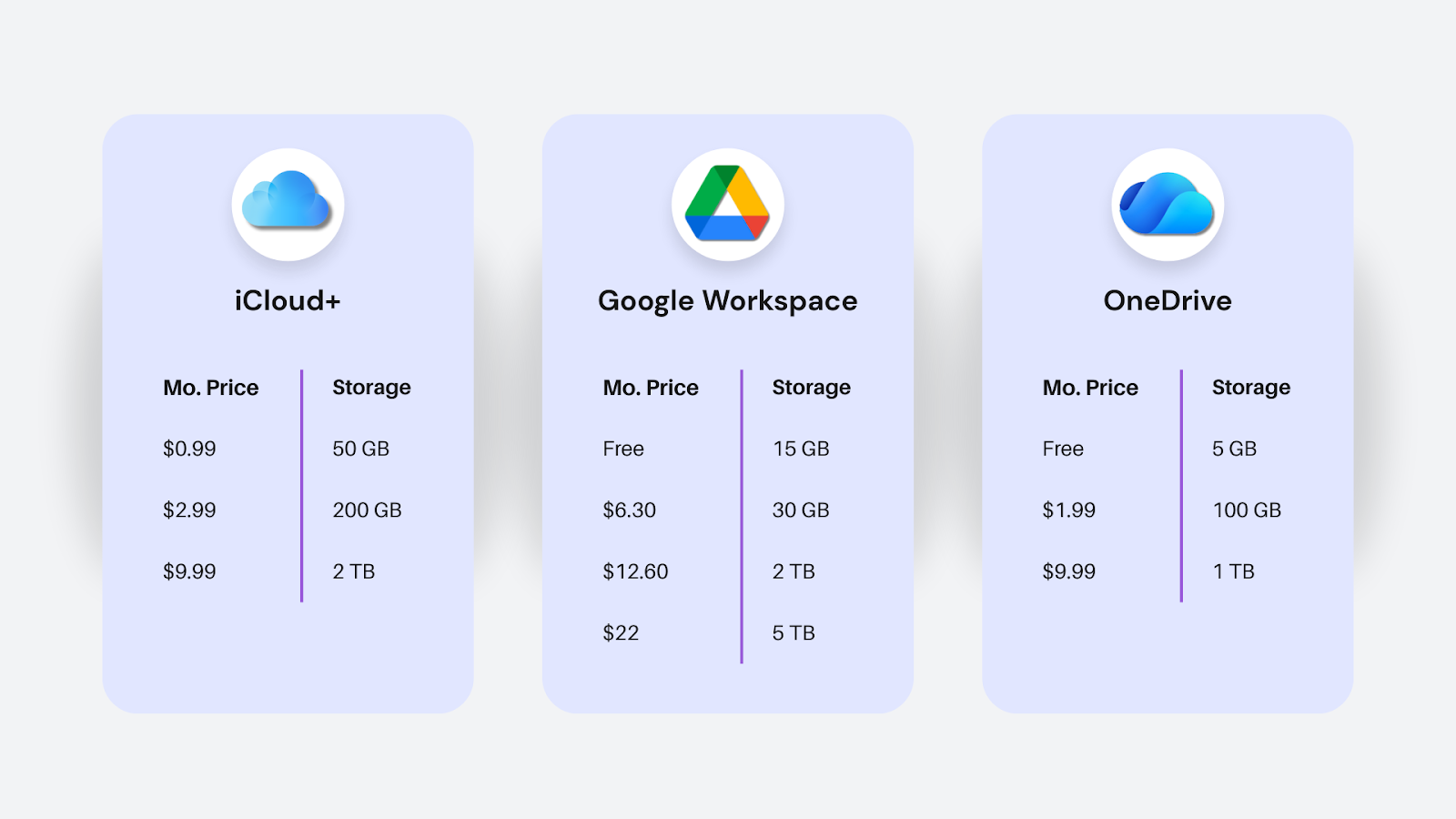
Paid storage plans
This table compares iCloud+, Google Workspace, and OneDrive paid storage plans. It shows each service’s monthly pricing tiers and how much storage space you get.
Recommendations based on storage needs
- Light user (docs, emails, light backups): Google Drive free tier (15 GB): no cost. iCloud+ 50 GB is a low-cost option for Apple users.
- Moderate user (photos, regular files, moderate backups): Google One 100 GB or iCloud+ 200 GB offer decent space at a low monthly cost.
- Heavy user (lots of media, big backups): Google One 2 TB or iCloud+ 2 TB, best per-GB price for large volumes.
- Productivity-focused (office docs, collaboration, cross-device work): OneDrive + Microsoft 365 Personal: 1 TB with full Office suite, great balance of storage and tools.
Integration and Ecosystem
How well a cloud storage service fits into your daily tools makes a big difference. Here’s how each platform works inside its own ecosystem.
iCloud integration
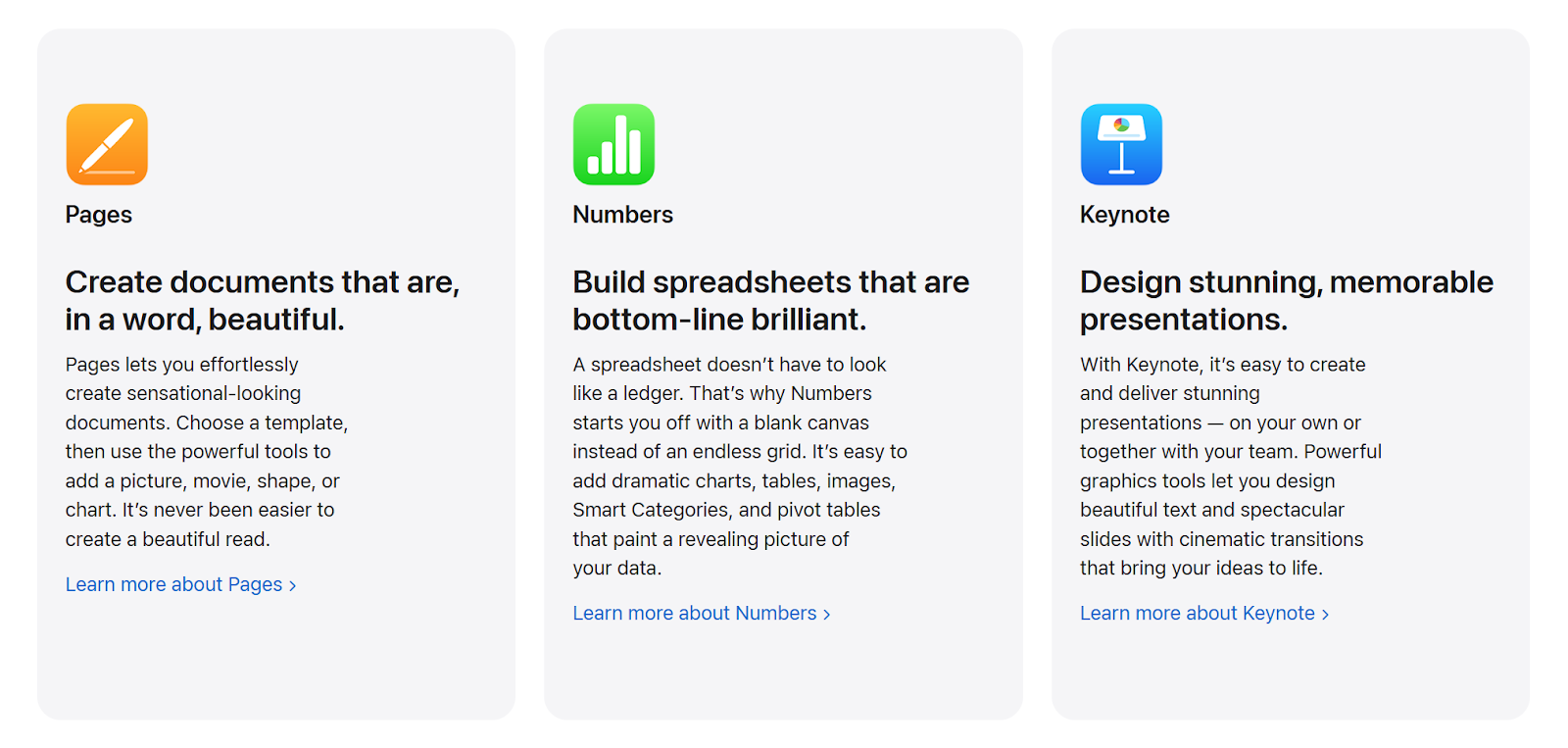
iCloud connects tightly with Apple devices. Everything syncs in the background, from photos to notes, making daily tasks feel simple.
- Works across iPhone, iPad, Mac, Apple Watch, and Apple TV
- iWork apps (Pages, Numbers, Keynote) save and sync documents automatically
- Syncs photos, messages, backups, passwords, and app data
- Limited flexibility on non-Apple devices; Windows access works, but features feel more restricted
Google Drive integration
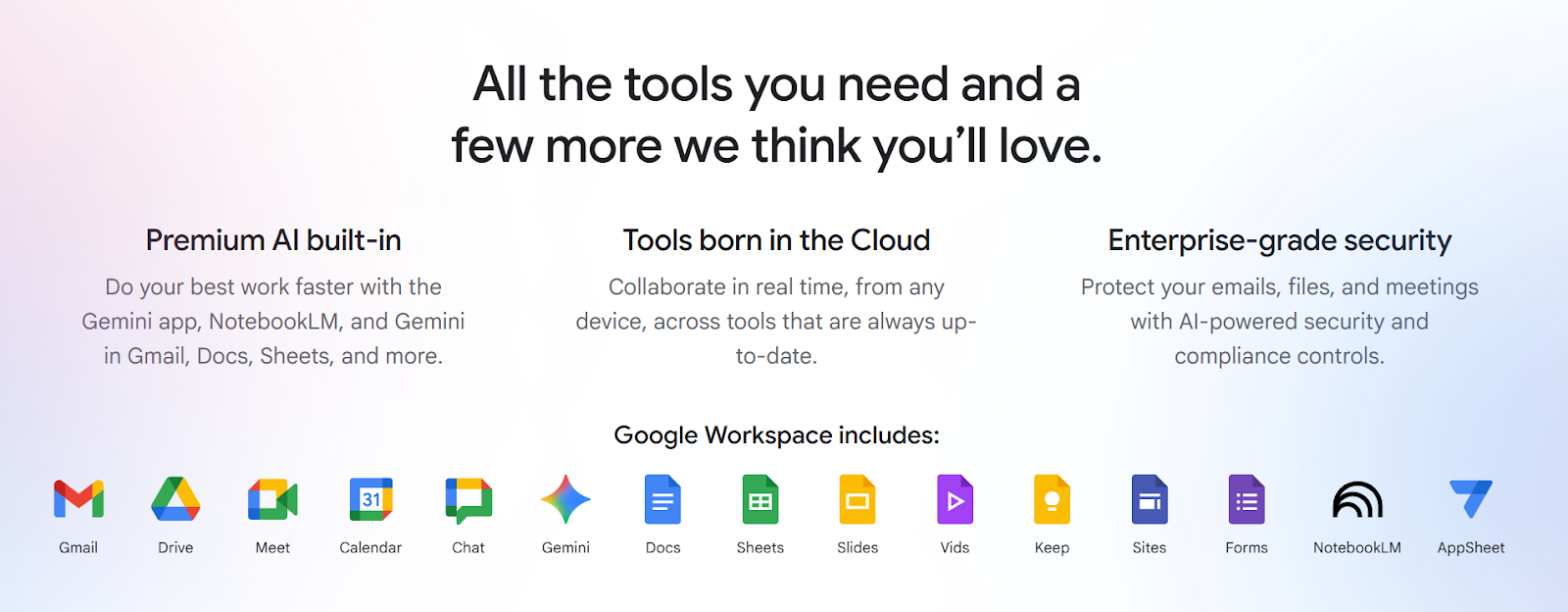
Google Drive is built for cross-platform use and seamlessly integrates with Google’s apps.
- Strong integration with Google Workspace tools like Google Docs, Sheets, Slides, Gmail, and Google Calendar
- Easy access across web browsers, Android phones, Windows, and macOS
- Works well with third-party apps for design, productivity, and education
- Flexible enough for mixed-device households or teams using different operating systems
OneDrive integration
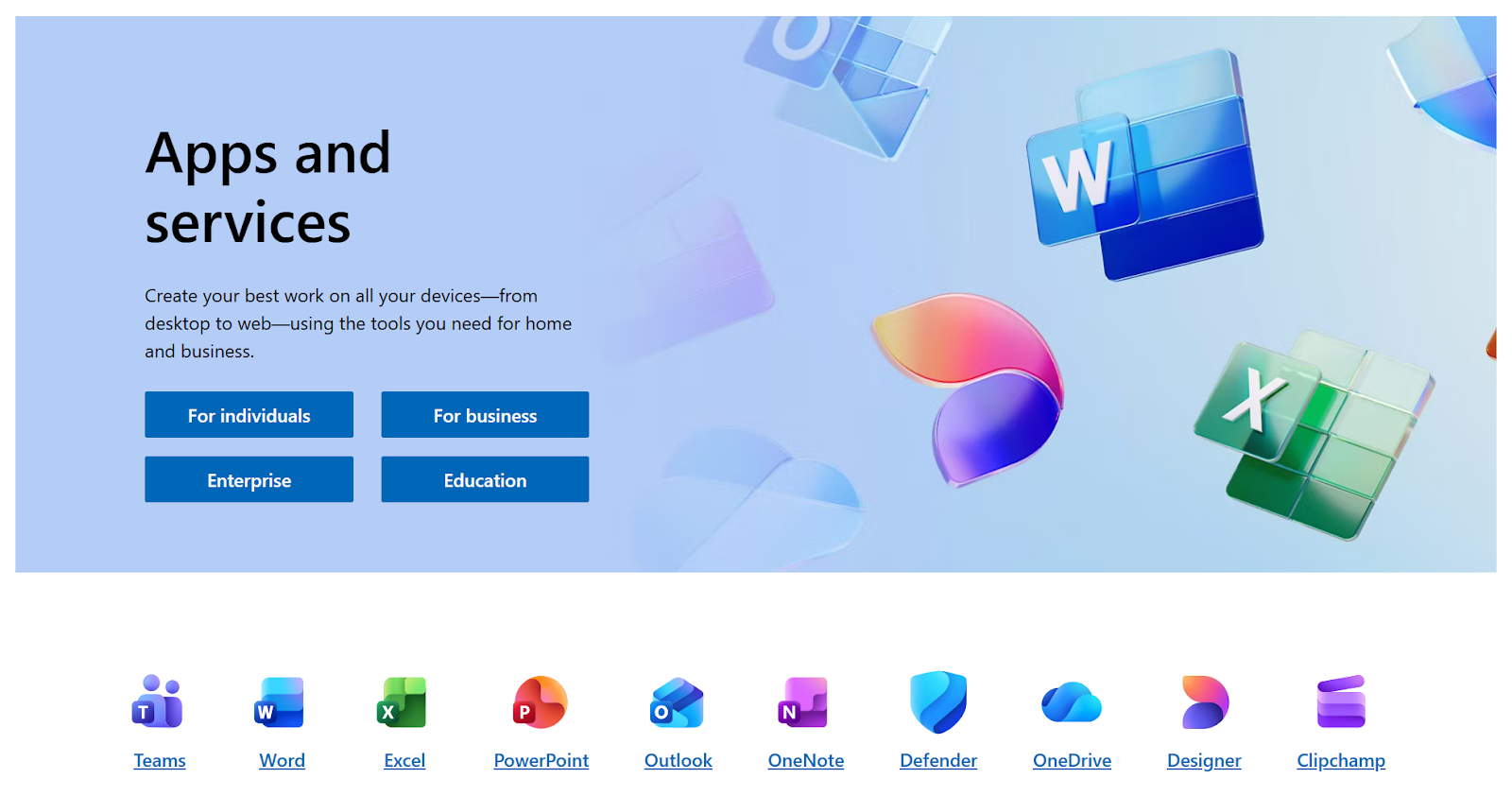
OneDrive fits naturally into Microsoft’s ecosystem, especially for Windows users.
- Deep connection with Microsoft Office 365 apps such as Word, Excel, PowerPoint, and OneNote
- Built into Windows computers for automatic desktop, documents, and photos backup
- Useful business productivity tools like shared libraries, version history, and collaboration inside Office
- Works on macOS, iOS, and Android, but delivers the best experience on Windows devices
Security and Privacy Features
Security plays a big role when choosing a cloud storage service. Each platform protects your files differently, using its own mix of encryption, authentication, and data policies.
Encryption standards
- iCloud: Uses strong encryption for data in transit and on Apple’s servers. Many features use end-to-end encryption, including passwords, Health data, and Messages.
- Google Drive: Encrypts data in transit and at rest. Business plans offer client-side encryption for added protection and tighter control over sensitive files.
- OneDrive: Protects files with AES 256-bit encryption at rest and SSL encryption in transit. Personal Vault adds an extra layer of security for sensitive items.
Two-factor authentication
- iCloud: Supports two-factor authentication (2FA) for Apple accounts.
- Google Drive: Uses Google Account 2-step verification, including app prompts and security keys.
- OneDrive: Supports 2FA for Microsoft accounts and offers multifactor authentication for Personal Vault.
Data protection and privacy policies
- iCloud: Strong privacy focus, especially for Apple users. Offers tools like Hide My Email and Private Relay.
- Google Drive: Backed by Google’s broader security systems, plus advanced DLP tools in business plans.
- OneDrive: Includes ransomware detection, file recovery, and enterprise-grade compliance for business plans.
Compliance certifications
Each service follows widely recognized security and privacy standards. Here’s how they compare:
- iCloud (Apple)
- Follows ISO/IEC 27001, 27017, and 27018 standards for information security and cloud privacy
- Aligns with GDPR requirements for users in the EU
- Strong privacy policies that limit how data is used and accessed
- Google Drive
- Certified for ISO/IEC 27001, 27017, and 27018
- Supports SOC 1, SOC 2, and SOC 3 reports
- Meets GDPR requirements and offers data region controls in business plans
- Offers compliance options for HIPAA (for eligible Google Workspace accounts with proper agreements)
- OneDrive (Microsoft)
- Certified for ISO/IEC 27001, 27017, 27018, and 27701
- Supports SOC 1, SOC 2, and SOC 3 audits
- Built on Microsoft 365’s GDPR-compliant cloud platform and designed to help customers meet GDPR obligations.
- Broad compliance support for business users (HIPAA, FedRAMP, and more, depending on the plan)
Which Cloud Storage Is Best for You?
The right cloud storage service depends on the devices you use, how you prefer to work, and what you need to store. Here’s a quick guide to help you choose.
Best for Apple users: iCloud
Choose iCloud if you live inside the Apple ecosystem.
- Syncs photos, messages, passwords, and backups across iPhone, iPad, and Mac
- Simple setup with automatic app and file syncing
- Great for families who want shared storage and shared photo libraries
- Less flexible for Windows or Android users
Best for cross-platform users: Google Drive
Pick Google Drive if you use multiple devices or rely on Google services.
- Works well on Android, Windows, and macOS
- Ideal for Google Docs, Google Photos, and Google Workspace collaboration
- Easy sharing for teams and mixed-device households
- Good value for people who need steady storage space across platforms
Best for Windows and Office 365 users: OneDrive
Go with OneDrive if you spend most of your time in Microsoft Office or on Windows.
- Built into Windows computers for automatic folder backup
- Great for editing files in Word, Excel, PowerPoint, or OneNote
- Helpful business productivity tools for organizations
- Strong choice for families who want multiple user accounts with lots of storage
How to decide
Each cloud storage option shines in different situations. Use these simple checkpoints to narrow your choice:
- Pick iCloud if your daily workflow is built around Apple products. It handles device backups, photos, and app data with almost no setup. Everything syncs automatically across your Apple ecosystem.
- Pick Google Drive if you jump between different devices or depend on Google Workspace tools. It’s the most flexible option for cross-platform use and makes collaboration easy across teams and shared files.
- Pick OneDrive if you spend most of your time on Windows or inside Microsoft Office apps. It backs up your desktop, documents, and photos automatically and works smoothly with business productivity tools.
If you’re still unsure, choose based on where you already get the most done. The best cloud storage is the one that fits naturally into your daily tools and doesn’t add extra steps.
Choosing the Best Cloud Storage for Your Workflow
Each cloud storage service offers something different. iCloud is the most natural fit for Apple users who want automatic syncing across their devices. Google Drive is the strongest choice for cross-platform flexibility and easy collaboration. OneDrive works best for Windows users and anyone who depends on Microsoft Office. Pick the option that aligns with the tools and devices you use every day.
And wherever you store your files, Tactiq helps you stay organized. Capture transcripts and summaries, then save them to any cloud platform with just a few clicks.
{{rt_cta_ai-convenience}}
FAQs about iCloud vs Google Drive vs OneDrive
Which cloud storage service has more free storage?
Google Drive offers the most free storage among major services, with 15GB shared across Google services. iCloud and OneDrive each offer 5GB for free accounts.
Can I use iCloud on Android devices?
Yes. You can access iCloud on Android through any mobile browser. Some features, like Photos and Drive, work well, but full functionality, such as automatic photo syncing, requires an Apple device.
Is Google Drive compatible with Apple devices?
Yes. Google Drive works on iPhone, iPad, and Mac through the mobile app or browser. You can sync files using the Drive app and access all documents across Apple devices.
Which cloud storage has the best security?
Apple iCloud, Google Drive, and OneDrive all offer strong encryption and major compliance certifications. For enterprise-grade security, OneDrive for Business provides the widest compliance scope and admin controls.
Can I use Tactiq transcripts with cloud storage services?
Yes. You can export Tactiq transcripts and upload them to Google Drive, iCloud Drive, OneDrive, or Dropbox for storage and sharing. They save as text files, summaries, or PDFs, depending on your export settings.
Related articles




Want the convenience of AI summaries?
Try Tactiq for your upcoming meeting.
Want the convenience of AI summaries?
Try Tactiq for your upcoming meeting.
Want the convenience of AI summaries?
Try Tactiq for your upcoming meeting.