
Jira MCP: How to Connect Claude and Turn Meetings Into Jira Tickets
- Published:
- November 29, 2026
- Updated:
- November 29, 2026

Sprint planning gives your team a chance to agree on priorities, scope, and who owns each piece of work. After the meeting, someone still has to turn those decisions into Jira tickets. When that means digging through meeting notes and retyping action items, details can get lost and follow-ups can slip.
With Jira MCP, you can ask Claude to turn your sprint planning or refinement notes into Jira tickets. That means less time retyping action items after the call.
In this guide, you’ll learn how to do three things.
- Search Jira and check ticket status in Claude
- Set up the Atlassian MCP server in Claude and Claude Code
- Turn action items from sprint planning and refinement into Jira tickets
TL;DR: What to Know About Jira MCP
Jira MCP lets Claude search Jira issues, check ticket status, and create or update work within your existing permissions. For Jira Cloud, choose the Atlassian connector in Claude on the web or in Claude Desktop. In Claude Code, add the official Atlassian MCP server using its v2 URL.
Enable Tactiq and Atlassian in the same Claude conversation. Ask Claude to draft Jira tickets from your meeting transcript, then review the drafts before asking it to create them. Full transcript access requires Tactiq Team or higher.
What Is Jira MCP?
Jira MCP uses the Model Context Protocol (MCP) to let tools like Claude work with Jira.
Choose an MCP server based on how your team runs Jira.
- Jira Cloud. Use the official Jira MCP server (Atlassian Rovo MCP Server). It connects AI tools to Jira on Atlassian Cloud and respects your existing permissions.
- Jira Data Center. One option is the community-built mcp-atlassian server, which supports Jira Data Center version 8.14 and later.
What You Can Do With Jira MCP
Use Claude as your MCP client to look up Jira issues before a team discussion or create tickets after a decision. When looking up an issue, include a detail such as the project name or issue key.
- Check who’s handling a blocker before standup.
- Check for duplicates before adding a backlog item.
- See what’s still open before the sprint review.
- Create a ticket for work agreed during sprint planning.
Start with a question your team needs to answer today, like which open issues could affect the sprint goal.
How to Connect Claude to Jira With the Atlassian MCP Server
For Jira MCP server setup in Claude on the web or in Claude Desktop, use the connector directory. If you use Claude Code, add the remote MCP server from your terminal.
Claude on web and desktop
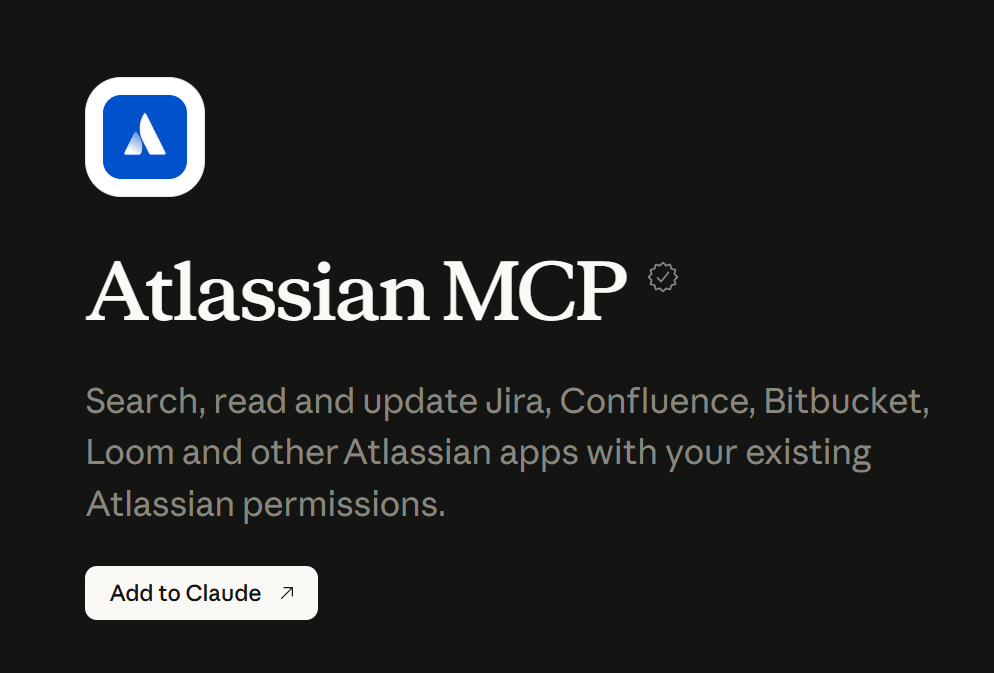
On Claude Team and Enterprise, an Owner or Primary Owner must enable the connector for the organization first.
- Click + in the lower-left corner of your chat or type / to open the menu.
- Hover over Connectors and select Manage connectors.
- Search for Atlassian.
- Select Connect and follow the prompts to authorize access to your Atlassian account.
Jira MCP in Claude Code
- Open your terminal. Copy and paste the command below, then press Enter. It uses Atlassian’s v2 server URL.
claude mcp add --transport http atlassian https://mcp.atlassian.com/v2/mcp
- Open a Claude Code session and enter /mcp to start the Atlassian MCP authentication flow. Follow the prompts to sign in to your Atlassian account and authorize the connection through OAuth 2.1.
💡 Pro tip: Jira shows Claude what’s already tracked. What your team agreed to during refinement may still be in the meeting transcript. Connect Tactiq alongside Atlassian and ask Claude which follow-ups already have Jira tickets.
For either setup, keep these permissions and usage details in mind.
- Permissions. Claude works within your existing Atlassian permissions. Start by checking a ticket’s status. Review proposed changes before asking Claude to save them in Jira.
- Usage. Some requests, such as unified search across Atlassian apps, consume Rovo credits.
Turn Meetings Into Jira Tickets With Tactiq and Claude
Use your sprint planning transcript to draft Jira tickets that explain what your team agreed to do and why.
1. Capture the meeting with Tactiq
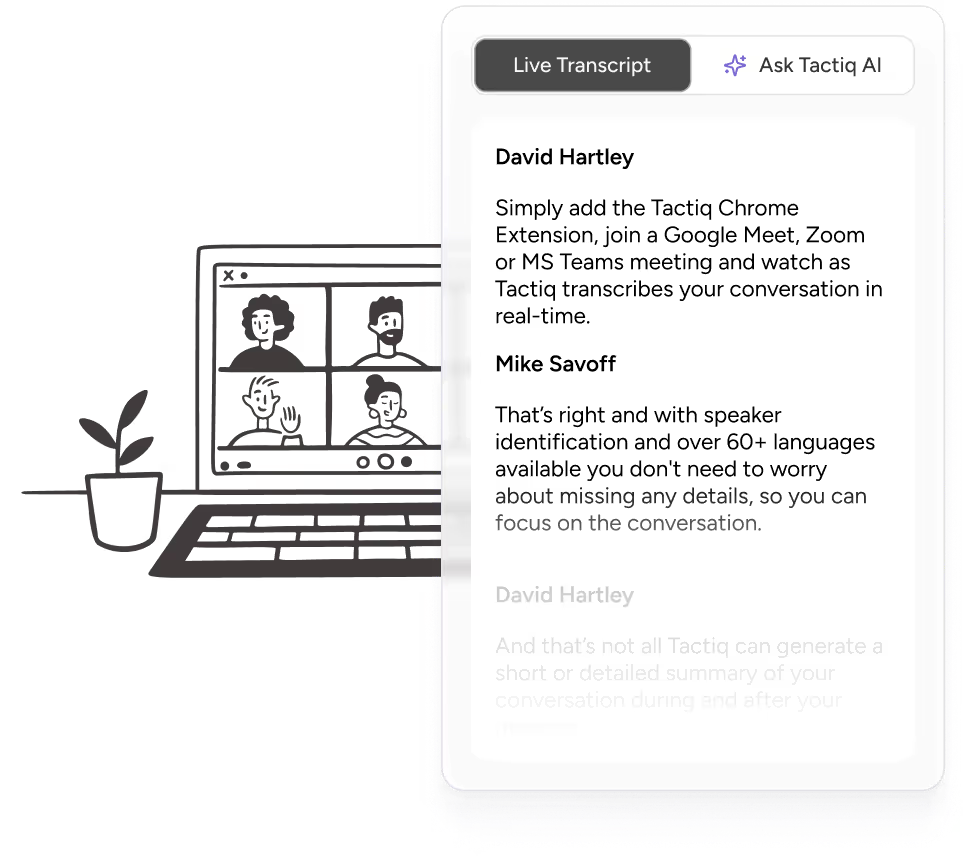
Use Tactiq to transcribe your Google Meet, Zoom, or Microsoft Teams call without a bot joining. After the call, you can find the transcript in Tactiq. Claude needs Tactiq Team or higher to read the full transcript through the connector.
Want the convenience of AI summaries?
Try Tactiq for your upcoming meeting.
2. Enable both connectors in Claude
In Claude on the web or in Claude Desktop, enable Tactiq and Atlassian for the same conversation.
Tactiq gives Claude access to the meeting transcript. The Atlassian Rovo MCP Server lets Claude check existing Jira issues and create new ones within your Jira permissions.
3. Draft, review, and create the tickets
Ask Claude to find the meeting and draft one ticket per agreed action item. Give it the Jira project key, issue type, and any assignees your team confirmed.
Find my latest Payments Sprint Planning meeting in Tactiq. Draft one Task in Jira project PAY for each agreed action item. Include a title, a short description, and the agreed assignee. Use Maya Chen for the retry-button task. Flag any other task whose owner needs confirmation. Check for related Jira issues. Show me the drafts and wait for my approval before creating anything.
Check the descriptions, assignees, and possible duplicates. Then tell Claude which drafts to create and ask for the new issue keys.
Turn Sprint Decisions Into Tracked Jira Work
A Jira ticket should give someone enough context to start work, even if they missed the meeting. Use your sprint planning transcript to capture why the team prioritized the work, what’s in scope, and who agreed to own it.
Connect Tactiq to Claude alongside Atlassian and try it with one follow-up from your next planning call. Review the draft, then ask Claude to create the ticket in Jira.
FAQ
Your questions, answered.
If you have any further questions, Get in touch (opens in a new tab) with our friendly team
Does Jira have an official MCP server?
What’s the best MCP server for Jira?
What Jira data can Claude access through MCP?
How do I turn meeting notes into Jira tickets with Claude?
Is the Jira MCP server free?
Related articles

Slack MCP Server: How to Connect Claude and Share Meeting Notes

Claude Skills vs MCP: What’s the Difference?

Claude Memory: How to Import and Manage Your AI Context

Claude Cowork Connectors: Automate Recurring Work

Best Claude Skills: Top Picks for Meetings, Content, and Code

AI Meeting Notetaker with Claude Connector: Top 6 Picks

Which Claude Model Is Best for Writing and Research?

What is Claude Mythos? Is It for Remote Professionals?
Want the convenience of AI summaries?
Try Tactiq for your upcoming meeting.
Bringing AI into your meetings has never been so easy.
Add to Chrome - It's free!(opens in a new tab)Try Tactiq in your upcoming meeting!
Sign up now