
Import ICS Files to Google Calendar
February 20, 2025
February 20, 2025
November 13, 2025
November 13, 2025

If you want to easily add events to your Google Calendar, use ICS files. An ICS file is a common calendar format used by many apps and services. By importing them, it’s possible to manage your Google Calendar events in one place.
In this article, you’ll learn how to import ICS files from your computer or mobile device.
How to Import ICS Files on a Computer
- Visit Google Calendar and sign in.
- Click the gear icon on the upper right and click on 'Settings'. On the left sidebar, scroll down until you see the 'Import & Export' option.
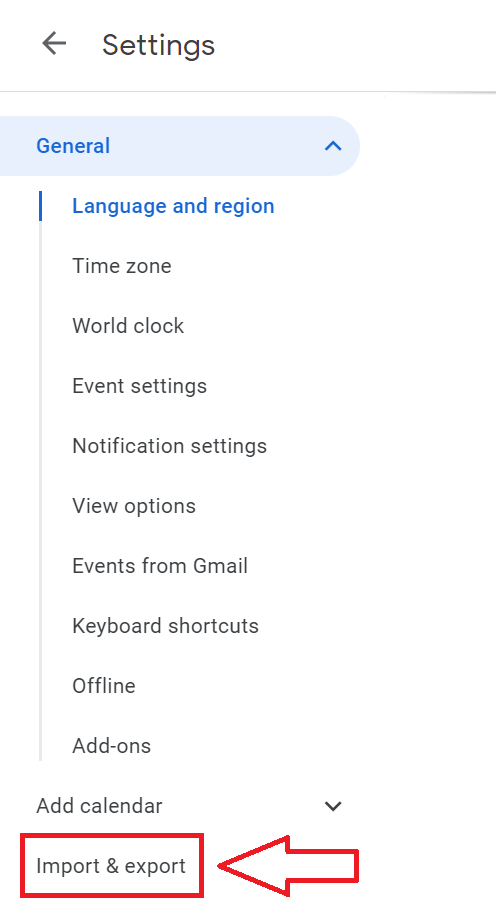
- Under the 'Import' section, click 'Select file from your computer'. Locate and select the ICS file and choose which calendar you want the events to be added to. You can also import CSV files.
- After selecting your ICS file and the destination calendar, click 'Import'. Google Calendar will start importing the events, including the option to import repeat events if applicable.
How to Import ICS Files on Mobile Devices
- Open the Google Calendar app on your device. Make sure you're signed in to the account where you want to import the ICS file.
- In the top-left corner of the app, tap the three horizontal lines. Scroll down the menu and tap 'Settings'. Select 'Import & Export'.
- In the 'Import & Export' section, tap on the 'Import' option. Navigate through your device storage to find the ICS file you previously saved. Select the file.
- Decide which calendar you want the events to appear in. Select the appropriate calendar from the drop-down menu. Once selected, tap 'Import'.
By following these steps, you can easily import ICS files into Google Calendar on your Android device, ensuring that all your important calendar events are added.
Adding an ICS URL to Google Calendar
- Visit Google Calendar and sign in to the Google account where you want to add the ICS URL.
- On the left sidebar, find the section labeled 'Other Calendars.' Next to it, click the plus sign.
- From the expanded menu, you will see several options. Choose 'From URL,' which allows you to add a calendar using a web link.
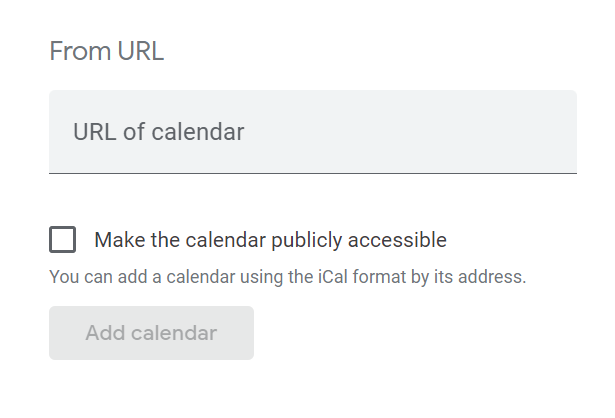
- Enter the ICS URL in the text field. Copy and paste the URL of the ICS file into this field. After pasting the URL, click the 'Add Calendar' button to proceed.
- Once you click 'Add Calendar,' Google Calendar will automatically import all the events from the ICS file associated with the URL.
By following these steps, you can easily add events from an ICS URL to your Google Calendar. Changes made to the ICS file at the source will automatically reflect in your Google Calendar.
Troubleshooting Common Issues
You might encounter problems when trying to import an ICS file into Google Calendar. Here’s how to resolve them:
- File Size Limitations and Solutions:
- Problem: Google Calendar has a limit on the size of files you can import. If your ICS file is too large, it won't import successfully.
- Solution: Break down the ICS file into smaller parts. You can use tools like text editors to manually split the file or specialized software to divide the file without losing data.
- Possible File Corruption and How to Verify File Integrity:
- Problem: The ICS file could be corrupted, which prevents it from importing correctly.
- Solution: Verify the integrity of your ICS file. Open the file in a text editor and check for any unusual characters or incomplete entries. You can also use online validators like ICS Validator to check for file errors.
- Issues with File Format Compatibility:
- Problem: Not all ICS files conform to the standards expected by Google Calendar. Some might have incompatible formatting.
- Solution: Ensure that your ICS file follows the iCalendar specifications. Check the file for required fields like BEGIN:VEVENT, DTSTART, SUMMARY, and END:VEVENT. If these fields are missing or formatted incorrectly, you must correct them.
- Steps to Split Large ICS Files for Import:
- Problem: A single large ICS file can be challenging to manage and import.
- Solution:
- Use a simple text editor like Notepad or TextEdit.
- Locate the BEGIN:VEVENT and END:VEVENT tags to identify individual events.
- Create new ICS files by copying and pasting a few events into each file.
- Ensure each new file has the proper beginning (BEGIN:VCALENDAR) and ending (END:VCALENDAR) tags.
- Go back to Google Calendar and import each smaller file one by one.
{{rt_cta_ai-convenience}}
How Tactiq Can Help with Virtual Meetings
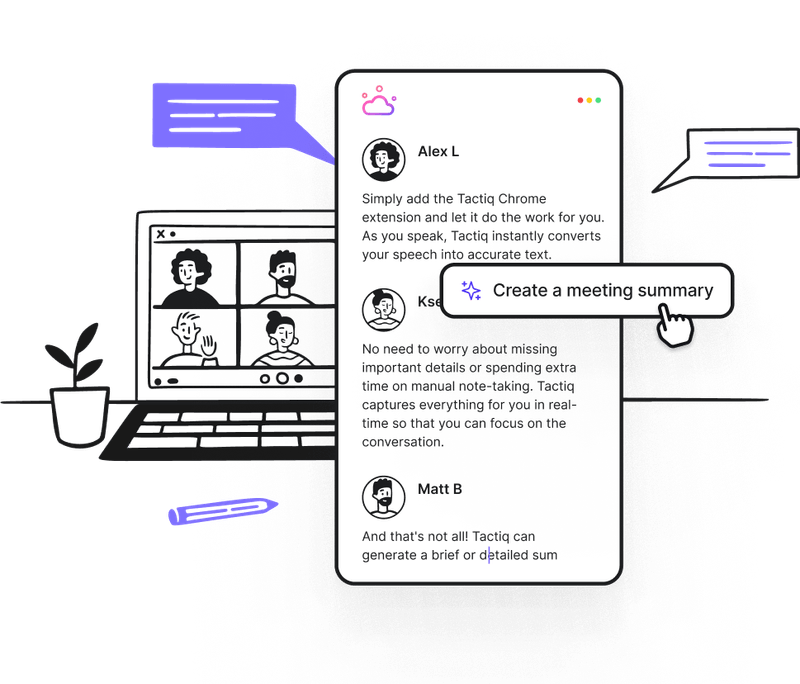
Tactiq is a tool that does live transcriptions, AI summaries and custom meeting insights. Here’s how it can help you with your virtual meetings:
- Tactiq transcribes meetings live on Google Meet, Microsoft Teams, and Zoom. It generates AI summaries after the meeting so you don’t have to take manual notes.
- Tactiq’s new AI meeting kits and custom prompts help automate follow-up tasks like sending emails or updating project management tools so your post-meeting process is faster and more efficient.
- Tactiq integrates with your favorite productivity apps to keep your projects on track.
With Tactiq, you save time on follow-ups and ensure you capture key decisions. Download the free Tactiq Chrome Extension today!


便利なAIサマリーが欲しいですか?
次回のミーティングで Tactiq をお試しください。
便利なAIサマリーが欲しいですか?
次回のミーティングで Tactiq をお試しください。
便利なAIサマリーが欲しいですか?
次回のミーティングで Tactiq をお試しください。