
How to Make Google Calendar Private in 5 Steps
February 20, 2025
February 20, 2025
November 27, 2025
November 27, 2025

Do you want to keep your Google Calendar private? With so much of our personal and work schedules online, it's important to control who can see your calendar. Google Calendar has several privacy settings that can help protect your information. We'll explain the difference between public and private settings, and how each affects your data.
In this article, you'll learn how to manage your Google Calendar and make it private in five simple steps.
Overview of Google Calendar's Privacy Settings
The Google Calendar app offers various privacy settings to control who can view your calendar and events. You can choose to:
- Make your calendar public: Anyone with the link can see your events.
- Share with specific people: Only selected individuals can view or edit your calendar.
- Keep your calendar private: Only you can see your private events.
These settings allow you to manage who has access and what they can see.
How to Make Your Google Calendar Private in 5 Steps
Step 1: Accessing Google Calendar Settings
- Go to Google Calendar on your computer.
- Click the gear icon on the upper right, then select "Settings".

- Find 'Settings and sharing': On the left sidebar, click on the specific calendar you want to make private.
Step 2: Changing Calendar Privacy Settings
- Under 'My calendars', locate the calendar you want to adjust.
- Click the three dots next to the calendar name and select "Settings and sharing".
- Under 'Access permissions', uncheck the box that says "Make available to public". This ensures your calendar is private.

Step 3: Adjusting Event Privacy Settings
- Click on the event you want to update.
- In the event details, find 'Default visibility' and change it to 'Private'.

- Click 'Save' to update the event's privacy setting.
Step 4: Sharing Your Calendar with Specific People
- Follow the previous steps to access your calendar's settings.
- Under 'Share with specific people', enter the email addresses of users you want to share your calendar with.
- Choose what they can do—view only, make changes, etc.
Step 5: Managing Events from Gmail
- Gmail can automatically add events to your calendar.
- Open the event, click 'Default visibility', and set it to 'Private'.
- If you have a work or school account, check with your administrator about privacy settings.
{{rt_cta_ai-convenience}}
Integrating Tactiq for Enhanced Privacy
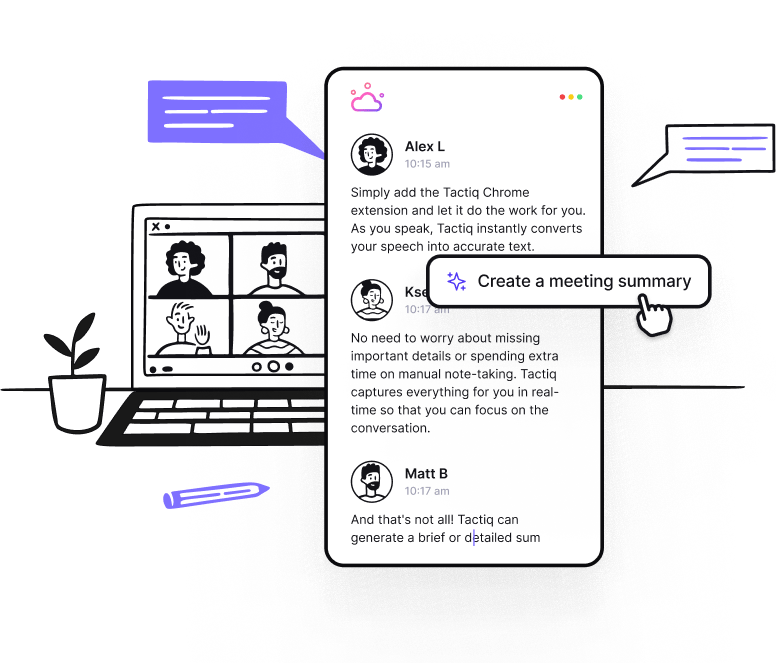
Tactiq helps maintain privacy while improving collaboration. It offers real-time transcription, AI-generated insights, and secure access to shared transcripts, making it easy to locate key points without compromising privacy.
New Features:
- AI Meeting Kits and Prompts: Automate post-meeting tasks like writing emails or updating Jira with tailored prompts.
- Secure Transcription: Search shared transcripts securely, ensuring only authorized users access sensitive data.
- AI Note-Taker: Automatically captures meeting details and generates concise summaries, making it easy to review key points and action items.
By integrating Tactiq into your workflow, you can manage your meetings more efficiently. Download the free Tactiq Chrome Extension today!


便利なAIサマリーが欲しいですか?
次回のミーティングで Tactiq をお試しください。
便利なAIサマリーが欲しいですか?
次回のミーティングで Tactiq をお試しください。
便利なAIサマリーが欲しいですか?
次回のミーティングで Tactiq をお試しください。