
ズームでギャラリービューを記録する方法
January 22, 2026
January 22, 2026
May 14, 2026
May 14, 2026

Zoomミーティングの録画 再生ボタンを押して間違ったビューが表示されるまでは簡単に感じられます。レコーディングでは、ギャラリー全体ではなく、アクティブなスピーカーのみが表示されます。顔が消え、前後関係が失われ、実際に起こったことが会議に反映されなくなります。
この混乱はよくあることです。ズームレコーディングの動作は、アカウントの設定方法、会議のレコーディング方法、画面共有中に行われる処理によって異なります。ギャラリービューはデフォルトでは録画されず、スピーカービューや共有画面レイアウトとは動作が大きく異なります。
会議が終了すると、[元に戻す] ボタンは表示されません。事前に適切なレコーディング設定が有効になっていなければ、ギャラリービューを後で復元することはできません。
このガイドでは、Zoom録画ビューの仕組みと、重要な映像が失われる前によくある間違いを回避する方法について説明します。
次のことを学びます。
- ギャラリービューとスピーカービューおよび共有画面の違い
- Zoomがギャラリービューを記録する場合と記録しないとき
- なぜ クラウドレコーディング ギャラリービューに関する事項
- ビデオに頼らずに発言内容をキャプチャする簡単な方法
ズーム録画ビューについて
Zoomには複数の録画レイアウトが用意されています。選択するビューは以下に影響します。
- 画面に表示されるユーザー
- スピーカーの表示方法
- 誰かが画面を共有するとどうなるか
それを知っておくことも重要です ギャラリービュー記録はクラウド記録に依存します、これは有料のZoomプランでのみ利用可能です。無料アカウントでは会議をローカルで録画できますが、ギャラリービューのレイアウトを確実にキャプチャすることはできません。
この違いが、多くの録音が会議中は正しく見えるのに、記録が処理された後に変更される理由を説明しています。
違いを理解しておくと、間違ったレイアウトを記録することを防ぐことができます。
ギャラリービューとスピーカービューと共有画面
Zoomは、会議の内容に基づいて録画レイアウトを切り替えます。
- ギャラリービュー 参加者のビデオのグリッドを同時に録画します。視覚的な背景が重要なグループディスカッションに最適ですが、一度に表示できる参加者数は限られています (最大 25 人の参加者)。

- スピーカービュー アクティブな話者のみを録音します。Zoomでは、別の人が話すと自動的にビデオが切り替わり、グループの他のメンバーが表示されなくなります。
- 共有画面 プレゼンテーション中は優先されます。録画は共有画面に集中します。設定によっては、参加者のビデオが小さなサムネイルとしてのみ表示される場合や、完全に表示されない場合があります。
クラウドレコーディングとローカルレコーディングの違い
Zoomの記録方法は、記録の保存場所によっても異なります。
- ローカルレコーディング レコーダーの画面に合わせてください。会議中にビューを切り替えると、記録がリアルタイムで変わります。
- クラウドレコーディング 個人の見解ではなく、ホストレベルの設定に従ってください。Zoomは複数のレイアウトを一度に保存できますが、保存できるのはその場合のみです オプションは有効になっています 会議が始まる前に。
💡 プロのヒント: 画面に誰が登場したかではなく、言われたことを捉えることが目標であれば、 タクティク Zoomミーティングを自動的に文字起こしします。ギャラリービュー、クラウドストレージ、またはビデオファイルを管理しなくても、検索可能なトランスクリプトと AI が生成した概要を取得できます。
ギャラリービューをズームで記録する方法 (クラウドレコーディング)
ギャラリービューを信頼性の高い方法で記録したい場合、一貫して機能する唯一のオプションはクラウドレコーディングです。このアプローチでは、個人用のスクリーンビューではなくアカウントレベルの設定を使用するため、会議終了後にレイアウトが思いがけなくならないようになっています。
前提条件 (有料の Zoom アカウントが必要)
何かを設定する前に、次の要件が満たされていることを確認してください。
- 使用しています 有料Zoomアカウント。
- クラウドレコーディング アカウントで有効になっています。
- あなたは ホストまたは 共同ホスト 会議の。
- 記録設定が構成されている 前 会議が始まります。
無料アカウントはローカルで録画できますが、ギャラリービューを確実に記録することはできません。
ステップバイステップ:設定でギャラリービューの記録を有効にする
ギャラリービューの記録は、クラウド記録オプションの特定のグループによって異なります。これらは事前に有効にしておく必要があります。
- Zoomウェブポータルにサインインします。
- [開く] [設定]次に、を選択します レコーディング タブ。
- アンダー クラウドレコーディング、有効にする アクティブなスピーカー、ギャラリービュー、共有画面を個別に録画。同じセクションで、次のことを確認してください。 共有画面 オプションはサブ設定として有効になっています。
- [オンにする] アクティブな発言者を共有画面で録音 そして 共有画面でギャラリービューを記録。
- 調整して、画面共有中の参加者の動画の表示方法を選択します 共有時にサムネイルを記録する。
注記: これらの設定は、今後の会議にのみ適用されます。会議の開始後に設定を変更しても、記録には影響しません。
会議中に何が起こるか
クラウドレコーディングが開始されると、Zoomは選択した設定に従います。
- 誰も画面を共有していない場合、録画がキャプチャされます ギャラリービュー。
- 画面共有中、録画はに切り替わります アクティブスピーカーとの共有コンテンツ、ギャラリー全体ではありません。
- 画面共有が終了すると、録画は自動的にギャラリービューに戻ります。会議が終了しても、クラウドレコーディングの処理にはまだ時間が必要です。ファイルがすぐに表示されない場合、次のような原因が考えられます。 ズーム録画処理時間、設定が欠けていません。
この動作は予想されるものであり、誤解されがちです。ギャラリービューの記録は、正しい設定が有効になっていても、画面共有が有効になっていない場合にのみ機能します。
学ぶこともできます Zoomミーティングを参加者として録画する方法。
ギャラリービューをズームでローカルに記録する方法

ローカルレコーディングの仕組みは、クラウドレコーディングとは大きく異なります。Zoomはアカウントレベルの設定に従う代わりに、レコーダーの画面に表示されている内容をそのまま記録します。これにより、視覚的に制御しやすくなりますが、エラーの余地も増えます。
ローカルレコーディングの制限
ローカルレコーディングを使用する前に、その制約を理解しておくと役立ちます。
- 録画には、画面上の現在のビューが反映されます。
- ギャラリービューとスピーカービューを切り替えると、録音が変更されます
- 画面共有は、ギャラリービューを共有画面と参加者のサムネイルに置き換えます。このレイアウトはローカルレコーディングでは変更できません。
- 会議終了後にレイアウトミスを修正することはできません
ローカルレコーディングでギャラリービューをキャプチャできますが、セッション全体でビューが一貫している場合に限ります。ローカルレコーディングは無料のZoomアカウントでも利用できますが、ギャラリービューでの信頼性の高いレコーディングに必要なレイアウトコントロールがありません。
ローカルレコーディングが制限が厳しすぎると感じた場合は、次の方法もあります。 Zoomミーティングの画面録画これにより、Zoomの録画ルールに関係なく、画面に表示されている内容を正確にキャプチャできます。
ローカルギャラリービュー録画の手順
ギャラリービューをローカルに記録するには、会議中ずっとレイアウトを管理する必要があります。
- を使用して会議に参加する Zoom デスクトップアプリ。
- ビューを切り替えて ギャラリービュー 録音が始まる前。
- クリック 録画、次に選択 このコンピューターで録画。
- 録画が開始されたら、ビューを切り替えないでください。
- 画面共有が開始されたら、参加者のビデオが画面にどのように表示されるかを確認します。
- 会議が終了した後、またはギャラリービューが不要になったときにのみ、記録を停止してください。
ローカルレコーディングはライブ画面の変更に依存するため、レイアウトが予測可能な小規模な会議に最適です。
Tactiqでギャラリービューを記録せずにZoom会議コンテンツをキャプチャ
レコーディングギャラリービューは機能しますが、ビデオが常に最適なソリューションであるとは限りません。ビデオファイルはサイズが大きく、検索しにくく、一度保存すると忘れがちです。多くの会議では、画面にどのように表示されるかではなく、相手が何を言ったかが最も重要です。
タクティク 動画のレイアウトではなく、会話そのものに重点を置いています。
Tactiqが議事録のビデオ録画よりも優れている理由
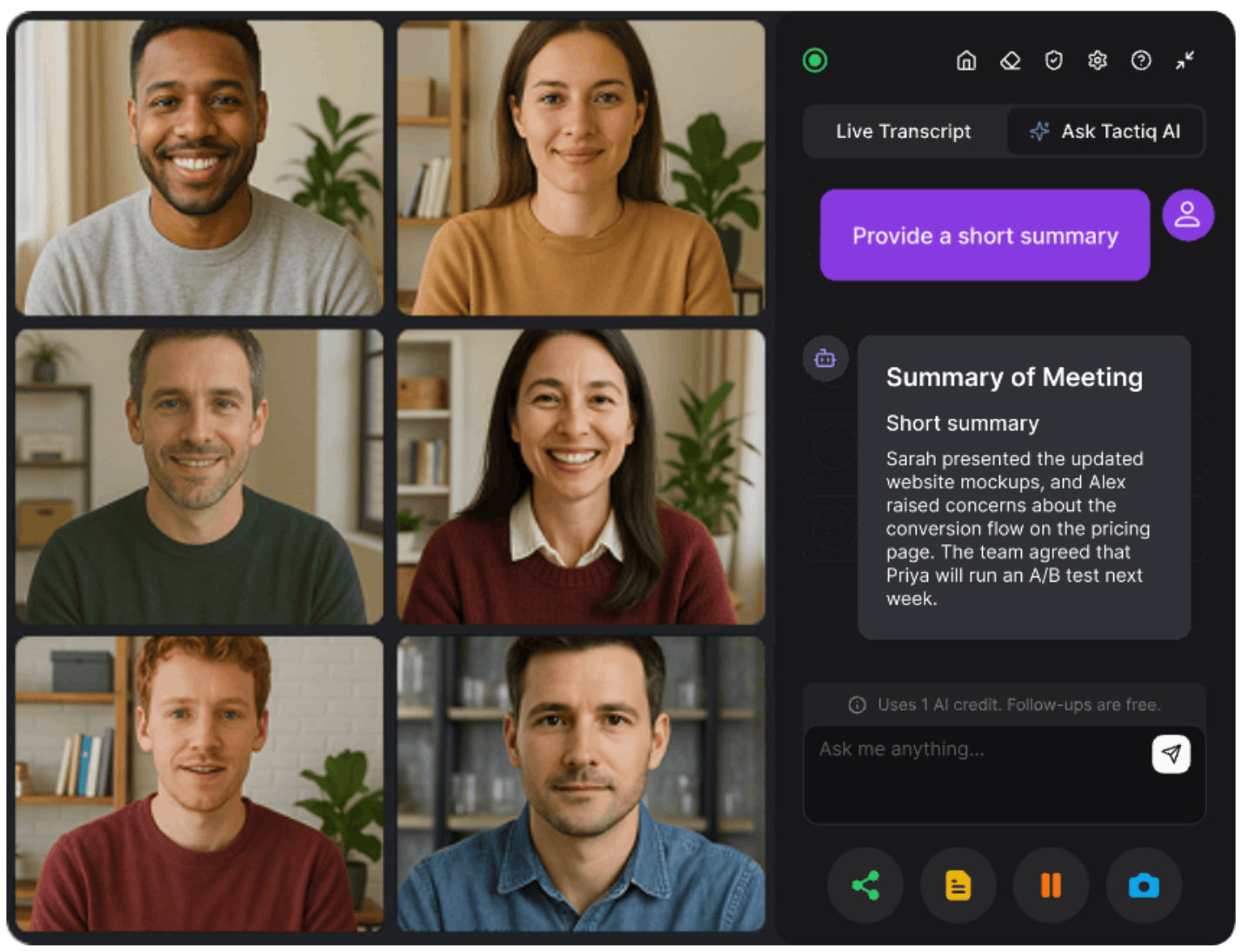
Tactiqは、ビュー、レイアウト、録音設定を気にせず、会話そのものに重点を置きます。
- キャプチャします 言ったことすべて リアルタイムで会議中
- 後でその場面を検索したり、強調表示したり、もう一度確認したりできます
- ギャラリービュー、スピーカービュー、共有画面レイアウトを管理する必要はありません
- ノートは軽量で、取り出しやすく、再利用も簡単です
ビデオ録画は再生に役立ちます。トランスクリプトは、フォローアップ、意思決定、文書化に適しています。
ズームミーティングに Tactiq を使用する方法
Tactiqを使用しても、Zoomの録画設定を変更する必要はありません。
- いつものようにZoomミーティングに参加しましょう
- Tactiqは会話をライブでキャプチャします
- 会議終了後、議事録、要約、要点を復習する
- AI プロンプトを使用して、ディスカッションをメモ、アクションアイテム、またはフォローアップメールに変える
明確さと想起が目的の場合、多くの場合、画面をキャプチャするよりも単語をキャプチャする方が重要です。
Tactiq Chrome エクステンションをインストールする ビデオ録画に頼らずに、Zoom会議で話したことをすべてキャプチャできます。
{{rt_cta_ai-convenience}}
トラブルシューティング:Zoomの録画にギャラリービューが表示されない理由
Zoomの録画にギャラリービューが表示されない場合、問題は通常、アカウントの制限または記録設定にさかのぼります。ほとんどの問題は、レコーディング中ではなく、会議が始まる前に発生します。
アカウントの種類を確認 (無料か有料か)
ギャラリービューの録画にはクラウド録画が必要です。これは有料のZoomプランでのみ利用可能です。
- 無料アカウントはローカルで録画できますが、ギャラリービューを確実に記録することはできません
- クラウドレコーディングが利用できない場合、Zoomはデフォルトでスピーカーベースのレイアウトになります
アカウントにクラウドレコーディングが含まれていない場合、ギャラリービューは最終ファイルに表示されません。
Web ポータルで記録設定を確認する
クラウドレコーディング設定は、Zoomウェブポータルで事前に有効にする必要があります。
- 確認して ギャラリービュー録画 はオンになっています
- 共有画面録画オプションが正しく設定されていることを確認する
- 複数のレイアウトが個別に記録できることを確認する
これらのオプションが無効になっている場合、会議中にギャラリービューが表示されたとしても、Zoomはギャラリービューを無視します。
グループとユーザーレベルの設定を確認
一部のアカウントでは、グループ設定または管理者設定が個人設定よりも優先されます。
- 管理者レベルの設定により、ギャラリービューの記録がブロックされることがあります
- グループレベルのルールにより、レイアウトの変更が適用されないことがある
- 個人設定は有効になっているように見えても、有効にならないことがある
管理対象の Zoom アカウントに参加している場合は、管理者に録画権限の確認を依頼してください。
録音はすでに行われましたか?事後に変更することはできません。
Zoomミーティングが終了すると、レコーディングレイアウトはロックされます。
- ギャラリービューは後で復元できません
- スピーカービューはギャラリービューに変換できません
- 画面共有レイアウトを新しい形式に編集することはできません
会議開始前に設定が正しくなかった場合、後で記録を修正することはできません。
Zoomミーティングを記録するためのベストプラクティス
録音は、事前に計画を立てておくと最も効果的です。会議の前にいくつか確認しておくと、顔が抜けたり、レイアウトが崩れたり、実際に起こったことと一致しない録音が行われたりするのを防ぐことができます。
- 重要な会議の前に設定をテストしてください。 を実行 ショートテストミーティング 同じアカウントと録音設定を使用します。これにより、実際のセッションを開始する前に、ギャラリービュー、共有画面の動作、クラウドレコーディングレイアウトが期待どおりに動作することを確認できます。
- 録画中であることを参加者に伝える: 会議の開始時に、録音がアクティブであることを参加者に知らせます。これにより、混乱を防ぎ、信頼を築き、必要に応じてカメラや音声を調整する機会が与えられます。
- ストレージの制限を考慮してください。 ギャラリービュー、スピーカービュー、共有画面を別々に保存すると、クラウドレコーディングは複数のファイルを作成します。これらのファイルは、特に長時間の会議では、すぐにストレージを占有する可能性があります。
- ニーズに合った適切なビューを選択してください。 ギャラリービューはディスカッションやチームのチェックインに適していますが、スピーカービューはプレゼンテーションに適しています。文書化やフォローアップが目標であれば、動画よりもトランスクリプトの方が長期的な価値があることがよくあります。
ラッピングアップ
Zoomでギャラリービューを録画するには、録画ボタンを押すだけでは不十分です。クラウドレコーディングを使用するか、事前に適切な設定を有効にするか、画面共有中にZoomがどのようにレイアウトを変更するかを理解しているかどうかにかかっています。
いずれかの手順を見逃した場合、最終録音はデフォルトでギャラリー全体ではなくスピーカービューになることがあります。
ビジュアルが本当に重要な会議には、適切な設定をしたクラウドレコーディングが適切なアプローチです。それ以外の場合は、話された内容をキャプチャする方が、別のビデオファイルを保存するよりも価値があることがよくあります。
検索可能なメモ、わかりやすいフォローアップ、信頼できる文書を優先する場合は、記録レイアウトを管理するよりもシンプルで柔軟なオプションがトランスクリプトのほうが適しています。
Zoomでギャラリービューを記録する方法に関するFAQ
Zoomでギャラリービューを記録できますか?
はい。ただし、有料のZoomプランのクラウドレコーディングでのみ可能です。ミーティングを開始する前に、レコーディング設定でギャラリービューを有効にする必要があります。
Zoomの録画がギャラリービューに表示されないのはなぜですか?
これは通常、クラウドレコーディング設定が事前に有効になっていなかった場合や、画面共有によってレイアウトがアクティブスピーカービューに切り替わった場合に発生します。
ズームレコーディングをスピーカービューからギャラリービューに変更するにはどうすればよいですか?
会議後に変更することはできません。セッションを開始する前に、クラウドレコーディング設定でギャラリービューを選択する必要があります。
Zoomでギャラリービューをローカルに記録できますか?
はい。ただし、ローカルレコーディングは画面に表示されているものだけをキャプチャします。会議中にビューが変わると、レコーディングも変わります。
Zoomミーティングで話したことをすべて記録する最良の方法は何ですか?
トランスクリプトを使用すると、レイアウト上の問題が完全に回避され、意思決定、アクションアイテム、重要な議論を後で確認しやすくなります。
_Main.jpeg)






便利なAIサマリーが欲しいですか?
次回のミーティングで Tactiq をお試しください。
便利なAIサマリーが欲しいですか?
次回のミーティングで Tactiq をお試しください。
便利なAIサマリーが欲しいですか?
次回のミーティングで Tactiq をお試しください。