

Remote work is the new norm, and with it comes an increased reliance on virtual meetings and phone calls. Staying on top of every detail during these calls is hard, especially when multitasking or attending back-to-back Microsoft Teams meetings.
Microsoft Teams Phone makes it easier by offering voicemail transcription, but what if you need a full transcript of your phone calls? In this guide, we’ll cover:
- What Microsoft Teams Phone is
- How to get a transcript of your Microsoft Teams phone calls
- How to use Tactiq for transcription in Microsoft Teams
What is Microsoft Teams Phone?
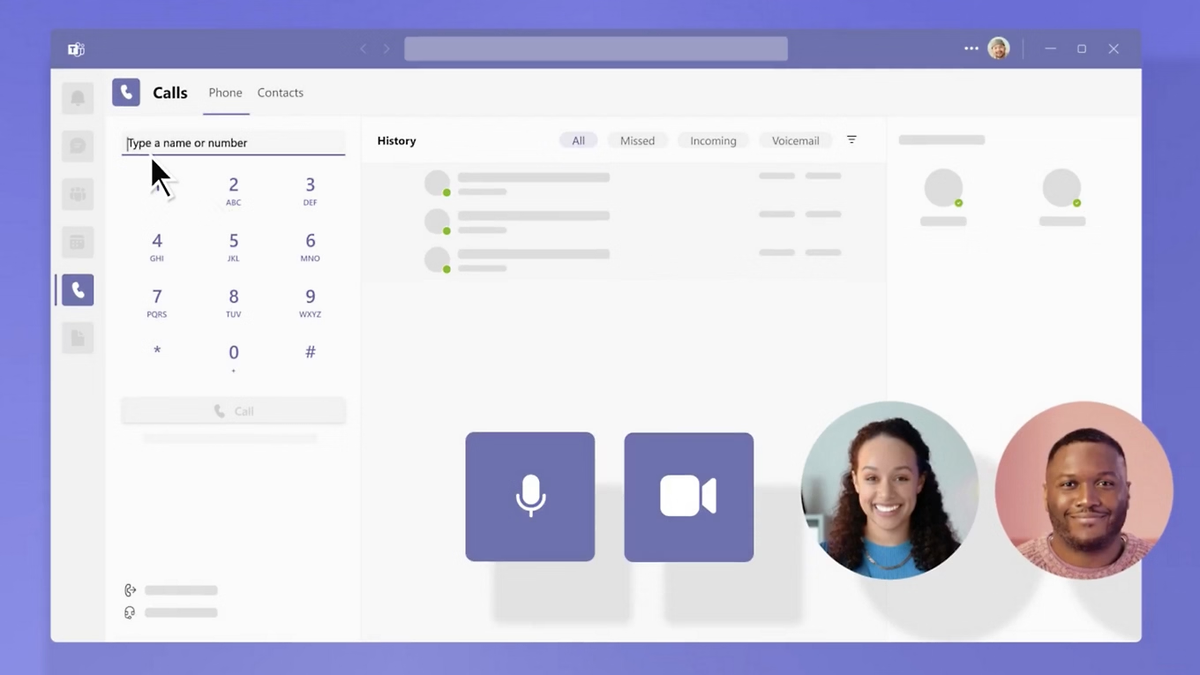
Microsoft Teams Phone (新しいタブで開きます) is a cloud-based phone system integrated into Microsoft Teams. It allows users to make and receive calls from any device—laptops, smartphones, desk phones, or conference room systems. To use it on a mobile device, you'll need cellular connectivity—you can get a SIM card (新しいタブで開きます) with a business mobile plan that supports the data and call requirements for Teams Phone. The phone system connects traditional phone networks (PSTN) with Teams, offering a unified communication experience for businesses.
With Microsoft Teams Phone, organizations can:
- Make and receive phone calls using the internet (VoIP (新しいタブで開きます)) or PSTN (新しいタブで開きます) connectivity.
- Access advanced call management features, such as call forwarding (新しいタブで開きます), transfer, auto attendants, and call queues. The integrated auto attendant phone system (新しいタブで開きます) automatically routes incoming calls based on customizable menus and schedules, ensuring callers reach the right department without a live receptionist—providing professional 24/7 service while improving efficiency.
- Use voicemail with transcription to get a written record of missed calls for easy reference.
- Generate AI call summaries to easily review key points without replaying the conversation.
- Integrate with Microsoft 365 apps to enable seamless collaboration with chat, meetings, and document sharing.
Microsoft Teams Phone is designed for businesses of all sizes, helping teams stay connected while reducing costs associated with traditional phone systems. The new AI-driven capabilities can provide real-time insights, automate follow-ups, and improve call clarity.
How Do You Get a Transcript of Your MS Phone Call?
Microsoft Teams Phone allows users to transcribe calls in real-time, but this feature must be enabled by an administrator. If transcription is available in your organization, you can generate and access call transcripts by following these steps:
Enable Transcription in Microsoft Teams (Admin Only)
Before you can transcribe calls, an admin must enable transcription:
- Open the Microsoft Teams Admin Center.
- Go to Voice > Calling policies.
- Select the policy you want to modify.
- Turn on Transcription and click Save.
Note: If transcription is disabled, you won’t be able to generate call transcripts.
Start Transcription During a Call
- While on a Microsoft Teams phone call, click the More Actions (three dots) menu.
- Select Start transcription to begin capturing real-time text.
- The meeting transcript will appear live during the call for reference.
Here’s a video walking you through the process:
Access and Download the Transcript After the Call
- After the meeting event ends, go to the Chat section in Teams.
- Open the conversation associated with your phone call.
- Click the Recording & Transcripts tab to access the Microsoft Teams meeting recording and transcript.
- Locate the transcript file and download it in .docx or .vtt format.
If voicemail transcription is enabled, you can also view transcripts of missed calls by checking the Voicemail section in Teams.
便利なAIサマリーが欲しいですか?
次回のミーティングで Tactiq をお試しください。
How to Get a Microsoft Teams Phone Transcript Using Tactiq
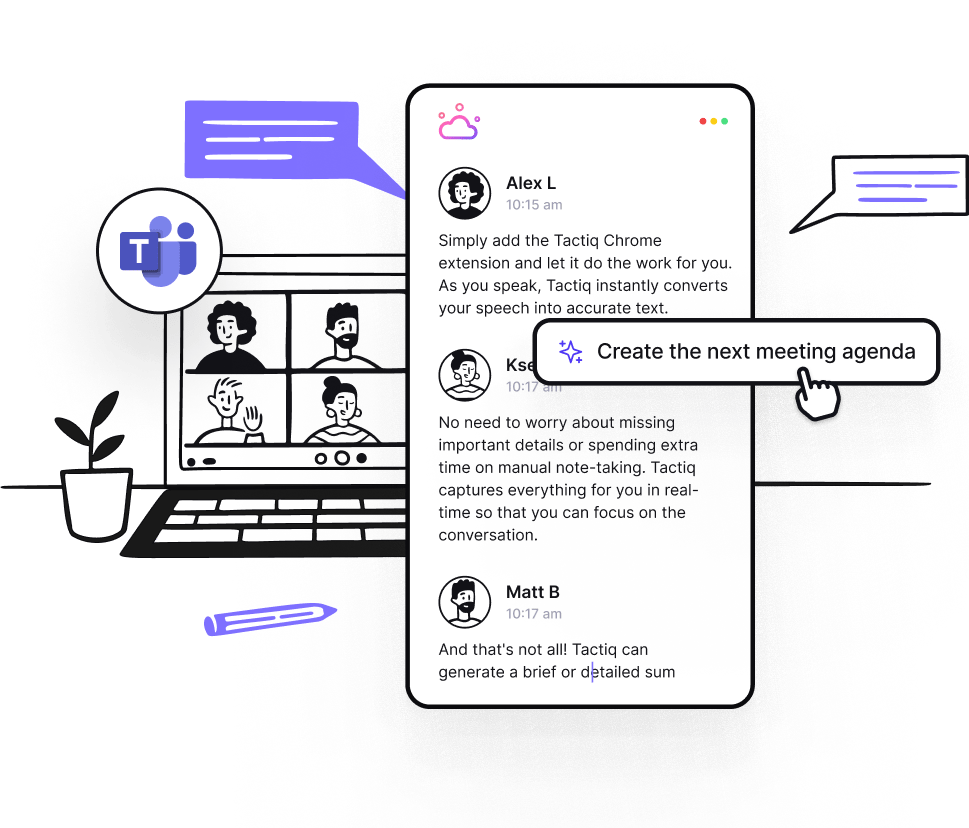
Microsoft Teams offers built-in transcription, but it has limitations—it requires admin approval, and transcripts may not always be available depending on your organization’s settings. If you need a more flexible and feature-rich transcription tool, Tactiq (新しいタブで開きます) is an excellent alternative.
Tactiq is an AI-powered meeting assistant that makes transcribing Microsoft Teams meetings effortless by providing real-time transcripts, AI-generated summaries, and automated action items. Unlike native Teams transcription, Tactiq works across different meeting platforms and integrates directly with your workflow tools.
Why Use Tactiq for Microsoft Teams Transcription?
- Real-Time Transcription (新しいタブで開きます) – Tactiq captures and displays spoken words instantly, helping meeting participants stay engaged without worrying about taking notes.
- AI-Generated Summaries – After the call, Tactiq automatically generates a concise meeting summary for future reference.
- Custom AI Prompts – Ask specific AI-powered questions to extract insights from transcripts, such as key decisions, blockers, or next steps.
- AI Workflow Automation (新しいタブで開きます) Notion、HubSpot、Jira、Linearなどの生産性向上ツールに、文字起こしや要約を直接送信できます。
- 多言語文字起こし Tactiqは30以上の言語に対応しており、世界中のチームがシームレスに連携できるようサポートします。
- 録画・録音データのアップロード さまざまな形式の動画や音声ファイルをアップロードして、過去の会議の文字起こしを作成できます。
Tactiqは単なる文字起こしツールではありません。 Microsoft Teamsの通話を実用的なインサイトに変換します。 無料のTactiq Chrome拡張機能を今すぐダウンロードしましょう! (新しいタブで開きます)
まとめ
Microsoft Teams Phoneはコミュニケーションを円滑にしますが、特に複数の通話を掛け持ちしている場合、重要な議論の内容を把握し続けるのは容易ではありません。Teamsには優れた機能が備わっていますが、常にニーズに柔軟に対応できるとは限りません。
リアルタイム文字起こし、AIワークフロー、シームレスな連携機能を備えたTactiqなら、Microsoft Teamsの通話内容を逃さず記録できます。長い文字起こしを確認する時間を削減し、フォローアップの自動化や重要なインサイトの抽出が可能になります。








便利なAIサマリーが欲しいですか?
次回のミーティングで Tactiq をお試しください。
会議に AI を導入するのがこれまでになく簡単になりました。
Chrome に追加-無料です!(新しいタブで開きます)次の会議でTactiqを試してみましょう!
今すぐ登録