
マイクロソフトチーム会議メモが消えた
January 23, 2026
January 23, 2026
January 23, 2026
January 23, 2026

これで終わりだ マイクロソフトチームミーティング。後で会議を開くと、メモが消えてしまいます。[メモ] タブが見つからない、空になっている、または別のタブに置き換えられている。
これは通常、会議が終了した後、Teams がレイアウトを更新したとき、または予定とは異なる方法で会議が作成されたときに発生します。メモはまだ存在していても、Microsoft Teams はそれらを複数の場所に保存しています。そのため、アクセスが本来よりも難しくなります。
議事録は、会議チャット、ファイル、ループコンポーネント、または要約ページに保存できます。権限や会議の種類を少し変更しただけで、気が進まなくなることがあります。彼らが永久にいなくなったと仮定する前に、何が起こったのかを理解しておくと役に立ちます。
このガイドでは、次のことを学びます。
- マイクロソフトチームの議事録が消えるのはなぜですか
- 見つからないメモを見つける場所
- 今後この問題を防ぐ方法
マイクロソフトチームのミーティングノートが消えるのはなぜですか?
いつ マイクロソフトチーム会議メモ 消えれば原因はたいてい構造的なものであって偶発的なものではないTeams はすべてのメモを 1 か所に保存しているわけではありません。ノートの保存場所は次の要素によって異なります。
- 会議の作成方法
- 誰が主催したのか
- 会議中にどの機能が有効だったか
マイクロソフトの最近の変更により、ノートの表示方法も変更されました。多くのユーザーは、[メモ] タブがいつもと同じように動作することを期待しています。それはもはや当てはまりません。
メモが欠落する最も一般的な理由は次のとおりです。
会議の種類とスケジュールの問題
議事録は、会議の開始方法によって動作が異なります。Teams カレンダー、Outlook、または Teams チャンネルからスケジュールされたミーティングでは、メモがそれぞれ異なる場所に保存されます。チャンネルミーティングはメモをチャンネルファイルと一緒に保存しますが、プライベートミーティングはチャットベースのストレージを使用します。
インスタント会議やアドホックコールでは、[メモ] タブがスキップされたり、メモ用の永続的な場所を作成できなかったりすることがよくあります。会議を事前に予定していないと、会議の詳細にメモが添付されにくくなり、後で見つけにくくなります。
ライセンスと許可の要件
ミーティングノートの機能の中には、ライセンスやユーザーの役割によって異なるものもあります。ビジネス向け Microsoft Teams では、特定のユーザーのみがメモを表示または編集できます。会議後に権限が変更されると、メモが欠落しているように見えることがあります。
これは次のような場合によく起こります。
- 会議の主催者が会社を辞める
- ユーザーアカウントが別の組織から移行される
- 会議終了後にアクセス権が変更される
このような場合、メモは保存されますが、すべてのユーザーがアクセスできなくなります。
MS Teamsがメモを取る機能をどのように変更したか
マイクロソフトは議事録をループベースのコンポーネントに移行しました。多くの会議では、[メモ] タブが [まとめ] ページに置き換えられています。メモは消えませんでした。彼らは移転されました。
この変更により、Microsoft サポートコミュニティ全体で混乱が生じています。多くのユーザーから、過去の会議を開くと、会議中にメモが追加されたにもかかわらず、「コメントがゼロ」になったり、メモが見当たらなかったりしたと報告されています。
一部のチームは、ChatGPTなどの外部AIツールを使用して マイクロソフトチームで議事録を生成する ネイティブのメモ取り機能では不十分な場合。
同期と技術的な問題
技術的な問題により、議事録が正しく保存されていても表示されないことがあります。キャッシュの問題、アプリのバージョンの不一致、またはデスクトップアプリと Web バージョンの切り替えにより、メモが期待どおりに読み込まれなくなることがあります。
多くの場合、メモはまだ OneDrive または SharePoint に保存されていますが、会議ページに表示されません。これでは、実際には表示または同期の問題なのに、メモが欠落しているような印象を与えます。会議中に接続が一時的に切断されたり、同期が失敗したりすると、その後のメモやコメントの表示方法にも影響することがあります。
自動文字起こしで議事録が消えないようにする方法

メモを見逃さないようにする最も確実な方法は、Microsoft Teamsがメモを保存する場所に頼るのをやめることです。ネイティブ会議議事録は、会議の種類、権限、製品の変更によって異なります。これらのいずれかが変更されると、アクセスが中断されます。
自動文字起こしは、壊れやすいメモタブからではなく、会話自体からメモを作成することで、そのリスクを軽減します。
タクティク ミーティングのライブトランスクリプションを提供し、Microsoft Teams ミーティングページの外部にメモを保存します。つまり、Teams がレイアウトを更新したり、ノートの表示方法を変更したりしても、ノートにはアクセス可能な状態を維持できます。
Tactiqがすべての会議でキャプチャする内容
Tactiqは、Teamsの機能に依存しない、信頼性の高い個別の会議議事録を作成します。
主な機能は次のとおりです。
- マイクロソフトチーム、グーグルミート、ズームミーティングのライブトランスクリプション
- ディスカッションから作成された自動議事録
- 重要な瞬間をすばやく見つけるための検索可能なトランスクリプト
- 会議後のAI生成の要約とアクションアイテム
- Teams ミーティングページの外部に保存されたメモ
- 録音不要
- 無料プランで始められます
Tactiqは、メモを会議のタブ、権限、要約の変更から切り離すことで、議事録が二度と消えないようにします。
無料のTactiq Chrome拡張機能をインストールしてください Teams ミーティングのたびに、議事録を安全に、検索可能に、アクセスできるようにしておくことができます。
{{rt_cta_ai-convenience}}
見つからないチームのミーティングノートを復元する方法
Teams の議事録が紛失しているように見えても、たいていは Microsoft Teams のどこかに保存されています。メモは、会議がどのように作成され、どの機能が有効だったかによって、チャットスレッド、ファイル、または要約ページに保存できます。
以下は、最も信頼できる確認場所です。
OneDrive (マイクロソフトチームデータフォルダー) を確認してください
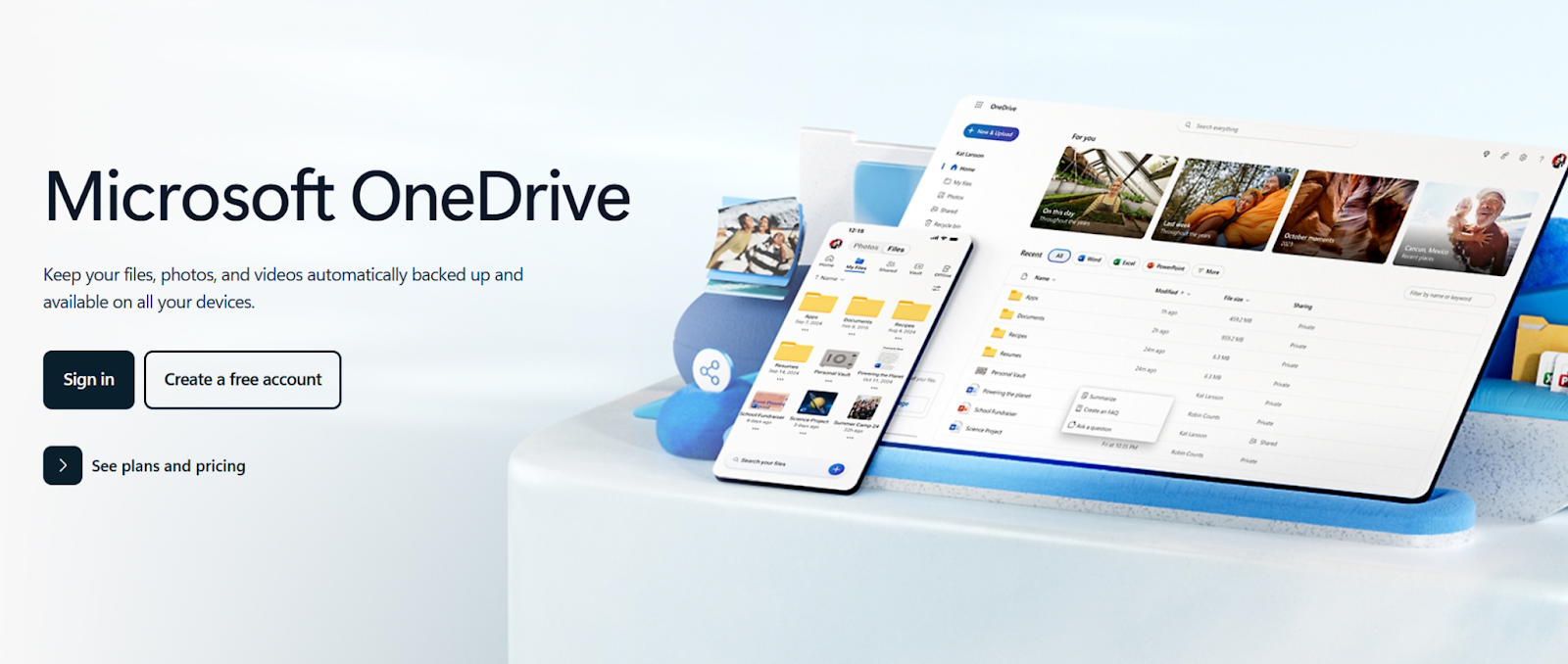
Microsoft Teams はいくつかの議事録とファイルを OneDrive に保存しています。これは通常、非公開の会議やチャットに適用されます。
OneDrive を開いて、次のページに移動します マイファイル > マイクロソフトチームデータ > ウィキ。会議名または日付で検索することもできます。メモやホワイトボードの内容など、会議中に作成されたファイルは、引き続きそこに保存されている場合があります。
ミーティングチャットでメモにアクセスする
議事録の多くは会議チャット内に直接表示されます。過去の会議を開き、チャットの会話をスクロールします。ピン留めされたメッセージ、ループコンポーネント、ディスカッション中に共有されたメモを探してください。
会議中にコメントが追加された場合、コメントは別の [メモ] タブではなく、チャットスレッドの一部として表示されることがよくあります。
「まとめ」タブを使用する
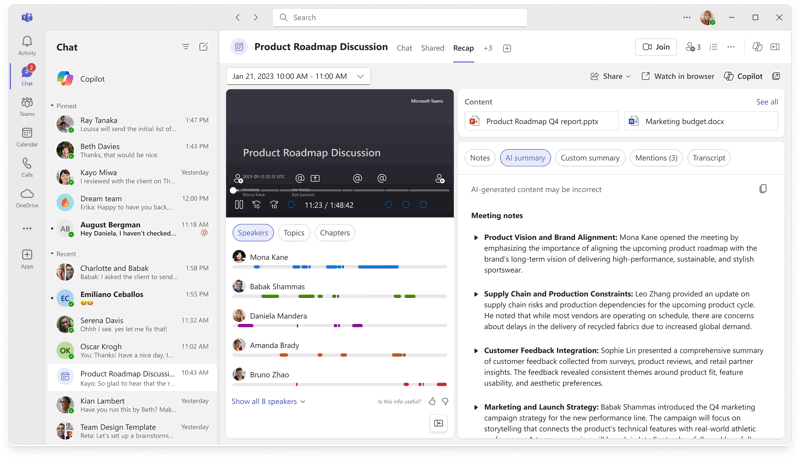
Microsoft Teams の新しいバージョンでは、「メモ」タブが「まとめ」に置き換えられました。会議の詳細を開いて [まとめ] を選択すると、利用可能なメモが表示されます。 トランスクリプト、および共有コンテンツ。
会議が録画されていたり、文字起こしが有効になっていたりした場合、メモにアクセスできるのはRecapだけであることが多いです。
シェアポイントをチェック
チャンネルミーティングでは、接続されている SharePoint サイトにメモやファイルが保存されます。関連する Teams チャンネルを開き、[ファイル] を選択して、会議にリンクされている SharePoint フォルダーを開きます。
メモ、録音、共有ドキュメントは、会議ページに表示されなくなってもそこに保存できます。
.mht ファイルを開く
以前の Teams ミーティングでは、メモが.mht ファイルとして保存されることがありました。これらのファイルはミーティングフォルダにまだ残っている場合がありますが、開くにはブラウザが必要です。
ファイルをダウンロードして Microsoft Edge モードまたは Internet Explorer モードで開き、保存されているメモを表示します。
トラブルシューティング:Teams ミーティングノートが表示されない
議事録が表示されない場合、問題は永続的というよりはむしろ技術的なものであることが多いです。Microsoft Teams にはまだデータがあるかもしれませんが、アプリでは正しく表示できません。これらのチェックはアクセスを回復するのに役立ちます。
チームキャッシュをクリア
キャッシュが壊れていると、メモ、チャット、およびファイルの読み込みがブロックされる可能性があります。Teams アプリを閉じて、 キャッシュのクリア 多くの場合、欠落しているコンテンツが修正されます。
キャッシュをクリアしたら、Teams を再度開いてサインインし直します。多くのユーザーから、アプリが新しいデータをリロードするとノートが再び表示されると報告されています。
Teams アプリを更新する
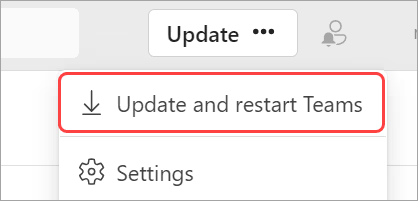
Microsoft Teams のバージョンが古いと、同期の問題が発生する可能性があります。アプリを更新する方法をご覧ください。 ここに。
Microsoft では、議事録、まとめ、およびループコンポーネントの動作方法を定期的に変更しています。更新により、これらの変更との互換性が確保されます。
管理者設定を確認
組織によっては、議事録、録音、または議事録へのアクセスを制限しています。管理者レベルの設定により、メモが存在していても表示されないようにすることができます。
ポリシーの変更後にメモが消えた場合は、チーム管理者に連絡して権限とアクセスルールを確認してください。
録音と文字起こしが有効になっていることを確認する
会議によっては、録音時にのみメモが表示される場合や 転写 アクティブです。どちらも有効になっていない場合、Recap ではコンテンツが表示されないことがあります。
これはノートが作成されなかったという意味ではありませんが、Teams がノートを保存する場所には制限があります。
チーム向けベストプラクティスミーティングノート
Microsoft Teamsは会議、チャット、ファイル間の壊れやすい接続に依存しているため、議事録が失われることがよくあります。これらのベストプラクティスはリスクを軽減し、会議終了後にメモにアクセスしやすくします。
会議は常に適切にスケジュールしてください
インスタントコールやアドホックコールを開始する代わりに、Teams カレンダーからミーティングを作成できます。スケジュールされた会議では、メモ、ファイル、ディスカッションスレッドがより確実に添付されるため、長期的にアクセスしやすくなります。
文字起こしと録音を有効にする
文字起こしまたは録音が有効になっている場合、Teams はより多くの会議データをまとめやリンクされたファイルに保存します。これにより、メモ、コメント、アクションアイテムが後でも表示されたままになる可能性が高まります。
Web の代わりにデスクトップアプリを使用する
デスクトップアプリは、ブラウザバージョンよりも同期、ファイルアクセス、ループコンポーネントをより一貫して処理します。ノートの読み込みに失敗したり、ノートが欠落したりする可能性が低くなります。
バックアップソリューションを検討してください
Notes タブを 1 つだけ使用するとリスクが生じます。サマリー、アクションアイテム、またはトランスクリプトを会議以外に保存しておくと、Teams がレイアウトを再び変更した場合でも、重要な情報を確実に保持できます。
ラッピングアップ
Microsoft Teamsの議事録が消えても、メモ自体に問題があることはめったにありません。これは通常、Teams が作成、保存、表示する方法です。会議の種類、権限、機能の変更、同期の問題はすべて重要な役割を果たします。
多くの場合、回復が可能です。メモは、ミーティングチャット、まとめ、OneDrive、または SharePoint にまだ残っている場合があります。どこを見ればよいかがわかれば、時間を節約でき、作業の繰り返しを避けることができます。
予防は回復よりも重要です。会議を適切にスケジュールし、文字起こしを有効にし、デスクトップアプリを使用することでリスクを軽減できます。自動文字起こしツールを使用すると、メモを壊れやすい会議ページの外に置いておくことができるため、保護がさらに強化されます。
Teams の保存場所を気にせずに議事録に一貫してアクセスしたい場合は、今すぐ Tactiq の無料の Chrome 拡張機能を試してみてください。
マイクロソフトチームミーティングノートに関するよくある質問が消えた
「要約」タブに会議議事録が表示されないのはなぜですか?
「まとめ」タブには、特定の機能がアクティブな場合にのみコンテンツが表示されます。文字起こしや録音が有効になっていないと、まとめが空になることがあります。メモはミーティングチャット、ファイル、または SharePoint にまだ存在していても、Recap では表示されません。
消えてしまった Teams の議事録を復元するにはどうすればいいですか?
ミーティングチャットとまとめページから始めましょう。何も表示されない場合は、会議にリンクされている OneDrive フォルダーと SharePoint フォルダーを確認します。古い会議では、メモは表示されているタブではなくファイルとして保存されている場合があります。
以前の Teams 会議議事録はどこに保存されていますか?
古いノートは通常、OneDrive や SharePoint に保存されているか、チャットスレッドに埋め込まれています。チャンネルミーティングはメモをチャンネルファイルと一緒に保存しますが、プライベートミーティングは個人用の保存場所に大きく依存します。
「メモ」タブが消えて、「まとめ」に置き換えられたのはなぜですか?
マイクロソフトは会議議事録をループベースのコンポーネントに移動しました。多くの会議で [メモ] タブが [まとめ] に置き換えられました。メモは削除されませんでしたが、アクセスポイントが変更されました。
自動議事録が消えないようにするには、Microsoft Teamsに代わる最良の方法は何ですか?
Tactiqは、Microsoft Teamsの外部にメモを保存するライブトランスクリプションを提供します。これにより、Teams のタブ、権限、またはレイアウトが変更されても、議事録にアクセスできるようになります。






便利なAIサマリーが欲しいですか?
次回のミーティングで Tactiq をお試しください。
便利なAIサマリーが欲しいですか?
次回のミーティングで Tactiq をお試しください。
便利なAIサマリーが欲しいですか?
次回のミーティングで Tactiq をお試しください。