
Zoom ChatGPT: How to Connect and Access Meetings
- Publicado:
- October 27, 2026
- Updated:
- October 27, 2026

The official Zoom app for ChatGPT makes your completed Zoom meetings searchable directly in ChatGPT. You can ask questions about meeting summaries, transcripts, and recordings, including finding specific moments when a topic came up.
However, the app only accesses meeting content you have permission to view, and some features require Zoom AI (formerly AI Companion) to be enabled.
This guide covers:
- What the Zoom ChatGPT app does
- How to connect Zoom to ChatGPT
- Which meeting information you can access
- How to search meetings across Zoom, Google Meet, and Microsoft Teams
TL;DR: How Does Zoom Work with ChatGPT?
The Zoom for ChatGPT app lets you search completed Zoom meetings, retrieve summaries and transcripts, and find specific moments in recordings. Access depends on your Zoom Workplace plan, meeting permissions, and enabled Zoom AI features.
For meetings across Zoom, Google Meet, and Microsoft Teams, you can connect Tactiq to ChatGPT. Tactiq Free and Pro plans support searching and listing meetings, while Team plans and higher provide access to summaries and full transcripts for generating summaries and follow-ups.
What Can You Do with Zoom in ChatGPT?
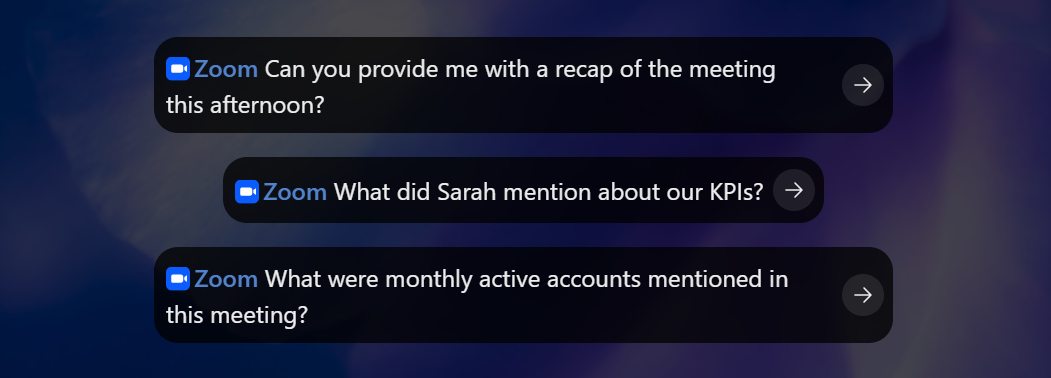
The Zoom for ChatGPT app connects your Zoom meeting content to ChatGPT, so you can search past discussions using natural language.
It can retrieve the following information from completed meetings you have permission to access:
- Meeting summaries: Review key discussion points, decisions, and next steps generated by Zoom AI.
- Meeting transcripts: Find what participants said about a particular topic.
- Recordings: Locate precise moments in supported cloud recordings using an embedded player that opens at the relevant timestamp.
- Documents: Retrieve documents linked to meetings or create new Zoom Canvas documents containing agendas and action items.
For example, you can ask ChatGPT:
- "Summarize my last Zoom meeting with the marketing team."
- "What did Sarah say about the product launch deadline?"
- "Find the exact point in yesterday's meeting when we discussed pricing."
- "Create a Zoom Canvas document with action items from Monday's project meeting."
Available responses depend on your meeting permissions and which Zoom AI features are enabled. For example, locating a specific moment in a video file requires an accessible cloud recording.
How to Connect Zoom to ChatGPT
Before connecting Zoom, make sure you have a supported paid Zoom Workplace plan, the required account permissions (account owner or admin privileges), and Smart Recording or Meeting Summary enabled.
Add Zoom from ChatGPT Plugins
1. Sign in to ChatGPT.
2. Open Plugins from the sidebar, or go to Settings → Plugins.
3. Search for Zoom in the plugin directory. Select it, then click Install plugin.
4. If prompted, click Connect Zoom and sign in to your Zoom account.
5. Review the requested permissions and complete the authorization process.
Use Zoom in a chat
Once Zoom is installed and connected, open a new ChatGPT conversation.
You can mention @Zoom in your prompt or select the plugin from the chat's + menu, where available.
For example, ask:
"@Zoom, summarize the decisions and next steps from yesterday's product meeting."
ChatGPT can retrieve information supported by the connected Zoom integration and your account permissions.
For more ways to work with meeting information, see our guide on using ChatGPT for meeting notes.
💡 Pro tip: Unlike Zoom's ChatGPT app, Tactiq's ChatGPT plugin works across Zoom, Google Meet, and Microsoft Teams. You can search past discussions and find decisions across all three platforms without switching between meeting histories. Access to detailed meeting content depends on your Tactiq plan.
What the Zoom ChatGPT App Can't Access
The Zoom for ChatGPT app doesn't automatically give you access to every meeting in your Zoom account. What ChatGPT can retrieve depends on your permissions, Zoom AI settings, and available meeting content.
Here are the main limitations:
- Meetings you can't access: You can search meetings you hosted or that the meeting host shared with you. Joining someone else's meeting doesn't automatically grant access to its transcript or summary.
- Meetings without Zoom AI enabled: If the relevant Zoom AI features weren't enabled, some meeting summaries or transcripts may be unavailable.
- Videos without Smart Recording: Finding precise moments in a meeting video requires an accessible cloud recording with Smart Recording enabled. Without it, ChatGPT can't provide the same timestamped playback experience.
- Meetings outside Zoom: The Zoom for ChatGPT app doesn't provide a unified search across your Google Meet and Microsoft Teams meeting records.
If you can't find a particular transcript, first check whether Zoom generated it and whether your account can access it. Our guide on how to find Zoom transcripts explains where to look.
You can also check the Zoom web portal to review available meeting recordings, transcripts, and their access settings.
Tactiq for ChatGPT: Search Transcripts Across Platforms
Tactiq transcribes Zoom, Google Meet, and Microsoft Teams meetings live and saves transcripts to your account.
Once connected to ChatGPT, you can search past meetings without manually uploading files. Depending on your Tactiq plan, you can also review decisions, extract action items, and generate follow-ups. After each meeting, you can use saved transcripts to generate summaries and revisit important discussions.
How to connect Tactiq to ChatGPT
You'll need a Tactiq account and access to ChatGPT on the web with a Plus, Pro, Business, Enterprise, or Education plan.
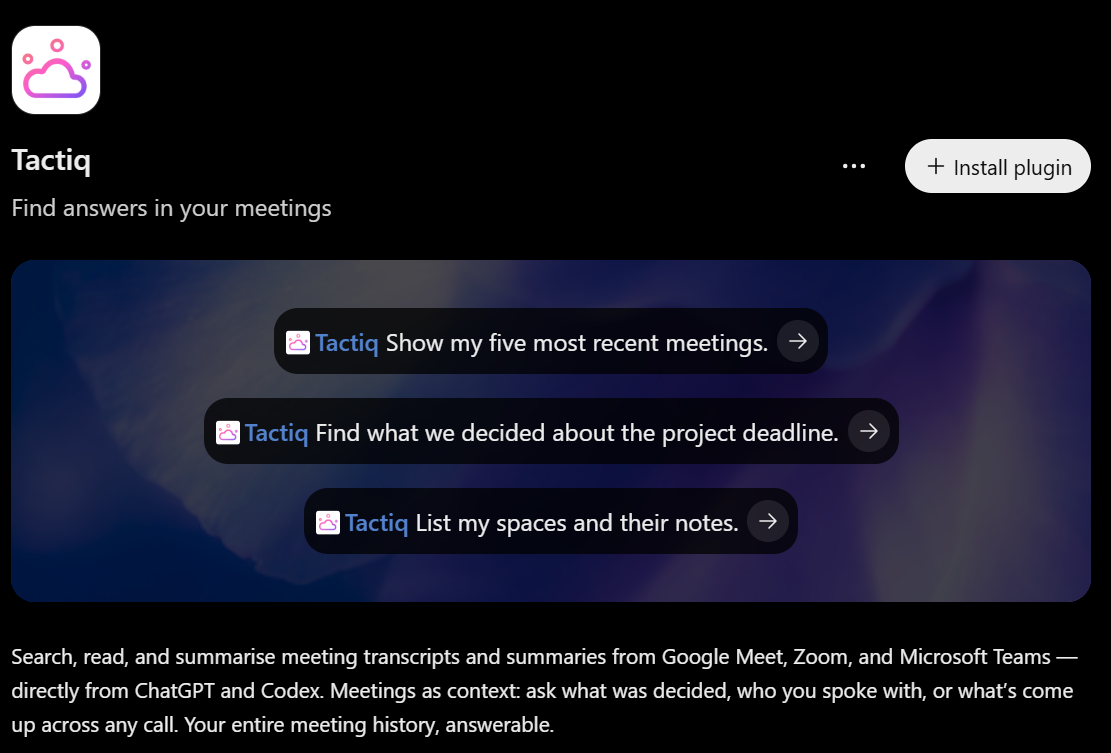
- Create a Tactiq account if you don't already have one.
- Install the Tactiq Chrome extension to capture and save transcripts from future meetings. If you already have transcripts in Tactiq, you can proceed to connect ChatGPT.
- Open ChatGPT and click Plugins in the left sidebar.
- Search for Tactiq and click Install plugin.
- Sign in to your Tactiq account and click Allow to authorize the connection.
- Open a new chat and select Tactiq from the + menu.
Tactiq Free and Pro plans support searching and listing meetings. Team plans and higher also provide meeting summaries and full transcripts through ChatGPT.
Quer a conveniência dos resumos de IA?
Experimente o Tactiq para sua próxima reunião.
Prompts to try across every meeting platform
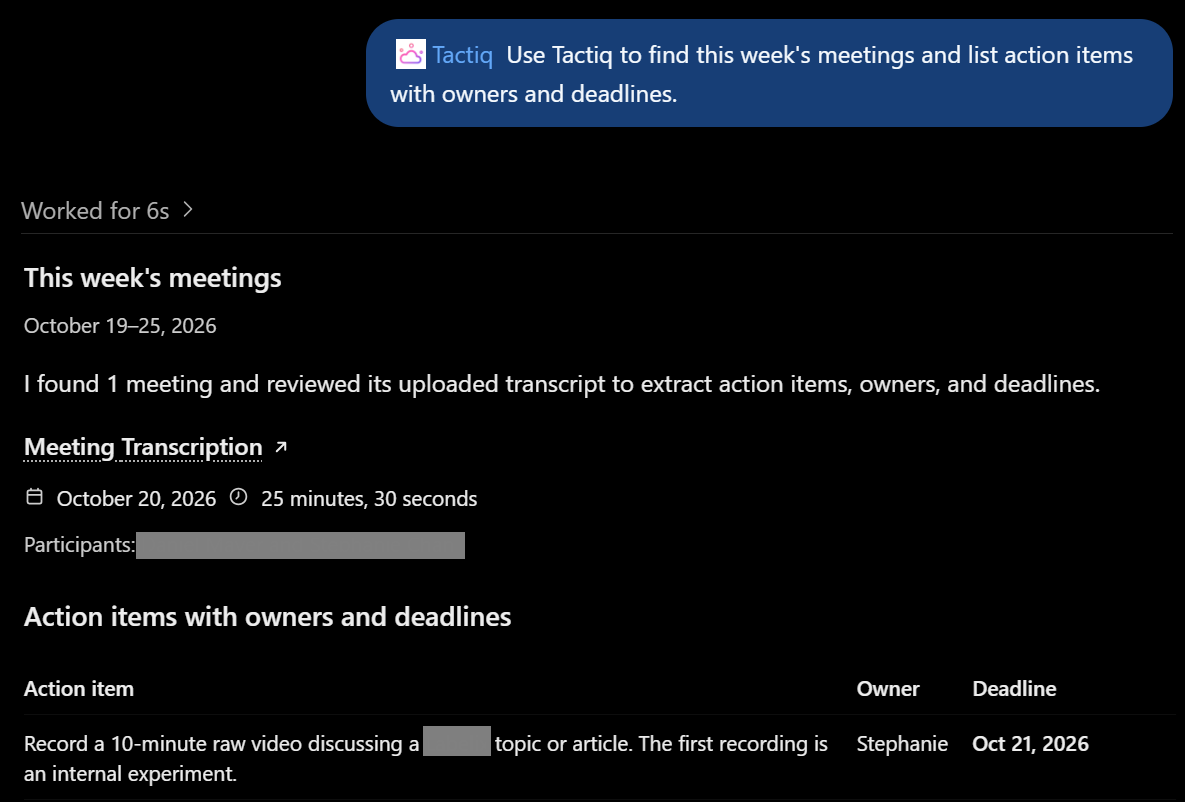
Once connected, mention Tactiq in your prompt to search your meeting records. The following prompts require a Tactiq Team plan or higher to retrieve detailed meeting content.
- Weekly tasks: "Use Tactiq to find this week's meetings and list action items with owners and deadlines."
- 1:1 preparation: "Use Tactiq to find my recent meetings with Sarah and summarize unresolved topics."
- Follow-up email: "Use Tactiq to find yesterday's client meeting and draft a follow-up email with decisions and next steps."
- Project review: "Use Tactiq to search meetings about the product launch and summarize decisions from the past month."
These AI workflows turn meeting discussions into useful documents and follow-up tasks without switching between ChatGPT and other tools.
Connect Your Meetings to ChatGPT
The Zoom for ChatGPT app helps you retrieve meeting summaries, find past discussions, and revisit specific moments in recordings. Your access depends on your Zoom plan, permissions, and enabled AI features.
Connect Tactiq to ChatGPT to search your available meeting history across Zoom, Google Meet, and Microsoft Teams from one place.
FAQ
Your questions, answered.
If you have any further questions, Get in touch (abre em uma nova aba) with our friendly team
Does ChatGPT integrate with Zoom?
How do I connect ChatGPT to Zoom?
Can ChatGPT summarize my Zoom meetings?
Do I need a paid Zoom plan to use Zoom in ChatGPT?
Artigos relacionados

MCP do Zoom: recursos, configuração e limitações (guia completo)

Diferença entre Zoom Workplace e Zoom Meetings: O que você precisa saber

O que é o aplicativo Zoom Cloud Meeting?

Zoom Cloud Meetings para Mac: Guia Completo

Estatísticas das Reuniões do Zoom 2026: Uso, Receita e Dados

Como Editar Gravação do Zoom: Um Guia Completo

Como Gravar-se no Zoom

Como Incorporar uma Reunião Zoom no Seu Site
Descubra ferramentas
- Gerador de transcrição AI
- Automação de reuniões com IA para Zoom
- Automação de reuniões com IA para equipes da Microsoft
- Automação de reuniões com IA para o Google Meet
- Automação de reuniões com IA
- Criador de fluxo de trabalho de IA para reuniões do Microsoft Teams
- Criador de fluxo de trabalho de IA para reuniões Zoom
- Criador de fluxo de trabalho de IA para reuniões do Google Meet
Quer a conveniência dos resumos de IA?
Experimente o Tactiq para sua próxima reunião.
Trazer a IA para suas reuniões nunca foi tão fácil.
Adicionar ao Chrome - É grátis!(abre em uma nova aba)Experimente Tática em sua próxima reunião!
Inscreva-se agora