
Block Someone on Microsoft Teams: A Step-by-Step Guide
February 20, 2025
February 20, 2025
June 6, 2025
June 6, 2025

Microsoft Teams helps you communicate with your colleagues. But sometimes, you might need to block someone who is being disruptive. In this guide, you'll learn how to block external users on Microsoft Teams step-by-step. You'll also discover the differences between blocking external and internal contacts and what to do if blocking isn't an option. For more insights into Microsoft Teams, check out these related articles: How to Change MS Teams Background, How to Use AI Note-Taking with MS Teams Meetings, and Can You Get a Transcript of a Microsoft Teams Meeting?
How to Block External Users on Microsoft Teams
Blocking external users in Microsoft Teams is straightforward. Follow these steps:
- Open Microsoft Teams: Launch the app and go to the "Chat" tab.
- Find the External User: Search for the user you want to block. You can find their name in your chat list or use the search bar.
- Open the Chat: Click on the chat with the external user.
- Block the User:
- Desktop: Click on their profile picture then select "Block contact".
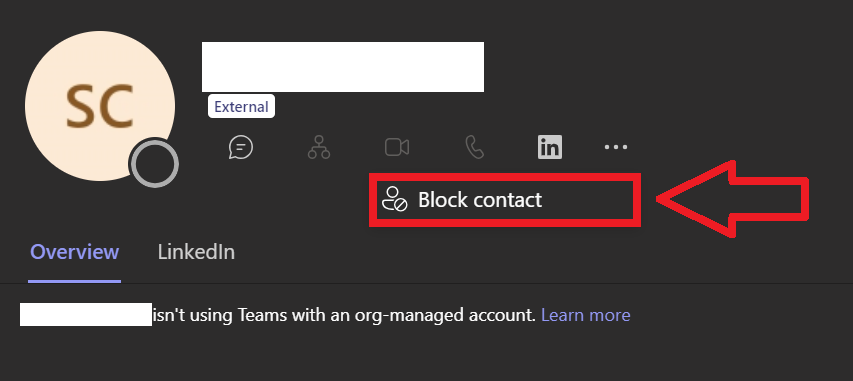
- Mobile: Tap on their profile picture, select "More options", then choose "Block".
Differences Between Blocked Contacts (External and Internal)
Blocking external and internal contacts has different implications:
- External Contacts:
- Blocked users cannot send you messages or see your status.
- Useful for blocking users not within your organization.
- Internal Contacts:
- Blocking isn’t supported for internal contacts in the same organization.
- Instead, you can "Hide" or "Mute" conversations to reduce disruptions.
Limitations and Alternatives if Blocking Isn't Possible
Blocking might not always be possible or the best solution. Here are some limitations and alternatives:
- Limitations:
- Cannot block internal contacts.
- Blocking might not prevent all forms of interaction if the blocked person is persistent.
- Alternatives:
- Hide Conversations: Removes the chat from your view until a new message is sent.
- Mute Notifications: Silences notifications from a specific chat, reducing interruptions.
- How to Hide:
- Click on the chat, select "More options", then "Hide".
- How to Mute:
- Click on the chat, select "More options", then "Mute".
Using these features can help manage your interactions and maintain focus during work hours.
{{rt_cta_ai-convenience}}
Enhancing Microsoft Teams Experience with Tactiq
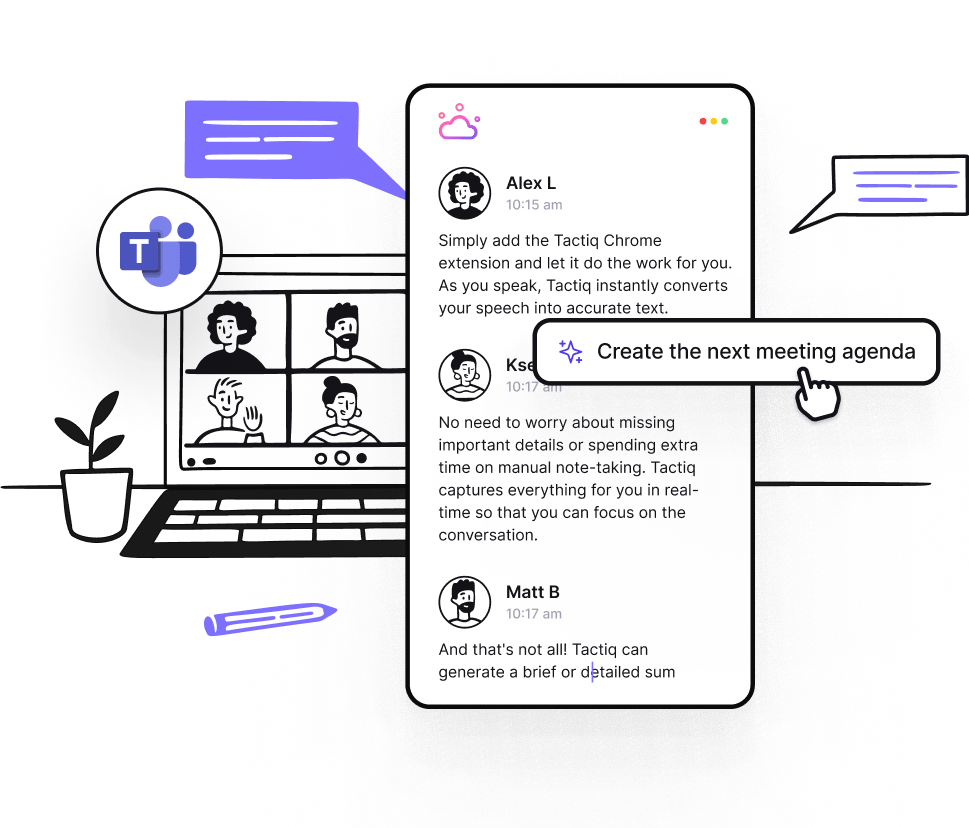
Tactiq is a powerful tool that integrates with Microsoft Teams to enhance meetings through live transcriptions and AI-generated insights. Here’s how it can improve your note-taking and follow-up processes:
- Real-Time Transcriptions: Tactiq automatically transcribes meetings in real-time, capturing every detail without manual effort, so you can focus on the conversation.
- AI Summaries and Action Items: Tactiq generates AI-powered summaries and identifies key action items, ensuring nothing is missed and making follow-ups easier.
- AI Meeting Kits and Prompts: Tailor GPT prompts to create actionable insights, automate tasks like drafting emails, and simplify meeting preparation with customizable AI meeting kits.
- Post-Meeting Follow-Up: Automate follow-up emails and agenda creation for future meetings, saving time on post-meeting tasks.
By leveraging Tactiq's features, you can streamline meeting workflows, improve productivity, and ensure thorough documentation of your meetings in Microsoft Teams. Download the free Tactiq Chrome Extension today!





便利なAIサマリーが欲しいですか?
次回のミーティングで Tactiq をお試しください。
便利なAIサマリーが欲しいですか?
次回のミーティングで Tactiq をお試しください。
便利なAIサマリーが欲しいですか?
次回のミーティングで Tactiq をお試しください。