
ChatGPT 議事録ジェネレーター
February 14, 2026
February 14, 2026
February 14, 2026
February 14, 2026

会議の後、重要な決定事項やアクションアイテムを思い出すのに時間がかかりすぎていませんか?ディスカッションをプロフェッショナルな議事録に変えると、1 週間の何時間も無駄になってしまいます。次のようなAIツール ChatGPTは議事録の作成に役立ちます より少ない手作業でより速く。
ChatGPTは、会議の議事録を提供すると、議事録ジェネレーターとして機能します。AI チャットボットは、会話を要約し、重要なポイントを抽出し、構造化された議事録を数時間ではなく数分で作成できます。
取り上げる内容は次のとおりです。
- ChatGPT議事録ジェネレータの概要と仕組み
- ChatGPTで議事録を生成するためのステップバイステップの説明
- 正確な会議概要とフォローアップタスクに最適なプロンプト
- 専用ツールが自動文字起こしで時間を節約する方法
- ChatGPTと専用会議ソリューションのどちらを使うべきか
ChatGPT議事録ジェネレータとは何ですか?

ChatGPT議事録ジェネレーターは、AIを使用して会議の議事録を整理されたプロフェッショナルな議事録に変換します。トランスクリプトをChatGPTにコピーすると、AIチャットボットが会話を分析して構造化された要約を作成します。
ChatGPTが会議データを使用して行うことは次のとおりです。
- ディスカッションから重要な決定、アクションアイテム、重要なトピックを引き出す
- チームや関係者と共有しやすい形式に情報を整理します
- プロンプトの入力方法に応じて、さまざまなスタイルの会議議事録を生成します
- 重要なポイントを箇条書きにしたり、前後関係のある詳細なメモを作成したりできます
- 長時間の会議を簡潔な議事録にまとめる
ChatGPTは、単独で会議を記録したり、トランスクリプトを作成したりしません。別のソースからの会議の議事録を提供する必要があります。そのトランスクリプトを入手すると、ChatGPTは未加工の会話データをすぐに明確な要約に変換して、チームが次のステップを追跡し、整理された状態を保つのに役立ちます。
AIは、必要なものについて具体的なプロンプトを出すと最も効果的です。
- アクションポイントとフォローアップタスクに焦点を当てる
- アジェンダから重要な詳細を抽出
- ディスカッション中に下された決定を強調する
- さまざまな利害関係者向けにメモを書式設定する
この柔軟性により、ChatGPTはさまざまなタイプの会議や文書化のニーズに役立ちます。
💡 プロのヒント: ChatGPTが機能するにはトランスクリプトが必要です。ほとんどのプロフェッショナルは、会議終了後 5 ~ 10 分かけて録音をアップロードし、文字起こしを待ちます。 タクティク ズーム、Google Meet、またはMicrosoft Teamsの通話をリアルタイムで文字起こしすることで、これを解決します。会議が終了すると、文字起こしの準備が整います。
ChatGPTを使用して議事録を生成する方法
ChatGPTを使えば、ほんの数ステップで会議の議事録をプロフェッショナルな議事録に変えることができます。トランスクリプトの準備が整えば、プロセスは簡単です。
ステップ 1: 会議の議事録を入手する
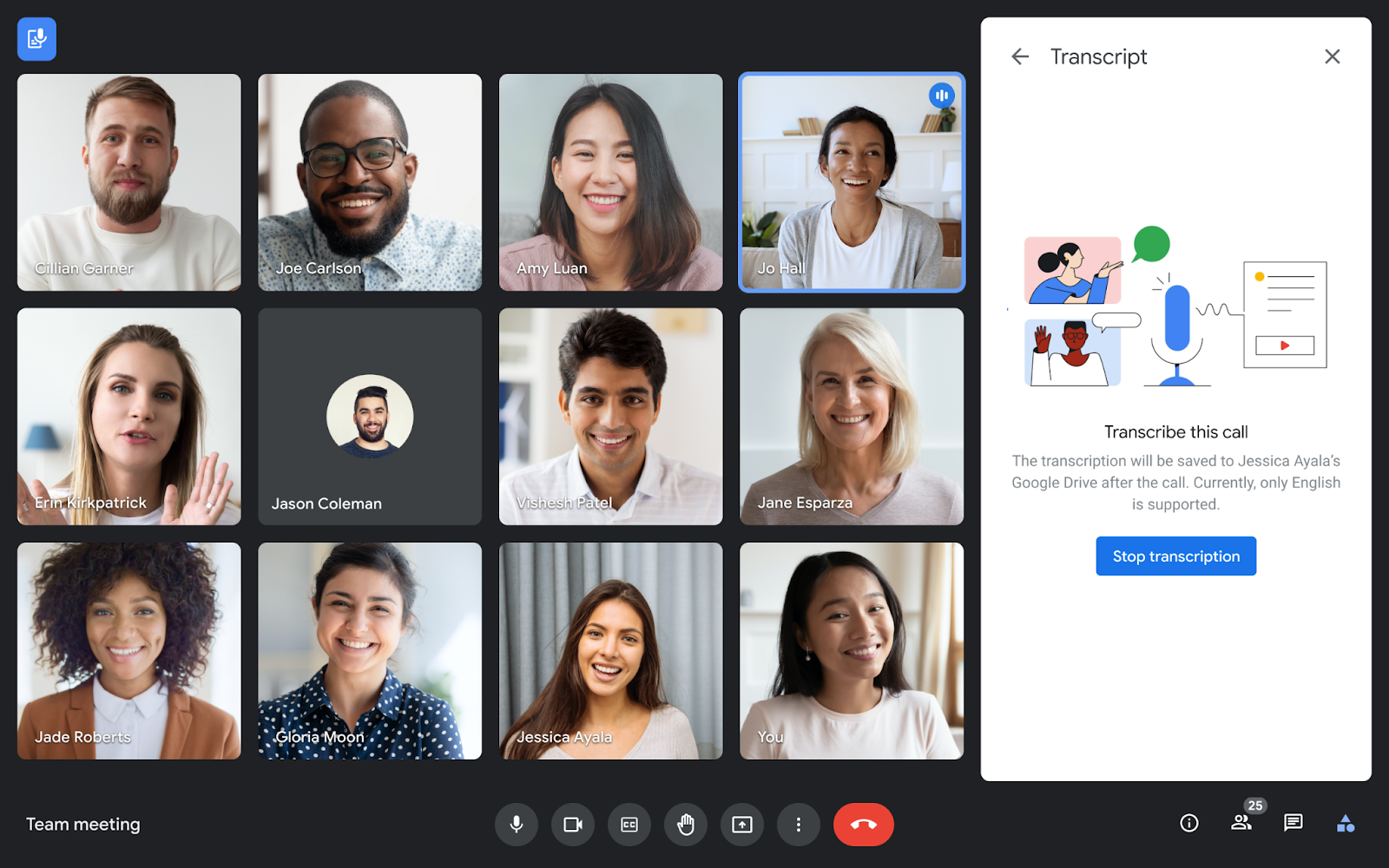
ChatGPTが会議議事録を生成する前に、会議の議事録が必要です。AI チャットボットは会議を録音したり、音声ファイルを直接書き起こしたりすることはできません。
動画プラットフォームに組み込まれている文字起こしから文字起こしを取得 (ズーム、Google Meet、Microsoft Teams)、文字起こしサービス、または会議中に取った詳細なメモ。テキストファイルとして保存するか、クリップボードにコピーします。
ステップ 2: ChatGPTにトランスクリプトを入力する
ChatGPTを開き、会議の議事録をチャットに貼り付けます。会話全体を一度に貼り付けることも、長時間の会議の場合は小さなセクションに分割することもできます。
ステップ 3: 効果的なプロンプトを使用する
必要なものをChatGPTに正確に伝えてください 会議メモ。特定のプロンプトを使用して、構造化された概要を作成したり、アクションアイテムを抽出したり、重要な決定に集中したりできます。次のセクションでは、コピーしてカスタマイズできるサンプルプロンプトを紹介します。
ステップ 4: 出力の確認とフォーマット
ChatGPTが生成した議事録の正確性を確認してください。重要な詳細情報が正しく、形式がチームに合っていることを確認してください。最終メモをお好みの文書形式にコピーし、関係者と共有しましょう。
議事録に最適なChatGPTプロンプト
適切なプロンプトを使用すると、ChatGPTからより適切な会議の概要を入手できます。これらのプロンプトは、どの情報を抽出すべきか、どのように会議議事録を書くべきかをAIに正確に伝えます。
基本概要のプロンプト
「この会議の議事録を簡潔な議事録にまとめてください。議論された主なトピック、下された重要な決定、および言及された重要な点をすべて含めてください。
このプロンプトは、会議で何が起こったのかを簡単に把握したい場合に適しています。ChatGPTは、重要な情報をあまり詳しく説明せずにまとめた短い要約を作成します。
アクションアイテムを含む詳細な議事録の入力を促す
「このトランスクリプトから専門家向けの議事録を作成してください。内容:1) 会議の概要、2) 議論された主なトピック、3) 下された決定、4) 責任者との行動項目、5) 次のステップと期限
このプロンプトは、誰が何をする必要があるかを明確に説明する構造化された会議議事録が必要な場合に使用します。AI は会議データをセクションに整理し、フォローアップタスクを簡単に追跡できるようにします。
決定事項を抽出するためのプロンプト

「この会議の議事録を確認して、下された重要な決定事項をすべて抽出してください。各決定には、その決定が下された理由の背景と、関連する議論のポイントを記載してください。」
このプロンプトは、チームが実際に何かを決定した瞬間を引き出すことにChatGPTに焦点を当てています。ディスカッションで合意された内容を文書化する必要がある場合に役立ちます。
フォローアップメールのプロンプト
「この会議の記録に基づいて、会議の概要を記載したフォローアップメールを書いてください。重要なポイント、各人に割り当てられたアクションポイント、次回の会議の詳細を含めてください。口調はプロフェッショナルでありながら会話的なものにしましょう。」
このプロンプトは、利害関係者に直接送信できる電子メール形式の会議概要を生成します。ChatGPTは、チームと共有できるよう、わかりやすいサマリーを作成します。
議事録にChatGPTを使用する場合の制限事項
ChatGPTは議事録を作成するのに便利なツールですが、会議資料の作成に利用する前に知っておく必要のある実際的な制限がいくつかあります。
トランスクリプトを手動でアップロードする必要があります
会議の議事録は毎回手動でコピーしてChatGPTに貼り付ける必要があります。AI チャットボットは会議プラットフォームに接続したり、会話データを自動的に取り込んだりしません。これにより、会議終了後にワークフローに余分な手順が追加されます。
リアルタイムのメモを取らない
ChatGPTは、ディスカッションが行われている間、会議に参加したり、メモを取ったりすることはできません。会議が終了するまで待ってから、トランスクリプトを入手し、それをAIで処理する必要があります。つまり、会話中に AI が生成した要約を参照することはできません。
会議プラットフォームとの統合が欠けている
ChatGPTはズーム、グーグルミート、マイクロソフトチームとは統合されていません。ビデオプラットフォームから直接録画を開始したり、議事録を作成したりすることはできません。プロセス全体は、チームが実際にミーティングを行う場所とは別に行われます。
話者識別なし
ChatGPTは、会議の議事録で誰が何を言ったかを特定するのに苦労しています。トランスクリプトで各スピーカーに明確なラベルを付けない限り、AI は重要なポイントやアクションアイテムを特定のチームメンバーに帰属させることはできません。そのため、フォローアップタスクの責任者を追跡するのが難しくなります。
コンテキストの理解が限られている
ChatGPTには、貼り付けたテキストのみが表示されます。AI は、以前のミーティング、進行中のプロジェクト、またはチームのダイナミクスを知りません。以前の議論につながる重要なコンテキストを見逃したり、チームが日常的に使用する業界固有の用語を誤解したりする可能性があります。
これらの制限があるからといって、ChatGPTが議事録に役に立たないわけではありませんが、ワークフローに摩擦が加わります。専用の会議ツールは、会議データの収集と整理に特化して設計された機能によって、こうしたギャップを解消します。
Tactiqが議事録作成を自動化する方法
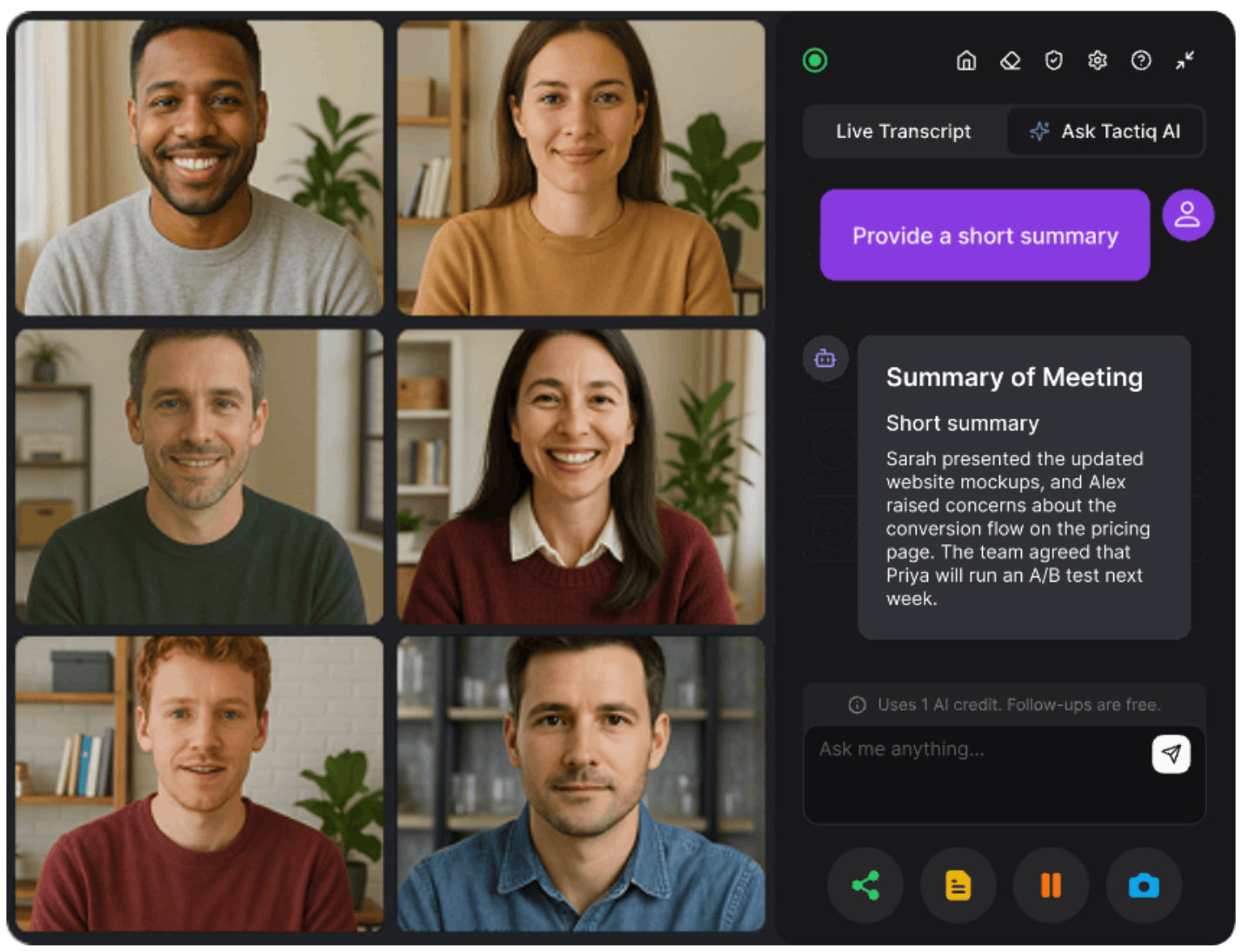
タクティク は、会議の文字起こしとメモを取るために特別に構築された AI 搭載ツールです。お使いのビデオプラットフォームに直接接続し、録画から構造化された議事録の作成までの全プロセスを処理します。
自動リアルタイム文字起こし
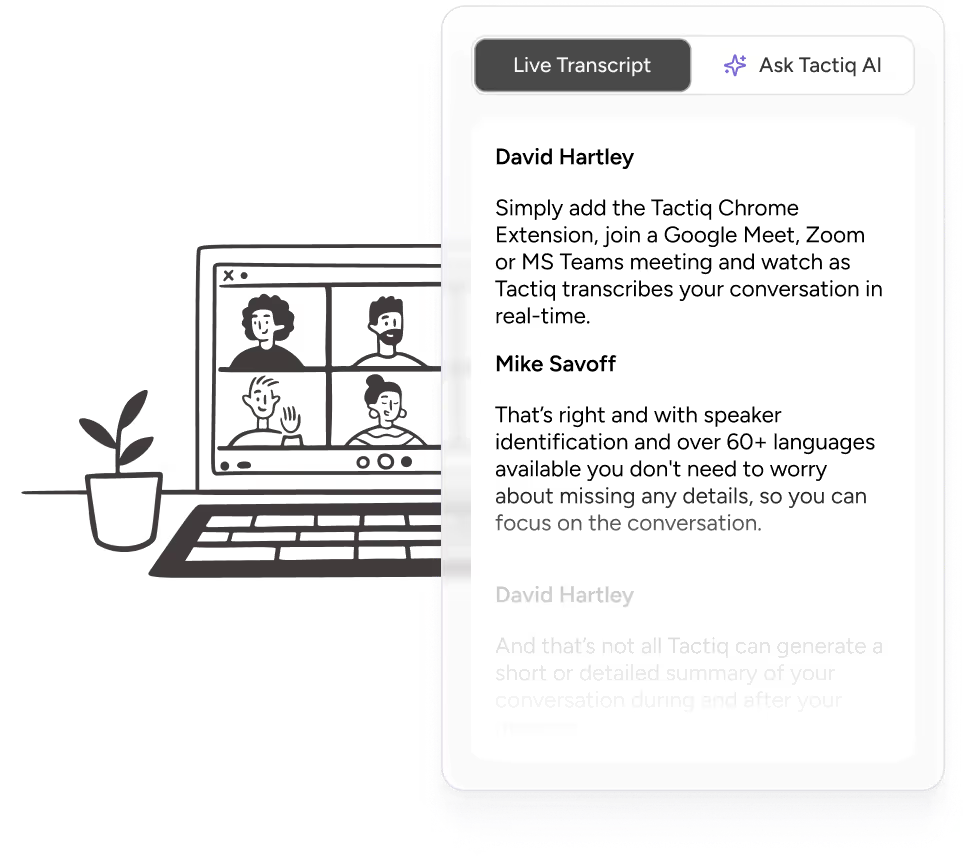
Tactiqは会話をその場ですぐに文字起こしします ボットを使わずに。個別に録音したり、ファイルを手動でアップロードしたりする必要はありません。このツールは、ズーム、Google Meet、Microsoft Teams のすべての単語をリアルタイムでキャプチャします。
AI を活用した会議概要
会議が終了すると、TactiqのAIは、主要な決定事項、アクションアイテム、次のステップを含む会議の概要を自動的に生成します。クイックプロンプトから選択するか、独自のカスタムプロンプトを入力して、チームにとって最も重要なことに集中できます。AI は未加工のトランスクリプトデータをプロフェッショナルな議事録にまとめます。
ズーム、Google ミート、チームとのシームレスな統合
Tactiqは、会議プラットフォームと直接統合するブラウザ拡張機能として機能します。会議を開始すると、Tactiq が自動的に文字起こしを開始します。ツールを切り替えたり、アプリ間でトランスクリプトをコピーしたりする必要はありません。
話者識別とタイムスタンプ
Tactiqは、会議中に誰が何を言ったかを識別し、トランスクリプトにタイムスタンプを追加します。これにより、アクションポイントを個人別に追跡したり、会話の特定の場面にジャンプしたりするのが簡単になります。フォローアップタスクを適切なチームメンバーに割り当てることができます。
エクスポートと共有が簡単
議事録をPDFまたはTXTファイルとしてダウンロードするか、以下を使用してください AI ワークフロー インサイトをチームやシステムと自動的に共有できます。Tactiq のワークフローでは、会議終了後すぐに CRM の更新、チケットの作成、概要メールの送信、会議データのナレッジベースへの同期を行うことができます。
Tactiq Chrome エクステンションをインストールする リアルタイムの文字起こしとAI会議の概要から始めましょう。メモを取る時間を節約でき、会議のたびに手作業なしで整理された状態を保つことができます。
ChatGPTとTactiq:議事録にはどちらが良いですか?
ChatGPTとTactiqはどちらも議事録の作成に役立ちますが、仕組みは異なり、ニーズも異なります。議事録の作成方法を比較すると以下のようになります。

チャットGPTを使用するタイミング
ChatGPTは、会議の議事録がすでにあり、議事録をすばやく作成する必要がある場合に適しています。AI へのプロンプトを柔軟に行いたい場合や、文字起こしが組み込まれていないプラットフォームで行われた会議のメモを処理する場合に使用してください。
Tactiqを使うべきタイミング
Tactiqは、最初から最後までプロセス全体を合理化したい場合に適しています。リアルタイムの文字起こし、発言者の自動識別、AI ワークフローを通じて会議データをチームと直接共有する機能が必要な場合にお使いください。手作業が不要になるため、時間を節約できます。
{{rt_cta_ai-convenience}}
ラッピングアップ
ChatGPTは、会議の議事録をプロフェッショナルな議事録に変える強力なAIアシスタントです。これを使用して、ディスカッションをまとめたり、アクションアイテムを抽出したり、会議データから重要な決定事項を整理したりできます。
しかし、ChatGPTでは、会議のたびに手動でトランスクリプトを処理してチャットに貼り付ける必要があります。それでも会議を個別に記録し、会議が終了したらすべてを処理する必要があります。
Tactiqは、議事録専用に構築された、より効率的なソリューションを提供します。会話をリアルタイムで書き起こし、発言者を自動的に識別し、手作業でアップロードしなくてもAIを活用した要約を生成します。Chrome 拡張機能はズーム、Google Meet、Microsoft Teams と直接統合できます。
会議の文書作成にかかる時間を節約する準備はできていますか?をインストールします。 タクティク 自動文字起こしとAI会議の概要を無料で入手できます。Tactiqがメモを取っている間、ディスカッションに集中できます。
ChatGPT議事録ジェネレータに関するよくある質問
ChatGPTは会議の議事録を書くことができますか?
はい、ChatGPTは会議の議事録を提出すれば議事録を作成できます。議事録をChatGPTに貼り付け、特定のプロンプトを使用して、重要な決定事項、アクションアイテム、重要なポイントを記載した構造化された議事録を生成します。
ChatGPT以外に議事録を作成できるAIツールはどれですか?
Tactiqは、Zoom、Google Meet、Microsoft Teams全体でリアルタイムの文字起こしを使用して議事録を自動的に作成します。
音声ファイルをChatGPTにアップロードして文字起こししてもらうことはできますか?
ChatGPTのウェブインターフェースは音声ファイルを文字起こしできません。ただし、 チャット GPT 記録モード macOSデスクトップアプリでは、音声を録音して要約を作成できます。会議の文字起こしを行うには、まず専用のツールまたはプラットフォームに組み込まれている機能が必要です。
ChatGPTを使って会議中にメモを取るにはどうすればいいですか?
ChatGPTは会議中にリアルタイムでメモを取ることはできません。ChatGPT 録音モード (macOS アプリ) では、音声を録音して後でサマリーを作成できます。ライブメモを取るには、まずトランスクリプトが必要で、それをChatGPTに貼り付け、重要なポイントを抽出するように促します。
会議の議事録に関して、TactiqがChatGPTよりも優れている理由は何ですか?
Tactiqは、文字起こしから議事録の作成まで、すべてを自動的に処理します。手作業やトランスクリプトのアップロードなしに、リアルタイムで文字起こし、発言者を特定し、タイムスタンプを追加し、AI サマリーを作成します。






便利なAIサマリーが欲しいですか?
次回のミーティングで Tactiq をお試しください。
便利なAIサマリーが欲しいですか?
次回のミーティングで Tactiq をお試しください。
便利なAIサマリーが欲しいですか?
次回のミーティングで Tactiq をお試しください。