
Claudeにおすすめのコネクタ15選
June 12, 2026
June 12, 2026
September 23, 2026
September 23, 2026

Claudeは、チームが日常的に使用しているツールと連携することで、さらにその真価を発揮します。Claudeコネクタは、Model Context Protocol(MCP)を通じて、プラットフォームをアプリ、ファイル、データベース、ワークフローと接続します。
Claudeにメールの検索、プロジェクトデータの確認、タスク管理、会議の詳細情報の取得などを依頼できます。ただし、最適なClaudeコネクタは、チームがどこで作業し、どのように意思決定を行っているかによって異なります。
本ガイドでは、以下の内容を解説します。
- コミュニケーション、会議、プロジェクト管理、CRM、分析、コンテンツ作成に役立つ15のClaudeコネクタ
- ディレクトリコネクタおよびカスタムコネクタの追加方法
- 機能、権限、ワークフローへの貢献度に基づいたコネクタの選び方
要約:最適なClaudeコネクタとは?
最適なClaudeコネクタとは、チームが最も頻繁に使用するコンテキストにClaudeがアクセスできるようにするものです。会議中心のワークフローには、 Tactiq MCPサーバー が、検索可能なトランスクリプト、要約、アクションアイテムとClaudeを接続します。
用途別:Claudeに最適なコネクタ15選
これら15のClaudeコネクタは、コミュニケーション、会議、プロジェクト管理、営業、分析、コンテンツ作成といった一般的なワークフローをカバーしています。
1. Gmailコネクタ
コミュニケーション・メール
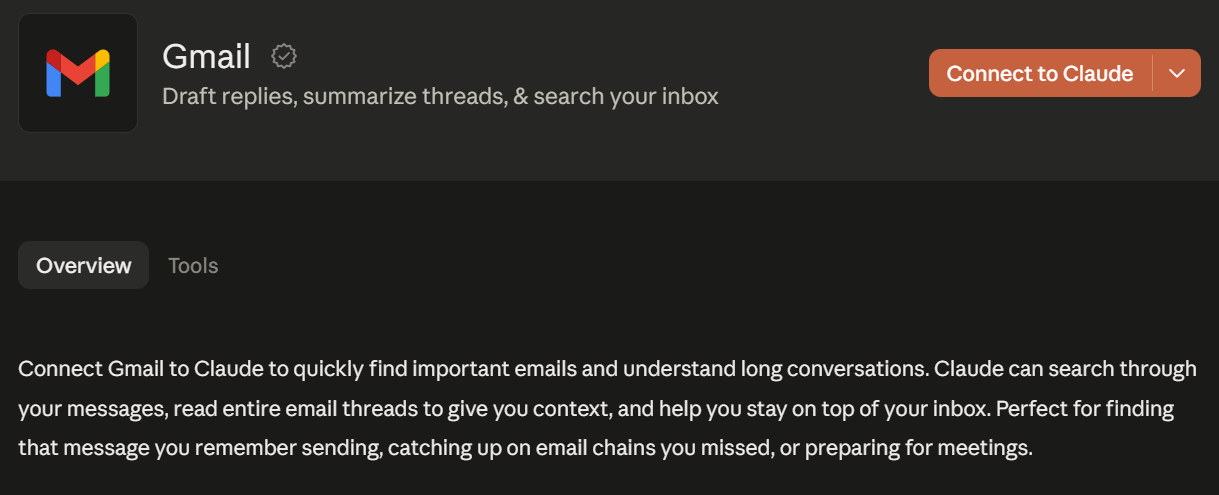
この Gmailコネクタ を使用すると、Claudeがメッセージの検索、メールスレッドの読み取り、長い会話の要約を行えるようになります。権限設定によっては、Claudeに返信のドラフト作成、メッセージの転送、ラベルの適用、メールの送信を依頼することも可能です。
このコネクタを活用することで、チームは受信トレイを手動で検索することなく、意思決定の経緯や連絡先情報をすぐに見つけ出せます。また、会議の準備やタスクのフォローアップを行う際に、メールの文脈を把握するのにも役立ちます。
2. Googleカレンダーコネクタ
コミュニケーションとメール
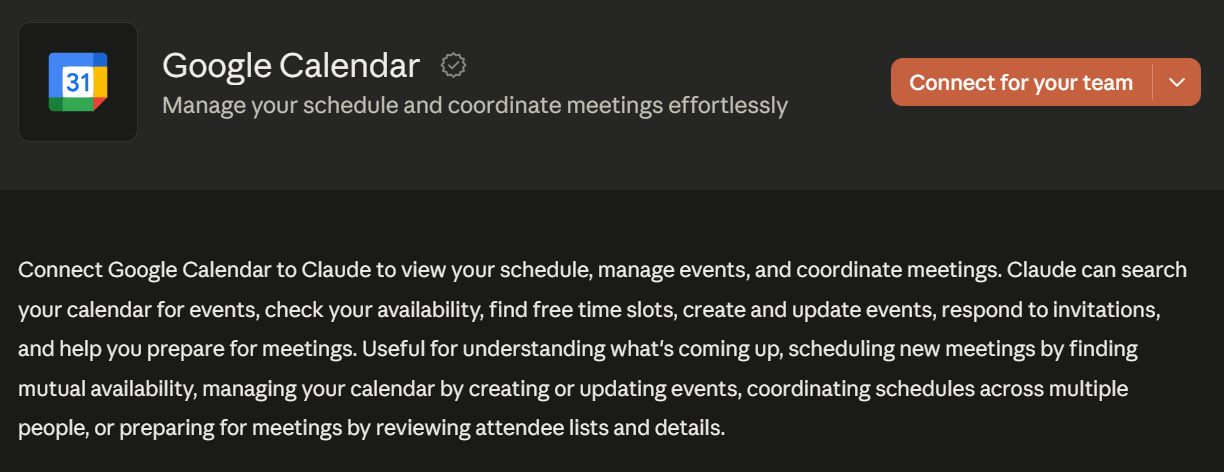
Googleカレンダーコネクタ を使用すると、Claudeが予定の検索、空き状況の確認、空き時間の提案を行えるようになります。権限設定に応じて、Claudeによるカレンダーイベントの作成、更新、削除、返信も可能です。
GoogleカレンダーをClaudeに接続することで、アプリを切り替えることなくチームのスケジュール調整が可能になります。また、会議の前に参加者の詳細を確認するようClaudeに依頼することもできます。
3. Calendlyコネクタ
コミュニケーションとメール
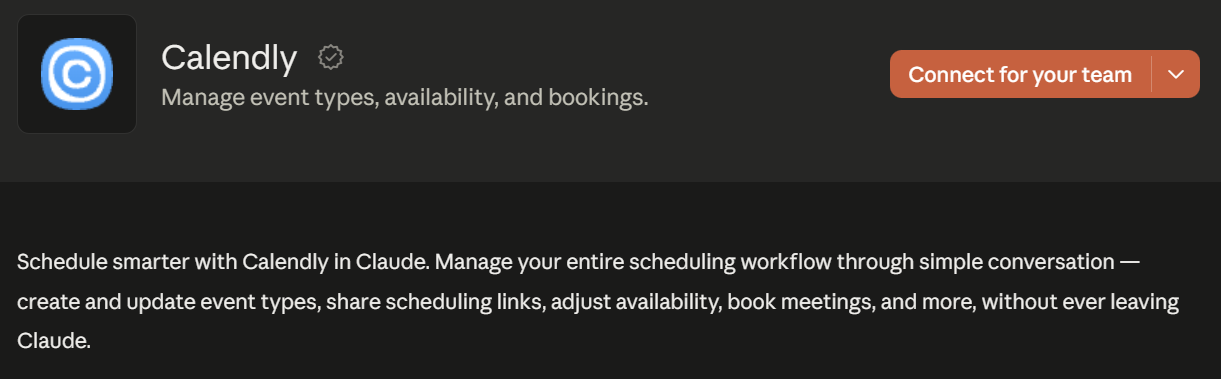
Calendlyコネクタ を使用すると、Claudeがイベントタイプ、空き状況、予約、スケジュール用リンクを管理できるようになります。Claudeに空き時間の検索、会議の予約、イベントタイプの更新、予約済みイベントのキャンセルを依頼できます。
このコネクタは、候補者、顧客、パートナーとの外部通話を調整するチームに適しています。既存のCalendly設定を活用しながら、予約ワークフローをClaude内で完結させることができます。
4. Tactiqコネクタ
会議と文字起こし
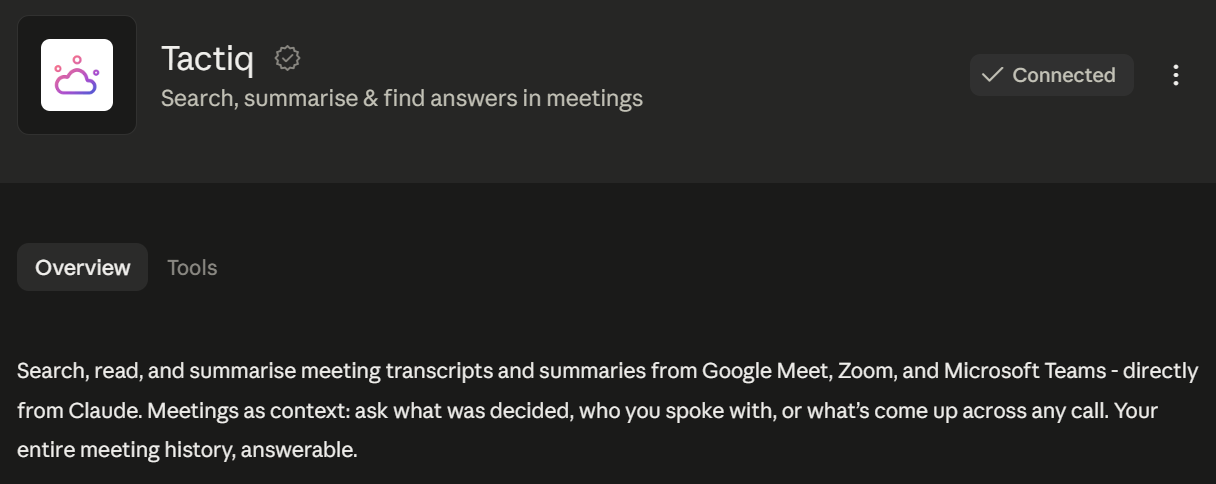
Tactiq は、会議用ボットを使用せずにZoom、Google Meet、Microsoft Teamsの通話をリアルタイムで文字起こしします。また、会話終了後に要約やアクションアイテムを生成します。
Tactiq MCPサーバー Claudeが検索可能な会議履歴にアクセスできるようになります。文字起こしを手動でエクスポートすることなく、過去の会話の検索、議論の要約、決定事項の抽出、タスクの特定などをClaudeに依頼できます。
詳細はガイドをご覧ください: TactiqをClaudeコネクタとして使用する (設定手順やプロンプト例についてはこちら)
{{rt_cta_ai-convenience}}
5. Asanaコネクタ
プロジェクト管理・生産性向上
Asanaコネクタ を使用すると、Claudeでタスク、プロジェクト、目標の検索、作成、更新、追跡が可能になります。また、プロジェクトの詳細、タスクの割り当て、期限、ステータスの更新、フラグが立てられたブロック要因などを取得することもできます。
チームはこれを利用してプロジェクトの進捗を確認したり、Claudeとの会話を追跡可能なタスクに変換したりできます。
6. Linearコネクタ
プロジェクト管理・生産性向上
Linearコネクタ を使用すると、Claudeで課題(イシュー)、プロジェクト、コメントの検索、作成、更新が可能になります。また、サイクル、ドキュメント、課題のステータス、ラベル、チーム、割り当てられた作業内容を取得することもできます。
プロダクトチームやエンジニアリングチームは、これを利用してプロジェクトの計画、進捗確認、更新情報のドキュメント化を行えます。また、Linearの課題やサイクルデータを使用して、完了した作業をClaudeに要約させることも可能です。
7. HubSpotコネクタ
CRM・営業
HubSpotコネクタ は、コンタクト、企業、取引、チケット、キャンペーンなどのCRMデータへのアクセスをClaudeに提供します。権限に応じて、Claudeは手動でエクスポートすることなく、これらのレコードを検索または更新できます。
営業チームは、このコネクタを使用してアカウント調査、パイプラインの確認、通話準備を行うことができます。マーケティングチームも、メール、ランディングページ、ブログ記事にわたるキャンペーンデータの分析をClaudeに依頼できます。
8. Salesforceコネクタ
CRM・営業
Salesforceコネクタ は、Customer 360データおよびSalesforceの機能へのアクセスをClaudeに提供するベータサービスです。チームは最新のSalesforceデータを使用して、パイプライン、ケース、アカウント、商談、キャンペーンについてClaudeに質問できます。
このコネクタは、Salesforceレコードのクエリ、作成、更新が可能です。認証されたユーザーの権限、共有ルール、項目レベルセキュリティに従って動作します。
9. Intercomコネクタ
CRM・営業
Intercomコネクタ は、顧客との会話、チケット、コンタクトデータへの読み取りアクセスをClaudeに提供します。Claudeはこれらのレコードを検索し、元の情報を変更することなく詳細を取得できます。
チームは、この顧客コンテキストを活用して、繰り返し発生する問題を特定したり、アカウントレビューの準備をしたり、製品へのフィードバックを調査したりできます。また、営業チームやサポートチームが、顧客への対応前に過去のやり取りを把握するのにも役立ちます。
10. Mixpanelコネクタ
分析
Mixpanelコネクタ を使用すると、Claudeが自然言語でプロダクト分析をクエリできるようになります。セグメンテーション、ファネル、フロー、リテンション、セッションリプレイの分析をサポートしています。
グロースチームやデータチームは、複数のレポートを操作することなく、ユーザー行動を調査できます。また、Claudeは既存のMixpanel権限の範囲内で、ダッシュボードの作成、イベントメタデータの管理、データ品質の問題への対処も可能です。
11. Googleドライブコネクタ
コンテンツ&デザイン
Googleドライブコネクタ を使用すると、Claudeがファイルの検索、コンテンツの読み取り、新しいファイルのアップロードを行えるようになります。Googleドキュメント、スプレッドシート、スライド、PDF、その他保存されているドキュメントをサポートしています。
コンテンツチームは、これを使用してリサーチ資料の検索、スプレッドシートの分析、既存ファイルを用いた資料作成などを行えます。権限に応じて、Claudeはファイルの作成、コピー、更新、共有、またはゴミ箱への移動も可能です。
12. Canvaコネクタ
コンテンツ&デザイン
Canvaコネクタ Claudeを使ってCanvaデザインの検索、要約、生成、自動入力、エクスポートが可能です。また、URLからのデザインインポートや、アイテムのフォルダ整理にも対応しています。
コンテンツマーケターは、プロンプトを入力するだけで、SNS用画像やプレゼンテーションなどのビジュアル素材を作成できます。Claudeはデザインコンテンツの取得や、レビュー用のコメントスレッドの追加も行えます。
13. Webflowコネクタ
コンテンツ&デザイン
Webflowコネクタ を使用すると、ClaudeでCMSコンテンツ、ページ、アセット、サイトデータを管理できます。ページの作成や編集、コレクションの更新、レイアウト、スタイル、コンポーネント、変数の変更が可能です。
コンテンツチームやWebチームは、自然言語を使って構造化データの更新やページ要素の構築を行えます。また、このコネクタはサイトのアクティビティを分析でき、ユーザーの既存のWebflow権限内で動作します。
14. Miroコネクタ
コンテンツ&デザイン
Miroコネクタ を使用すると、Claudeで既存のボードの検索や要約、新しいボードの作成が可能です。プロンプトからフレーム、付箋、表、ドキュメント、画像、図表を生成できます。
チームはワークショップ、スプリントプランニング、リサーチ、プロダクト戦略などに活用できます。Claudeは、既存のアクセス権限の範囲内で、ボード上のコメントの読み取り、返信、解決も行えます。
15. Sanityコネクタ
コンテンツ&デザイン
Sanityコネクタ Claudeが構造化されたコンテンツを作成、クエリ、更新、公開できるようにします。自然言語を通じて、ドキュメント、データセット、スキーマ、リリース、プロジェクトを操作できます。
コンテンツチームや開発チームは、監査、移行、リリースの調整、ドキュメントの更新などに活用できます。実行されるアクションは、接続したユーザーのSanityにおけるロールと権限に従います。
Claudeにコネクタを追加する方法
Claudeのディレクトリからコネクタを追加するか、リモートMCPを通じてカスタムコネクタを設定できます。
ディレクトリコネクタの追加
- Claudeの カスタマイズ > コネクタ に移動します。
- カテゴリ別にコネクタを閲覧するか、特定のアプリを検索します。
- コネクタを選択し、その機能を確認します。
- 「 接続」をクリックし、認証プロセスを完了します。
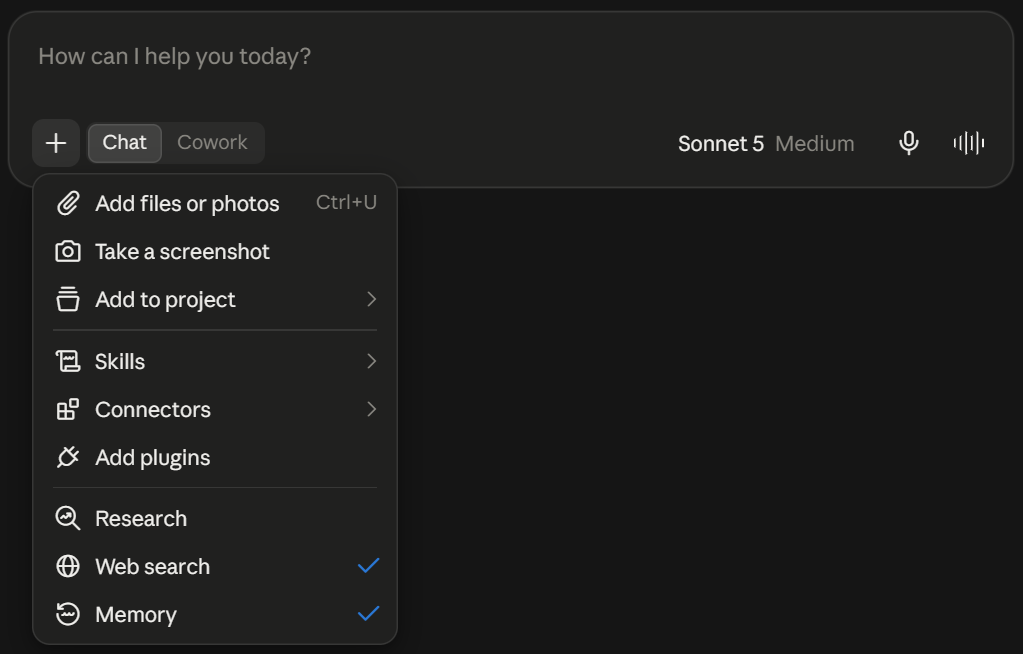
- チャットを開き、 + > コネクタ をクリックして、その会話でコネクタを有効にします。
オン Claude Team およびEnterpriseプランでは、まずオーナーが組織向けにコネクタを有効にする必要があります。その後、組織がエンタープライズ管理の認証を使用していない限り、各メンバーが各自のアカウントで認証を行います。
カスタムコネクタの追加
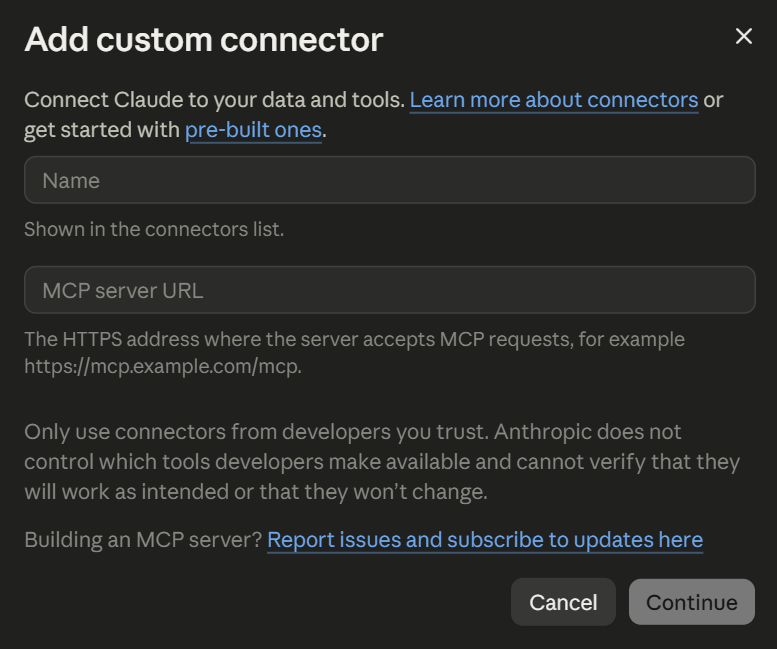
- カスタマイズ > コネクタ に移動し、 追加をクリックします。
- コネクタ名とリモートMCPサーバーのURLを入力します。
- 必要に応じて、 詳細設定 からOAuth認証情報を追加します。
- 追加をクリックし、認証プロセスを完了します。
カスタムコネクタはすべてのClaudeプランで利用可能ですが、無料ユーザーが追加できるのは1つまでです。また、MCPサーバーはパブリックインターネット経由でアクセス可能である必要があります。
詳細な手順については、 Claudeでカスタムコネクタを追加する方法 をご覧ください。
最適なClaudeコネクタの選び方
チームが重要なコンテキストをどこに保存しているか、そしてClaudeに何をさせたいかに基づいてコネクタを選びましょう。まずは明確なワークフローに関連するツールを2〜3個選ぶことから始めてください。
アプリを接続する前に、以下の点を確認しましょう。
- 利用可能なアクション: コネクタがデータの読み取り専用か、作成・更新・削除も可能かを確認してください。
- 権限: Claudeは接続先のサービスにおけるあなたのアクセス権限を引き継ぎます。あなたのアカウントでアクセスできない情報を取得することはできません。
- コンテキストの質: ファイル、タスク、記録が整理されているほど、Claudeはより関連性の高い回答を返せるようになります。
- ワークフローの価値: 繰り返しの検索やデータ入力、アプリの切り替えを減らせるコネクタを優先しましょう。
各コネクタの機能と要求される権限を確認してから有効にしてください。その後、他のツールを追加する前に、繰り返しの多いワークフローでテストを行いましょう。
「カスタマイズ」>「コネクタ」の順に進み、目的のアプリを閲覧または検索します。アプリを選択して権限を確認し、「接続」をクリックして認証を完了させてください。
WebコネクタはすべてのClaudeプランで利用可能です。ただし、接続先のサービスによっては、そのサービス独自の有料サブスクリプションが必要な場合や、機能が制限される場合があります。Claudeの無料ユーザーも、カスタムコネクタを1つ追加できます。
2026年9月時点で、Claudeコネクタディレクトリには800以上のコネクタが掲載されています。この数は、Anthropicやサードパーティの開発者による新しいオプションの追加に伴い変動します。
はい。TactiqはClaudeのディレクトリで認定されたコネクタです。接続すると、Claudeが会議のトランスクリプトを検索し、会話の要約や、決定事項、アクションアイテムの抽出を行えるようになります。








便利なAIサマリーが欲しいですか?
次回のミーティングで Tactiq をお試しください。
便利なAIサマリーが欲しいですか?
次回のミーティングで Tactiq をお試しください。
便利なAIサマリーが欲しいですか?
次回のミーティングで Tactiq をお試しください。