
How to Get a Zoom Recording Transcript for Free
February 20, 2025
February 20, 2025
June 6, 2025
June 6, 2025

Recording your Zoom meetings is a great way to capture all the important details, but reviewing hours of video can be time-consuming. This is where the Zoom transcription feature comes in handy. By enabling audio transcripts in your Zoom account, you can get a written record of your meetings, making it easier to review discussions, search for specific points, and share summaries with your team.
In this guide, you’ll learn how to enable Zoom transcripts, automatically save them, and even how to use Tactiq to transcribe Zoom meetings in real-time. For more tips on mastering Zoom,
Enable Zoom Transcripts in Your Zoom Account
Before creating audio transcripts for your recorded meetings, you must enable the transcription feature in your Zoom account. Here’s how you can enable this feature:
- Sign in to your Zoom account: Go to the Zoom web portal (https://zoom.us/account/setting) and log in.
- Go to your Settings: Once logged in, navigate to your settings page.
- Search for "Automated captions": Use the search bar at the top of the settings page to find "Automated captions."
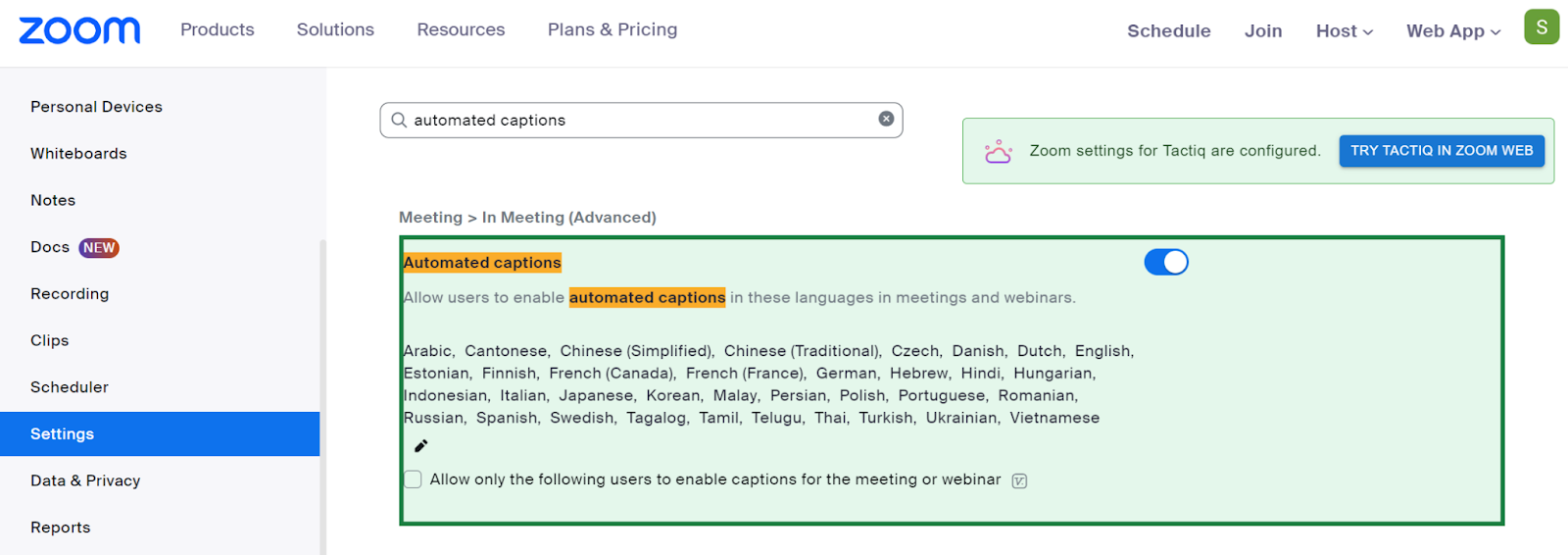
- Enable Automated Captions: Once you locate the option, toggle it on. This step will allow Zoom to automatically generate closed captions and an audio transcript file for your Zoom recordings.
- Enable "Save Captions": After enabling automated captions, enable the "Save Captions" option. This will ensure that the captions and your transcript are saved with your Zoom cloud recordings.
By following these steps, you'll have everything set up to create audio transcripts automatically whenever you record a Zoom meeting. For more information on locating your Zoom transcripts, check out 3 Ways to Find Zoom Transcripts.
{{rt_cta_ai-convenience}}
How to Automatically Save A Zoom Transcript
Install Tactiq’s Free Chrome Extension
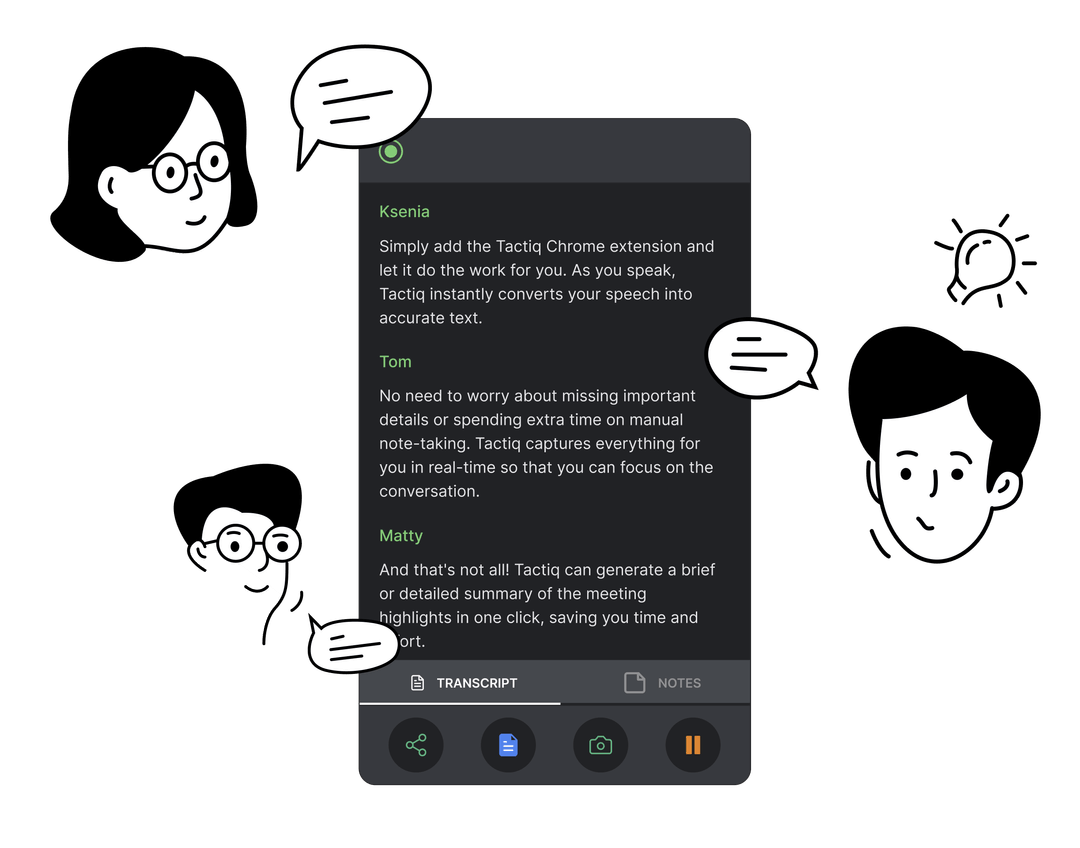
While Zoom provides captions during your call and a .vtt file afterward, managing these can be cumbersome. With Tactiq, you can automatically save your Zoom transcripts in one central location without needing to record the meeting. Tactiq captures and stores your transcripts in real-time, allowing you to easily access, edit, and download them from your dashboard—all for free. It’s the perfect tool to simplify your workflow and ensure you never lose track of important conversations.
Tactiq not only saves your Zoom transcripts automatically but also enhances your workflow with AI-powered features. You can instantly generate project updates, meeting summaries, and actionable items, while easily sharing and exporting transcripts for better communication and time-saving. It’s an all-in-one tool to keep your meetings organized and efficient.
Here’s how to get started:
- Add Tactiq to Chrome: Download the free Tactiq Chrome Extension. Follow the prompts to install the extension.
- Log in to Tactiq: After installing, log in to Tactiq using your Google account. Go to Integrations and connect Zoom.
- Start a Zoom meeting: Once everything is set up, start or join a Zoom meeting. Tactiq will automatically begin transcribing the conversation in real-time, ensuring you don’t miss any important details.
- Access your transcript: After the meeting, your transcript will be saved automatically in your Tactiq dashboard. You can view, edit, download, and share the transcript as needed.
By using Tactiq, you can enhance the value of your cloud recording by having an accurate and easily accessible transcript file every time. This saves you from the hassle of manual note-taking and ensures that all key points are preserved for future reference.
How to Transcribe an Already Recorded Zoom Meeting
If you have a Zoom recording that you need to transcribe, Tactiq also offers a way to get a transcript without requiring real-time transcription. Here's how:
- Log in to your Tactiq account and navigate to the dashboard.
- Click "Upload Transcript of Recording," which allows you to add existing video or audio files.
- Select your Zoom recording from your device and click “Upload.”
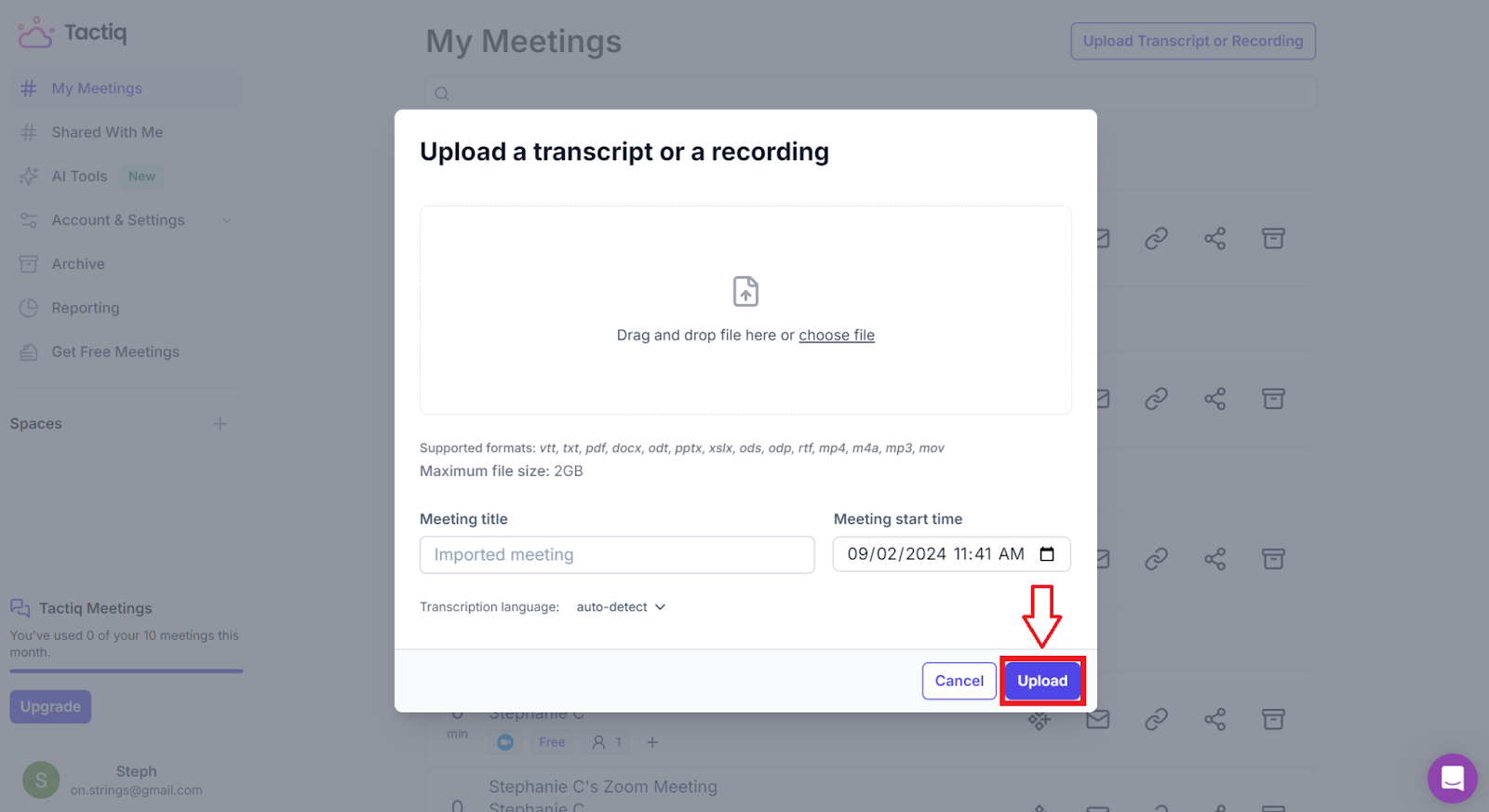
- Once uploaded, Tactiq will automatically start transcribing the recording. The process may take a few minutes, depending on the length of the recording.
- After the transcription is complete, you'll find the transcript in your Tactiq dashboard.
- Review the transcript for any errors, make edits as necessary, and add notes or highlights to key sections.
- Once satisfied with the transcript, download it in various formats, such as PDF or DOCX.
- You can also share the transcript directly from the platform, making it easy to distribute the content to your team.
By uploading your Zoom recordings to Tactiq, you can get a detailed and accurate transcript without the need for live transcription, making it a perfect solution for reviewing past meetings, interviews, or presentations.


便利なAIサマリーが欲しいですか?
次回のミーティングで Tactiq をお試しください。
便利なAIサマリーが欲しいですか?
次回のミーティングで Tactiq をお試しください。
便利なAIサマリーが欲しいですか?
次回のミーティングで Tactiq をお試しください。