
How to Edit Zoom Recording: A Complete Guide
July 3, 2026
July 3, 2026
July 3, 2026
July 3, 2026

ほとんどのZoomミーティングは、録画開始のタイミングが適切ではありません。誰かがまだ挨拶していたり、画面共有が実際の終了時刻から3分も過ぎていたりします。録画を共有する準備ができた頃には、手直しが必要になるでしょう。
Zoomにはクラウド録画用の基本的なトリミングツールがありますが、開始と終了しか扱えません。より高度な編集には、別の方法が必要です。そして、単に短い動画ではなく、会議の実際のコンテンツが必要な場合は、もっと速い方法があります。
このガイドの内容は以下の通りです。
- ウェブポータルでZoomクラウド録画をトリミング・編集する方法
- Zoom録画用の無料ブラウザベース動画編集ツール
- iOSおよびAndroid向けのモバイル編集オプション
- Tactiqで文字起こし、要約、アクションアイテムを抽出する方法
要するに:Zoom録画の編集方法
Zoomの標準トリミングツールは、クラウド録画の基本的な開始と終了のカットを処理しますが、有料アカウントが必要で、途中をカットすることはできません。
より詳細な制御が必要な場合は、Clipchamp(Windows)とiMovie(Mac)が最も強力な無料デスクトップオプションです。Flixierはダウンロードなしでどのブラウザでも動作します。
モバイルでは、CapCutがiOSとAndroidで素早いトリミングを可能にします。会議の実際のコンテンツ(決定事項、アクションアイテム、フォローアップ)が必要な場合は、 Tactiq はリアルタイムで文字起こしを行い、アップロードされたZoom録画を検索可能な文字起こしとAI要約に即座に変換します。
Zoomクラウド録画を標準機能で編集する方法
Zoomのウェブポータルには、クラウド録画用の2つの内蔵編集ツールが含まれています。トリミング機能と文字起こしエディターです。クラウド録画が有効な有料Zoomアカウントをお持ちであれば無料で利用できますが、事前に知っておくべき実際の制限があります。
どちらかのツールにアクセスする前に、 Zoom録画をダウンロードまたは見つける 必要があります。ウェブポータルでzoom.usにサインインし、 レコーディングとトランスクリプト をナビゲーションメニューでクリックし、次に クラウドレコーディング タブ。
Zoomクラウドレコーディングをトリミングする方法
Zoomプレーヤーのハサミのアイコンを使うと、クラウドレコーディングの冒頭と末尾をカットできます。手順は次のとおりです。
1. Zoomウェブポータルにサインインし、 レコーディング をクリックします。
2. クラウドレコーディング タブをクリックし、トリミングしたいセッションのミーティングトピックをクリックします。
3. レコーディングのサムネイルをクリックして、新しいブラウザタブで開きます。
4. ハサミのアイコン をプレーヤーの右下隅でクリックします。

5. 青いスライダー をドラッグして、開始時刻と終了時刻を設定します。青くハイライトされた領域が、保存されるトリミング済みのレコーディングを表します。
6. 秒単位でトリミングするには、スライダーをドラッグしてから 戻る矢印アイコン または 進む矢印アイコン。
7. (任意) 再生バーのトリムされていない部分にカーソルを合わせ、 プラスアイコン をクリックして、別のトリムセクションを追加します。セクションを削除するには、青い部分にカーソルを合わせ、 削除をクリックします。
8. トリムをクリックし、確認ウィンドウで再度 トリム をクリックします。
9. 処理が完了するまでお待ちください。トリミングには、録画の長さによって最大2時間かかる場合があります。トリミングされたバージョンを表示するには、ページを再読み込みしてください。
10. (任意) 元に戻すには、再生バーの下にある 復元 をクリックし、その後、確認ウィンドウで確定します。注: 復元すると、トリミングされたバージョンは完全に削除されます。
主な制限事項:
- トリムは、コンテンツの開始または終了部分のみを削除します。録画の中間部分からセクションを削除することはできません。
- トリミングは元の録画を上書きします(ただし、復元することは可能です)。
- Zoomでは、12時間ごとに録画1件につき5回までしかトリミングできません。
- モバイルブラウザではトリミングはサポートされていません。
- クラウド録画は有料機能です。無料のZoomアカウントではこのツールは利用できません。
ウェブポータルでZoomのトランスクリプトを編集する方法
Zoomアカウントで音声トランスクリプションが有効になっている場合、 音声トランスクリプト は各クラウド録画後に自動的に生成されます。 ウェブポータルで直接編集できます エラーを修正したり、句読点を追加したり、話者名を修正したりするために。
1. Zoomウェブポータルにサインインし、 録画とトランスクリプトをクリックします。
2. クラウド録画 タブをクリックし、録画されたミーティングの名前をクリックします。
3. サムネイル をクリックします。新しいブラウザタブで開かれ、右側に音声トランスクリプトが表示されます。
4. 修正したいフレーズにカーソルを合わせ、 鉛筆アイコン 右下に表示される
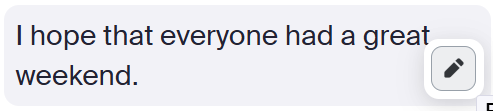
5. テキストを直接編集します。
6. 発言者の名前を修正するには、発言者ラベルにカーソルを合わせ、 鉛筆アイコン をクリックします。
7. チェックボックス をクリックして、編集内容を保存します。
注: 音声の文字起こしには、ZoomのPro、Business、Education、またはEnterpriseアカウントが必要です。無料プランにはこの機能は含まれていません。
PC (Windows) でZoomの録画を編集する方法
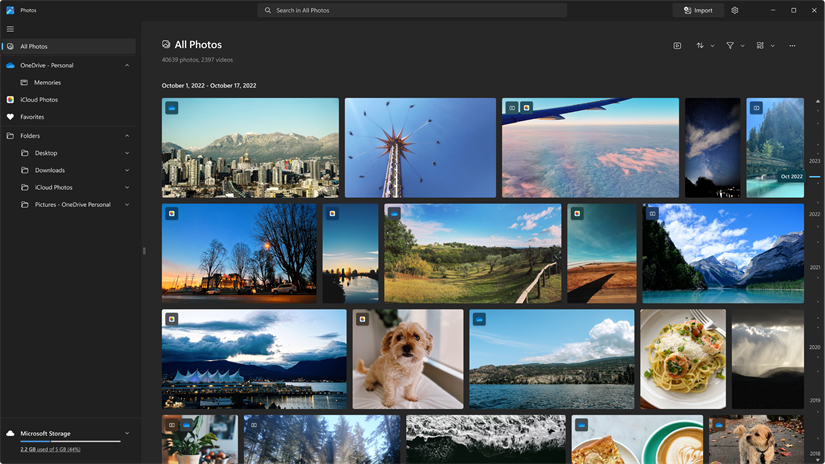
Zoomはローカル録画をMP4ファイルとして保存し、ほとんどの動画編集ソフトウェアと互換性があります。デフォルトでは、次の場所に保存されます。 C:\Users[Username]\Documents\Zoom (Windowsの場合)。
PCでZoomの録画を編集するための人気ツールは次のとおりです。
- Windowsフォトアプリ: Windows 10および11に無料で組み込まれており、基本的な開始と終了のトリミングに適しています
- Clipchamp: free, built into Windows 11 and available in any Chrome or Edge browser, supports mid-recording cuts, captions, and transitions
- Adobe Premiere Pro: paid, industry-standard for complex multi-track editing
- Flixier: browser-based, no download required (covered in the online section below)
How to Edit a Zoom Recording on Mac
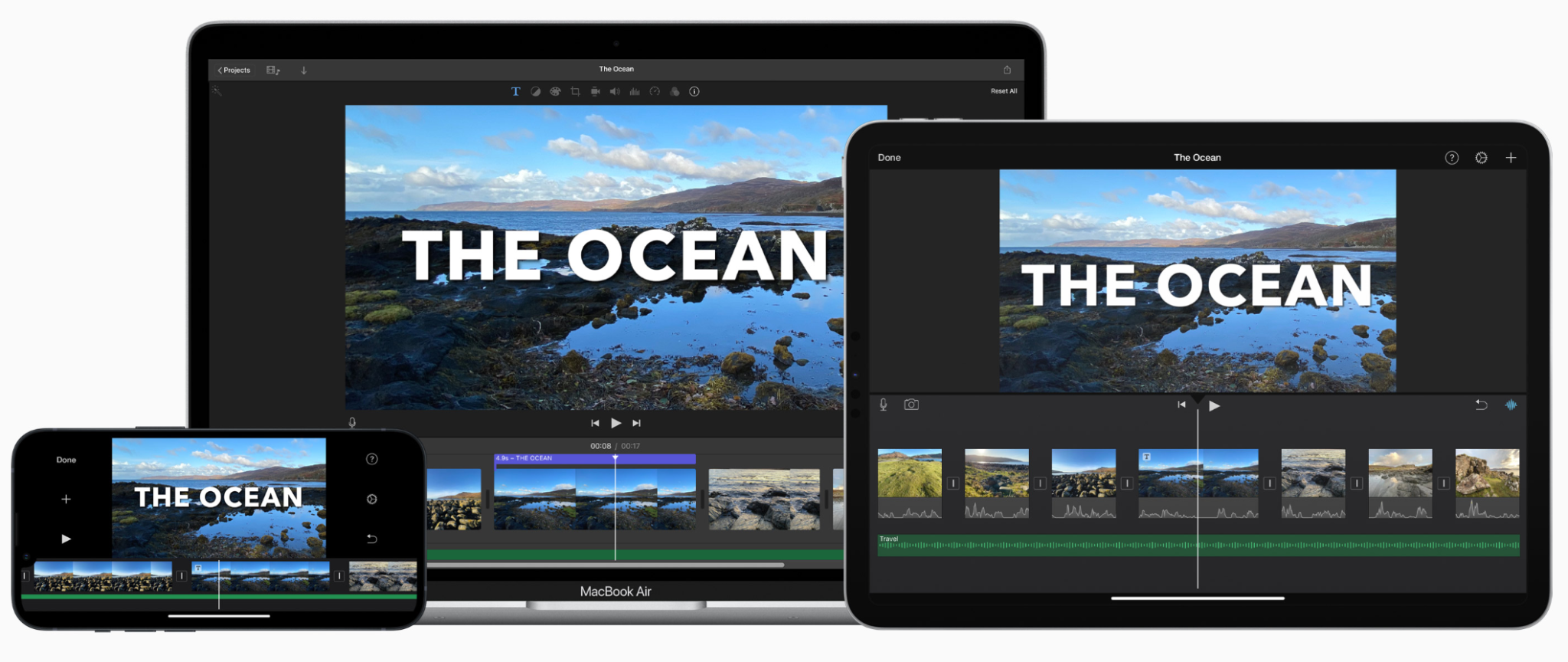
Zoom saves local recordings to /Users/[Username]/Documents/Zoom on Mac by default. The files are MP4, so they open in any Mac video editor without conversion. You can also save a transcript of your local Zoom recording if you need the content, not just the video.
Popular tools for editing Zoom recordings on Mac include:
- iMovie: free, pre-installed on most Macs, covers trimming, cuts, transitions, and audio adjustments
- Final Cut Pro: paid, Apple's professional-grade editor for complex multi-track projects
- ScreenFlow: paid, popular for screen recordings with built-in annotation and export tools
How to Edit a Zoom Recording Online for Free
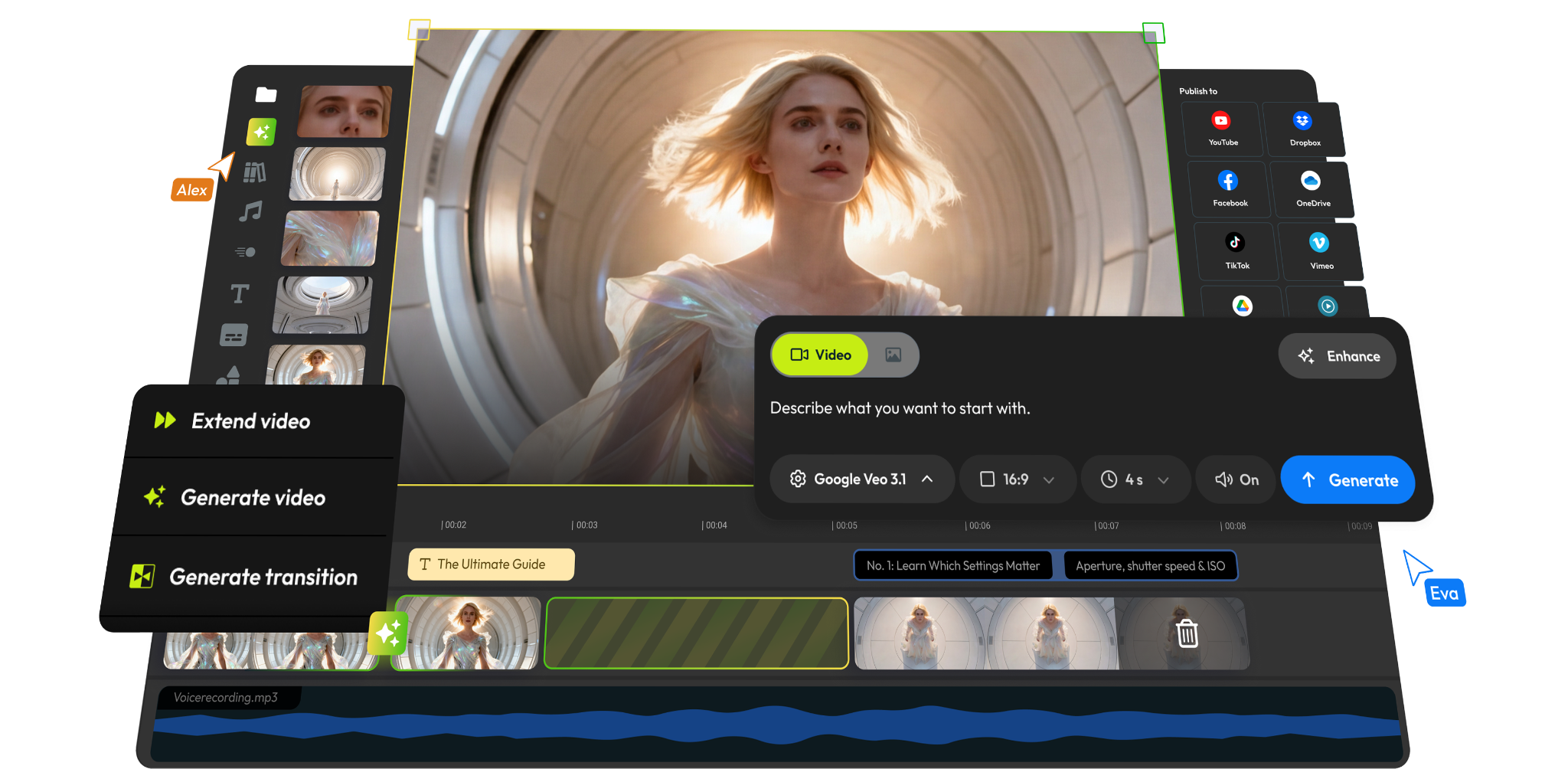
Browser-based editors let you get started without installing anything. Just upload your Zoom recording and start cutting. If you're working with multiple recordings, here's how to combine two Zoom recordings into one before editing. And if you'd rather skip the video edit entirely, you can also get a Zoom recording transcript for free and work from the text directly.
The two most popular options are:
- Flixier: browser-based, no download required, supports trimming, cuts, captions, and audio tools. The free plan exports at 720p with a watermark and caps at 10 minutes per month. Paid plans start at $19/seat/month for 1080p and no watermark.
- Clipchamp: free in any Chrome or Edge browser, no watermark on supported exports, good for trimming, captions, and transitions.
When to use online tools vs. desktop tools:
- Use an online editor for quick trims or caption passes without downloading software
- Use a desktop tool for frame-precise cuts, multi-track audio, or large file handling
- Online tools can slow down with large MP4 files depending on your browser and connection
How to Edit a Zoom Recording on Mobile
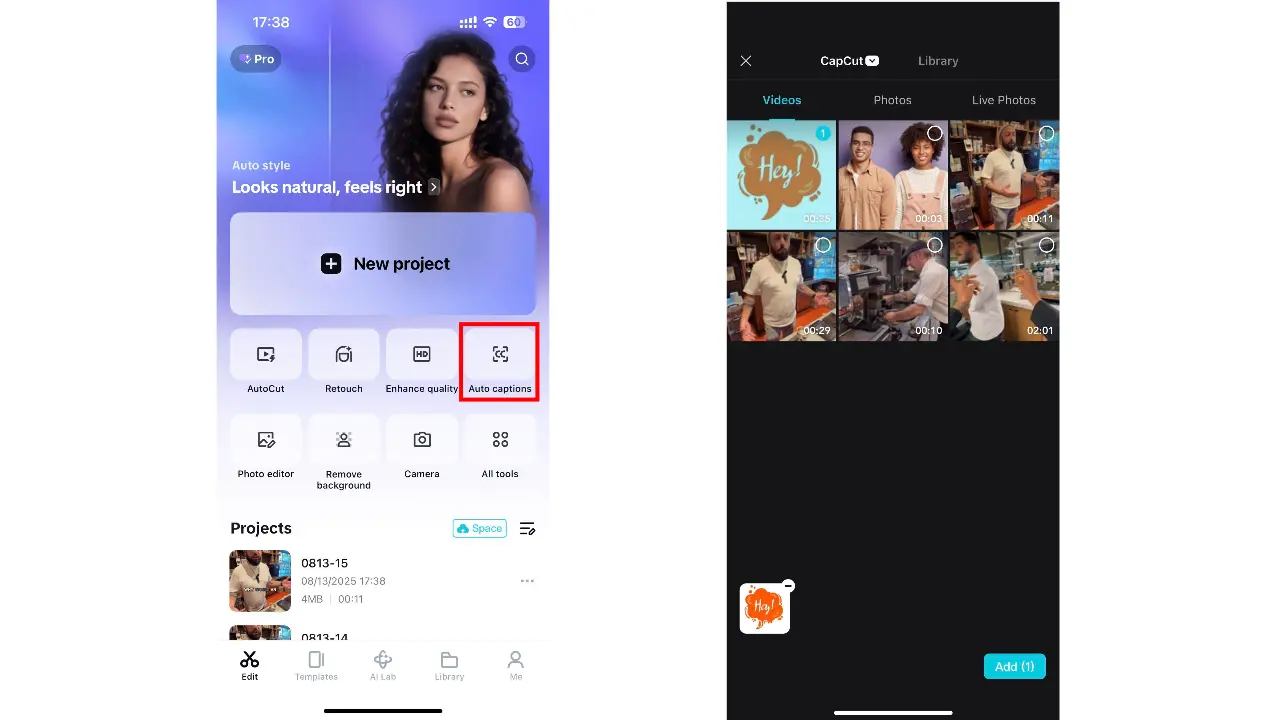
Editing a full Zoom recording on a phone isn't ideal for complex projects; small screens and touch controls make precise cuts harder. For quick trims before sharing, though, mobile works well.
The best free options for iOS and Android are:
- CapCut: available on the App Store and Google Play, with a straightforward timeline interface, auto-captions, and basic audio controls
- Vimeo: lets you upload, trim, and share recordings directly from the mobile app on both iOS and Android
Note: To edit a Zoom recording on mobile, the file needs to be saved to your phone first. Cloud recordings can be downloaded from the Zoom web portal before importing into either app.
How to Get More From Your Zoom Recording With Tactiq

Trimming a video makes it shorter. It doesn't tell you what was decided, who owns what, or what needs to happen next. That's where most recording workflows fall short.
Tactiq works differently. It's a Chrome extension that transcribes your Zoom meetings in real time. No bot joins the call, and no cloud recording is required. The transcript is ready the moment the meeting ends, along with AI-generated summaries and action items.
If you already have a recorded Zoom meeting, you can get a transcript from your Zoom recording for free by uploading the MP4 or MOV file directly to Tactiq from your dashboard.
From there, you can use Tactiq's built-in AI to:
- Generate a meeting summary
- Extract action items and next steps
- Write follow-up emails or project updates
- Ask questions about the transcript directly
When you're ready to share or file the output, Tactiq exports to Google Drive, Notion, Slack, Confluence, HubSpot, Linear, Pipedrive, and OneDrive.
The result: instead of rewatching a 45-minute recording to find one decision, you search the transcript, pull the context, and move on.
Install the Tactiq Chrome extension free and turn your next Zoom meeting into a searchable, actionable transcript.
{{rt_cta_ai-convenience}}
Stop Rewatching Zoom Recordings: Edit Smarter
The right editing tool depends on what you need. Zoom's native trim tool handles quick start and end cuts. Desktop tools like iMovie and Clipchamp give you more control. Browser-based editors let you start without downloading anything. CapCut covers basic trimming on mobile.
If what you need is the content of the meeting, not just a shorter video, Tactiq gives you a searchable transcript and AI summary the moment the call ends.
Yes. Cloud recordings can be trimmed in the Zoom web portal. For local recordings, use a video editor like iMovie, Clipchamp, or Flixier.
For cloud recordings, sign in to the Zoom web portal, open the recording, and click the scissor icon to trim the start or end.
Yes. Zoom's built-in trim tool is free on paid plans. Clipchamp and the Windows Photos app are free on Windows. iMovie is free on Mac.
For cloud recordings, Zoom's native trim tool. For local recordings, Clipchamp (Windows/browser) or iMovie (Mac) are the strongest free options.
Upload your Zoom recording to Tactiq to get an accurate transcript automatically, without replaying the recording.
_Main.jpeg)






便利なAIサマリーが欲しいですか?
次回のミーティングで Tactiq をお試しください。
便利なAIサマリーが欲しいですか?
次回のミーティングで Tactiq をお試しください。
便利なAIサマリーが欲しいですか?
次回のミーティングで Tactiq をお試しください。