
Steps to Add Holidays to Google Calendar
February 20, 2025
February 20, 2025
June 6, 2025
June 6, 2025

Adding holidays to your Google Calendar can help you plan ahead. You have the option to add public, regional, and even religious holidays. In this guide, we’ll show you how to manage your Google Calendar better.
Importance of Having Holidays on Your Calendar
Why is it crucial to have holidays marked on your calendar? Here are a few reasons why:
- It helps you avoid scheduling important meetings or deadlines on days when you or others might be unavailable.
- It allows you to plan your tasks better and complete your work before taking time off.
- It raises awareness and respect for colleagues' and clients' traditions.
Overview of Different Types of Holidays You Can Add
Google Calendar offers flexibility in the types of holidays you can add. Here's a quick overview:
- Public holidays are specific to a country, like Independence Day in the USA.
- Regional holidays are specific to certain regions within a country, such as state holidays in the USA.
- Religious holidays include global religious holidays like Christmas or Diwali.
- Personal events include birthdays, anniversaries, or any other personal dates you wish to remember
Step-by-Step Instructions to Add Holidays to Google Calendar
1. Add or Remove Country and Region Holidays
- Open Google Calendar: Go to Google Calendar on your computer. Click the gear icon and select "Settings".
- Browse Calendars of Interest: Click "Add calendar" and then "Browse calendars of interest".
- Find Regional Holidays: Under "Regional holidays", click "Browse all".
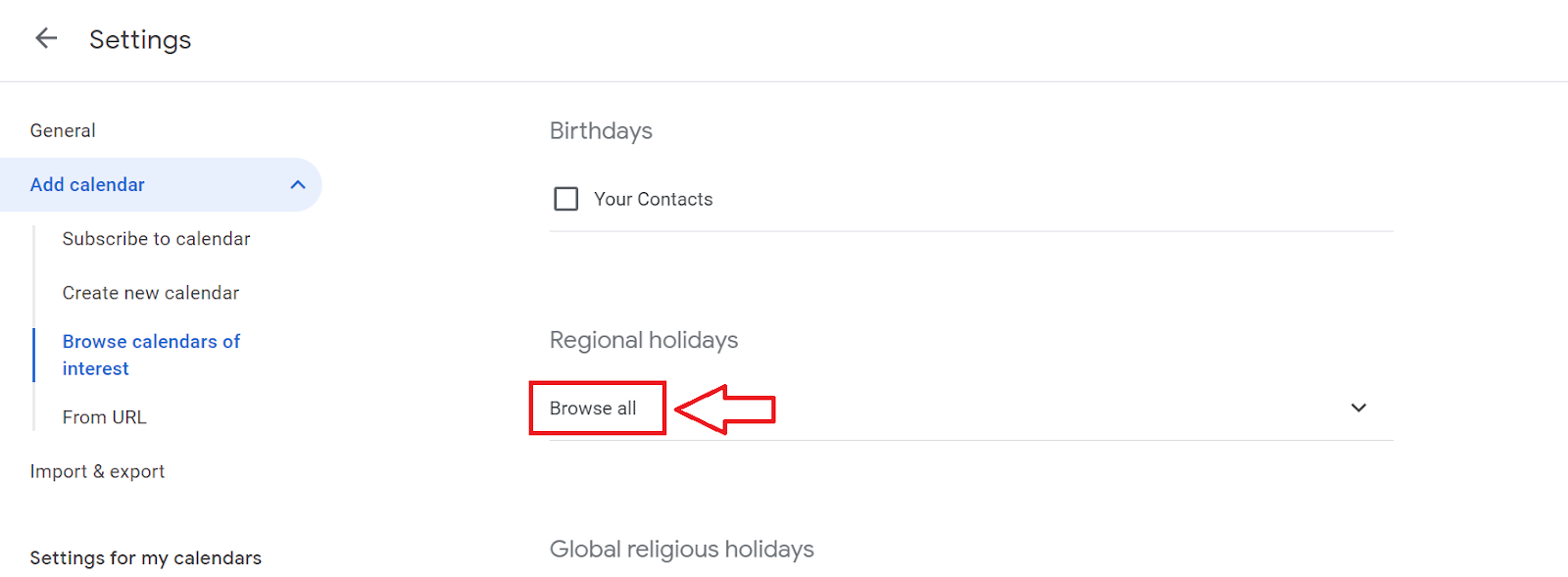
- Check or Uncheck Boxes: Select the country or region holidays to add or remove by checking or unchecking the boxes.
2. Add or Remove Religious Holidays
- Access Settings: Open Google Calendar and navigate to "Settings". Click "Add calendar" and select "Browse calendars of interest".
- Select Religious Holidays: Under "Global religious holidays", check or uncheck the boxes next to specific religious holidays.
- Preview: Use the "Preview" option (eye) to see how the holidays will appear on your calendar.
3. Hide All Holidays from Your Calendar
- Open Google Calendar: On your computer, open Google Calendar. Locate "Other calendars" on the left.
- Uncheck Holidays: Uncheck the box next to "Holidays" to hide all holidays.
4. Subscribe to Holiday Calendars Published on the Web
- Add Other Calendars: Open Google Calendar and click "Add other calendars".
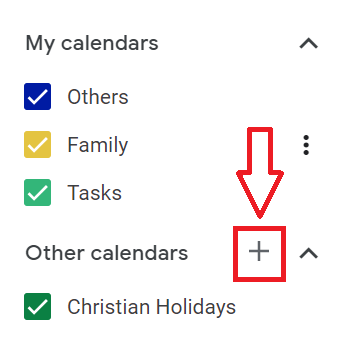
- From URL: Select "From URL" and enter the URL of the published calendar.
- Add Calendar: Click "Add calendar" to subscribe. The calendar will appear under "Other calendars".
5. Change the Color of Holiday Events
- Open Google Calendar: Find the holiday calendar on the left. Click "Options" next to the calendar name.
- Select Color: Choose a new color for the holiday events. This color change will apply to all holiday events on that calendar.
{{rt_cta_ai-convenience}}
How Tactiq Can Help with Google Meet Meetings

Tactiq is an AI-powered tool that simplifies your meeting workflows. Tactiq automates key tasks during Google Meet meetings, from real-time transcriptions to AI-generated summaries, helping you manage important details without manual effort.
- Tactiq’s new AI meeting kits and prompts automate follow-up tasks like writing emails or creating action items from meeting discussions.
- During Google Meet sessions, Tactiq transcribes conversations in real time, capturing important notes.
- Tactiq highlights action items and key decisions to track tasks and deadlines post-meeting.
Using Tactiq with Google Meet ensures that all your meetings are well-documented, allowing you to stay organized without extra effort. Download the free Tactiq Chrome Extension today!


便利なAIサマリーが欲しいですか?
次回のミーティングで Tactiq をお試しください。
便利なAIサマリーが欲しいですか?
次回のミーティングで Tactiq をお試しください。
便利なAIサマリーが欲しいですか?
次回のミーティングで Tactiq をお試しください。