
How to Feed Data to ChatGPT
March 3, 2026
March 3, 2026
May 14, 2026
May 14, 2026

ChatGPT is a powerful AI tool, but it only knows what you give it. Out of the box, the model works from its training data. It has a knowledge cutoff and no access to your private data, internal documents, or company knowledge base.
That's a real limitation when you're trying to get answers that are actually relevant to your work.
The good news? There are several ways to feed your own data into ChatGPT, from simple copy-paste to custom GPT knowledge files and API integrations. Each method works differently depending on your use case, the format of your data, and how much technical setup you're willing to do.
This article walks you through:
- The simplest ways to feed data to ChatGPT without any coding
- How to upload documents like PDFs, CSVs, and XLSX files
- The limitations you'll hit and how to work around them
- How to feed live meeting data to ChatGPT using Tactiq
3 Ways to Feed Data to ChatGPT
There's no single way to get your data into ChatGPT. The right method depends on what format your data is in, how much of it you have, and what you're trying to do with it. Here are the most common approaches.
Copy and paste text
This is the most straightforward way to feed text data into ChatGPT. You paste your content directly into the chat, add a prompt, and the model gets to work.
It's a great option for short documents, quick summaries, or when you need answers fast. For example, you can paste in a block of meeting notes and ask ChatGPT to write a follow-up email or extract action items. If you want more ideas on how to use ChatGPT for meetings, this guide covers four practical use cases worth bookmarking.
A few things to keep in mind:
- Token limits apply. ChatGPT processes text in tokens, and very long inputs can exceed the model's context window. Breaking large documents into smaller chunks gets better results.
- Memory works, but imperfectly. ChatGPT now has memory features that carry context across sessions, but recall can be inconsistent. For important data, it's safer to re-paste your content at the start of each new chat.
- Formatting matters. Clean, structured text gets better results than a wall of unformatted code or raw data.
This method works well for one-off tasks, but it gets tedious fast if you're working with large or frequently updated data sources.
💡 Pro tip: If you regularly feed meeting notes or reports into ChatGPT, Tactiq can save you the manual work. It automatically transcribes your Google Meet, Zoom, or Microsoft Teams calls and gives you a clean, structured transcript ready to use. No token limits to worry about.
Upload a file directly to ChatGPT
ChatGPT lets you upload documents directly into the chat using the paperclip icon. This is one of the easiest ways to give the model access to your files without any technical setup.
Supported file formats include PDF, DOCX, XLSX, CSV, and TXT. Once you upload a file, you can ask ChatGPT to summarize it, query specific information, or use it as context for a task.
Here's how to do it:
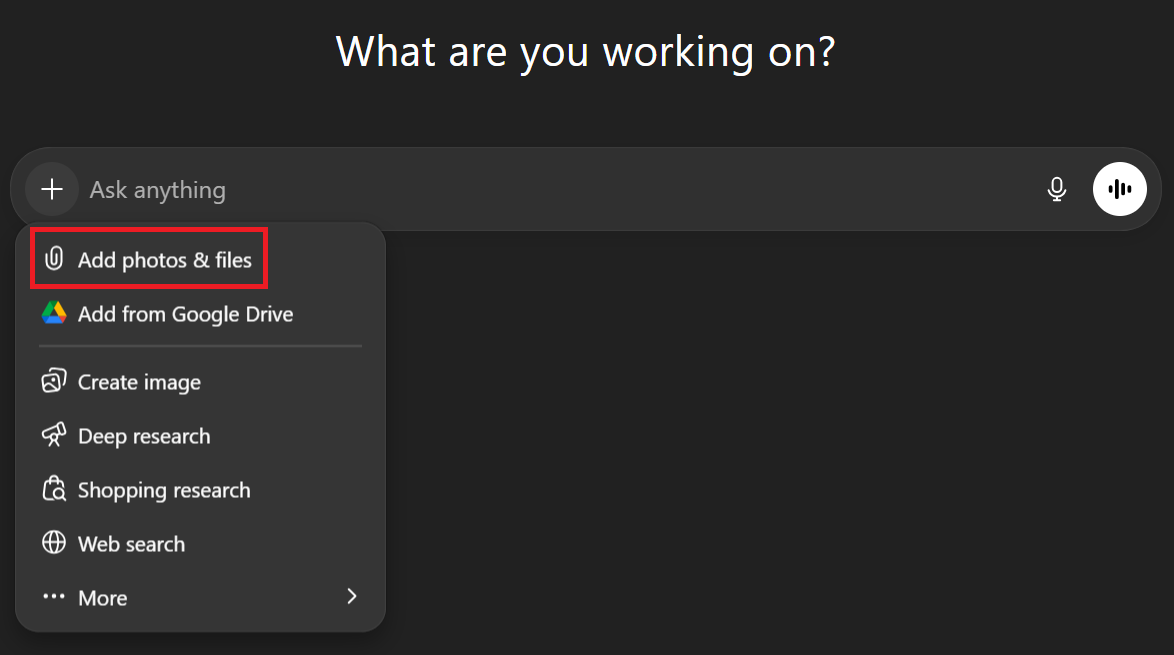
- Open a new chat in ChatGPT.
- Click the plus (+) symbol.
- Select Add photos & files.
- Select your file and upload it.
- Add your prompt and hit send.
Free vs. paid access: Free plan users have limited ability to upload files. ChatGPT Plus subscribers get broader access to file uploads and the data analysis tools that process them.
3. Share a URL or connect to Google Drive
If your data lives in Google Docs or another cloud source, you can connect ChatGPT directly to Google Drive. This lets the model access and reference your documents without manual uploads. We have a full walkthrough on how to connect Google Drive to ChatGPT if you want step-by-step guidance.

You can also watch a video tutorial below:
You can also paste a URL directly into the chat, though ChatGPT's ability to access external websites varies. Some pages load cleanly while others are blocked or partially readable.
If you're specifically working with Google Docs, check out how ChatGPT can summarize Google Docs for a more detailed breakdown of what's possible.
Limitations of Feeding Data to ChatGPT
ChatGPT is an efficient AI tool, but it has real constraints when it comes to processing your data. Knowing these limits upfront saves you a lot of frustration.
Context window limits
Every model has a context window (the maximum amount of data it can actively process in one session).
As a conversation grows longer, older content gets pushed out of the model's working memory. This means ChatGPT can quietly lose track of data you fed it earlier in the same chat, even if the conversation looks continuous on your screen. The exact window size varies by model and plan, but even the most generous limits have a ceiling.
File size and upload caps

Each file you upload can be up to 512MB, and text-based documents are capped at 2 million tokens per file. Free plan users can only upload 3 files per day, while ChatGPT Plus users get up to 80 uploads every 3 hours. During peak usage, OpenAI may temporarily lower these limits further.
CSV and spreadsheet files have an even tighter cap at around 50MB, regardless of your plan.
Files don't stick around
Uploaded files are tied to the conversation you uploaded them in and expire over time. They aren't permanently stored, so starting a new chat means starting from scratch. Files saved inside a ChatGPT Project last longer, but even then, ChatGPT isn't designed as a permanent data store.
If you're running recurring workflows like weekly meeting reviews or ongoing client reports, you'll find yourself re-uploading the same data over and over again.
Memory has limits
ChatGPT now has a memory feature that carries certain details across sessions, things like your preferences, writing style, or recurring project context. But this isn't the same as a true knowledge base. It stores high-level snippets, not full documents or structured custom data.
For teams that need ChatGPT to consistently reference specific company context, internal data, or a custom knowledge base, memory alone won't cut it. You'd still need tools like custom GPTs, vector stores, or API integrations to get that level of depth.
Large data sources don't scale well
If your data is large, structured, or frequently updated, feeding it into ChatGPT manually isn't sustainable. Pasting long documents hits token limits, uploading files eats into your daily quota, and none of it carries over to the next session. For anything beyond one-off queries, this approach creates more work than it saves.
How to Feed Meeting Data to ChatGPT Using Tactiq
Most people think about feeding data to ChatGPT in the form of documents, reports, or spreadsheets. But your meetings are some of the richest data sources you have access to. Every conversation history holds decisions, action items, and context that's immediately relevant to your work, and most of it never makes it into ChatGPT because capturing it manually is a pain.
That's where Tactiq comes in. Here's how to use it to get your meeting data into ChatGPT without the friction.
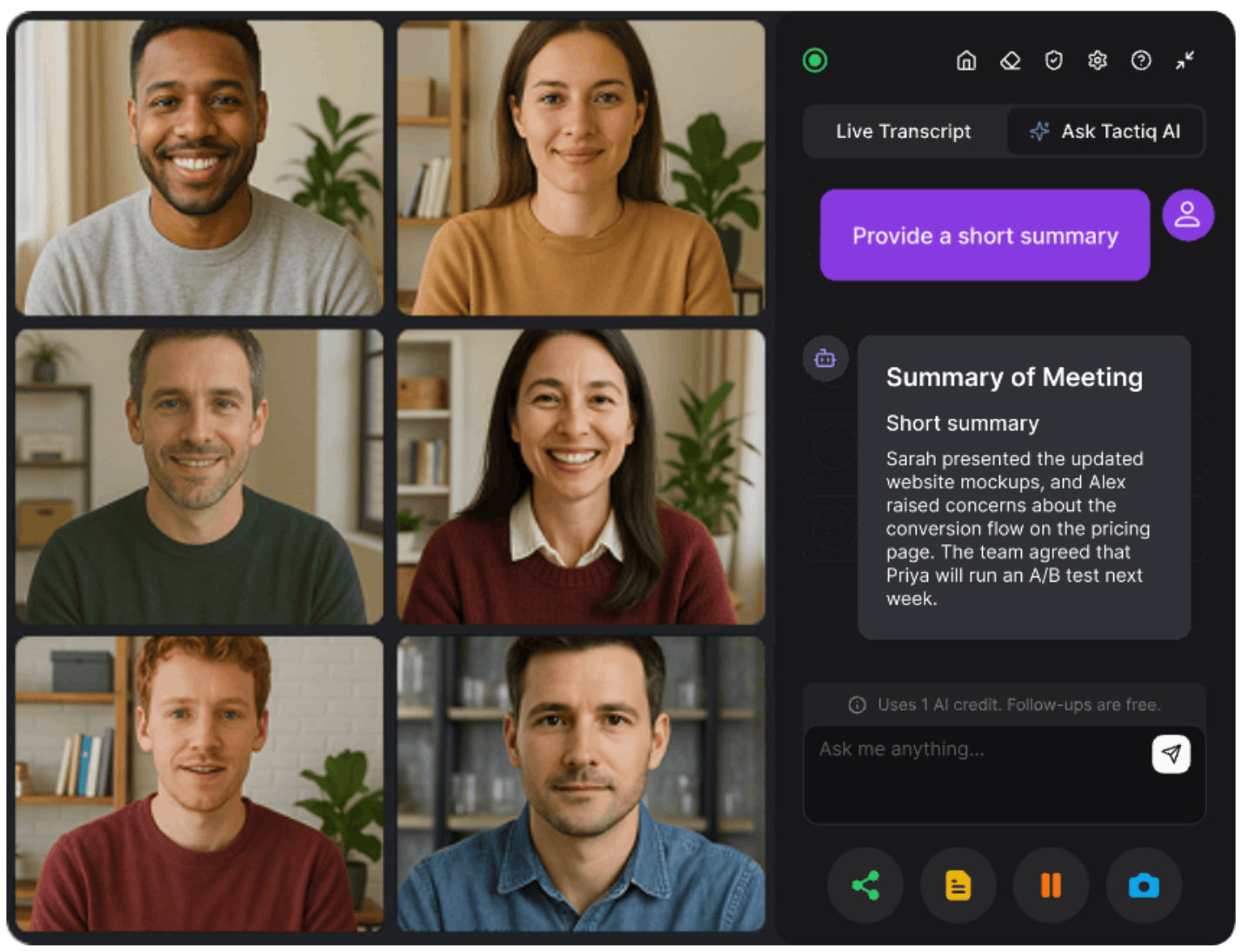
Transcribe your meeting automatically with Tactiq
Tactiq is a Chrome extension that transcribes your meetings in real time across Google Meet, Zoom, and Microsoft Teams. There's no bot joining your call, no audio recording, and no manual note-taking involved. Just install the extension, join your meeting, and Tactiq captures everything as text while you stay focused on the conversation.
Once the meeting ends, you have a full, searchable transcript ready to use, with speaker identification so you know exactly who said what. You can learn more about how to use ChatGPT for meeting notes to see how this fits into a broader meeting workflow.
Export your transcript and feed it to ChatGPT
After your meeting, you can export your Tactiq transcript as a PDF or TXT file and upload it directly into ChatGPT. From there, you can prompt ChatGPT to write a follow-up email, extract action items, summarize key decisions, or answer specific questions about what was discussed.
If you've connected your Google Drive to ChatGPT, you can also set Tactiq to automatically save transcripts to Google Drive and pull them in from there. And if you want to automate the process further, Tactiq connects to ChatGPT via Zapier, letting you build workflows that feed transcript data into ChatGPT automatically after every meeting.
Skip ChatGPT entirely with Tactiq's built-in AI

Here's something worth knowing: you don't always need to export your transcript to ChatGPT to get value from it. Tactiq has OpenAI built right in, powering meeting summaries, action item extraction, follow-up email drafts, and transcript Q&A, all without leaving the platform.
If you just need quick meeting insights, Tactiq's native AI prompts handle that in one click. You only need to bring ChatGPT into the picture when you want to combine your meeting data with other inputs or run more custom analysis.
Install the free Tactiq Chrome Extension today.
{{rt_cta_ai-convenience}}
Get the Most Out of ChatGPT With Your Data
Feeding data to ChatGPT doesn't have to be complicated. For static documents, copy-paste and file uploads get the job done. For cloud-based content, the Google Drive connector makes it easy to pull in files without the manual work. But each of these methods comes with real limits: context windows, file caps, and the need to re-upload data every time you start a new chat.
Meeting data is a different challenge entirely. It's dynamic, it's time-sensitive, and capturing it manually creates more work than it solves. Tactiq eliminates that friction by automatically transcribing your meetings in real time and giving you a clean, structured transcript you can feed directly into ChatGPT, or process instantly with Tactiq's own built-in AI.
If you're serious about getting more out of your meetings, Tactiq's Chrome extension is free to get started. Install it, join your next meeting, and see how much time you save on manual note-taking and follow-ups.
FAQs on How to Feed Data to ChatGPT
Can you feed data to ChatGPT?
Yes. You can feed data to ChatGPT by pasting text directly into the chat, uploading files like PDFs or CSVs, or connecting to Google Drive. Each method has limits depending on your plan and the size of your data.
How do I upload documents to ChatGPT?
Click the paperclip icon in the chat input, select your file, and upload it. ChatGPT supports PDF, DOCX, XLSX, CSV, and TXT. Free users can upload 3 files per day; Plus users get up to 80 every 3 hours.
What file types can you upload to ChatGPT?
ChatGPT supports PDF, DOCX, XLSX, CSV, TXT, and more. Video, audio, and password-protected files are not supported. Each file can be up to 512MB, with text files capped at 2 million tokens.
How do I train ChatGPT on my own data?
You can't fine-tune ChatGPT directly through the chat interface. Instead, use custom GPTs with knowledge files, set up vector stores via the API, or feed your data through the system prompt or file uploads for session-based context.
Can ChatGPT use my meeting notes?
Yes. Paste your notes into the chat or upload them as a file. For a faster workflow, use Tactiq to auto-transcribe your meetings and export the transcript directly into ChatGPT, or use Tactiq's built-in AI to skip the export entirely.
Artículos relacionados






Get live transcriptions without an AI bot joining the meeting.
Prueba Tactiq para tu próxima reunión.
¿Quiere disfrutar de la comodidad de los resúmenes de IA?
Prueba Tactiq para tu próxima reunión.
¿Quiere disfrutar de la comodidad de los resúmenes de IA?
Prueba Tactiq para tu próxima reunión.