
How to Delete a Shared Library in OneDrive
November 29, 2025
November 29, 2025
March 3, 2026
March 3, 2026

Deleting a shared library in OneDrive isn't obvious. The delete option lives in SharePoint, not OneDrive itself. That’s because each shared library connects to a Microsoft SharePoint site, and the delete action lives there instead of inside OneDrive.
This guide breaks down the steps clearly. You’ll learn how to delete a shared library in OneDrive, what happens afterward, and safer alternatives if you only want to remove it from your view.
You’ll find:
- Steps to delete a shared library through its SharePoint site
- What the delete action removes
- Options to stop sync or remove local access
- Tips for handling Microsoft Teams meeting recordings stored in shared libraries
What Is A Shared Library In OneDrive?
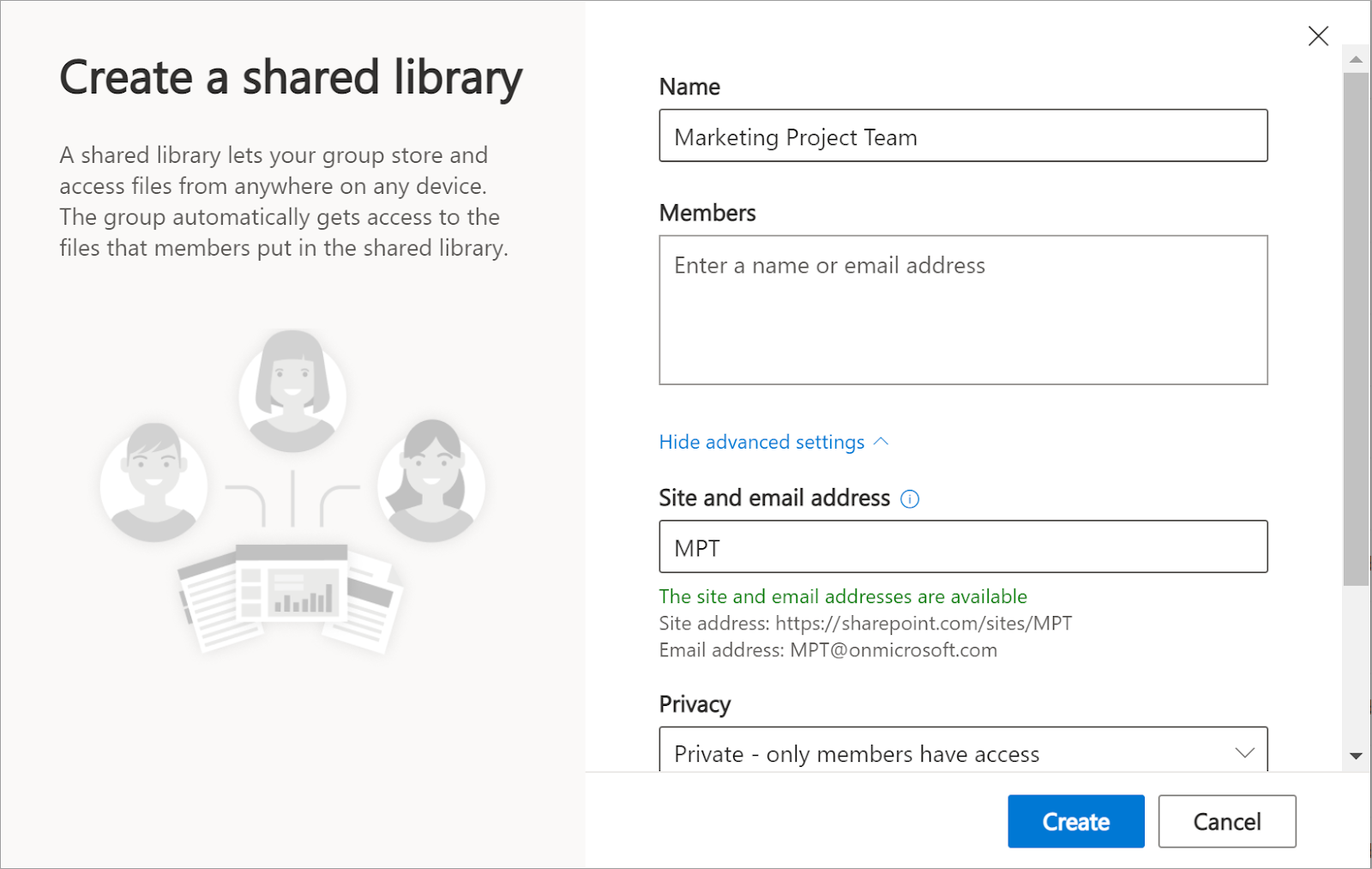
A shared library is a space where teams can collaborate on files. It connects your OneDrive for Business account to a Microsoft SharePoint site, giving your group one place to store, edit, and manage documents.
You’ll see these libraries in the left pane of OneDrive under Quick Access.
Each library belongs to a SharePoint site that houses its folders, settings, and permissions. That link is why you can’t delete the library directly from OneDrive. The action must happen from the connected site.
Permission levels matter too.
- Owners control the site. They can change settings, update access, and delete the entire library.
- Members can view and edit files, but can’t delete the library itself.
A shared library keeps your team’s work in one place, but it also follows SharePoint’s structure and rules behind the scenes.
How To Delete A Shared Library In OneDrive (Step-By-Step)
You can only delete a shared library by removing the SharePoint site behind it. The steps below walk you through that process from OneDrive to the delete action.
Prerequisites
Before you start, check a few things:
- You must be an Owner of the SharePoint site. Members can’t delete anything.
- The steps only work in a web browser, not the OneDrive sync app or the mobile app.
- When you delete a library, all files within that site are removed for everyone. If you want to delete the site, make sure the team agrees.
💡 Pro Tip: If meeting recordings are filling your shared library, switch to Tactiq for real-time transcription. You'll capture key details without storing large video files in OneDrive.
Step-by-step instructions
Follow these steps to delete a shared library:
1. Open OneDrive in your browser.
2. In the left pane, scroll down to the Shared libraries section.
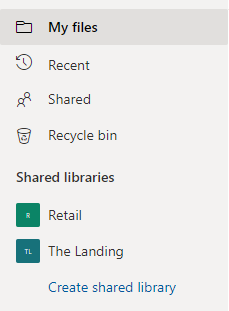
3. Select the library you want to delete.
4. In the upper right, select Go to site.
5. You’re now on the SharePoint site that houses the library.
6. Click Settings (gear icon).
7. Select Site information.
8. At the bottom, click Delete site.
9. A notification box appears showing what will be deleted. Select the check box to confirm.
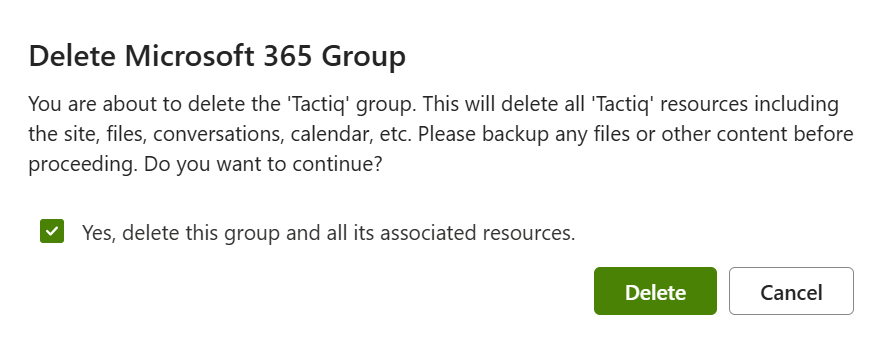
10. Click Delete to finish.
What Happens After Deletion?
When you delete the SharePoint site behind the shared library, several things happen on the OneDrive and SharePoint side. Here’s what to expect:
- All library content is deleted. Every file and folder stored in the shared library is removed for all members.
- The library may remain visible for a short time. SharePoint can take a moment to finish processing the deletion, so the library might still appear in your OneDrive left pane during that period.
- The site becomes inaccessible. If someone clicks the old link, the site won’t load because its location no longer exists.
- Recovery depends on admin settings. Deleted sites often move into a SharePoint recovery stage. If this option is enabled, an admin may restore the site before it’s permanently wiped.
- Permanent deletion removes everything. Once the final cleanup happens, the site and its documents can’t be restored.
Alternative Methods To Remove Shared Libraries
Sometimes you don’t want to delete the entire SharePoint site. You only want the shared library out of your view or off your device. Here are safer alternatives depending on your role and how you access the library.
Remove from File Explorer (without deleting)
If the library appears in File Explorer through OneDrive sync, you can remove it locally without deleting the site.
1. Click the small cloud icon in the system tray near the clock.
2. Click the gear icon → Settings.

3. Go to the Account tab.
4. Under “Choose folders” or “Locations syncing”, you’ll see your shared libraries.

5. Click Stop sync next to the library you want to remove.
6. Confirm the notification box. The folder will disappear from File Explorer after this.
This method is helpful if you no longer need the files on your computer but still want the site to remain active for your team.
Remove from shared list (non-owners)
If you’re not a site owner, you can’t delete the library or the SharePoint site behind it. But you can remove your access.
- Ask the site owner to revoke your permissions.
- Once your access is removed, the library will no longer appear in your Shared list.
- You may need to refresh OneDrive before it disappears from your view.
These options keep the site intact while removing it from your day-to-day workflow.
Managing Microsoft Teams Meeting Recordings In Shared Libraries
Microsoft Teams often saves meeting recordings to OneDrive or a connected SharePoint site. If your team meets often, these video files can occupy a large amount of space in your shared library. Over time, this can make your Microsoft 365 storage feel tight and more difficult to manage.
Here’s what usually happens:
- Recordings from channel meetings are stored on the SharePoint site linked to that channel.
- Recordings from standard meetings are saved to the organizer’s OneDrive under the Recordings folder.
- Large MP4 files can quickly fill up storage, especially if several people record meetings each week.
Instead of storing big video files, you can switch to a lighter workflow that doesn’t depend on recording everything.
Tactiq gives you real-time transcription during your Microsoft Teams calls, so that you capture important details without saving bulky video files into a shared library.

With Tactiq, you can:
- Live transcription: Capture conversations in real time across Teams, Google Meet, and Zoom.
- AI meeting summaries: Turn transcripts into summaries, key points, and action items.
- Custom AI prompts: Create consistent outputs, such as follow-up emails, task lists, or project updates.
- Instant transcript export: Download or share transcripts as text, PDF, or SRT files. You can also check out our guide on how to transcribe video to text if you prefer working from existing recordings.
Install the free Tactiq Chrome Extension for your meetings and keep your shared library storage under control.
{{rt_cta_ai-convenience}}
Best Practices For OneDrive Shared Library Management
A shared library can quickly fill up with documents, recordings, and old project files. Keeping it organized helps your team stay on track and prevents storage issues across OneDrive and SharePoint.
Here are a few habits that make shared library management easier:
- Schedule regular cleanups: Set a weekly or monthly review to remove outdated files, duplicate folders, and unused documents.
- Review permission levels: Check who has access to the SharePoint site. Removing old members improves security and keeps your library focused on the right people.
- Archive completed work: Move finished projects into an archive folder or a separate site so your main library stays clear.
- Monitor storage usage: SharePoint storage is shared across Microsoft 365. Keep an eye on large files, especially videos from Microsoft Teams or older project assets.
- Use transcription tools instead of full recordings: Tools like Tactiq let you capture meeting notes without saving large video files to your shared library. Real-time transcription, summaries, and AI prompts help you document meetings while keeping storage low.
Keep Your OneDrive Shared Libraries Clean And Under Control
Deleting a shared library in OneDrive starts with removing the SharePoint site behind it. Once you confirm the delete action, all files inside that library disappear for everyone, so it’s important to review access, storage needs, and backup options before you proceed.
If you only want the library out of your view, removing sync or asking the owner to adjust permissions is a safer choice. And for teams that store a lot of Microsoft Teams recordings, switching to transcript-based workflows can help keep your storage clean and easier to manage.
Tactiq gives you live transcription across Microsoft Teams, Google Meet, and Zoom, so you can capture important details without storing heavy video files in your shared libraries.
Explore more Microsoft tips and meeting guides in our full Microsoft Teams collection.
FAQs About How to Delete a Shared Library in OneDrive
Can a member delete a shared library in OneDrive?
No. Only site owners can delete the shared library because the delete action happens in the SharePoint site behind it.
Does deleting a shared library delete it for everyone?
Yes. Removing the site deletes all files and removes access for every member.
Can I delete a shared library from the mobile or desktop app?
No. The delete option only appears in the browser version of OneDrive and SharePoint.
What happens to files in a deleted shared library?
All files are removed when the SharePoint site is deleted. Recovery depends on your admin’s retention settings.
How long does it take for a deleted shared library to disappear?
It may remain in the left pane briefly while SharePoint finishes processing the deletion. It disappears once the system updates.


Want the convenience of AI summaries?
Try Tactiq for your upcoming meeting.
Want the convenience of AI summaries?
Try Tactiq for your upcoming meeting.
Want the convenience of AI summaries?
Try Tactiq for your upcoming meeting.