
OneDrive Version History: What it is & How to Use it
- Published:
- December 28, 2025
- Updated:
- February 10, 2026

OneDrive files often change multiple times a day. Edits, comments, and updates can make it hard to track what changed or recover an earlier version.
OneDrive Version History lets you view and restore previous file versions. It works in the background and keeps older versions available when you need them.
In this article, you’ll learn how to:
- View previous versions of a file
- Restore an older version without losing the current version
- Understand version limits and storage impact
- Save meeting notes with automatic versioning
How OneDrive Version History Works
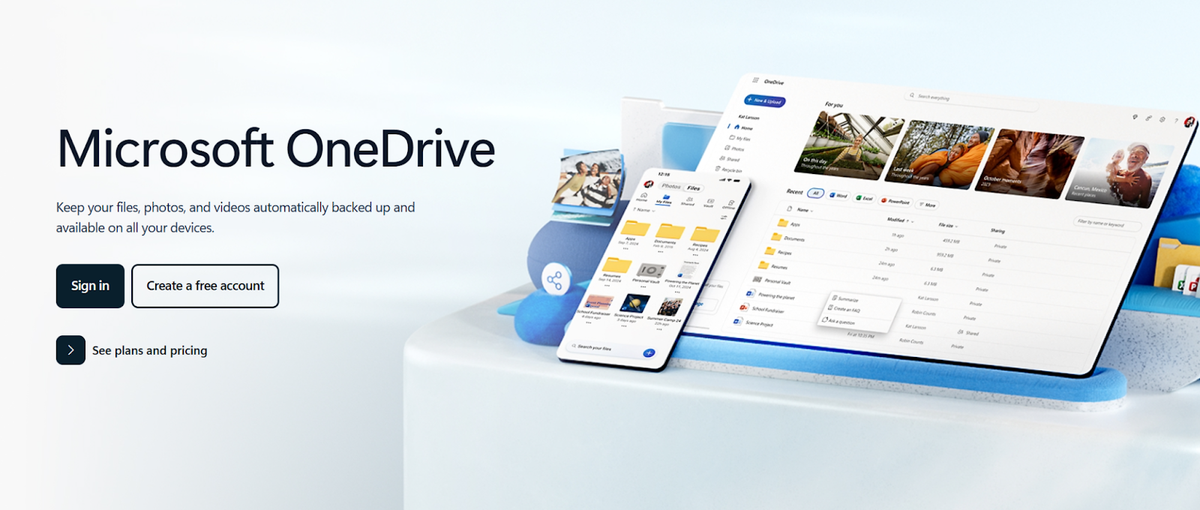
OneDrive Version History runs automatically for files saved in OneDrive. Each time a file is edited and saved, OneDrive keeps a copy of the earlier version. You don’t need to turn anything on for personal accounts.
Version history applies to many file types. This includes:
- Word documents
- Excel files
- PowerPoint decks
- PDFs
- Images
- Videos
You can review older versions, compare changes, or restore a file to a previous state.
Features and capabilities
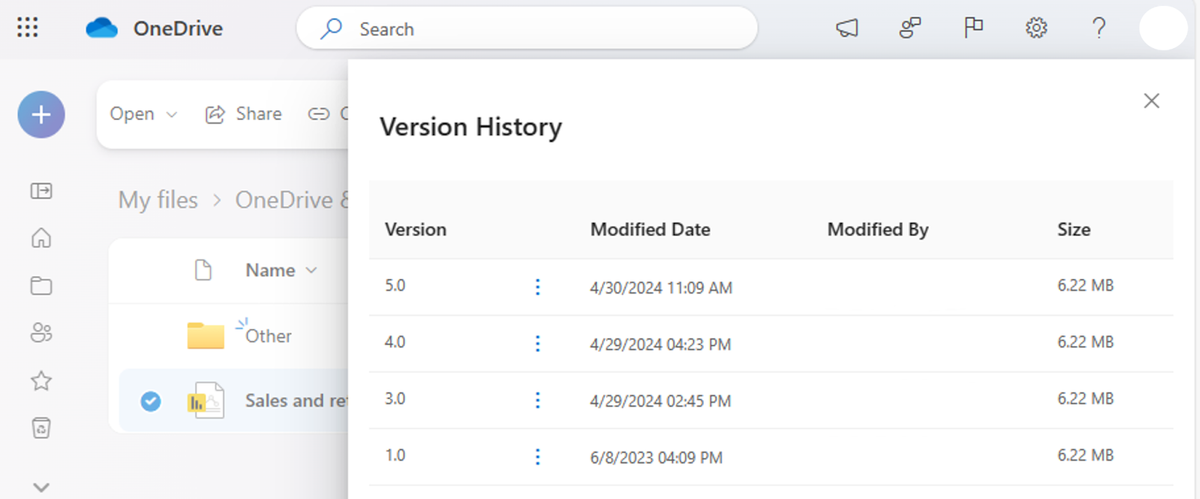
Version history lets you open older versions of a file without replacing the current version. Each version shows the save date and time. In shared files, you can also see who made changes.
You can restore any saved version. When you do, the restored version becomes the current version, and the prior current version stays available as a new entry.
Via Microsoft
Version limits and retention
Version limits depend on the account type.
- Personal Microsoft account users can keep up to 25 versions for 30 days.
- Work or school account limits depend on the versioning settings set by admins.
Admins control how many versions are saved and how long they are kept in SharePoint site libraries.
Storage considerations
Each saved version counts toward storage. Files that have frequent edits or large file sizes can increase storage usage over time.
Business admins can adjust versioning settings to limit the number of versions stored and manage storage more closely.
How To Access OneDrive Version History
You can access version history from the OneDrive web app, File Explorer, or inside Microsoft 365 apps. The steps vary slightly by platform, but the result is the same. You can view, compare, and restore older versions of a file.
Access version history on OneDrive web
Use this method when working in a browser. It works for files stored in OneDrive.
- Sign in to OneDrive.
- Locate and right-click the file.
- Select Version history.
- View the list of saved versions.
- Open or restore a version.
The current version appears at the top. Older versions will appear below, being ordered by date.
Access version history in File Explorer
This option works when OneDrive sync is enabled on your device.
- Open the OneDrive app on your PC.
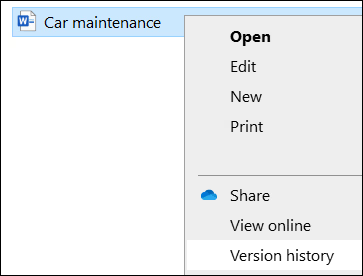
- Right-click the file.
- Select Version history.
Via Microsoft
Access version history in Office apps
You can view versions directly while editing a document in Microsoft 365.
- Open the file in Word, Excel, or PowerPoint.
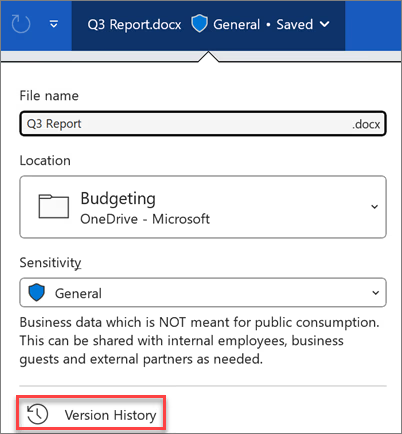
- Click the title of your file and select Version history.
Via Microsoft
- Select a version. It will open in a separate window.
💡 Pro Tip: Save meeting transcripts directly to OneDrive with Tactiq (opens in a new tab). Each update stays in one file, and version history tracks changes automatically.
How To Restore A Previous Version
Restoring a previous version lets you roll a file back to an earlier state. You can do this from OneDrive, File Explorer, or inside Microsoft 365 apps.
Select and restore steps
You can restore a version in a few clicks.
- Open the Version history for the file.
- Review the list of versions.
- Select the version you want.
- Click Restore.
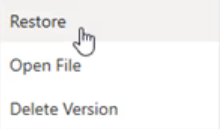
The selected version becomes the current version of the file.
What happens to the current version
The current version is not deleted. OneDrive keeps it as an older version in the version history list. This lets you restore again if needed.
This setup makes it easy to recover files without losing recent changes.
Troubleshooting: OneDrive Version History Not Showing
If version history is missing, the issue is usually related to file type, sync status, or account settings. Start with these checks.
Check file type compatibility
OneDrive version history works for saved files stored in OneDrive, not temporary or system-generated files.
Version history is supported for:
- Microsoft 365 files (Word, Excel, PowerPoint)
- PDFs
- Images (PNG, JPG)
- Videos
- CAD files
- Text-based documents
Version history does not work for:
- Temporary files (for example, files ending in .tmp)
- Files that were never saved to OneDrive
- Files opened locally but not synced
- Some app-generated cache or lock files
If version history is missing, confirm the file is fully saved and stored in OneDrive, not just opened from a local folder.
Verify file sync status
Files must be fully synced to OneDrive. If sync is paused or incomplete, versions may not appear. Check the OneDrive icon and confirm syncing is active.
Clear browser cache
When using OneDrive on the web, cached data can hide updates. Clear your browser cache, sign out, then sign back in and check again.
Check account permissions
You need edit access to view version history. Read-only users may not see versions, especially in shared folders.
Verify versioning settings (business accounts)
For work or school accounts, versioning settings are managed through site administration in SharePoint. If version history is disabled at the site level, versions won’t be saved.
OneDrive Version History Limitations
OneDrive Version History is helpful, but it has limits. Knowing them helps you avoid surprises when restoring files or managing storage.
Storage impact
Each saved version counts toward storage. Large files or frequent edits increase usage faster. This is more noticeable with videos, design files, or long documents that change often.
For work or school accounts, admins can adjust versioning settings to limit the number of versions saved.
Retention periods
Retention depends on the account type.
Personal Microsoft account:
- Up to 25 versions
- Versions kept for 30 days
Work or school account:
- Retention depends on admin settings
- Controlled through SharePoint site libraries
Once the limit is reached, older versions are deleted automatically.
OneDrive sync vs backup (important note)
Version history is not a full backup. It only tracks changes to saved files. If a file is deleted and removed from the recycle bin, version history cannot recover it.
For long-term protection, version history should be combined with a proper backup strategy.
How To Use Meeting Transcripts With OneDrive
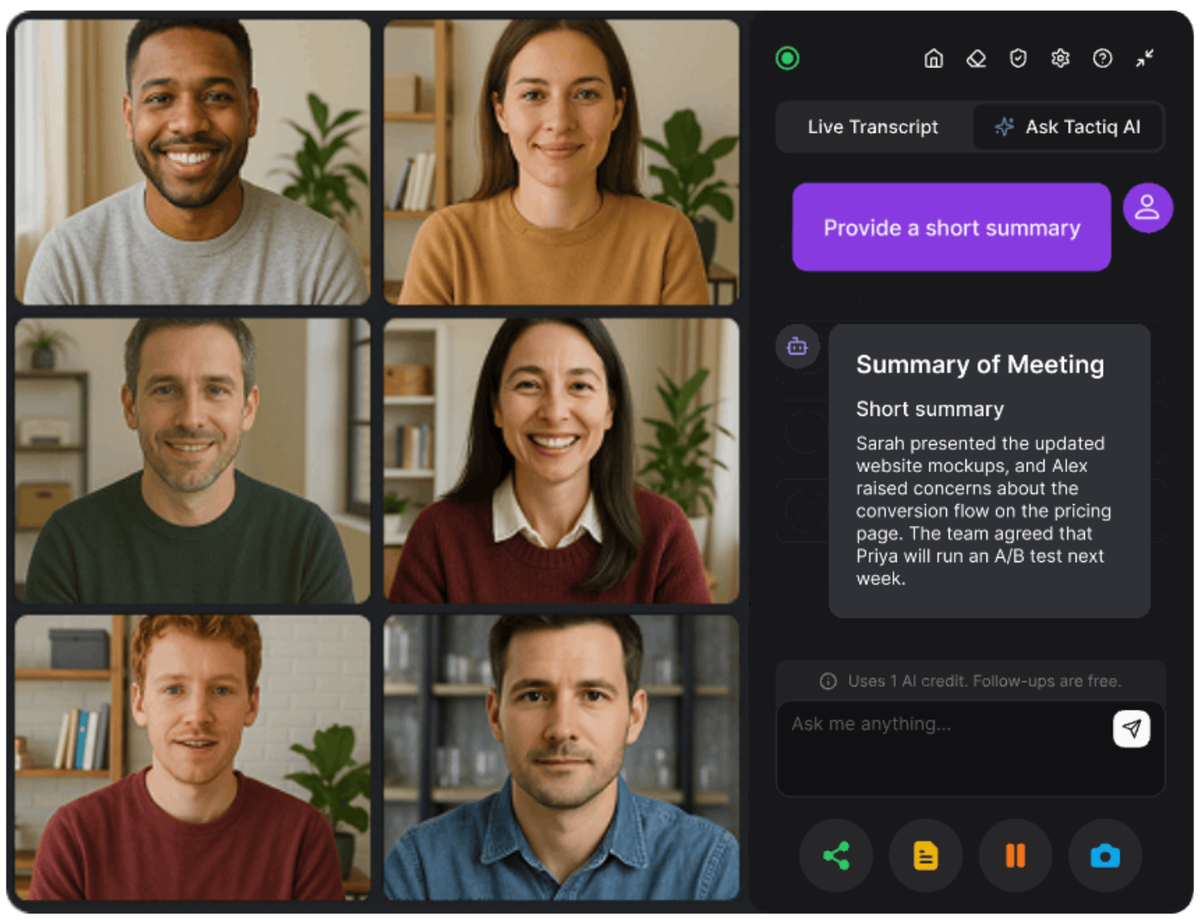
OneDrive version history helps recover changes after files are edited. That same protection matters for meeting notes, which often change after the call ends.
This is where Tactiq (opens in a new tab) fits into the workflow. Tactiq captures meeting conversations from Microsoft Teams, Zoom, and Google Meet and saves transcripts directly to OneDrive as editable files.
What Tactiq does
Tactiq captures meeting conversations and turns them into editable documents.
Key capabilities include:
- Real-time meeting transcription
- Automatic transcript saving to OneDrive
- Word file creation after meetings
- Folder-level control for saved transcripts
Connect OneDrive to Tactiq
To enable automatic saving, you first connect your OneDrive account.
Steps:
- After signing up and installing the Tactiq Chrome Extension (opens in a new tab), go to your Tactiq dashboard (opens in a new tab).
- Open Account & Settings.
- Select Integrations.
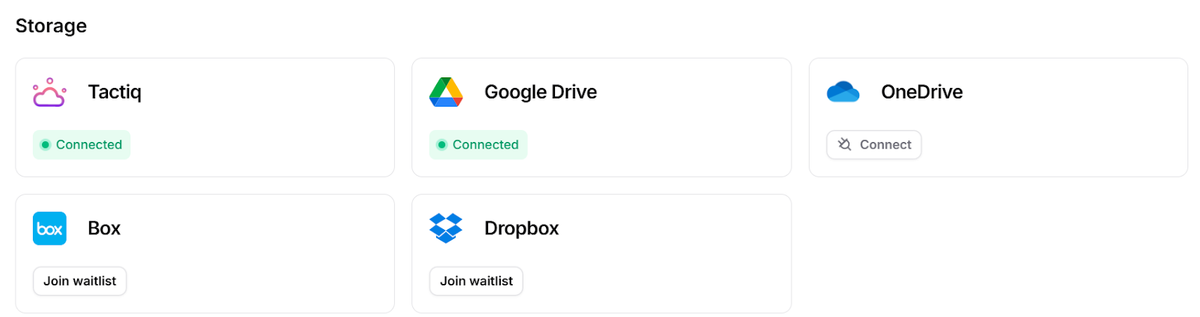
- Scroll to Storage.
- Click Connect next to OneDrive.
- Sign in with your Microsoft account.
- Review permissions and select Accept.
Once connected, OneDrive displays a Connected status. You can disconnect it at any time.
You can also watch a video tutorial here:
Automatically save transcripts to OneDrive
After connecting OneDrive, you can control how transcripts are saved.
- Open the OneDrive settings under Integration.
- Turn on Automatically save after meeting.
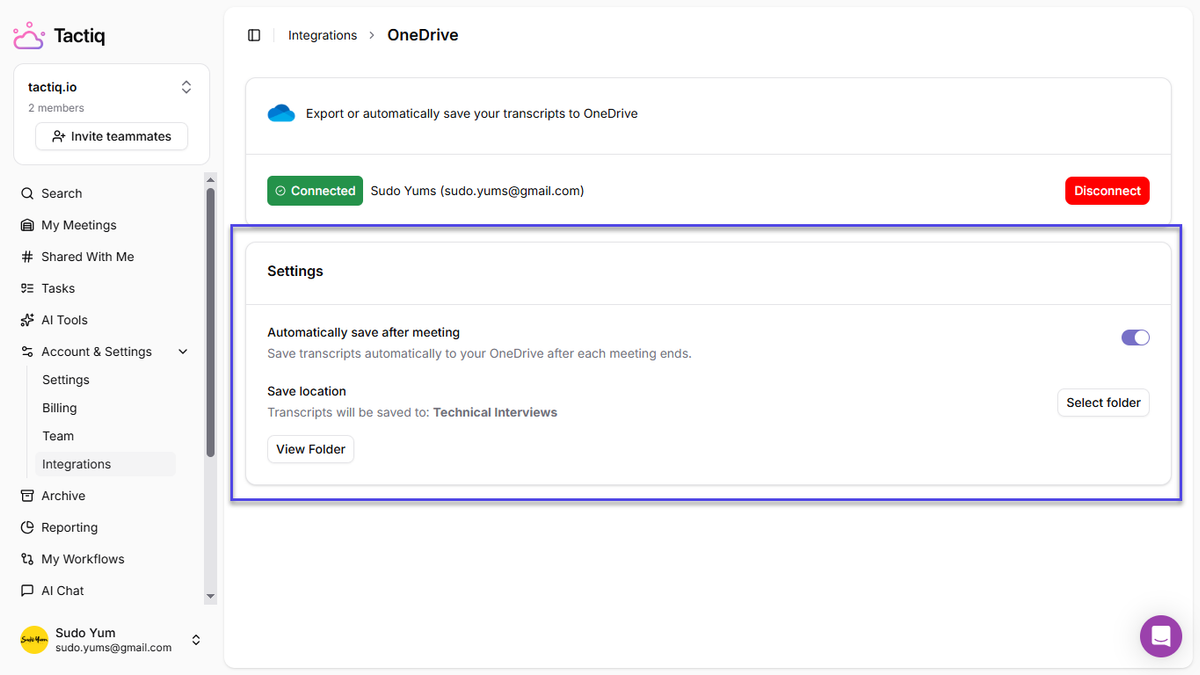
- Select the OneDrive folder where transcripts should be saved.
When enabled, each meeting creates a Word document in OneDrive. Any edits made later are tracked through version history.
Transcripts are saved directly to OneDrive, so there’s no downloading or copy-pasting. All edits stay in one file, and version history tracks changes automatically.
Want the convenience of AI summaries?
Try Tactiq for your upcoming meeting.
Wrapping Up
OneDrive Version History gives you a reliable way to review changes, recover earlier edits, and keep a single source of truth for important files. It’s especially useful for documents that change often, such as shared notes or ongoing records.
Tactiq fits into this setup by saving meeting transcripts directly to OneDrive as Word files. From there, OneDrive handles version tracking as notes are updated, summaries are added, or follow-ups are written. This keeps meeting records accurate over time without manual downloads, duplicate files, or copy-paste work.
FAQs About OneDrive Version History
Is there a way to see version history in OneDrive?
Yes. You can view the version history by right-clicking a file in OneDrive and selecting Version history. This shows a list of saved versions with dates and restore options.
How long does OneDrive keep version history?
Personal Microsoft account users can keep up to 25 versions of a file, and those versions are stored for 30 days. For work or school accounts, the number of versions and retention period depend on the versioning settings set by administrators.
Why is my OneDrive version history not showing?
Common reasons include unsupported file types, files not fully synced, read-only permissions, or versioning being disabled in account settings.
Does OneDrive version history count against storage?
Yes. Each saved version uses storage space. Files with frequent edits or large sizes increase storage usage over time.
How can I save meeting notes to OneDrive with automatic versioning?
You can use Tactiq to save meeting transcripts directly to OneDrive as Word files. Once saved, OneDrive applies version history automatically as the file is edited.
Related articles

Want the convenience of AI summaries?
Try Tactiq for your upcoming meeting.
Bringing AI into your meetings has never been so easy.
Add to Chrome - It's free!(opens in a new tab)Try Tactiq in your upcoming meeting!
Sign up now