
How Long Can You Use Google Meet for Free
February 20, 2025
February 20, 2025
July 30, 2025
July 30, 2025

How Long Can You Use Google Meet for Free

Google Meet remains one of the most accessible video conferencing tools available, especially for individuals and small teams using a free Google account. But if you've ever been in a long discussion and suddenly hit a time limit, you know how important it is to understand exactly what the free version includes.
In this guide, we’ll break down everything you need to know about Google Meet’s free plan, including the current limits for group meetings, what’s changed for free users, and how certain tools can help you manage your meetings better.
What Is the Time Limit for Free Google Meet Sessions?
If you’re using a free Google account, it’s important to understand the limitations of Meet’s free plan, especially when hosting group meetings or extended video calls.
Group Calls (3+ Participants)
For free Google Meet users, any Google Meet call with three or more participants is capped at 60 minutes. Once the Google Meet time limit is reached, the session ends automatically. You’ll get a warning at the 55-minute mark so you can wrap things up or prepare to rejoin with a new meeting link.
One-on-One Calls
Unlike group meetings, one-on-one calls are unlimited for users on the free plan. You can keep the conversation going for hours without worrying about disconnection. This makes Google Meet a reliable option for private video meetings, interviews, or personal chats.
Do Paid Plans Remove the Time Limit?
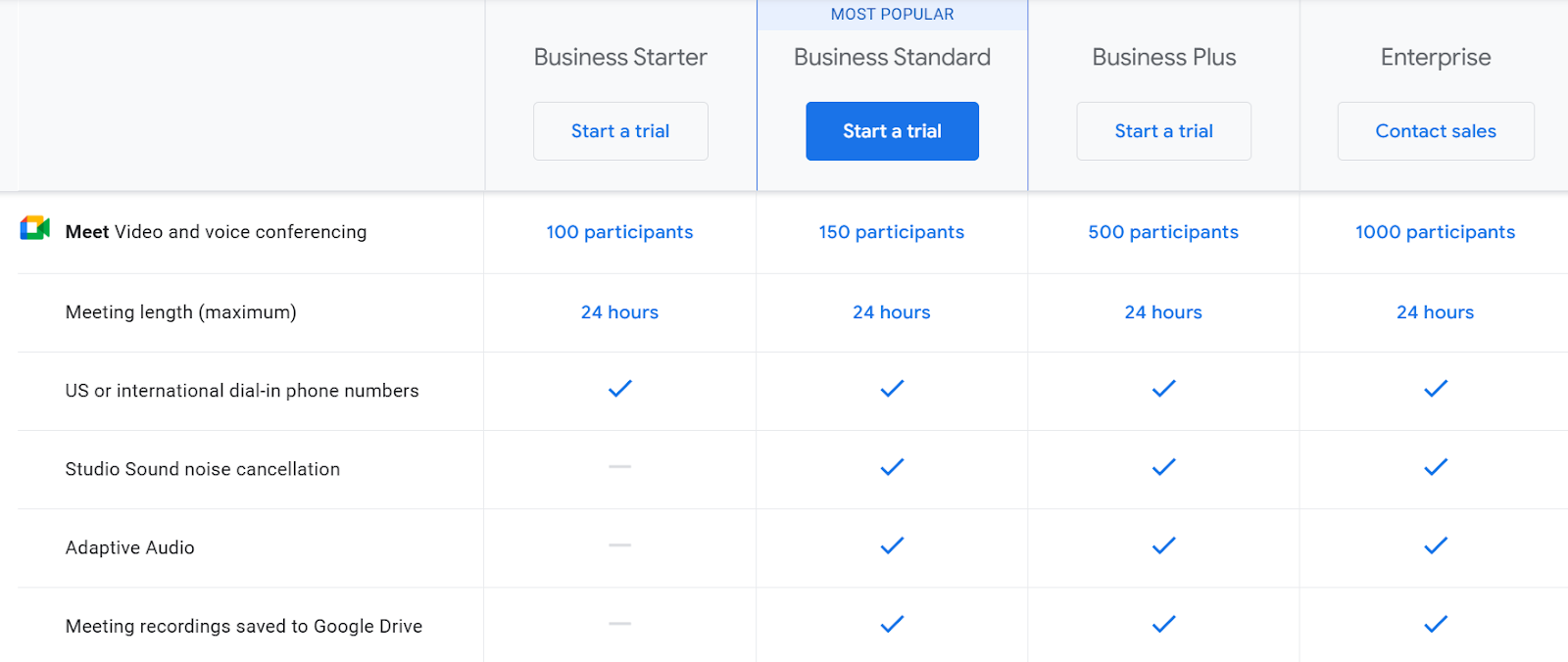
Yes. If you upgrade to a paid Google Meet plan, such as Google Workspace Individual or Google One Premium, you can extend your meeting time to 24 hours, even for group meetings. This is a major benefit for educators, consultants, and remote teams who need uninterrupted time.
To learn more about costs and features, review the Google Meet pricing.
Why Does Google Meet Impose Time Limits on Free Accounts?
If you're using the free plan, you've likely wondered why the platform limits meetings to just 60 minutes. These restrictions aren't random; they serve specific purposes for both users and Google.
Google's Reasoning Behind the Time Limit
The time limit helps Google manage resources across its global user base. With millions relying on Google tools like Meet, Gmail, and Google Drive, placing caps on free accounts ensures performance and server stability for everyone.
Benefits for Google
Limiting Google Meet sessions also supports:
- Server optimization: Fewer long-running meetings equal less server strain.
- User segmentation: Encourages users with advanced needs to explore paid plans.
- Quality control: Helps maintain consistent video and screen sharing quality across the platform.
Why Time Limits Push Toward Paid Options
The limitations create a clear incentive to upgrade to a paid Google Meet plan, especially for professionals and organizations who need more flexibility. A Google Workspace subscription unlocks:
- Extended meetings (up to 24 hours)
- Meeting recording saved to Google Drive
- Enhanced security features, moderation tools, and Google Meet Companion Mode
- Integration with Google Calendar for smarter scheduling
So while Google Meet’s free plan is great for everyday use, upgrading can be essential for teams who depend on longer, uninterrupted video conferencing tools.
How to Extend Google Meet Time for Free
Even though Google Meet's free version limits group calls to 60 minutes, there are still a few ways to continue your video meetings without switching immediately to a paid Google Meet plan.
1. Start a Free Google Workspace Trial
You can extend your Google Meet sessions by activating a 14-day free trial of Google Workspace. It gives you access to:
- Up to 24-hour meetings for groups
- Features like meeting recording, noise cancellation, and breakout rooms
How to activate:
- Visit the Google Workspace site.
- Sign in with your free Google account.
- Choose a plan to try (you won’t be charged during the trial).
- Start hosting longer meetings.
2. Apply for Google Workspace for Nonprofits
Eligible nonprofit organizations can apply for Google Workspace for Nonprofits, which provides:
- Extended meeting durations
- Access to Gmail, Google Drive, Docs, and Meet
- No cost or discounted pricing for verified nonprofits
3. Restart the Meeting Manually
If you’re staying on the free plan, you can simply restart your meeting when it ends:
At the 55-minute warning, inform participants that the meeting will be restarted. At the 55-minute warning, let participants know you'll restart the call. After generating a new link, share it so everyone can join meetings again with minimal interruption.
- Create a new Google Meet link.
- Send it via chat, email, or Google Calendar.
- Rejoin to continue your discussion.
This method keeps you within the limits of your free account but allows longer conversations in multiple parts.
What Happens After the 60-Minute Limit?
Here’s what happens when you reach the time limit during a group meeting with 3 participants or more.
Meeting Cut-Off and Notifications
When your Google Meet call hits the 55-minute mark, you’ll receive an automatic pop-up notification warning that your session is about to end. This gives you a few minutes to wrap up or coordinate next steps.
At exactly 60 minutes, the meeting will end automatically, disconnecting all participants from the session.
Can You Rejoin With the Same Google Meet Link?
In many cases, yes. You can reuse the same Google Meet link, but all participants must manually click it again to re-enter. It won’t restart the meeting automatically, so it’s good practice to communicate that clearly in advance.
Strategies to Minimize Disruption
Here are some tips for managing the Google Meet time limit:
- Use a timer: Set a reminder to notify you a few minutes before the limit hits.
- Pre-schedule backup links: Use Google Calendar to add a second link just in case you need to restart.
- Break long meetings into parts: This works well for interviews, study groups, or creative team sessions.
- Prepare participants: Let everyone know the plan if the meeting gets cut off, so there’s no confusion or wasted time.
This kind of planning ensures your video calls continue smoothly, even with a free account.
Google Meet vs Zoom: Time Limits and Features Compared
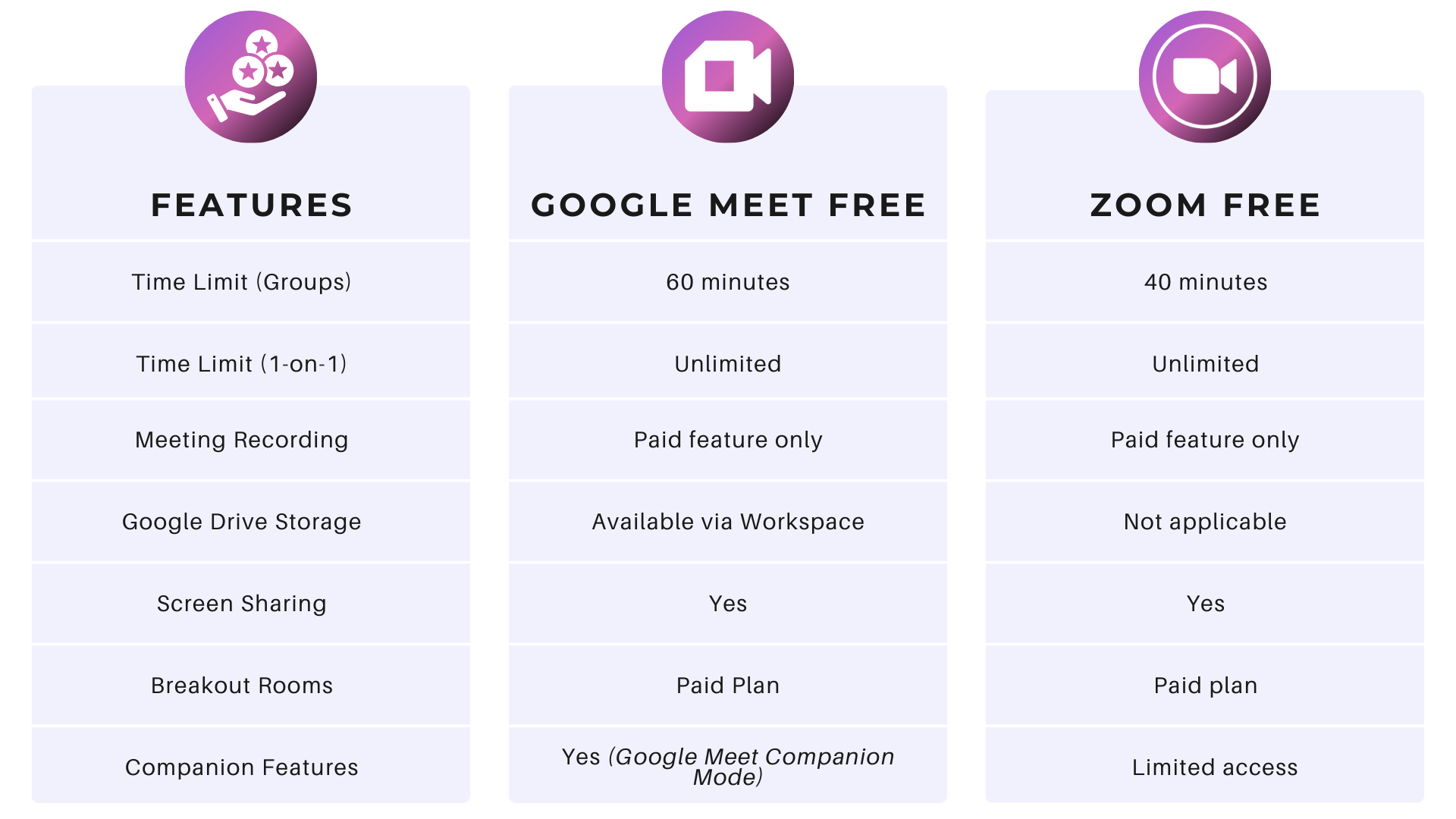
When choosing between Google Meet and Zoom, one of the biggest considerations for free users is how long each platform lets you hold a meeting without a subscription. Here's how the two video conferencing tools compare in 2025.
Meeting Time Limits
- Google Meet’s Free Version:
- Meetings (3+ participants): Limited to 60 minutes
- One-on-one calls: Unlimited duration
- Rejoin: You can restart or rejoin using the same Google Meet link
- Zoom Free Plan:
- Meetings: Limited to 40 minutes
- One-on-one meetings: Unlimited duration
- Rejoin: Requires restarting the session or creating a new meeting ID
Participants Allowed
- Google Meet: Up to 100 participants per meeting for free accounts
- Zoom: Also supports up to 100 participants on its free tier
Features at a Glance
User Preferences by Scenario
- Business Teams Using Google Tools: Prefer Google Meet for its native integration with Google Calendar, Docs, Sheets, and Google Drive.
- Workshops & Events with Breakout Rooms: Zoom is often favored for breakout room functionality and session controls.
- Education and Online Classes: Both platforms support video meetings for remote learning, but Google Meet connects easily with Classroom, while Zoom offers more interaction features like reactions and polls.
How Tactiq Enhances Google Meet for Free Users
While understanding how long you can use Google Meet for free is essential, using the right tools alongside it can make a big difference, especially when it comes to staying organized after the meeting ends.
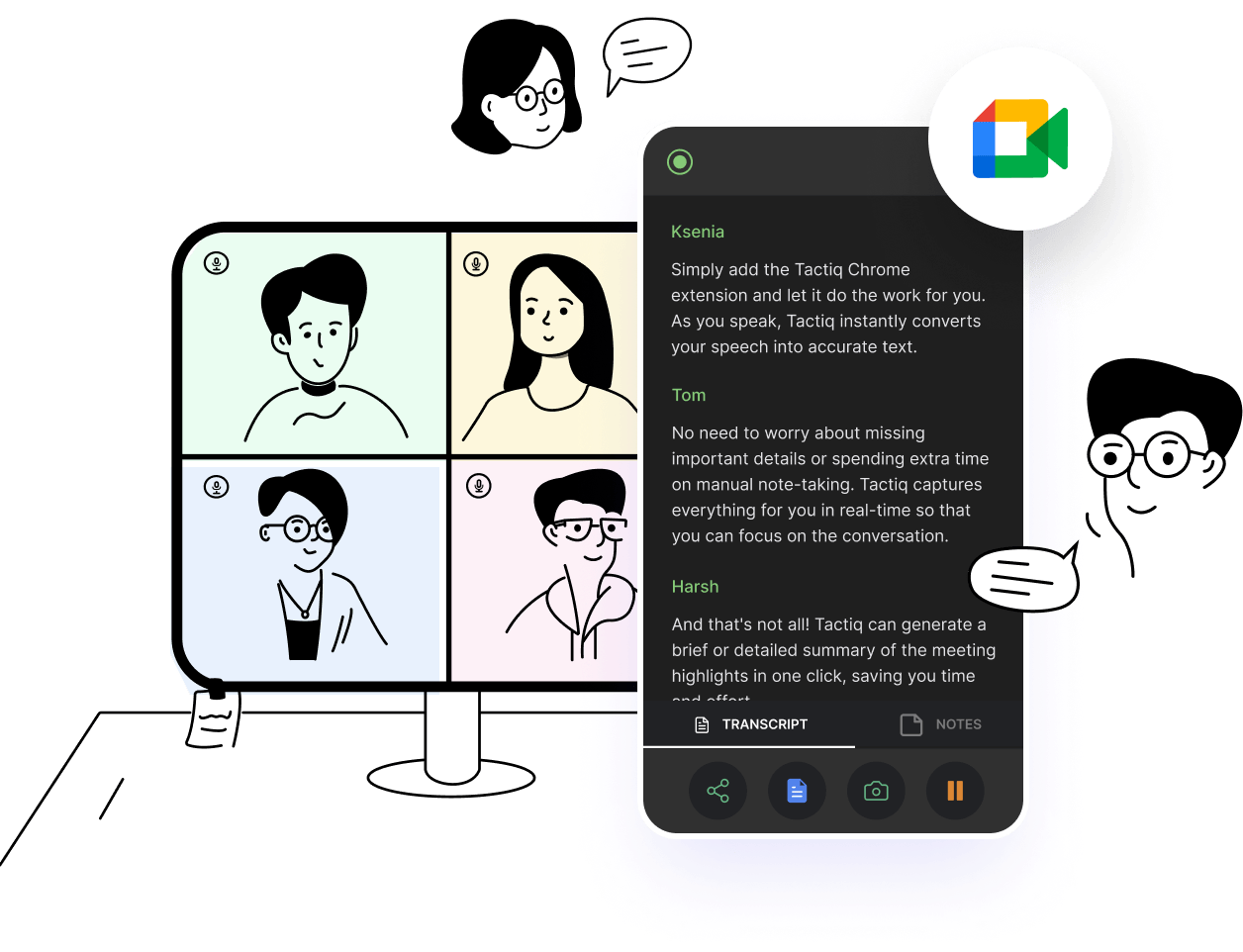
Tactiq is a free Chrome extension built specifically to work with Google Meet. It helps users capture, organize, and act on the most important parts of their video meetings, without the need to type notes manually.
If you're wondering how to use AI note-taking with Google Meet, Tactiq makes it simple. With just a Chrome extension, you can automatically capture everything said in the meeting and turn it into actionable insights.
Key Features for Google Meet
- Live Transcriptions: See everything that's said during a Google Meet call, transcribed in real time.
- Speaker Labels: Identify who said what, so conversations stay clear.
- Highlighting and Tagging: Mark key ideas, decisions, and action items instantly.
- AI Summaries: Generate concise, readable summaries that highlight the core takeaways.
- Google Drive AI Workflow: Automatically convert meeting transcripts into well-formatted Google Docs and save them directly to the correct folders in Google Drive. Perfect for teams that organize meeting records by project or client.
By combining Google Meet with Tactiq, even free users can stay focused on the conversation without losing track of important information. Download the free Tactiq Chrome Extension today!
{{rt_cta_ai-convenience}}
Maximizing Your Google Meet Experience
Now that you know exactly how long you can use Google Meet for free, it's easier to plan around the 60-minute time limit and avoid unexpected disruptions during meetings. Whether you're using a free account for quick check-ins or hosting longer sessions, there are flexible options to help you stay connected, from restarting a meeting to exploring free trials or nonprofit access.
If you're looking to get even more from your Google Meet sessions, consider using tools that support AI note-taking, meeting summaries, and integration with tools like Google Drive. These features can help transform your calls from simple video meetings into well-organized, action-oriented conversations.
For best results, explore the latest features, test your setup with a Google Meet test, and choose the Google Meet pricing tier that matches your team’s needs.


_Main.jpg)




便利なAIサマリーが欲しいですか?
次回のミーティングで Tactiq をお試しください。
便利なAIサマリーが欲しいですか?
次回のミーティングで Tactiq をお試しください。
便利なAIサマリーが欲しいですか?
次回のミーティングで Tactiq をお試しください。