How to Access Your Google Meet History: 2025 Complete Guide
February 20, 2025
February 20, 2025
August 4, 2025
August 4, 2025
Need to bill a client, check meeting durations, or confirm who showed up?
Accessing your Google Meet history helps you track dates, times, attendees, and call length. But finding this info isn't always easy.
Unless everything's in one place, you'll waste time scrolling through calendar invites. Plus, those don't show who actually joined or how long meetings lasted.
This guide covers how to see your Google Meet call history on any device, who has access to this feature, and how to use AI tools and Google Meet extensions to organize and search your meeting records more easily.
Who Can Access the Google Meet History Feature
As of 2025, all Google users, including those with free personal accounts, can access Google Meet history. You no longer need to be a Google Workspace admin to access this information.
If you're using a Google Workspace account, your organization’s admin may also have access to broader Meet data through the admin console. Personal accounts, on the other hand, can only view their own meeting history.
How to See Your Google Meet History (All Devices)
Here’s how to view your call history and download meeting details on MacBook, Windows, iOS, and Android.
How to see your Google Meet history on a MacBook
- Go to Google Takeout.
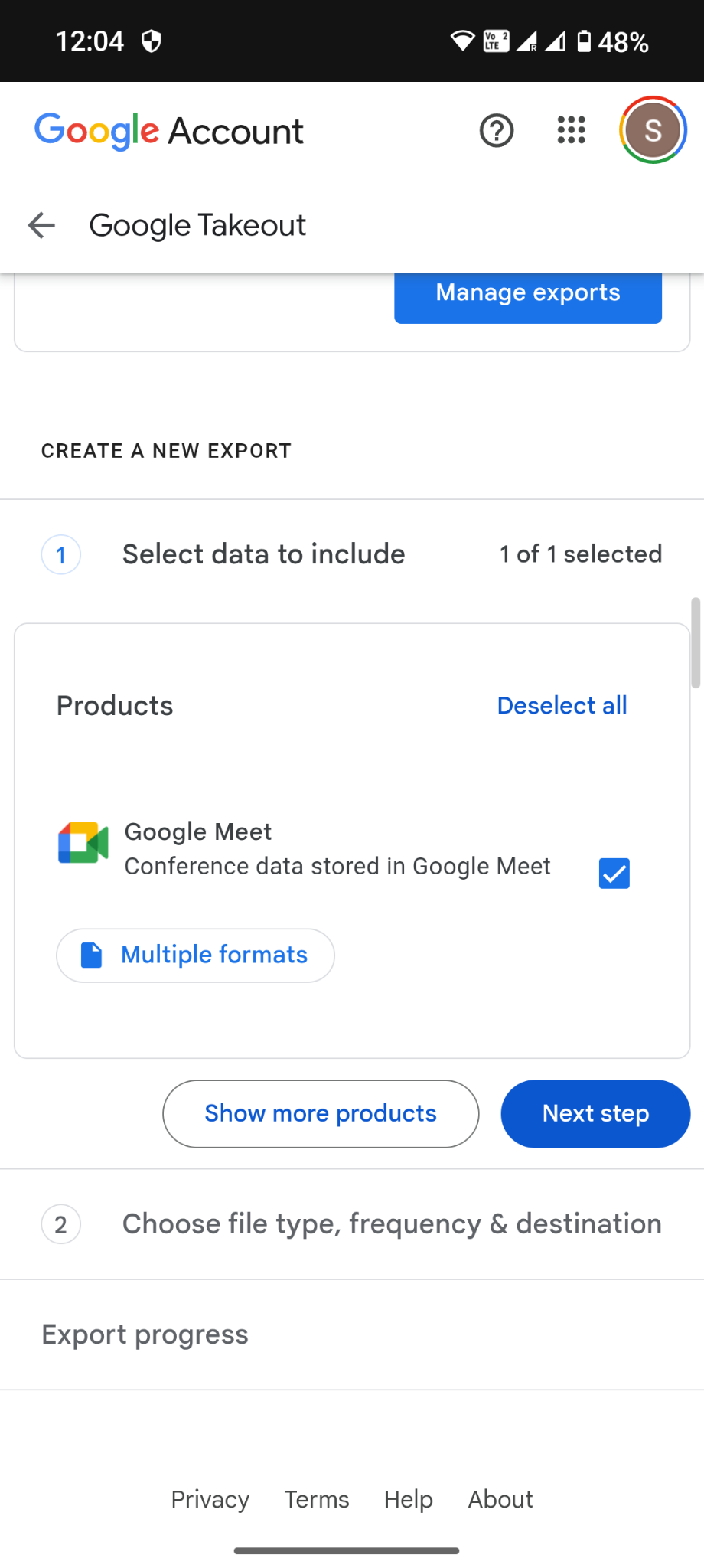
- Click Deselect all to clear all product selections.
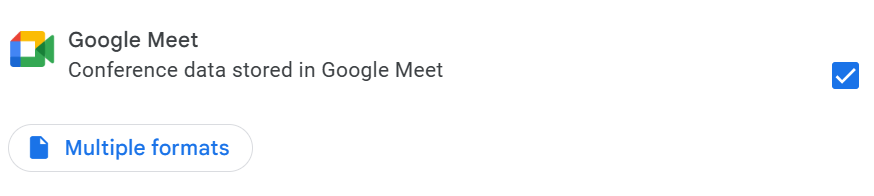
- Scroll down and select Google Meet.

- Choose your preferred file type, export frequency, and destination, then click Create export.
- Once the export is ready, you will receive the file to your email. It will include your Google Meet history as a CSV.
Pro tip: Want more than a spreadsheet? Sign up for Tactiq to automatically transcribe your Google Meet calls, save detailed meeting history, and generate AI-powered summaries. No manual exports needed.
How to see your Google Meet history on Windows
- Go to Google Takeout.
- Click Deselect all to clear all product selections.
- Scroll down and select Google Meet.

- Choose your preferred file type, export frequency, and destination, then click Create export.
- Once the export is ready, you will receive the file to your email. It will include your Google Meet history as a CSV.
How to see your Google Meet history on iOS
- Open the Meet app.
- Tap the menu button on the upper left.
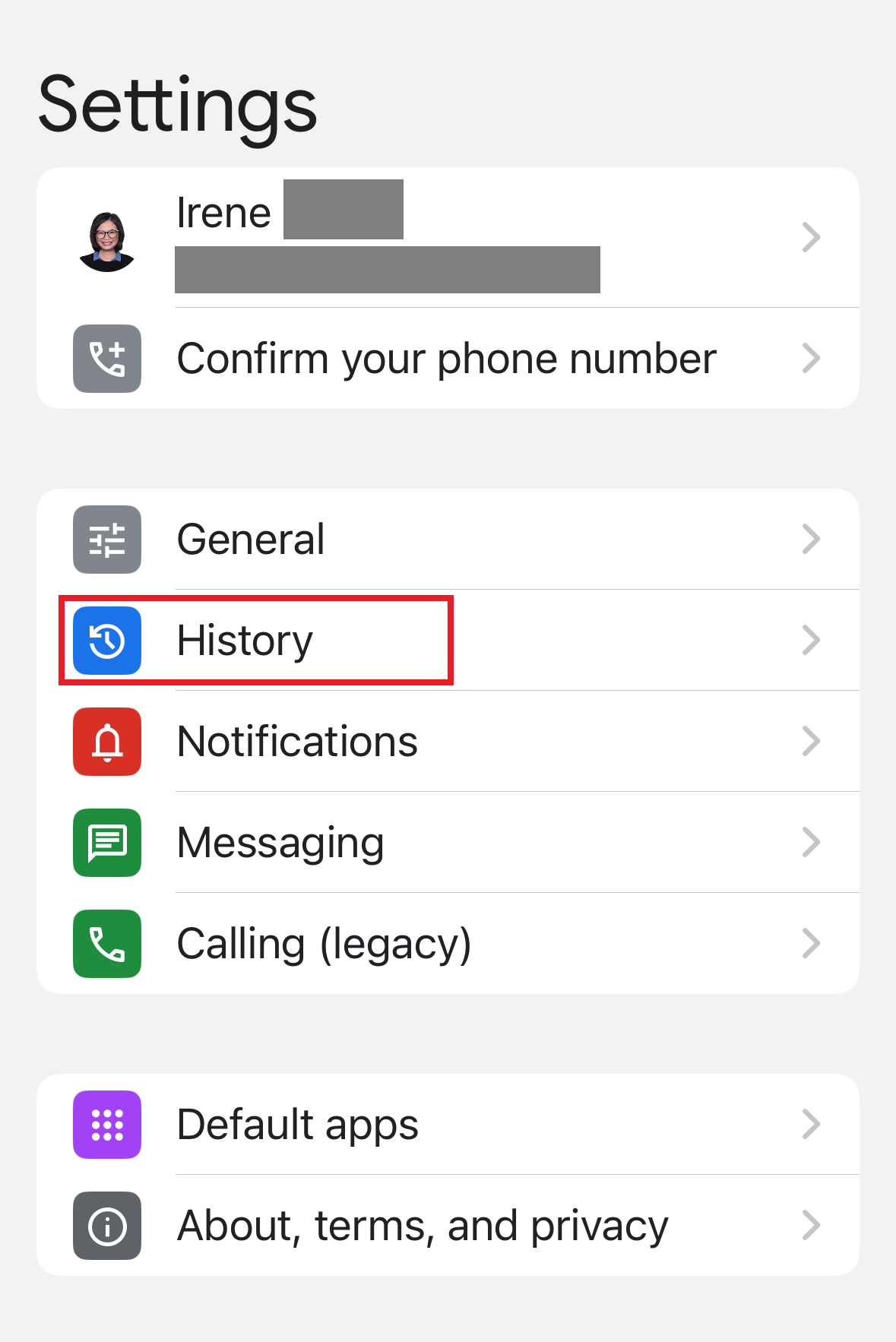
- Tap Settings > History > Export History.

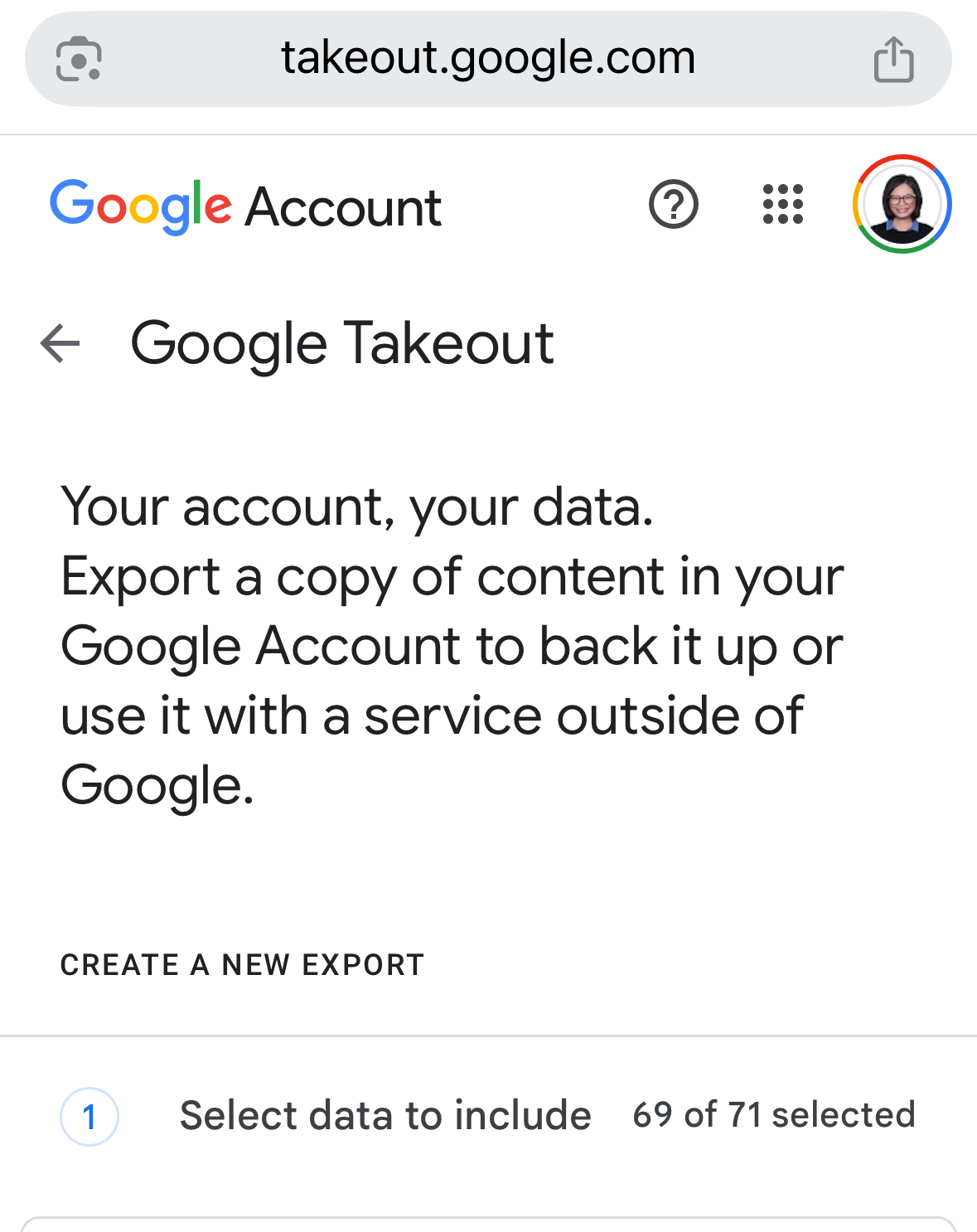
- It will take you to Google Takeout. Select data to include, file type, frequency & destination, then tap Create Export.

- You will receive an email once the export is done.
How to see your Google Meet history on Android
- Open the Meet app.
- Tap the menu button on the upper left.
- Tap Settings > History > Export History.
- It will take you to Google Takeout. Select data to include, file type, frequency & destination, then tap Create Export.

- You will receive an email once the export is done.
How to Save Google Meet History Using AI Tools
Google Takeout gives you basic meeting data, but what if you need to remember what was actually discussed?
Tactiq helps you capture the full context of your Google Meet calls. This free Chrome extension transcribes meetings in real time and saves everything with searchable details.
Saving Google Meet history with Tactiq

Here’s how you can use Tactiq:
- Visit the Chrome Web Store, click Add to Chrome, then select Add Extension.
- Open your Tactiq dashboard and go to Accounts & Settings > Integrations section.
- Click Connect under Google Meet.
- Once connected, the Tactiq widget will appear inside your Google Meet window during each call, showing a live transcript.

Your transcriptions are automatically saved with metadata including date, time, participants, and meeting duration. You can:
- View and search your entire meeting history
- Export transcripts to tools like Google Docs, Notion, and Slack
- Filter by attendees, keywords, or topics discussed

Tactiq’s new AI features
Tactiq also goes beyond transcription and offers AI-powered workflows to help you act on your meeting data:
- AI Meeting Kits & Prompts: Create reusable prompt libraries to automate tasks like writing summaries, generating follow-up emails, or converting meeting notes into project updates.
- Custom AI Prompts: Ask specific questions about your Google Meet meetings (e.g., “What were the next steps for the marketing team?”) and get instant answers from your transcripts.
- AI Workflows: Automate entire processes based on meeting content, such as triggering a Jira ticket or saving key decisions to Google Drive.
With these features, you don’t just save your meeting history. You turn it into reusable knowledge that supports your work.
If you're exploring other video conferencing tools, check out our list of Google Meet alternatives to see which platforms offer the features you need.
{{rt_cta_ai-convenience}}
Searching Through Your Google Meet History with Tactiq

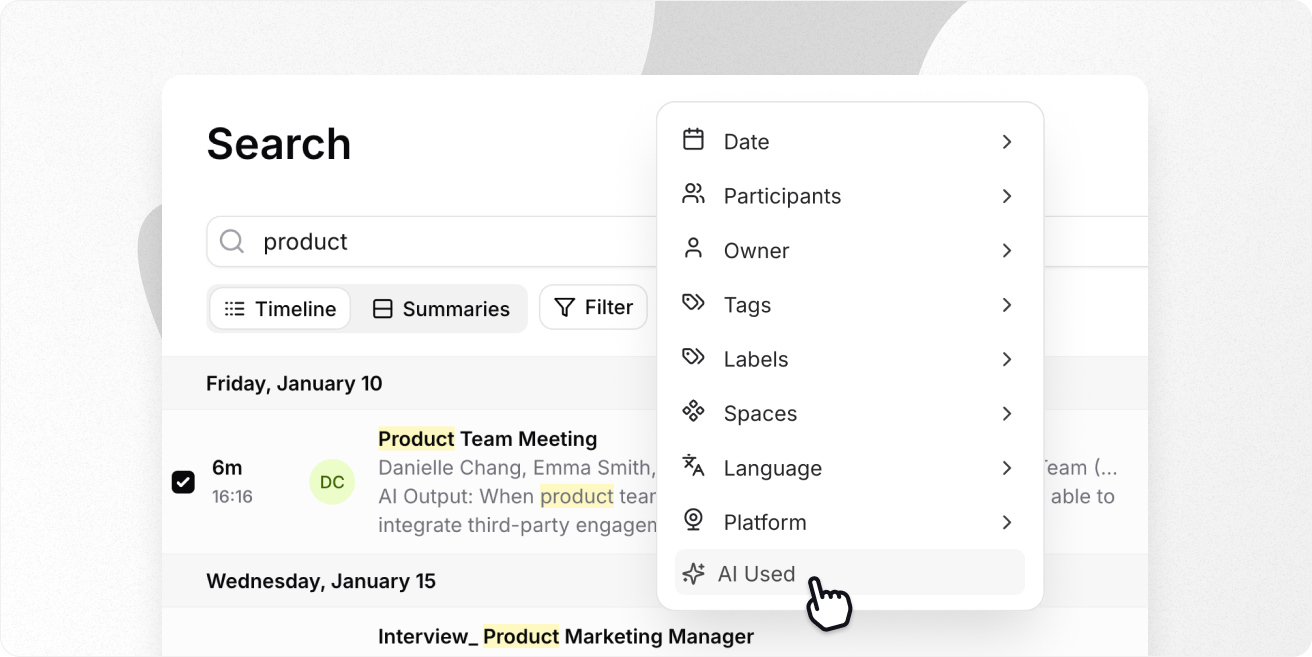
Once your Google Meet sessions are transcribed and saved in Tactiq, finding the right meeting takes seconds. Whether you're preparing reports, billing a client, or trying to find past meetings, you can search your history by:
- Attendees
- Meeting titles or topics
- Keywords spoken during the meeting
Each meeting in your Tactiq dashboard includes a full transcript, participant list, date, time, and duration. You can also jump directly to specific moments in the transcript to revisit important conversations.
If you're trying to locate a specific client call, sales demo, or internal check-in, just type a few key terms. Tactiq will surface exactly what you need.
This smart search experience is great when managing multiple projects, client accounts, or team conversations.
Wrapping Up
Accessing your Google Meet history is no longer limited to admins. Whether you're using a desktop or mobile device, you can now download past meeting details to stay organized, document work, and follow up confidently.
For even more insight, tools like Tactiq go beyond basic call logs: giving you full transcripts, searchable records, and AI-powered features like summaries, action items, and automated workflows. It’s the easiest way to turn your meetings into useful documentation without lifting a finger.
Download the free Tactiq Chrome Extension today to start saving and searching your Google Meet history effortlessly.
FAQs about Your Google Meet History
Can I check my Google Meet history?
Yes. As of July 2025, all Google users, not just Workspace admins, can view and download their Meet history through Google Takeout.
Does Google Meet track activity?
Yes, but activity tracking depends on your plan. Google Meet can record attendance and generate live stream reports for users on specific Workspace editions (e.g., Business Plus, Enterprise, Education Plus). Admins can manage these settings through the admin console.
Can you see the “last seen” status on Google Meet?
No. Google Meet does not offer a “last seen” feature like some messaging platforms. You can only view participation data for individual meetings if attendance tracking is enabled.
Where can I find my Google Meet recording?
If you recorded a particular meeting using Google Meet, the video file is saved to your Google Drive under the “Meet Recordings” folder. For step-by-step instructions, check out our guide on Google Meet recording and how to locate the file for download.
Can I search through past Google Meet sessions?
Not with Google Meet alone. However, with Tactiq, every transcribed meeting is fully searchable. You can filter by speaker, keyword, or topic to quickly find the exact discussion you're looking for.
便利なAIサマリーが欲しいですか?
次回のミーティングで Tactiq をお試しください。
便利なAIサマリーが欲しいですか?
次回のミーティングで Tactiq をお試しください。
便利なAIサマリーが欲しいですか?
次回のミーティングで Tactiq をお試しください。

_Main.jpg)