
¿Cómo desactivo Google Gemini?
- Publicado:
- September 15, 2026
- Updated:
- October 14, 2026

Google Meet has two separate Gemini features, and each one needs its own off switch.
Ask Gemini is an in-call assistant you can question during a meeting. “Take notes for me” is the note-taker that generates a shared notes (se abre en una pestaña nueva) document afterward.
Turning off one does not turn off the other, so it helps to know which one is causing the problem. This guide walks through both switches, plus who controls each one:
- How to turn off Ask Gemini during a call or from your calendar
- How to turn off “Take notes for me”, including the default setting for meetings you host
- How admins control both features for the whole organization
- What participants can do if they are not the host
- A more consistent alternative to “Take notes for me”
How to Turn Off Ask Gemini
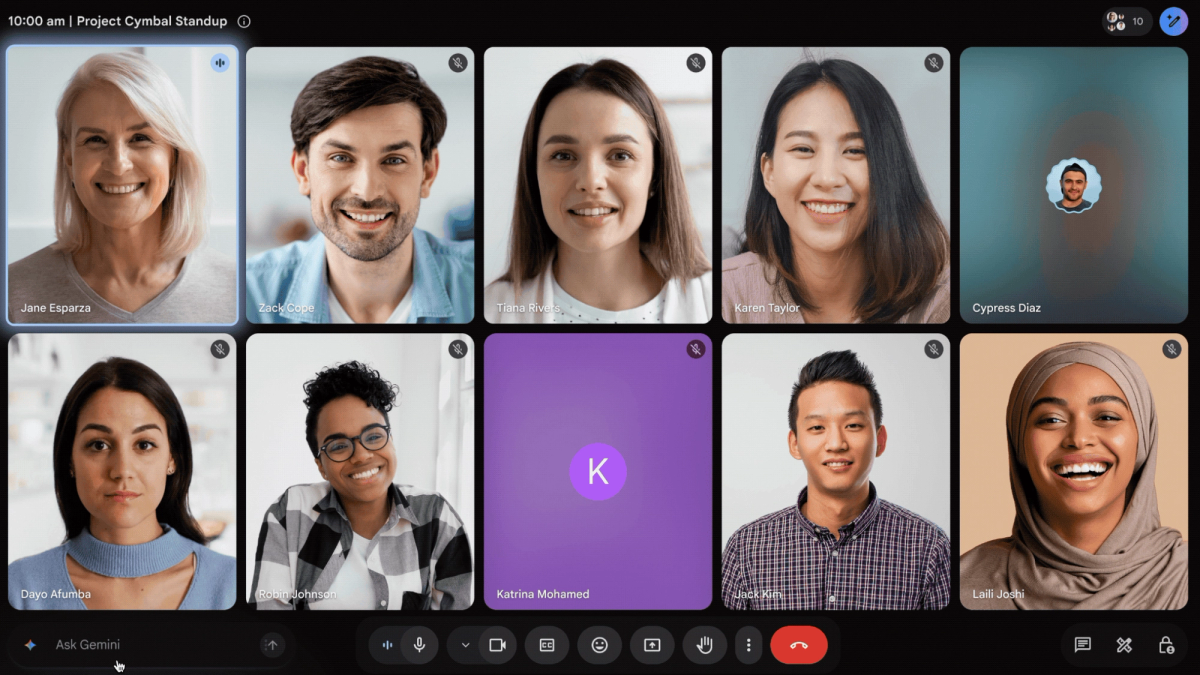
Ask Gemini is on by default, and it starts automatically once two people join the meeting. Hosts and co-hosts are the only ones who can turn it off for everyone.
- During the call: Open Host controls and turn off Gemini in that section. You can also hover over the Gemini icon at the bottom of the screen, then use the three-dot menu.
- From the calendar event: Edit the event, open Video call options, and click Gemini. Uncheck "Meeting attendees can use Ask Gemini" to disable it before the meeting starts.
This works well for one-off meetings, but recurring calls need the same toggle switched off every time you edit that event.
How to Turn Off "Take Notes for Me"
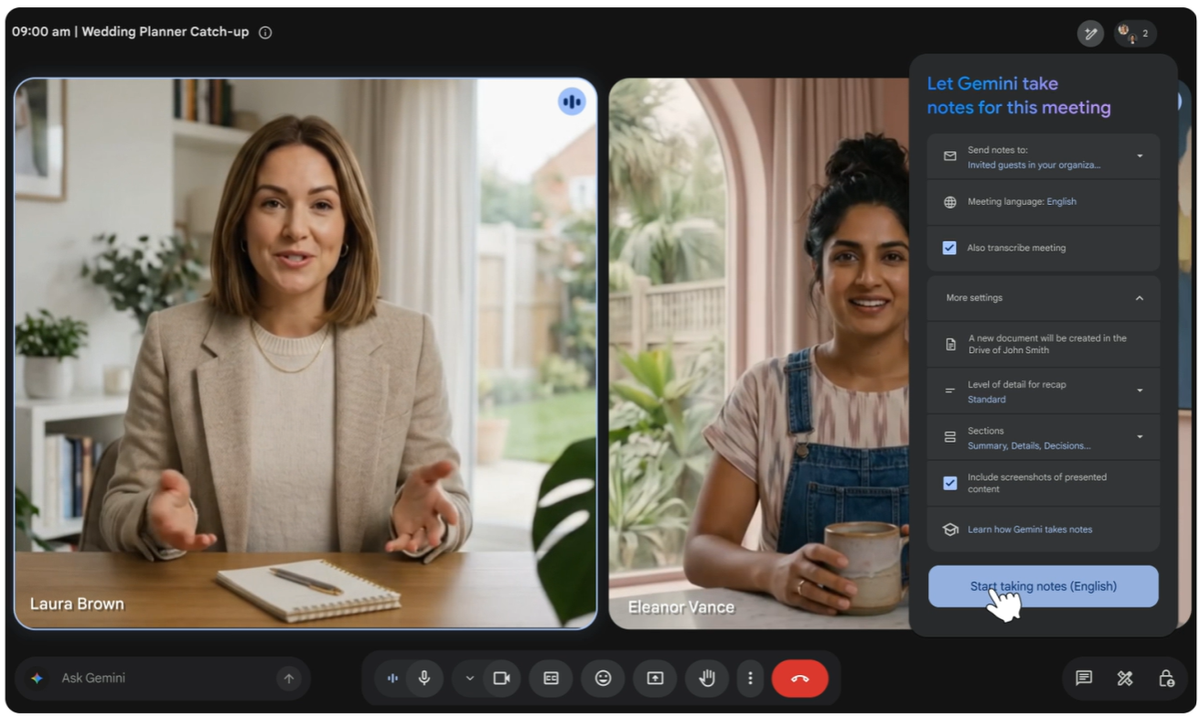
You can turn off "Take notes for me" (se abre en una pestaña nueva) in three places: the meeting itself, your personal Meet settings, or your calendar. Each covers a different scope, from one meeting to all meetings you host.
During the call
Any internal participant can stop notes once they have started. Click the "Take notes for me" icon at the top of the screen, then stop it. If host controls are turned on, only the host or co-hosts can start or stop the feature.
Default for meetings you host
You can turn this off for every future meeting you organize. Go to meet.google.com (se abre en una pestaña nueva), open Settings, then Meeting records. Under "Automatic note taking for all future meetings," select Off.
From the calendar event

Edit the event, add Google Meet if it is not already attached, and open Video call options. Click Meeting records, then uncheck "Take notes with Gemini."
How Admins Control Ask Gemini and “Take Notes for Me”, Org-Wide
Admins manage Ask Gemini and “Take notes for me” from the same place in the Admin console, but as separate settings.
To turn off Ask Gemini:
- Go to admin.google.com (se abre en una pestaña nueva), then click Menu > Apps > Google Workspace > Google Meet.
- Optional: select an organizational unit or group to limit the change to certain teams.
- Click Gemini Settings and select the off option.
- Click Save.
To turn off “Take notes for me”:
- Go to admin.google.com (se abre en una pestaña nueva), then click Menu > Apps > Google Workspace > Google Meet.
- Optional: select an organizational unit or group to limit the change to certain teams.
- Click Gemini Settings, then click Google AI note-taking.
- Uncheck "Let people use Google AI note-taking in meetings."
- Click Save.
Plan eligibility matters here too, since not every Workspace edition includes these Gemini features. If you are unsure whether your organization even has the free tier of Gemini (se abre en una pestaña nueva) versus a paid plan, it is worth checking before assuming a setting is missing.
Changes can take up to 24 hours to apply, though they usually happen faster.
💡 Pro tip: Tactiq (se abre en una pestaña nueva) skips this admin maze entirely. It works from a Chrome extension on any account, so teams do not need Workspace plan eligibility or admin configuration to get a live transcript.
Who Can Turn Off Gemini: Participants' Options
Not everyone in a meeting has host or admin access, but non-hosts still have some control over Gemini.
- Ask Gemini: A participant cannot turn it off for the whole meeting. They can ask the host to disable it, or turn off their own smart features so they personally cannot use it. Disabling smart features only stops that one person from prompting Ask Gemini.
- Take notes for me: Any internal participant can start or stop it, unless the host has turned on host controls. When host controls are active, only the host and co-hosts can start or stop note-taking.
Participants who want a more consistent record of a meeting are not limited to these built-in controls.
Tactiq: Live Meeting Transcription That Works Across Any Platform
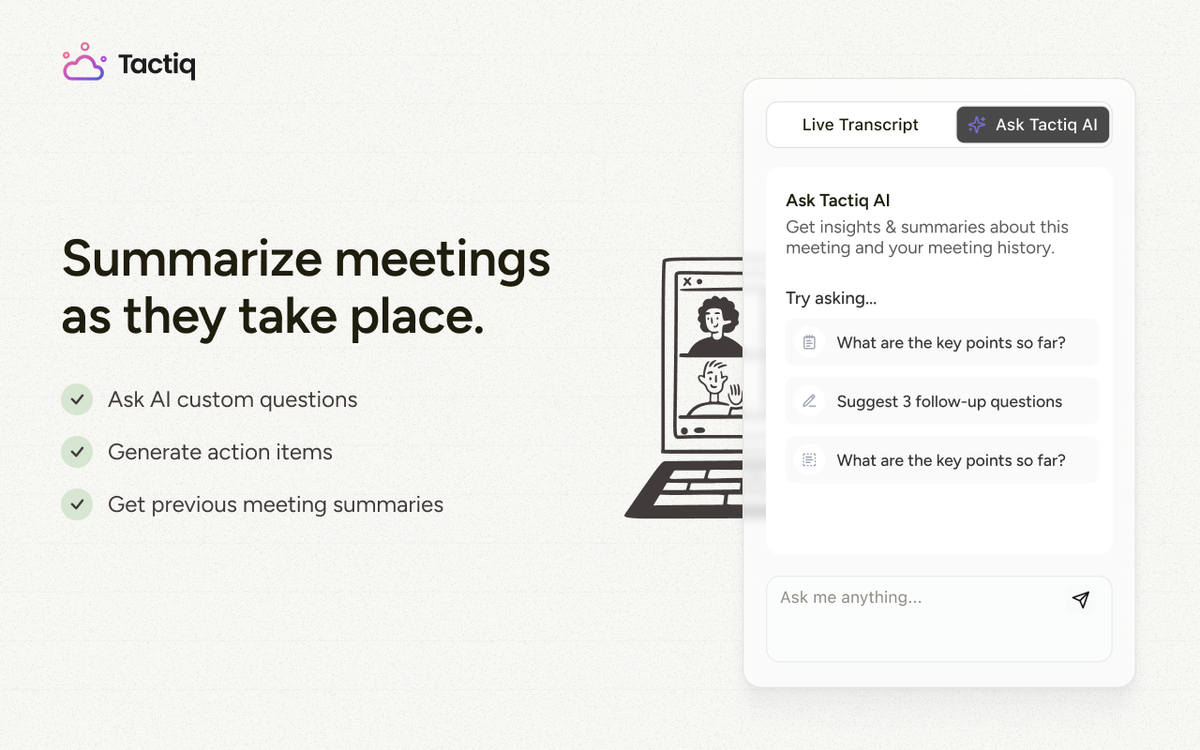
Tactiq (se abre en una pestaña nueva) is a Chrome extension that captures a live, real-time transcript as your meeting happens, then turns it into an AI summary once the call ends.
Unlike “Take notes for me”, which only shows a pencil icon and a static "Summary so far" for anyone joining late, Tactiq's transcript builds visibly in its own window the whole time.
- No plan eligibility required. “Take notes for me” needs a paid Google AI or Workspace plan. Tactiq works on any Google account, free or paid.
- Works across platforms. Tactiq covers Google Meet, Zoom, and Microsoft Teams, so the same tool follows you between them.
- Visible while it happens. Puedes ver cómo se genera la transcripción en tiempo real, por lo que cualquier interrupción o fallo en la captura se detecta al instante en lugar de descubrirlo después de la llamada.
- Resumen automático. Al finalizar la reunión, Tactiq genera un resumen con los puntos clave y las tareas pendientes a partir de la transcripción.
Para los equipos que desean enviar la información de sus reuniones a otras herramientas, el servidor MCP de Tactiq (se abre en una pestaña nueva) conecta las transcripciones directamente con asistentes de IA como Claude o ChatGPT.
Get live transcriptions without an AI bot joining the meeting.
Prueba Tactiq para tu próxima reunión.
Desactivar Ask Gemini o "Tomar notas por mí"
Ask Gemini y "Tomar notas por mí" requieren desactivarse por separado. Los organizadores pueden inhabilitar cualquiera de las dos desde una llamada o un evento del calendario, y los administradores pueden desactivar ambas para toda la organización desde un único menú de configuración.
Los equipos suelen desactivar estas funciones por motivos de privacidad con invitados externos o por la frustración que genera que el documento de notas nunca aparezca. Para obtener una visión más amplia de otras herramientas de IA, este resumen de alternativas a la toma de notas con IA en Google Meet (se abre en una pestaña nueva) merece la pena.
FAQ
Your questions, answered.
If you have any further questions, Get in touch (se abre en una pestaña nueva) with our friendly team
¿Cómo desactivo Google Gemini en Google Meet?
¿Cuál es la diferencia entre Ask Gemini y "Tomar notas por mí"?
¿Cómo pueden los administradores desactivar Ask Gemini y la toma de notas automática para toda la organización?
¿Por qué Google Meet indica que se están tomando notas pero la transcripción aparece vacía?
¿Existe alguna alternativa a la toma de notas de Google Meet que funcione sin un plan de Workspace?
Artículos relacionados

Memoria de Claude: Cómo importar y gestionar tu contexto de IA

Conectores de Claude Cowork: automatiza el trabajo recurrente

Compatibilidad de Google Gemini con MCP: dónde funciona y consejos de configuración

Las mejores habilidades de Claude: nuestras recomendaciones para reuniones, contenido y código

Los 5 mejores asistentes de programación con IA

MCP de Microsoft Teams: cómo acceder al contenido de las reuniones con IA

Asistentes de IA para notas de reuniones con conector Claude: las 6 mejores opciones

¿Qué modelo de Claude es mejor para escribir e investigar?
Descubra las herramientas
- IA transcriptions generator
- Automatización de reuniones con IA para Zoom
- Automatización de reuniones con IA para Microsoft Teams
- Automatización de reuniones con IA para Google Meet
- Reuniones automatizadas con IA
- Creador de flujos de trabajo con IA para reuniones de Microsoft Teams
- Creador de flujos de trabajo con IA para reuniones de Zoom
- Creador de flujos de trabajo con IA para reuniones de Google Meet
¿Quiere disfrutar de la comodidad de los resúmenes de IA?
Prueba Tactiq para tu próxima reunión.
Incorporar la IA a sus reuniones nunca había sido tan fácil.
Añádelo a Chrome: ¡es gratis!(se abre en una pestaña nueva)Probar Tactiq en tu próxima reunión!
Regístrate ahora