
Translate YouTube Videos with These Simple Steps
February 20, 2025
February 20, 2025
June 6, 2025
June 6, 2025

Ever wondered how to watch YouTube videos in a language you understand? Translating videos you watch can help you break language barriers and fully engage with content from around the world.
In this article, you’ll learn how to translate YouTube videos and comments, so you don’t miss out on valuable insights.
How to Auto-Translate YouTube Videos
- Open the YouTube video you want to translate.
- Click the “CC” button to enable automatic captions in the video's original language. Not all videos have closed captions. Ensure the "CC" button is visible and clickable.
- Click the gear icon (Settings) next to the "CC" button. Click the "Subtitles/CC" option.
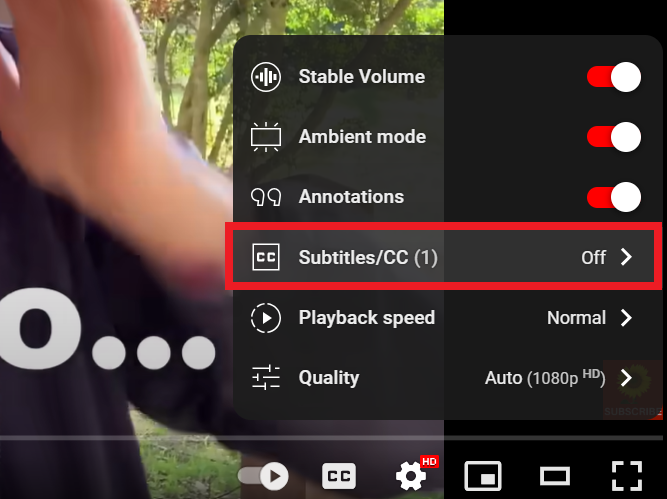
- Click on "Auto-translate" from the list that appears. A list of available languages will be displayed after selecting "Auto-translate". Scroll through the list and choose the language you want the subtitles translated into.
- Once you have chosen your desired language, the YouTube subtitles will automatically translate in real time.
- If the subtitles are not appearing correctly, you may need to revisit the settings and ensure everything is selected correctly.
Quick Tips:
- Customize the font size, color, and background of subtitles by revisiting the "Options" under "Subtitles/CC".
- When you watch YouTube videos, switch to full-screen mode to make subtitles more readable.
Translating YouTube Comments
Translating on Mobile Devices
- Open the YouTube app on your mobile device.
- After selecting a video, scroll down to locate the comments section beneath the video description and suggested videos.
- Directly below each comment written in a foreign language, you should see an option that says "Translate to English."
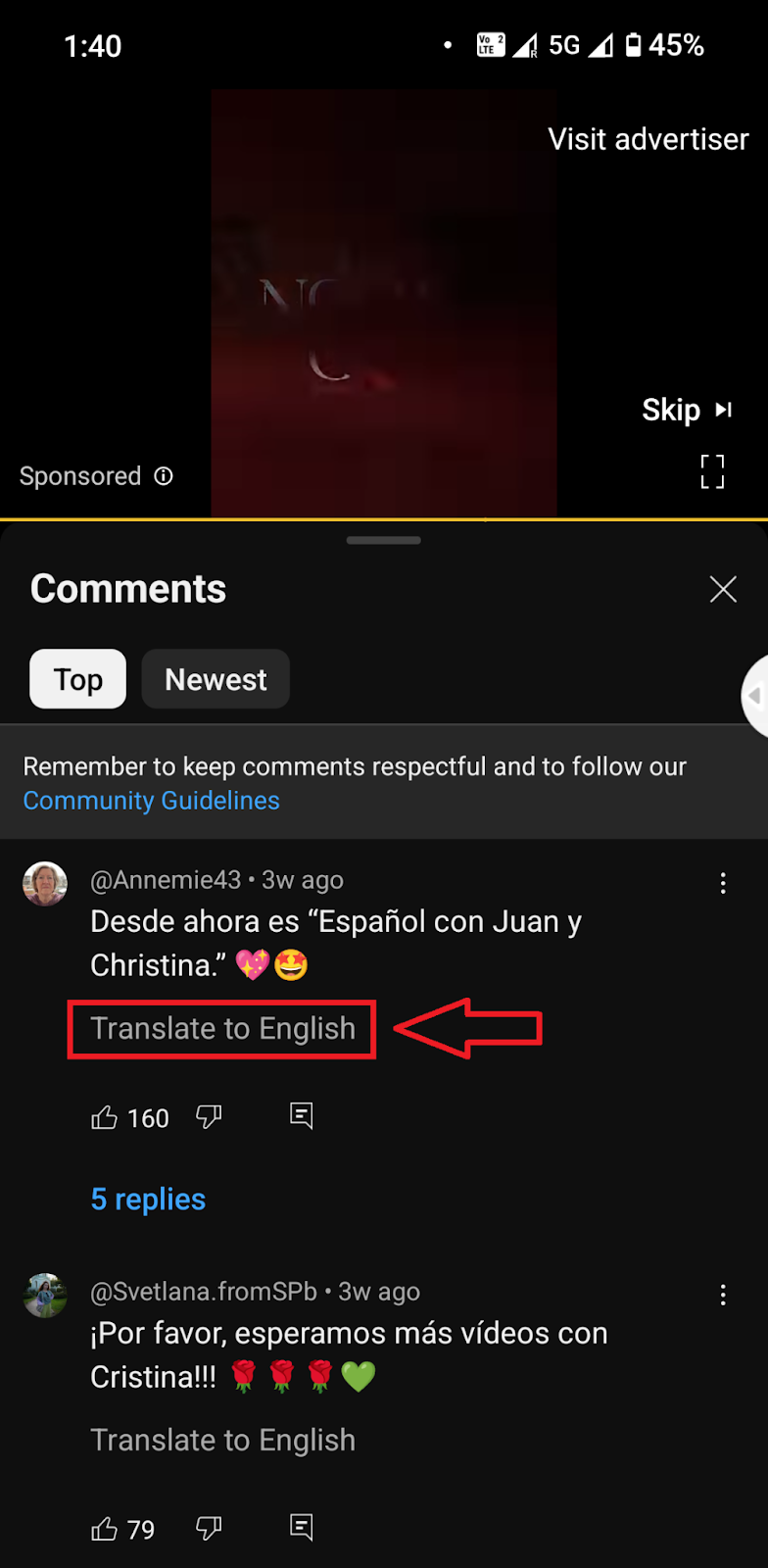
- Click on "Translate to English" to translate the comment into English automatically.
- If you need to revert to the original language, tap "See Original" to switch back.
Translating on Desktop
- Open the YouTube desktop site.
- After selecting a video, scroll down to locate the comments section beneath the video description and suggested videos.
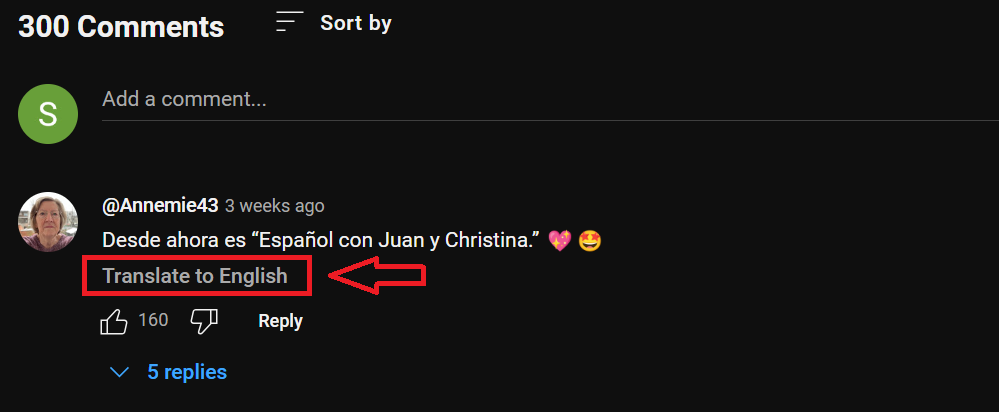
- Directly below each comment written in a foreign language, you should see an option that says "Translate to English."
- Click on "Translate to English" to automatically translate the comment into English.
- If you need to revert to the original language, tap "See Original" to switch back.
{{rt_cta_ai-convenience}}
Generate YouTube Transcripts Instantly with Tactiq's Free Tool
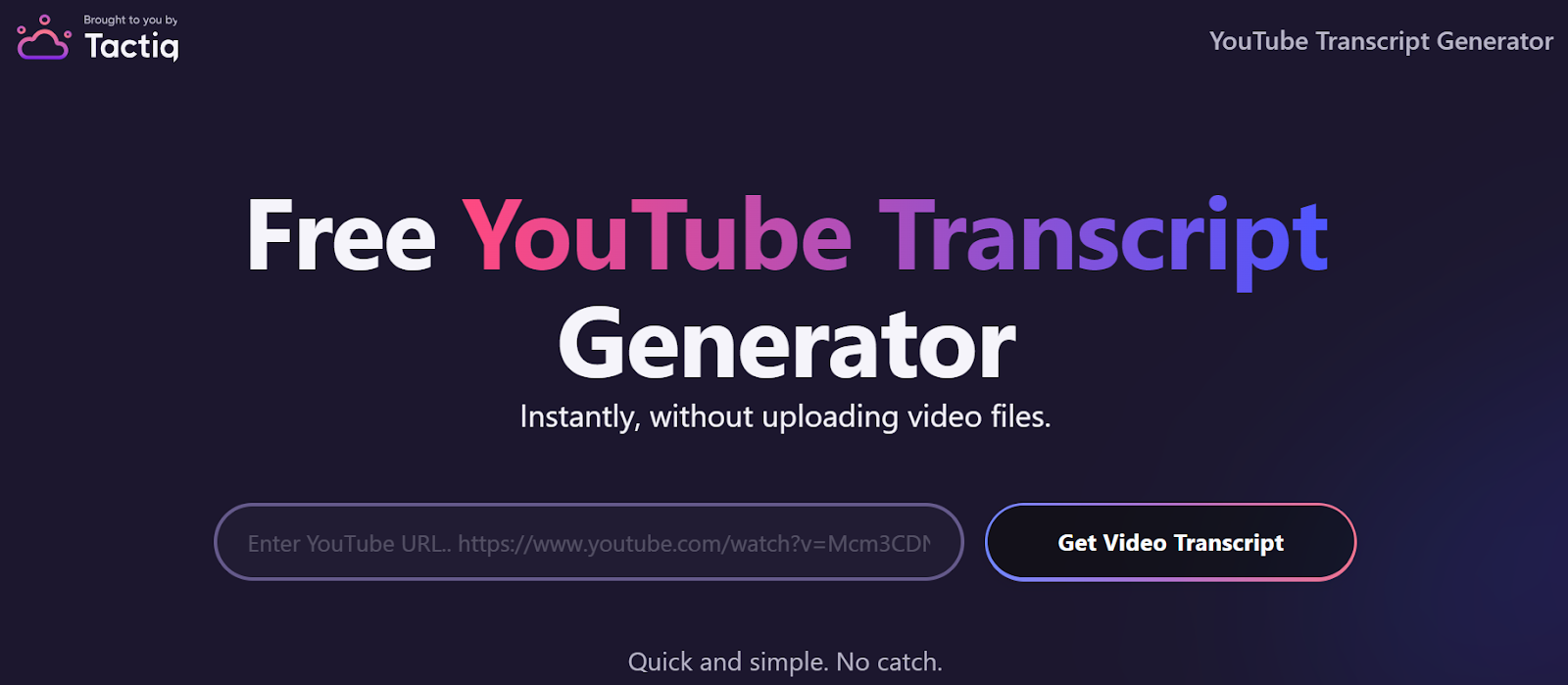
Tactiq offers a free YouTube Transcript Generator that allows you to instantly generate a transcript by entering a YouTube video link. This tool is perfect if you’re looking to translate video content easily.
- Paste the YouTube video link, and Tactiq generates a transcript immediately.
- You can also use Tactiq to automatically transcribe meetings on popular platforms like Zoom, MS Teams, and Google Meet.
- Tactiq also supports audio and video file uploads, allowing you to transcribe various media. After uploading, Tactiq’s AI can summarize these transcripts and even translate them in just a few clicks.
With Tactiq, you can easily create accessible, multilingual video content for a global audience. Download the free Tactiq Chrome Extension today!



便利なAIサマリーが欲しいですか?
次回のミーティングで Tactiq をお試しください。
便利なAIサマリーが欲しいですか?
次回のミーティングで Tactiq をお試しください。
便利なAIサマリーが欲しいですか?
次回のミーティングで Tactiq をお試しください。