
VTT File Transcripts: Open, Edit & Use AI Summaries
February 20, 2025
February 20, 2025
September 20, 2025
September 20, 2025

Remote workers usually get VTT files after video conferences. These files contain meeting transcripts, but many people don't know what to do with them.
VTT files store meeting conversations with precise timing. You can open VTT files using various tools, edit them for better formatting, and convert them to plain text.
In this article, we'll dive into what a VTT file is, how it differs from other subtitle file formats like SRT, and most importantly, how to open and use these files to enhance your work processes.
What is a VTT File Format?
VTT, or Web Video Text Tracks, is a file format commonly used for storing subtitles or captions for video content. A VTT file is often considered a transcript of online meetings or webinars.
Recording a session on platforms like Zoom or Microsoft Teams generates the VTT file as a separate document. This file contains the spoken text and timing information to ensure the text aligns accurately with the video.
VTT files help review key points from meetings, making content accessible for team members with hearing disabilities, or simply keeping a searchable record of discussions.
Here's an example of how VTT subtitles are structured in a file:
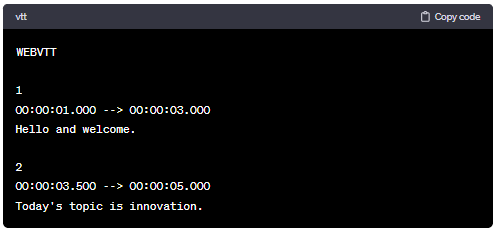
In this example:
- Each block starts with a sequential number (e.g., 1, 2, 3...).
- The timestamps in the format (hh:mm:ss.mmm) indicate when the text should appear and disappear in the video.
- The text below the timestamps is the caption or subtitle corresponding to that specific time in the video file.
- This format is widely supported by video players and editing software.
💡 Pro tip: Skip manual VTT file management entirely. Tactiq automatically transcribes your meetings across Google Meet, Zoom, and Teams, giving you searchable transcripts and AI summaries without handling separate files.
VTT Files vs SRT Files
VTT and SRT (SubRip Subtitle) files have a similar purpose. But SRT files are simpler, containing just the text and timing information.
On the other hand, VTT files support richer formatting options, like bold or italic text, and can include metadata like speaker identification or scene descriptions. Understanding these differences is essential because it affects how you use and edit these files based on your needs.
How to Open VTT Files
You can open VTT files using several methods and tools. Here are the most effective ways:
How to open VTT files in Word

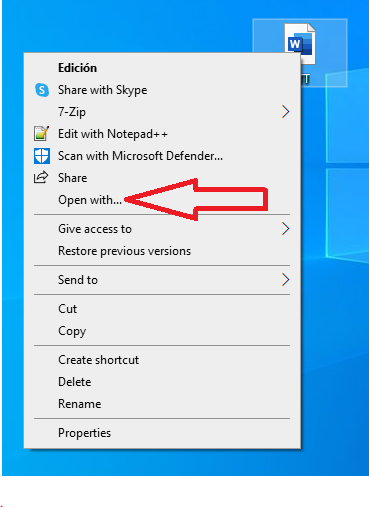
Right-click your VTT file and select "Open with." Choose Microsoft Word from the list. The file displays both text content and timing information in a readable format.
How to open VTT files on a MacBook (Notepad, Pages, TextEdit)
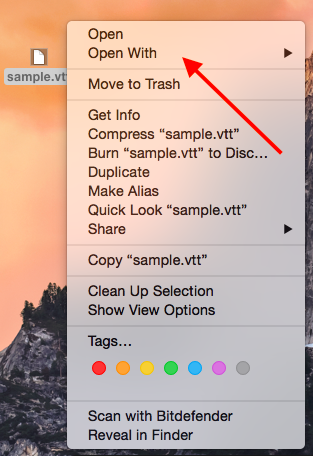
Mac users can easily open VTT files with built-in applications. Right-click the VTT file and select "Open with." Choose TextEdit, Pages, or Notepad. If these options don't appear, click "Other" and locate your preferred text editor.
Using VLC Media Player
VLC Media Player opens VTT files and syncs them with corresponding videos. This method works well when you want to see subtitles alongside video content.
How to Convert VTT Files to Text or PDF Using Tactiq
An AI tool like Tactiq offers the simplest way to convert VTT files:
- Sign up for a free Tactiq account.
- Go to your Transcripts page.
- Click "Upload Transcript or Recording" in the upper right corner.
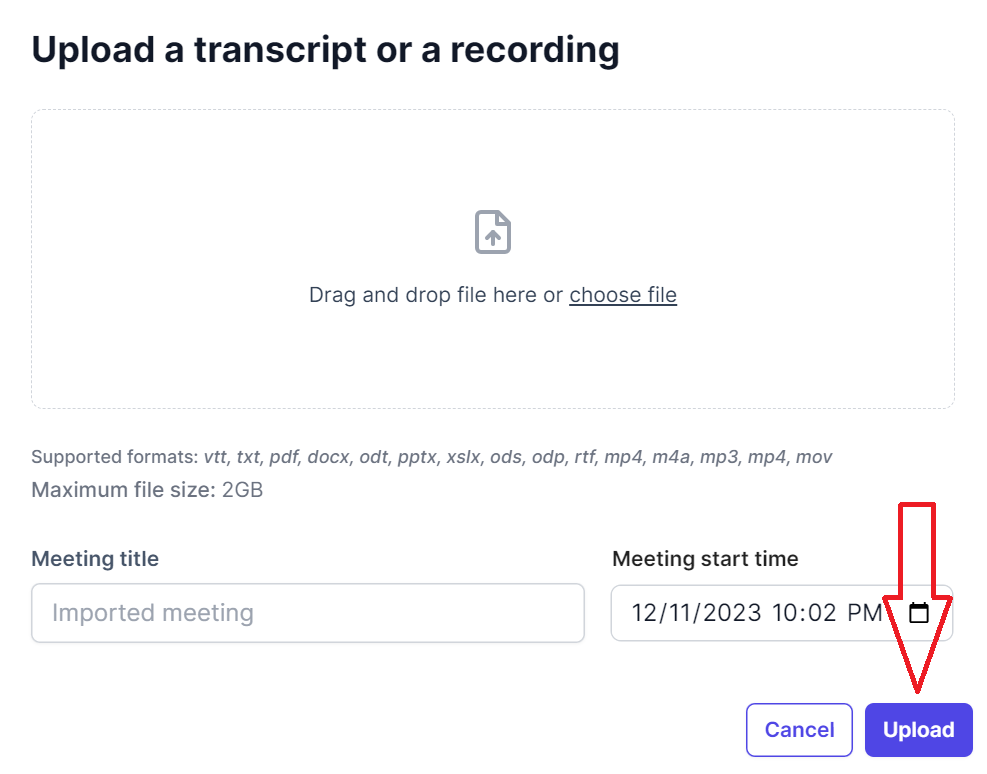
- Drag and drop your VTT file or click "Choose file."
- Click "Upload" after selecting your file.
- Select your transcript from the list.
- Click “Export” on the upper right, then select TXT or PDF. The file will automatically download to your computer.
Want to skip VTT file handling altogether? Learn how to get live transcripts directly during your meetings. Check out our guides on getting Zoom transcripts and Microsoft Teams transcription to capture conversations in real-time without waiting for post-meeting files.
How to Open VTT Files On Google Docs through Tactiq
Once you have uploaded your VTT file to Tactiq, files and export it to Google Drive. Here’s how:
- Log in to Tactiq and go to your Transcripts page.
- Select a transcript.
- Click “Share” on the upper right and select Google Drive.
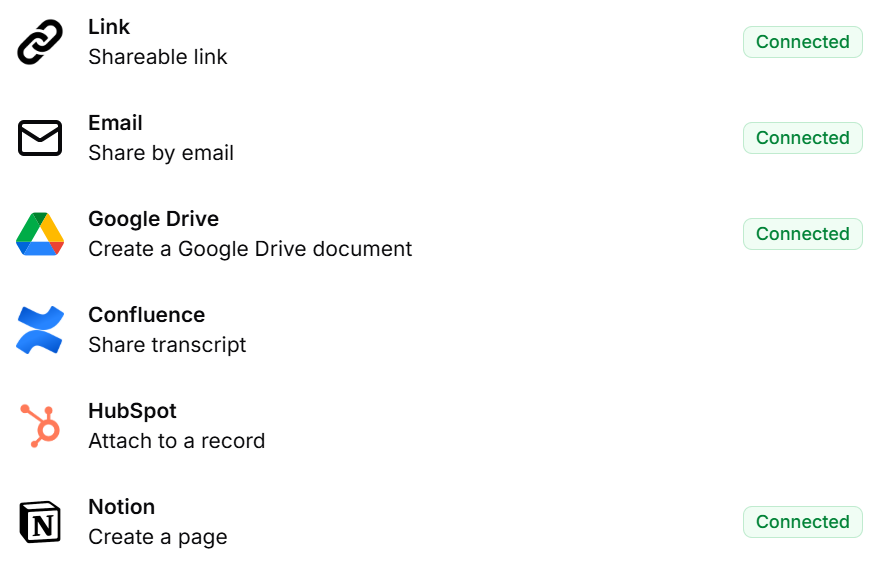
- The link will be saved to your clipboard.
- Paste the link to your browser’s address bar.
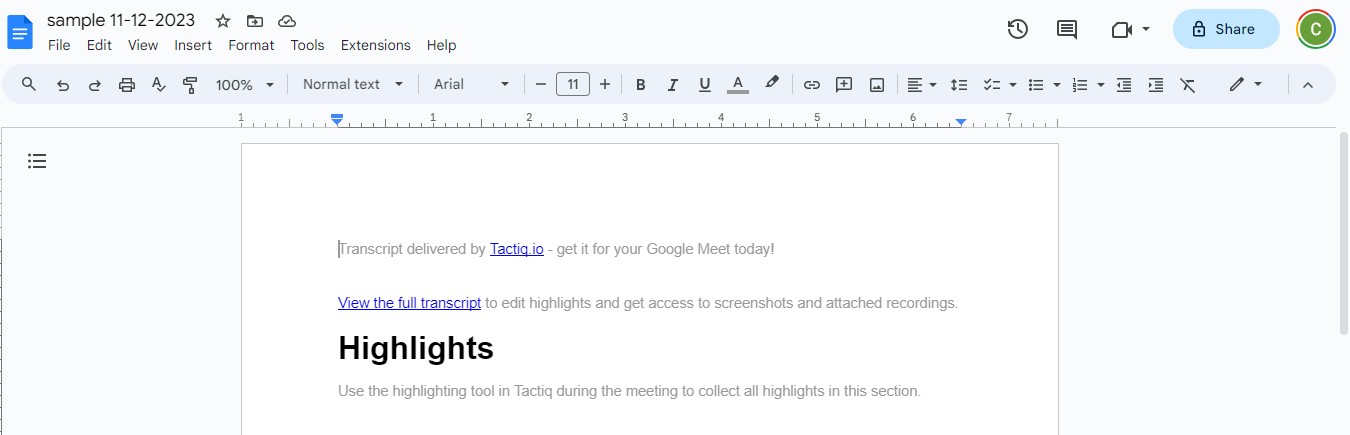
- Press “Enter” to view the VTT file on Google Docs.
How to Get a Summary from VTT Files with Tactiq
VTT files often contain lengthy meeting transcripts. Extracting key points manually takes time and effort. AI-powered summarization makes this process faster and more accurate.
Tactiq's AI summarization transforms your VTT files into actionable insights:
- Sign up for a free Tactiq account.
- Go to your Transcripts page.
- Click "Upload Transcript or Recording" in the upper right corner.
- Drag and drop your VTT file or click "Choose file."
- Click "Upload" after selecting your file.
- Select your transcript from the list.
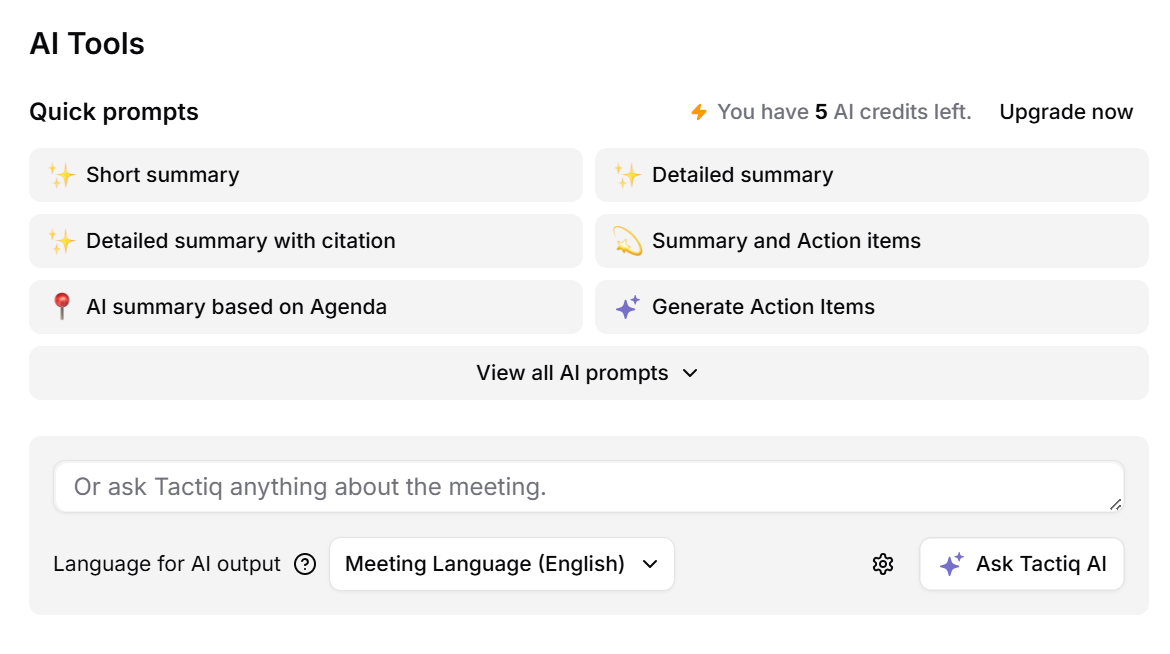
- Select a quick AI prompt, or type your own in the text box.
Example custom prompts you can type in Tactiq:
- "Create follow-up email for attendees."
- "List all questions raised during the discussion."
- "Identify project risks mentioned in the meeting."
- "Extract key decisions and who made them."
- "Summarize technical discussions for non-technical stakeholders."
- "Create meeting notes in bullet point format."
Tactiq's AI analyzes your entire VTT file and identifies the most important discussion points, decisions, and outcomes. This saves hours of manual review while ensuring you don't miss critical information.
With AI Workflows, you can also export these summaries directly to your productivity tools like Google Docs, Slack, or Notion for easy sharing with your team.
{{rt_cta_ai-convenience}}
Editing VTT Files: Tips and Best Practices
Editing VTT files improves subtitle accuracy and readability. Here are the best practices to ensure professional results.
- Understanding the VTT file format: VTT files include timestamps and text blocks. Understanding this structure helps maintain proper synchronization with video content.
- Sync with accuracy: Ensure subtitles match precisely with audio timing. Incorrect timestamps confuse viewers when text appears too early or too late.
- Keep subtitles concise: Subtitles should be brief and easy to read. Long sentences become difficult to follow in the short display time.
- Use proper grammar and punctuation: Clear grammar improves readability and comprehension. Correct punctuation helps convey tone and natural speech pauses.
- Maintain consistent styling: Use uniform formatting throughout your VTT files. Keep font choices, sizes, and colors consistent when applicable.
- Include essential sounds: Add important non-speech elements like sound effects or music cues when they're crucial to understanding.
- Choose the right editing tools: Select appropriate software for your VTT file editing needs. Basic text editors work for simple changes, while advanced subtitle editors offer timing adjustment features.
- Test and review: Always review edited VTT files with the corresponding video file. This ensures subtitles display correctly and maintain proper timing.
Opening VTT Files Made Easy
Understanding VTT files helps you make the most of your meeting recordings and video content. You can open VTT files using various tools. Converting these files to plain text makes them easier to read and search.
With AI-powered tools like Tactiq, you can transform VTT files into actionable insights. Generate summaries, extract action items, and create follow-up content automatically. This saves time while ensuring you capture every important detail from your meetings.
Try Tactiq for free to automatically transcribe and summarize your meetings without dealing with VTT files.
FAQs About VTT Files Transcripts
What is a VTT file and why should you care about it?
A VTT file stores subtitles and captions for video content. These files are generated during online meetings on Zoom and Teams. VTT files help you review meeting highlights, make content accessible, and create searchable discussion records.
How can you open a VTT file on your computer?
Right-click the VTT file and select "Open with Microsoft Word" on Windows. On Mac, use TextEdit, Pages, or Notepad. You can also use basic text editors, VLC Media Player, or online tools to view VTT file content easily.
What are the main differences between VTT and SRT subtitle files?
VTT files support advanced formatting like bold text and speaker identification. SRT files are simpler with basic text and timing only. VTT files work better for web videos while SRT files offer maximum compatibility across video players.
Can you convert VTT files to plain text format?
Yes, convert VTT files by removing timestamps and formatting. Tactiq offers the easiest method - upload your VTT file and use AI tools to generate clean summaries and formatted text. You can also manually edit VTT files in text editors.
How do you get AI summaries from VTT files?
Upload your VTT file to Tactiq and use AI summarization features. Select quick prompts or type custom requests like "Create follow-up email." Tactiq's AI analyzes the transcript and provides comprehensive responses based on your needs.


便利なAIサマリーが欲しいですか?
次回のミーティングで Tactiq をお試しください。
便利なAIサマリーが欲しいですか?
次回のミーティングで Tactiq をお試しください。
便利なAIサマリーが欲しいですか?
次回のミーティングで Tactiq をお試しください。